

About Microsoft Teams Integration
The Microsoft Teams integration in Iru Endpoint lets you receive Iru Agent and system notifications directly in Microsoft Teams channels.How It Works
Integrate Microsoft Teams with Iru Endpoint to receive Iru Agent and Iru Endpoint system notifications in public and private Teams channels. For more information about alerts, see Global Alerts.Creating a New Teams Integration
The administrative account used to authenticate with Microsoft must be an owner or member of every team and channel that you add to the integration and must have a license that includes Microsoft Teams.
1
Open Integrations
In the sidebar, select the Account Menu Button, then select Integrations.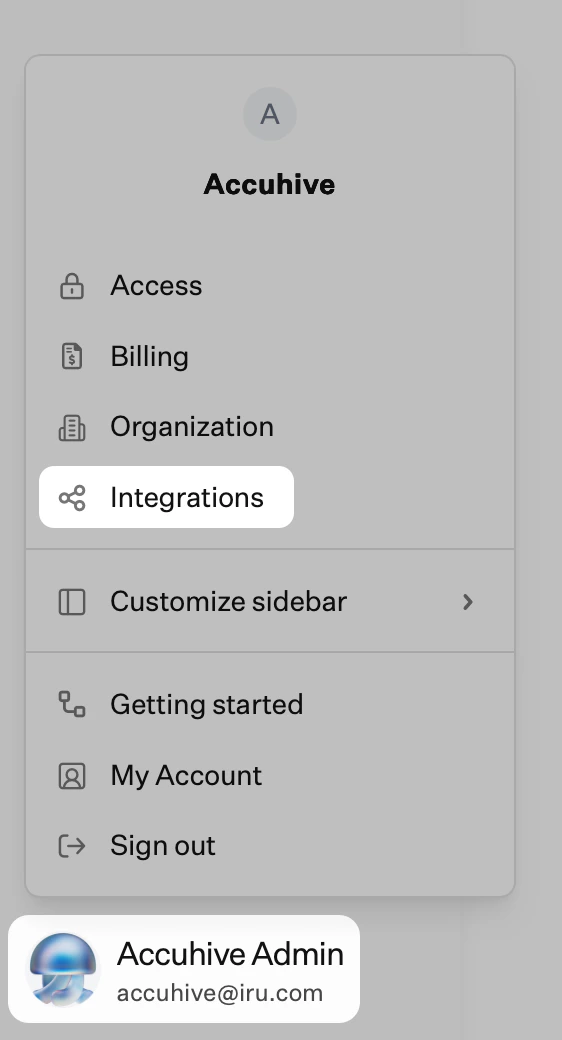
2
Browse all integrations
Select Browse all integrations in the upper-right of the Integrations page.
3
Select Microsoft Teams
Select the Microsoft Teams tile.
4
Start Setup
In the Welcome to Teams modal, select Get started.
5
Sign in with Microsoft
In the Sign in with Microsoft Teams modal, select Sign in with Microsoft.
6
Approve Permissions
In the web browser, enter Microsoft admin credentials and select yes to approve the application permissions.
7
Choose Setup Option
Once the connection is established, you will be redirected back to the Teams integration, where you can Create event notifications or choose to set up event notifications later. If you choose to Set this up later, you will be taken back to the Teams integration details page.
8
Select Team and Channels
In the Team & channels modal, select a Team and specify one or more channels where notifications should be sent and select Next.
9
Configure Event Triggers
In the Set up event notifications modal, toggle the events that should trigger a notification and select Next. Event triggers can be edited later from the Teams integration details page.
10
Name Event Notification
In the Event notification details modal, enter a name to describe the event notification and select Next.
11
Test Notification
In the Test notification modal, you can choose to Send a test notification or select Done to complete the setup. The test message should be delivered to the Teams channel(s) selected earlier.
12
View Integration Details
Once back at the Teams integration details page, you can see the new notification you created along with the Team, selected Channels, and the number of Event triggers chosen.
Adding Additional Teams Event Notifications
Once the initial integration setup is complete, additional notifications can be added from the Microsoft Teams integration overview page.1
Access Integration Details
From the Microsoft Teams integration details page, select Add event notification.
2
Configure New Notification
Once the Add event notification drawer appears, select a Team and Channel, give the notification a name, select desired Triggers for the new notification, and select Done. The Team must be selected before the related Channels will be available as a selection.
Editing a Notification
1
Access Notification Menu
To edit a Teams notification, select the contextual menu (…) to the right of the notification and select Edit event notification.
2
Edit Notification
From there, the notification drawer will appear, where you can make changes to the notification. Make sure to select Done to save your edits.
Deleting an Integration or Notification
Deleting Entire Integration
1
Access Integration Menu
Select the contextual menu (…) in the upper right-hand corner to delete the entire Teams integration and select Delete integration.
2
Confirm Deletion
From there, a confirmation modal will appear, displaying what will be removed once the Delete button is selected.
Deleting Individual Notification
1
Access Notification Menu
To delete an individual notification, select the contextual menu (…) to the right of the notification and select Delete event notification.
2
Confirm Deletion
A confirmation modal will appear, asking you to confirm the action by selecting the Delete button.
Considerations
Administrative requirements
The administrative account used to authenticate with Microsoft must be an owner or member of every team and channel that you add to the integration and must have a license that includes Microsoft Teams.
Channel access
To send notifications to private Teams channels, ensure the Iru Endpoint bot has been added to those channels with appropriate permissions.
Event triggers
Event triggers can be edited after initial setup from the Teams integration details page. You can modify which events trigger notifications without recreating the integration.
Deletion
Deletion of integrations or notifications is permanent and cannot be reversed. Ensure you have backups of any important notification configurations before deletion.
Testing
Always use the test notification feature to verify that notifications are being delivered to the correct Teams channels before relying on the integration for production monitoring.