

This guide applies to Windows computers
App updates in the Iru system tray
When updates have not finished installing, those apps appear in the Updates section of the Iru system tray app. The list includes only apps with outstanding updates. Apps that already updated successfully do not appear. Each row shows:- App name and the version available
- Time remaining before the update is enforced automatically (Auto-install in N days)
- An Update button to start that install
- Status indicators as the install progresses
Update one app
Select Update next to an app to start that install. If the app is open, you see the close-app dialog and can close the app to proceed or Cancel to return to the list. Cancel does not remove the app from the tray; it stays listed until the update completes. Only one install runs at a time. If you select Update on several apps, they queue in the order you selected and install one after another.Update all apps
Select Update All to queue every pending update and install them one at a time from the top of the list (alphabetical order). The button is disabled when every pending app is already queued. If more than one queued app is open when its turn arrives, you see the close-app dialog for each app that is still running.Background updates and tray reminders
Iru Agent also tries to install pending updates silently about every 15 minutes. If the app is not open, the update installs without a prompt. If the app is open during a background attempt, no dialog appears. The agent retries on the next cycle. The close-app dialog appears only when you select Update or Update All in the tray, not during those automatic background attempts. While updates are still pending, the tray opens on its own about every 8 hours to show the update list. In that automatic view you see pending updates only. The Self Service entry appears when you open the tray yourself. If Iru Agent installs an update silently while the tray is closed, that app no longer appears the next time you open the tray.Iru Agent runs one app installer at a time, whether you start the install from the tray or it runs in the background. That prevents installer conflicts.
When an app must close
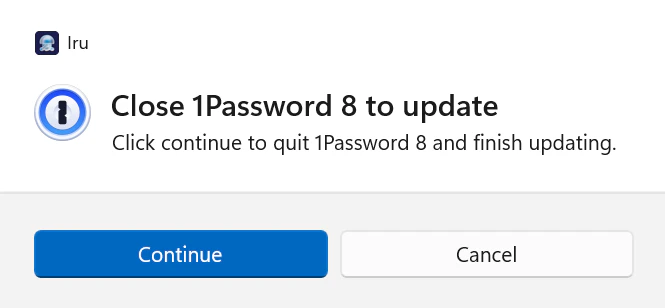
If a running app blocks an install or update you started from the tray, a prompt appears in the center of your screen. The Iru system tray app stays open next to the clock. The prompt names the app, explains why it has to close, and offers:- Continue: The listed app closes right away and the install or update completes.
- Cancel: Stops this install attempt and returns you to the tray list. Iru Agent retries silently about every 15 minutes in the background. The app remains in the Updates list until the update succeeds.
What the prompt looks like
The card header on the left starts with the Iru logomark
 Iru. Under that you’ll see the app icon, a short line about which app must close before things can continue, and Continue and Cancel along the bottom, the same choices described above.
Enforcement deadline
Your IT team can set an enforcement deadline: the date and time by which the app must be installed or updated. The tray shows how many days remain before each app auto-installs (Auto-install in N days). When the enforcement deadline arrives, the enforcement countdown takes over, not the tray close-app dialog you see when you select Update while an app is open. At the deadline, Iru Agent shows a 5-minute countdown on your screen.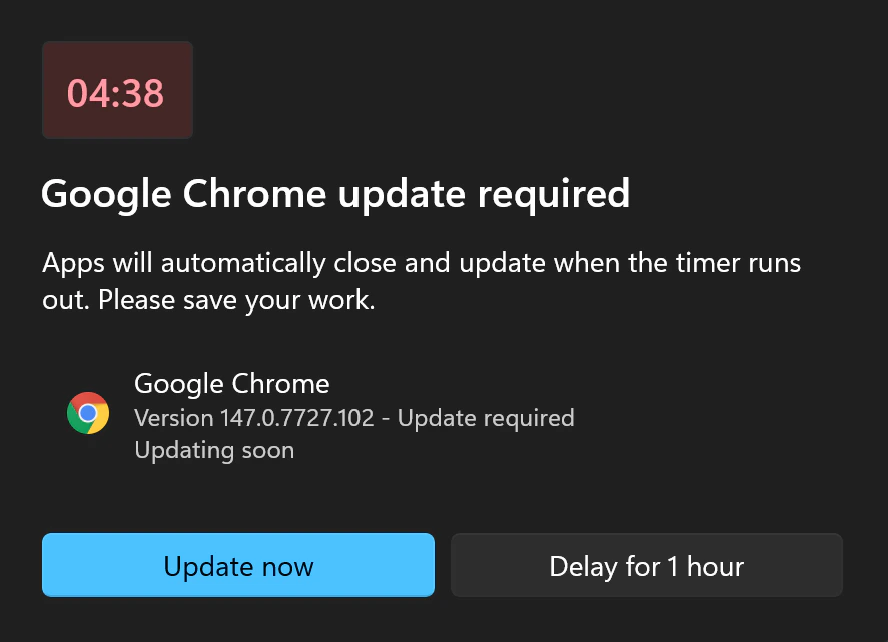
During the Countdown
You can:- Update now: Close the app immediately and let the install finish.
- Delay for 1 hour: Postpone the countdown. Iru Agent still retries in the background about every 15 minutes. If the app is still open an hour later, the countdown comes back.
Delay Limit
Across those delays you can postpone for up to 24 hours in total. Once you’ve used that time, you get one last countdown with no way to delay further. Pick Update now to close the app and finish right away. If the timer runs out with no response, the app closes on its own and the install runs.What to Do
- Use the tray Updates list to install pending Auto App or Windows Custom App updates before the enforcement deadline when it fits your schedule.
- Save your work before Continue, Update now, or the countdown ends.
- If you need more room on the clock, use Delay for 1 hour. Just keep the 24-hour limit in mind. After that, the install goes through whether you answer the prompt or not.
- If something looks wrong or you aren’t sure what to do, contact your IT team.
Related Articles
User Experience with Auto Apps
How Auto App installs and updates work on Windows and macOS
Custom Apps Overview
How Windows Custom Apps are packaged, enforced, and detected
Configure the Windows Custom App Library Item
Admin configuration for Windows Custom App deployments
User Experience with Windows Enrollment
What to expect when you enroll your Windows computer through the enrollment portal