> ## Documentation Index
> Fetch the complete documentation index at: https://docs.iru.com/llms.txt
> Use this file to discover all available pages before exploring further.
# Iru 탐색 및 인터페이스
> Iru 웹 앱 둘러보기: 상단 탐색 메뉴, 사이드바, Account Menu, 그리고 Kandji에서 전환된 후 기능이 이동한 위치를 확인하세요.
Iru 웹 앱은 상단 탐색 모음, 제품 영역별로 사용자 지정할 수 있는 왼쪽 사이드바, 테넌트 전체 설정을 위한 [Account Menu](/ko/iru/platform-overview/account-menu)를 사용합니다. 이 문서에서는 인터페이스에서 각 항목이 있는 위치를 다룹니다. 로고, 앱 이름, 기기 브랜딩에 대해서는 [Iru 브랜드 업데이트](/ko/iru/platform-overview/iru-brand-update)를 참조하세요. Kandji에서 업그레이드하는 경우 [Iru로 업그레이드](/ko/iru/platform-overview/upgrade-to-iru)를 참조하세요.
### 테넌트 도메인
업그레이드한 후 웹 앱은 `{{subdomain}}.iru.com`에 있습니다. 등록 포털은 `{{subdomain}}.iru.com/enroll`에 있습니다. 이전 Kandji 도메인(`{{subdomain}}.kandji.io`)은 Iru 도메인으로 리디렉션됩니다.
### 상단 탐색 메뉴
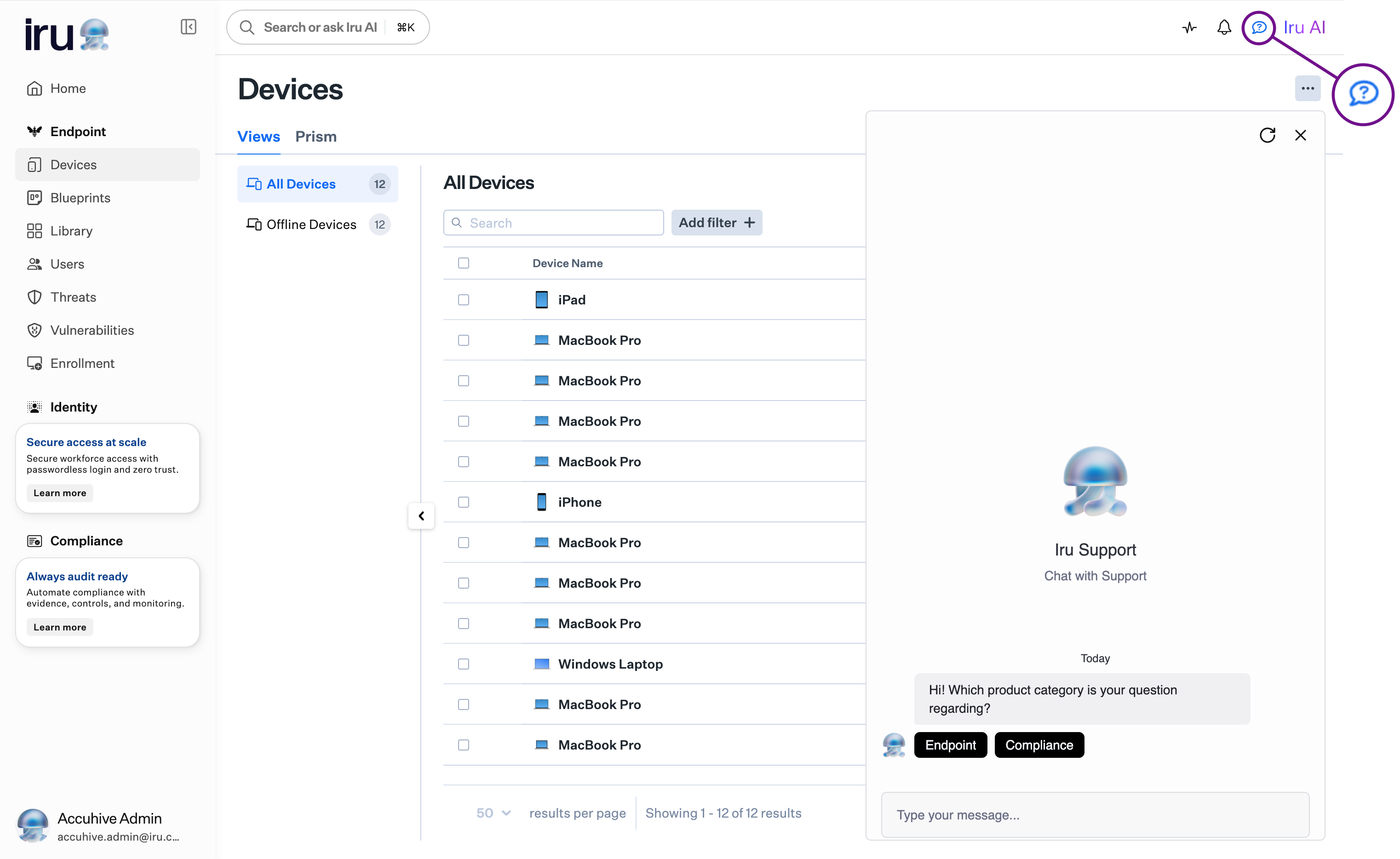
상단 탐색 모음에는 키보드 단축키(⌘K)를 지원하는 **Search or ask Iru AI**가 포함되어 있습니다. **Iru Support Chat**은 오른쪽 상단의 Iru AI 옆에 있는 채팅 말풍선 아이콘에서 사용할 수 있습니다. Support Knowledge Base는 [docs.iru.com](https://docs.iru.com)에 있습니다.
 ### 사이드바
왼쪽 사이드바에는 Endpoint, Identity, Compliance 섹션이 포함되어 있습니다.
### 사이드바 사용자 지정
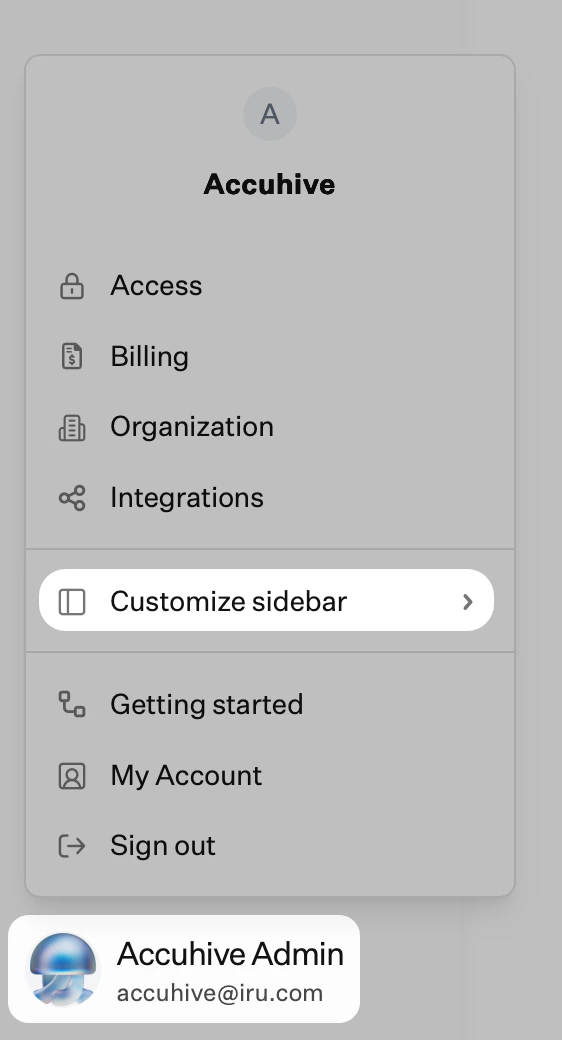
[Account Menu](/ko/iru/platform-overview/account-menu)의 **Customize sidebar**를 사용하여 Endpoint, Identity, Compliance 섹션을 숨기거나 표시합니다.
### 사이드바
왼쪽 사이드바에는 Endpoint, Identity, Compliance 섹션이 포함되어 있습니다.
### 사이드바 사용자 지정
[Account Menu](/ko/iru/platform-overview/account-menu)의 **Customize sidebar**를 사용하여 Endpoint, Identity, Compliance 섹션을 숨기거나 표시합니다.
 ### Account Menu
**액세스**, **조직**, **통합**과 같은 테넌트 전체 설정은 Account Menu에 있습니다. 왼쪽 탐색 메뉴 하단의 [**계정 메뉴 버튼**](/ko/iru/platform-overview/account-menu)을 선택하여 엽니다. 모든 메뉴 옵션은 [계정 메뉴](/ko/iru/platform-overview/account-menu)를 참조하세요.
### Access
**액세스**에서는 인증, 연결 설정, 패스키, 세션 제어, 팀원을 관리합니다. **API 토큰** 탭도 여기에서 사용할 수 있습니다. [Kandji에서 업그레이드](/ko/iru/platform-overview/upgrade-to-iru)한 후 Access 페이지에 새 구성이 표시됩니다. 연결 설정(소셜 로그인, 네이티브 SSO, SAML)과 패스키 등록을 관리합니다. Iru로의 업그레이드가 완료되면 업그레이드 카드가 사라집니다.
### Getting Started
**Getting Started**는 제품 영역별 온보딩 가이드입니다. Account Menu에서 연 다음 **Endpoint**, **Identity**, **컴플라이언스** 탭을 사용하여 할 일 또는 완료로 표시된 권장 작업을 확인하세요.
### 이동된 기능
Iru 인터페이스에서 다음 기능이 이동했습니다.
* **활동**: 오른쪽 상단 탐색 모음의 Pulse 아이콘. [Activity 페이지](/ko/endpoint/devices/activity-page)를 참조하세요. 제품 간 타임라인을 위한 \*\*[Unified Activity](/ko/iru/platform-overview/unified-activity)\*\*도 Preview로 제공됩니다.
* **알림**: 오른쪽 상단 탐색 모음의 종 아이콘. [전역 알림](/ko/endpoint/devices/global-alerts)을 참조하세요.
* **등록**: 왼쪽 탐색 메뉴의 Endpoint 메뉴 하단. 등록 설정은 [시작하기](/ko/endpoint/getting-started/getting-started)를 참조하세요.
* **조직**: [**계정 메뉴 버튼**](/ko/iru/platform-overview/account-menu) → **조직**
* **통합** 및 **Apple 플랫폼 설정**: [**계정 메뉴 버튼**](/ko/iru/platform-overview/account-menu) → **통합**. Integrations 페이지는 [SCIM 디렉터리 통합](/ko/endpoint/integrations/scim/scim-directory-integration)을, Apple 플랫폼 설정은 [Apple 통합 개요](/ko/endpoint/settings/apple-integrations/apple-integrations-overview)를 참조하세요.
* **Self Service 설정**: Library 페이지의 **Self Service Settings** 탭. [Self Service 설정](/ko/endpoint/settings/self-service/self-service-settings)을 참조하세요.
### 관련 문서
* [Iru로 업그레이드](/ko/iru/platform-overview/upgrade-to-iru): 인증 및 도메인 변경을 포함한 Kandji에서의 업그레이드.
* [Iru 브랜드 업데이트](/ko/iru/platform-overview/iru-brand-update): 관리되는 기기의 로고, 앱 이름, 브랜딩.
* [계정 메뉴](/ko/iru/platform-overview/account-menu): 사이드바 하단의 테넌트 전체 설정.
* [Unified Activity](/ko/iru/platform-overview/unified-activity): 제품 간 활동 타임라인.
### Account Menu
**액세스**, **조직**, **통합**과 같은 테넌트 전체 설정은 Account Menu에 있습니다. 왼쪽 탐색 메뉴 하단의 [**계정 메뉴 버튼**](/ko/iru/platform-overview/account-menu)을 선택하여 엽니다. 모든 메뉴 옵션은 [계정 메뉴](/ko/iru/platform-overview/account-menu)를 참조하세요.
### Access
**액세스**에서는 인증, 연결 설정, 패스키, 세션 제어, 팀원을 관리합니다. **API 토큰** 탭도 여기에서 사용할 수 있습니다. [Kandji에서 업그레이드](/ko/iru/platform-overview/upgrade-to-iru)한 후 Access 페이지에 새 구성이 표시됩니다. 연결 설정(소셜 로그인, 네이티브 SSO, SAML)과 패스키 등록을 관리합니다. Iru로의 업그레이드가 완료되면 업그레이드 카드가 사라집니다.
### Getting Started
**Getting Started**는 제품 영역별 온보딩 가이드입니다. Account Menu에서 연 다음 **Endpoint**, **Identity**, **컴플라이언스** 탭을 사용하여 할 일 또는 완료로 표시된 권장 작업을 확인하세요.
### 이동된 기능
Iru 인터페이스에서 다음 기능이 이동했습니다.
* **활동**: 오른쪽 상단 탐색 모음의 Pulse 아이콘. [Activity 페이지](/ko/endpoint/devices/activity-page)를 참조하세요. 제품 간 타임라인을 위한 \*\*[Unified Activity](/ko/iru/platform-overview/unified-activity)\*\*도 Preview로 제공됩니다.
* **알림**: 오른쪽 상단 탐색 모음의 종 아이콘. [전역 알림](/ko/endpoint/devices/global-alerts)을 참조하세요.
* **등록**: 왼쪽 탐색 메뉴의 Endpoint 메뉴 하단. 등록 설정은 [시작하기](/ko/endpoint/getting-started/getting-started)를 참조하세요.
* **조직**: [**계정 메뉴 버튼**](/ko/iru/platform-overview/account-menu) → **조직**
* **통합** 및 **Apple 플랫폼 설정**: [**계정 메뉴 버튼**](/ko/iru/platform-overview/account-menu) → **통합**. Integrations 페이지는 [SCIM 디렉터리 통합](/ko/endpoint/integrations/scim/scim-directory-integration)을, Apple 플랫폼 설정은 [Apple 통합 개요](/ko/endpoint/settings/apple-integrations/apple-integrations-overview)를 참조하세요.
* **Self Service 설정**: Library 페이지의 **Self Service Settings** 탭. [Self Service 설정](/ko/endpoint/settings/self-service/self-service-settings)을 참조하세요.
### 관련 문서
* [Iru로 업그레이드](/ko/iru/platform-overview/upgrade-to-iru): 인증 및 도메인 변경을 포함한 Kandji에서의 업그레이드.
* [Iru 브랜드 업데이트](/ko/iru/platform-overview/iru-brand-update): 관리되는 기기의 로고, 앱 이름, 브랜딩.
* [계정 메뉴](/ko/iru/platform-overview/account-menu): 사이드바 하단의 테넌트 전체 설정.
* [Unified Activity](/ko/iru/platform-overview/unified-activity): 제품 간 활동 타임라인.