> ## Documentation Index
> Fetch the complete documentation index at: https://docs.iru.com/llms.txt
> Use this file to discover all available pages before exploring further.
# Apps and Books 구성
> Iru Endpoint에서 Apple Apps and Books 통합을 구성합니다. Apple Business를 연결하여 앱 라이선스 및 할당을 관리하세요.
**Apple Business Manager**는 이제 **Apple Business**입니다. **Apple School Manager**는 변경되지 않았습니다. 자세한 내용은 [Introducing Apple Business](https://www.apple.com/newsroom/2026/03/introducing-apple-business-a-new-all-in-one-platform-for-businesses-of-all-sizes/) 및 [Apple Business Manager is now Apple Business](https://support.apple.com/guide/apple-business-manager/apple-business-manager-is-now-apple-business-axmd79d79dea/web)를 참조하세요.
Apps and Books를 구성하려면 먼저 Iru Endpoint 테넌트에서 [Apple Push Notification service](/ko/endpoint/settings/apple-integrations/configure-apple-push-notification-service)를 구성해야 합니다.
### Apps and Books 통합 정보
이전의 Volume Purchase Program(VPP)인 Apps and Books를 사용하면 조직에서 관리 대상 Apple 디바이스에 App Store 앱을 배포할 수 있습니다. 이 통합은 라이선스를 추적하며, 사용자가 각 디바이스에서 Apple Account에 로그인하지 않아도 라이선스를 회수하고 재할당할 수 있게 해 줍니다.
### 작동 방식
Apps and Books 통합은 Apps and Books 콘텐츠 토큰을 통해 Apple Business 또는 Apple School Manager 계정을 Iru Endpoint와 연결하여 작동합니다. 포털에서 앱 라이선스를 구매하고 Iru Endpoint MDM 서버에 할당하면 Iru Endpoint Library에서 Library Item으로 사용할 수 있게 되며, 자동 배포를 위해 Assignment Map에 할당할 수 있습니다.
### 사전 요구 사항
* **Apple Push Notification service**: Iru Endpoint 테넌트에서 [Apple Push Notification service](/ko/endpoint/settings/apple-integrations/configure-apple-push-notification-service)가 구성되어 있어야 합니다
* **Apple Business 또는 Apple School Manager 액세스**: 조직의 포털에 대한 관리 액세스 권한이 있는지 확인하세요
* **조직 단위 설정**: Apple Business 또는 Apple School Manager에서 Iru Endpoint 테넌트 전용 조직 단위를 생성하세요
* **Apps and Books 토큰**: Iru Endpoint 통합 전용 Apps and Books 콘텐츠 토큰을 다운로드하세요
Apps and Books의 앱을 Iru Endpoint Library에 동기화하는 방법에 대한 자세한 내용은 [Apps and Books의 앱을 Iru Endpoint에 추가](/ko/endpoint/settings/apple-integrations/add-apps-from-apps-and-books-to-iru-endpoint) 지원 문서를 참조하세요.
### Apps and Books 구성하기
Apps and Books를 사용하면 조직의 디바이스에 App Store 앱을 배포할 수 있습니다.
포털에서 동일한 Apps and Books 토큰을 여러 MDM 서버 간에 공유할 수 없습니다. Apple Business 또는 Apple School Manager에서 Iru Endpoint 테넌트 전용 [새 조직 단위를 생성](https://support.apple.com/guide/business/configure-organizational-units-axmfdbe2cb0d/web)하고 전용 Apps and Books 토큰을 사용할 것을 강력히 권장합니다.
Apple Business 또는 Apple School Manager에서 [새 조직 단위를 생성](https://support.apple.com/guide/business/configure-organizational-units-axmfdbe2cb0d/web)하세요.
사이드바에서 [**계정 메뉴 버튼**](/ko/iru/platform-overview/account-menu)을 선택한 다음 **통합**을 선택하세요.
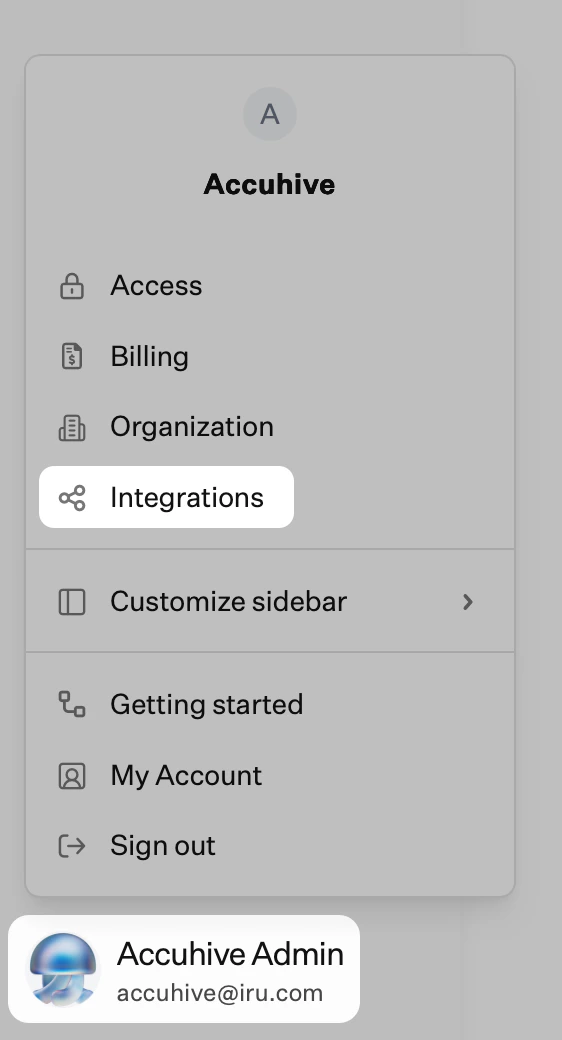 **플랫폼 통합** 아래에서 **Apple**을 선택하세요.
**Apps and Books** 아래에서 **Apps and Books 설정**을 선택하세요.
새 창에서 통합의 마지막 단계를 완료하기 위해 [Apple Business](https://support.apple.com/guide/business/welcome/web) 또는 [Apple School Manager](https://support.apple.com/guide/apple-school-manager/welcome/web)에 로그인하라는 메시지가 표시됩니다.
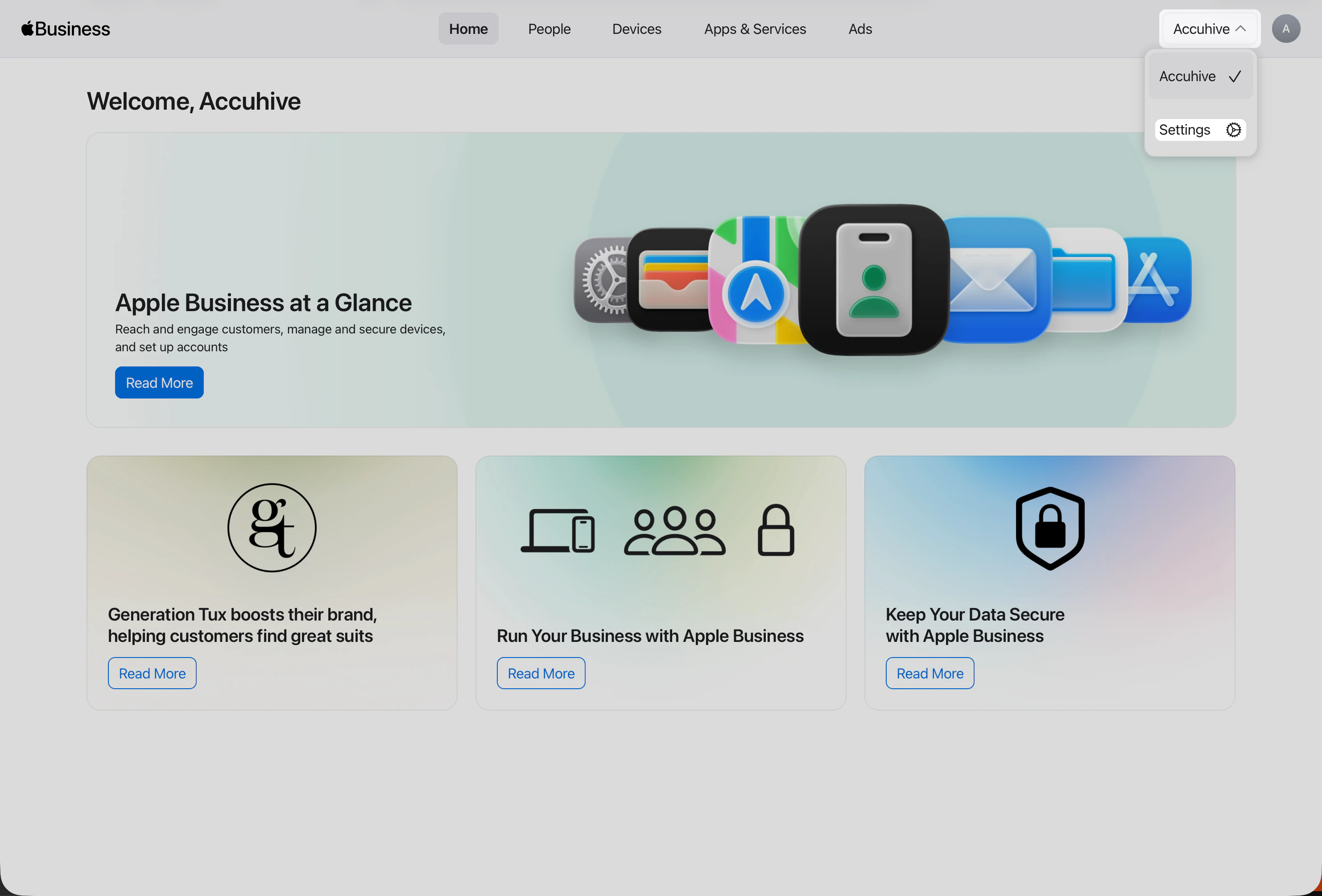
Apple Business 또는 Apple School Manager에서 페이지 오른쪽 상단의 **조직 이름**을 선택하세요.
**설정**을 선택하세요.
**플랫폼 통합** 아래에서 **Apple**을 선택하세요.
**Apps and Books** 아래에서 **Apps and Books 설정**을 선택하세요.
새 창에서 통합의 마지막 단계를 완료하기 위해 [Apple Business](https://support.apple.com/guide/business/welcome/web) 또는 [Apple School Manager](https://support.apple.com/guide/apple-school-manager/welcome/web)에 로그인하라는 메시지가 표시됩니다.
Apple Business 또는 Apple School Manager에서 페이지 오른쪽 상단의 **조직 이름**을 선택하세요.
**설정**을 선택하세요.
 **설정**을 열면 이미 **Payments & Billing** → **Apps & Books**에 있어야 합니다. 이 화면에 조직의 Apps and Books 콘텐츠 토큰이 표시됩니다.
**Content Tokens** 아래에서 Iru Endpoint와 함께 사용할 토큰 옆의 **다운로드**를 선택하세요.
**설정**을 열면 이미 **Payments & Billing** → **Apps & Books**에 있어야 합니다. 이 화면에 조직의 Apps and Books 콘텐츠 토큰이 표시됩니다.
**Content Tokens** 아래에서 Iru Endpoint와 함께 사용할 토큰 옆의 **다운로드**를 선택하세요.
 Iru Endpoint 웹 앱으로 돌아가 **토큰**을 업로드하세요.
**Apps and Books 설정 완료**를 선택하세요.
Apps and Books 통합이 완료되면 Iru Endpoint가 새 버전을 감지할 때 앱을 자동으로 업데이트할 수 있습니다.
### Apps and Books 토큰 갱신
Apps and Books 토큰은 매년 만료됩니다. 토큰이 만료되면 Iru Endpoint는 Apple Business 또는 Apple School Manager에서 App Store 앱과 라이선스를 동기화할 수 없습니다. Iru Endpoint는 토큰 만료 30일 전부터 배너를 표시합니다.
토큰은 언제든지 갱신할 수 있습니다. 토큰을 다운로드한 Apple Business 또는 Apple School Manager 계정의 암호가 변경되면 토큰이 무효화되므로 갱신해야 합니다.
사이드바에서 [**계정 메뉴 버튼**](/ko/iru/platform-overview/account-menu)을 선택한 다음 **통합**을 선택하세요.
**플랫폼 통합** 아래에서 **Apple**을 선택하세요.
**Apps and Books** 아래에서 **토큰 갱신**을 선택하세요.
화면의 지침에 따라 Apps and Books 토큰을 갱신하세요.
### Apps and Books 연결 해제
이 통합을 제거하거나 콘텐츠 토큰을 다른 조직 단위의 토큰으로 교체해야 하는 경우에만 Apps and Books의 연결을 해제하세요. 기존 토큰을 갱신하기 위해 연결을 해제하지 마세요. 대신 [Apps and Books 토큰 갱신](#renewing-your-apps-and-books-token)을 사용하세요.
Apps and Books의 연결을 해제하면 Iru Endpoint가 Apple Business 또는 Apple School Manager 계정을 통해 구매한 앱과 도서를 더 이상 관리하지 않습니다. Apps and Books를 다시 설정할 때까지 Apps and Books Library Item을 할당하거나 업데이트할 수 없습니다. 확인 팝업에서 선택적으로 라이선스를 회수하고 iPhone 및 iPad 디바이스에서 관리 대상 앱을 제거할 수 있습니다.
통합의 연결을 해제하지 않고 라이선스 할당을 해제하거나 Library에서 App Store 앱을 제거하려면 [Apps and Books 라이선스 제거](#removing-apps-and-books-licenses) 및 [Library에서 App Store 앱 제거](/ko/endpoint/settings/apple-integrations/remove-app-store-apps-from-the-library)를 참조하세요.
사이드바에서 [**계정 메뉴 버튼**](/ko/iru/platform-overview/account-menu)을 선택한 다음 **통합**을 선택하세요.
**플랫폼 통합** 아래에서 **Apple**을 선택하세요.
**Apps and Books** 아래에서 **연결 해제**를 선택하세요.
**Disconnect Apps and Books** 팝업에서 선택적으로 다음 체크박스 중 하나 또는 둘 다를 선택한 다음 **연결 해제**를 선택하세요.
* **Revoke all licenses**: Iru Endpoint가 디바이스와 연결된 기존 앱 라이선스를 회수하여 향후 사용할 수 있도록 합니다.
* **Remove all apps**: Iru Endpoint가 iPhone 및 iPad 디바이스에서 모든 관리 대상 앱의 제거를 시도합니다.
통합의 연결만 해제하려면 두 체크박스를 모두 선택 해제된 상태로 두세요.
실수로 Apps and Books의 연결을 해제한 경우 Apple 통합 페이지에서 다시 설정하고 동일한 조직 단위의 콘텐츠 토큰을 업로드하세요.
### Apple Business 또는 Apple School Manager와 Apps and Books 수동 동기화
Iru Endpoint는 주기적으로 새 앱이나 라이선스 변경 사항을 확인합니다. Iru Endpoint와 Apple Business 또는 Apple School Manager 간의 동기화를 즉시 실행해야 하는 경우 **Library Item 추가** 버튼 옆의 **App Store Apps 동기화** 버튼(이중 화살표)을 사용할 수 있습니다.
Iru Endpoint 웹 앱으로 돌아가 **토큰**을 업로드하세요.
**Apps and Books 설정 완료**를 선택하세요.
Apps and Books 통합이 완료되면 Iru Endpoint가 새 버전을 감지할 때 앱을 자동으로 업데이트할 수 있습니다.
### Apps and Books 토큰 갱신
Apps and Books 토큰은 매년 만료됩니다. 토큰이 만료되면 Iru Endpoint는 Apple Business 또는 Apple School Manager에서 App Store 앱과 라이선스를 동기화할 수 없습니다. Iru Endpoint는 토큰 만료 30일 전부터 배너를 표시합니다.
토큰은 언제든지 갱신할 수 있습니다. 토큰을 다운로드한 Apple Business 또는 Apple School Manager 계정의 암호가 변경되면 토큰이 무효화되므로 갱신해야 합니다.
사이드바에서 [**계정 메뉴 버튼**](/ko/iru/platform-overview/account-menu)을 선택한 다음 **통합**을 선택하세요.
**플랫폼 통합** 아래에서 **Apple**을 선택하세요.
**Apps and Books** 아래에서 **토큰 갱신**을 선택하세요.
화면의 지침에 따라 Apps and Books 토큰을 갱신하세요.
### Apps and Books 연결 해제
이 통합을 제거하거나 콘텐츠 토큰을 다른 조직 단위의 토큰으로 교체해야 하는 경우에만 Apps and Books의 연결을 해제하세요. 기존 토큰을 갱신하기 위해 연결을 해제하지 마세요. 대신 [Apps and Books 토큰 갱신](#renewing-your-apps-and-books-token)을 사용하세요.
Apps and Books의 연결을 해제하면 Iru Endpoint가 Apple Business 또는 Apple School Manager 계정을 통해 구매한 앱과 도서를 더 이상 관리하지 않습니다. Apps and Books를 다시 설정할 때까지 Apps and Books Library Item을 할당하거나 업데이트할 수 없습니다. 확인 팝업에서 선택적으로 라이선스를 회수하고 iPhone 및 iPad 디바이스에서 관리 대상 앱을 제거할 수 있습니다.
통합의 연결을 해제하지 않고 라이선스 할당을 해제하거나 Library에서 App Store 앱을 제거하려면 [Apps and Books 라이선스 제거](#removing-apps-and-books-licenses) 및 [Library에서 App Store 앱 제거](/ko/endpoint/settings/apple-integrations/remove-app-store-apps-from-the-library)를 참조하세요.
사이드바에서 [**계정 메뉴 버튼**](/ko/iru/platform-overview/account-menu)을 선택한 다음 **통합**을 선택하세요.
**플랫폼 통합** 아래에서 **Apple**을 선택하세요.
**Apps and Books** 아래에서 **연결 해제**를 선택하세요.
**Disconnect Apps and Books** 팝업에서 선택적으로 다음 체크박스 중 하나 또는 둘 다를 선택한 다음 **연결 해제**를 선택하세요.
* **Revoke all licenses**: Iru Endpoint가 디바이스와 연결된 기존 앱 라이선스를 회수하여 향후 사용할 수 있도록 합니다.
* **Remove all apps**: Iru Endpoint가 iPhone 및 iPad 디바이스에서 모든 관리 대상 앱의 제거를 시도합니다.
통합의 연결만 해제하려면 두 체크박스를 모두 선택 해제된 상태로 두세요.
실수로 Apps and Books의 연결을 해제한 경우 Apple 통합 페이지에서 다시 설정하고 동일한 조직 단위의 콘텐츠 토큰을 업로드하세요.
### Apple Business 또는 Apple School Manager와 Apps and Books 수동 동기화
Iru Endpoint는 주기적으로 새 앱이나 라이선스 변경 사항을 확인합니다. Iru Endpoint와 Apple Business 또는 Apple School Manager 간의 동기화를 즉시 실행해야 하는 경우 **Library Item 추가** 버튼 옆의 **App Store Apps 동기화** 버튼(이중 화살표)을 사용할 수 있습니다.
 ### Apps and Books Library Item 복제
Apps and Books Library Item을 복제하면 동일한 앱에 대한 여러 구성을 만들어 서로 다른 Blueprint에 할당할 수 있습니다.
동일한 Apps and Books Library Item의 모든 Apps & Books 앱 인스턴스는 모든 Blueprint 및 할당에서 동일한 라이선스 풀을 공유합니다.
복제는 다른 Library Item과 동일한 방식으로 작동합니다. 전체 흐름(열려 있는 Library Item에서 복제하는 방법 포함)은 Library 개요의 [Library Item 복제](/ko/endpoint/library/library-items-profiles/library-overview#library-item-duplication)를 참조하세요.
Okta Verify 및 Microsoft Authenticator Apps and Books Library Item은 각각 [Okta Device Trust](/ko/endpoint/integrations/okta-device-trust-main/okta-device-trust) 및 [Microsoft Device Compliance](/ko/endpoint/integrations/microsoft-device-compliance/getting-started-with-microsoft-device-compliance)와의 통합으로 인해 복제할 수 없습니다.
**Library**로 이동한 다음 **App Store apps**로 이동하세요.
복제할 Apps and Books Library Item을 찾은 다음 이름 옆의 **줄임표**를 선택하세요.
**복제**를 선택하세요.
### Apps and Books Library Item 복제
Apps and Books Library Item을 복제하면 동일한 앱에 대한 여러 구성을 만들어 서로 다른 Blueprint에 할당할 수 있습니다.
동일한 Apps and Books Library Item의 모든 Apps & Books 앱 인스턴스는 모든 Blueprint 및 할당에서 동일한 라이선스 풀을 공유합니다.
복제는 다른 Library Item과 동일한 방식으로 작동합니다. 전체 흐름(열려 있는 Library Item에서 복제하는 방법 포함)은 Library 개요의 [Library Item 복제](/ko/endpoint/library/library-items-profiles/library-overview#library-item-duplication)를 참조하세요.
Okta Verify 및 Microsoft Authenticator Apps and Books Library Item은 각각 [Okta Device Trust](/ko/endpoint/integrations/okta-device-trust-main/okta-device-trust) 및 [Microsoft Device Compliance](/ko/endpoint/integrations/microsoft-device-compliance/getting-started-with-microsoft-device-compliance)와의 통합으로 인해 복제할 수 없습니다.
**Library**로 이동한 다음 **App Store apps**로 이동하세요.
복제할 Apps and Books Library Item을 찾은 다음 이름 옆의 **줄임표**를 선택하세요.
**복제**를 선택하세요.
 **Yes, duplicate**를 선택하여 복제를 확인하세요.
필요에 따라 복제된 Apps and Books Library Item을 편집하세요.
복제본이 생성되면 Library Item을 삭제할 수 있지만, 특정 Apps and Books Library Item의 인스턴스가 최소 하나는 남아 있어야 합니다.
### Apps and Books 라이선스 제거
**Library**로 이동한 다음 **App Store apps**로 이동하여 라이선스를 제거해야 하는 앱을 선택하세요.
다음으로 오른쪽 하단의 파란색 **편집** 버튼을 선택하세요.
**Assignment** 섹션에서 Blueprint 할당을 변경하세요.
**저장**을 선택하세요.
MDM 체크인이 성공한 후 5\~10분 이내에 애플리케이션이 디바이스의 응용 프로그램 폴더에서 제거되고, 다른 Blueprint 또는 디바이스에 할당할 수 있도록 라이선스가 해제됩니다.
### 고려 사항
* **연간 만료**: Apps and Books 토큰은 매년 만료됩니다. Iru Endpoint는 토큰 만료 30일 전부터 배너를 표시합니다
* **암호 변경**: 토큰을 다운로드한 Apple Business 또는 Apple School Manager 계정의 암호가 변경되면 토큰이 무효화되므로 갱신해야 합니다
* **토큰 갱신 프로세스**: 처음부터 원래 설정을 반복하는 대신 [Apps and Books 토큰 갱신](#renewing-your-apps-and-books-token)을 사용하세요
* **연결 해제 영향**: Apps and Books의 연결을 해제하면 통합을 다시 설정할 때까지 라이선스 동기화 및 App Store 앱 할당이 중지됩니다. 통합을 제거하거나 콘텐츠 토큰을 교체하는 경우에만 Disconnect를 사용하세요. 확인 팝업에서 선택적으로 **Revoke all licenses** 및 **Remove all apps**를 선택할 수 있으며, **Remove all apps**는 iPhone 및 iPad에만 적용됩니다
* **서비스 연속성**: 서비스 중단을 방지하기 위해 만료 전에 토큰 갱신을 계획하세요
* **문서화**: 토큰 만료 날짜 및 갱신 프로세스에 대한 기록을 유지하세요
Apple Business 또는 Apple School Manager에서 콘텐츠 토큰을 관리하는 방법에 대한 자세한 내용은 [Apple 지원의 Apple Business](https://support.apple.com/guide/business/manage-content-tokens-axme0f8659ec/web)를 참조하세요.
* **전용 조직 단위**: Apple Business 또는 Apple School Manager에서 Iru Endpoint 테넌트 전용 조직 단위를 생성하세요
* **토큰 보안**: Apps and Books 토큰을 안전하게 저장하고 절대 여러 MDM 서버 간에 공유하지 마세요
* **라이선스 관리**: 과다 구매하거나 라이선스가 부족해지지 않도록 앱 라이선스 전략을 계획하세요
* **라이선스 풀링**: 동일한 앱의 모든 인스턴스가 동일한 라이선스 풀을 공유한다는 점을 이해하세요
* **Blueprint 할당**: 라이선스 사용을 최적화하기 위해 Blueprint 할당을 신중하게 계획하세요
* **동기화 빈도**: Iru Endpoint는 Apple Business 또는 Apple School Manager와 주기적으로 동기화하지만, 필요한 경우 수동 동기화를 사용할 수 있다는 점을 이해하세요
* **앱 업데이트**: 사용자가 최신 버전을 사용할 수 있도록 자동 앱 업데이트를 구성하세요
* **복제 제한**: 일부 앱(Okta Verify, Microsoft Authenticator)은 통합 요구 사항으로 인해 복제할 수 없다는 점에 유의하세요
* **사용자 경험**: 프로덕션에 배포하기 전에 앱 배포 및 사용자 경험을 테스트하세요
* **규정 준수 요구 사항**: 배포된 앱이 조직의 보안 및 규정 준수 요구 사항을 충족하는지 확인하세요
* **백업 전략**: Apps and Books 통합을 사용할 수 없게 될 경우 앱을 관리하기 위한 계획을 마련하세요
* **문서화**: 앱 할당 및 라이선스 사용에 대한 기록을 유지하세요
* **지원**: 복잡한 Apps and Books 시나리오에 대한 도움이 필요하면 Iru Endpoint 지원팀에 문의하세요
* **테스트**: 프로덕션 배포 전에 통제된 환경에서 Apps and Books 구성을 테스트하세요
* **모니터링**: 앱 배포 성공률 및 라이선스 사용량을 정기적으로 모니터링하세요
### 관련 문서
Apps and Books에서 동기화된 App Store 앱을 포함하여 Library Item을 선별, 생성 및 관리합니다
구매한 라이선스를 Library에 동기화하고 App Store 앱 Library Item을 할당합니다
App Store 앱 배포 또는 기타 Library Item에서 문제가 보고될 때 Iru Endpoint가 알림을 표시하는 방식을 구성합니다
**Yes, duplicate**를 선택하여 복제를 확인하세요.
필요에 따라 복제된 Apps and Books Library Item을 편집하세요.
복제본이 생성되면 Library Item을 삭제할 수 있지만, 특정 Apps and Books Library Item의 인스턴스가 최소 하나는 남아 있어야 합니다.
### Apps and Books 라이선스 제거
**Library**로 이동한 다음 **App Store apps**로 이동하여 라이선스를 제거해야 하는 앱을 선택하세요.
다음으로 오른쪽 하단의 파란색 **편집** 버튼을 선택하세요.
**Assignment** 섹션에서 Blueprint 할당을 변경하세요.
**저장**을 선택하세요.
MDM 체크인이 성공한 후 5\~10분 이내에 애플리케이션이 디바이스의 응용 프로그램 폴더에서 제거되고, 다른 Blueprint 또는 디바이스에 할당할 수 있도록 라이선스가 해제됩니다.
### 고려 사항
* **연간 만료**: Apps and Books 토큰은 매년 만료됩니다. Iru Endpoint는 토큰 만료 30일 전부터 배너를 표시합니다
* **암호 변경**: 토큰을 다운로드한 Apple Business 또는 Apple School Manager 계정의 암호가 변경되면 토큰이 무효화되므로 갱신해야 합니다
* **토큰 갱신 프로세스**: 처음부터 원래 설정을 반복하는 대신 [Apps and Books 토큰 갱신](#renewing-your-apps-and-books-token)을 사용하세요
* **연결 해제 영향**: Apps and Books의 연결을 해제하면 통합을 다시 설정할 때까지 라이선스 동기화 및 App Store 앱 할당이 중지됩니다. 통합을 제거하거나 콘텐츠 토큰을 교체하는 경우에만 Disconnect를 사용하세요. 확인 팝업에서 선택적으로 **Revoke all licenses** 및 **Remove all apps**를 선택할 수 있으며, **Remove all apps**는 iPhone 및 iPad에만 적용됩니다
* **서비스 연속성**: 서비스 중단을 방지하기 위해 만료 전에 토큰 갱신을 계획하세요
* **문서화**: 토큰 만료 날짜 및 갱신 프로세스에 대한 기록을 유지하세요
Apple Business 또는 Apple School Manager에서 콘텐츠 토큰을 관리하는 방법에 대한 자세한 내용은 [Apple 지원의 Apple Business](https://support.apple.com/guide/business/manage-content-tokens-axme0f8659ec/web)를 참조하세요.
* **전용 조직 단위**: Apple Business 또는 Apple School Manager에서 Iru Endpoint 테넌트 전용 조직 단위를 생성하세요
* **토큰 보안**: Apps and Books 토큰을 안전하게 저장하고 절대 여러 MDM 서버 간에 공유하지 마세요
* **라이선스 관리**: 과다 구매하거나 라이선스가 부족해지지 않도록 앱 라이선스 전략을 계획하세요
* **라이선스 풀링**: 동일한 앱의 모든 인스턴스가 동일한 라이선스 풀을 공유한다는 점을 이해하세요
* **Blueprint 할당**: 라이선스 사용을 최적화하기 위해 Blueprint 할당을 신중하게 계획하세요
* **동기화 빈도**: Iru Endpoint는 Apple Business 또는 Apple School Manager와 주기적으로 동기화하지만, 필요한 경우 수동 동기화를 사용할 수 있다는 점을 이해하세요
* **앱 업데이트**: 사용자가 최신 버전을 사용할 수 있도록 자동 앱 업데이트를 구성하세요
* **복제 제한**: 일부 앱(Okta Verify, Microsoft Authenticator)은 통합 요구 사항으로 인해 복제할 수 없다는 점에 유의하세요
* **사용자 경험**: 프로덕션에 배포하기 전에 앱 배포 및 사용자 경험을 테스트하세요
* **규정 준수 요구 사항**: 배포된 앱이 조직의 보안 및 규정 준수 요구 사항을 충족하는지 확인하세요
* **백업 전략**: Apps and Books 통합을 사용할 수 없게 될 경우 앱을 관리하기 위한 계획을 마련하세요
* **문서화**: 앱 할당 및 라이선스 사용에 대한 기록을 유지하세요
* **지원**: 복잡한 Apps and Books 시나리오에 대한 도움이 필요하면 Iru Endpoint 지원팀에 문의하세요
* **테스트**: 프로덕션 배포 전에 통제된 환경에서 Apps and Books 구성을 테스트하세요
* **모니터링**: 앱 배포 성공률 및 라이선스 사용량을 정기적으로 모니터링하세요
### 관련 문서
Apps and Books에서 동기화된 App Store 앱을 포함하여 Library Item을 선별, 생성 및 관리합니다
구매한 라이선스를 Library에 동기화하고 App Store 앱 Library Item을 할당합니다
App Store 앱 배포 또는 기타 Library Item에서 문제가 보고될 때 Iru Endpoint가 알림을 표시하는 방식을 구성합니다