> ## Documentation Index
> Fetch the complete documentation index at: https://docs.iru.com/llms.txt
> Use this file to discover all available pages before exploring further.
# Apple TV 기기 등록
> Automated Device Enrollment를 사용하여 Iru Endpoint에서 Apple TV 기기를 등록하고 관리합니다. ADE 프로파일을 구성하고 tvOS 기기에 구성을 배포합니다.
이 가이드는 Apple TV에 적용됩니다
Iru Endpoint는 Apple Business 또는 Apple School Manager 계정에서 Iru Endpoint에 할당된 tvOS 기기만 관리할 수 있습니다. Apple TV가 해당 계정에 나열되어 있지 않으면 [다음 단계를 따르세요](https://support.apple.com/en-us/HT208124).
등록은 Apple TV의 초기 설정 중에 이루어집니다. 이미 초기 설정 화면을 지난 기기는 등록하려면 지워야 합니다.
## Apple TV 기기를 Iru Endpoint에 할당
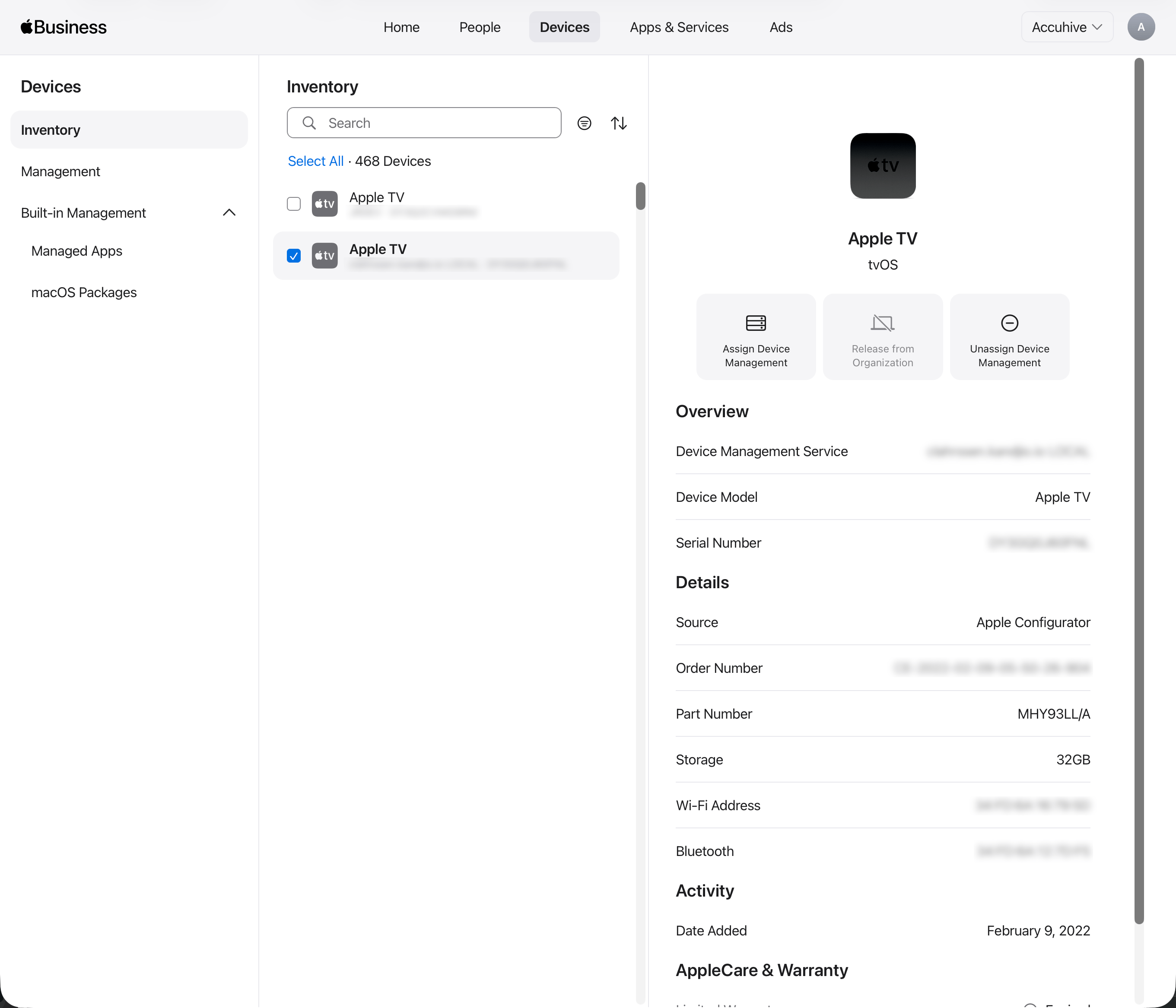
[Apple Business](https://business.apple.com) 또는 [Apple School Manager](https://school.apple.com)에 로그인합니다.
페이지 상단 중앙에서 **기기** 탭을 선택합니다.
검색 필드에서 기기를 검색합니다.
목록에서 기기를 선택합니다.
**Assign Device Management**를 선택합니다.
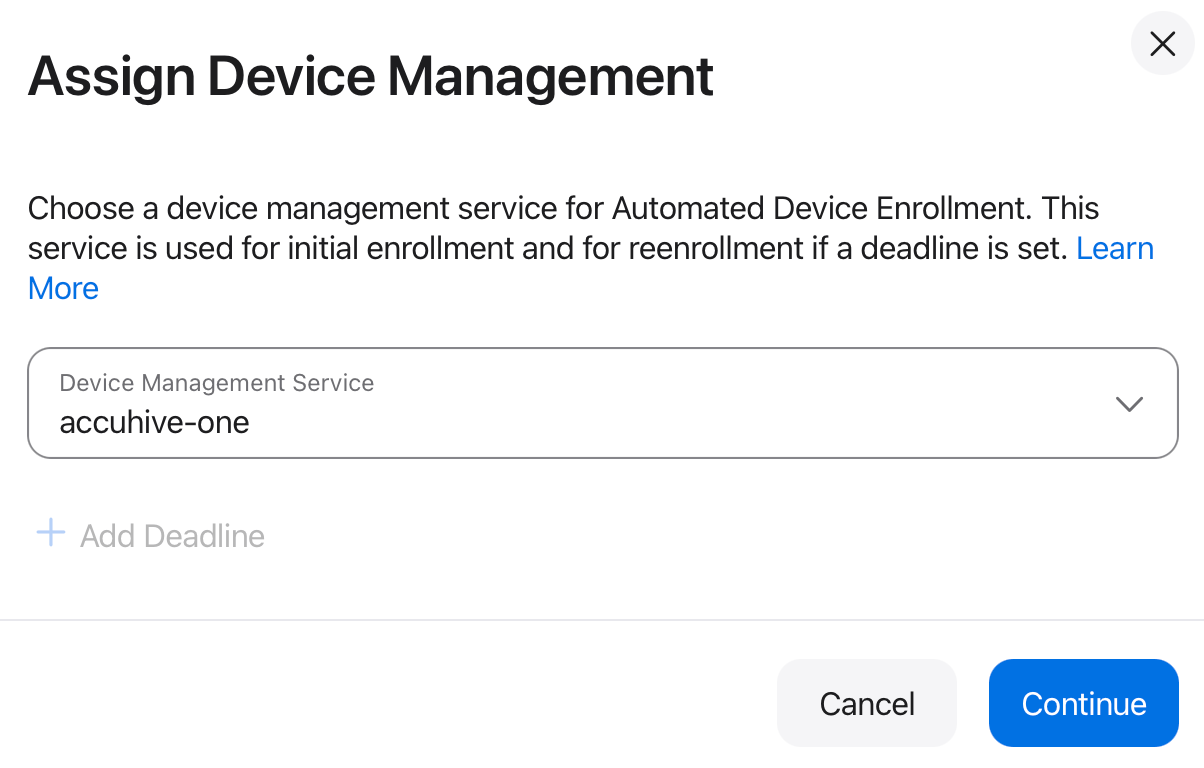
 **Assign to the following MDM**을 선택하고 Iru Endpoint로 MDM을 활성화할 때 생성한 Iru Endpoint 서버를 선택합니다.
**계속**을 선택합니다.
**Assign to the following MDM**을 선택하고 Iru Endpoint로 MDM을 활성화할 때 생성한 Iru Endpoint 서버를 선택합니다.
**계속**을 선택합니다.
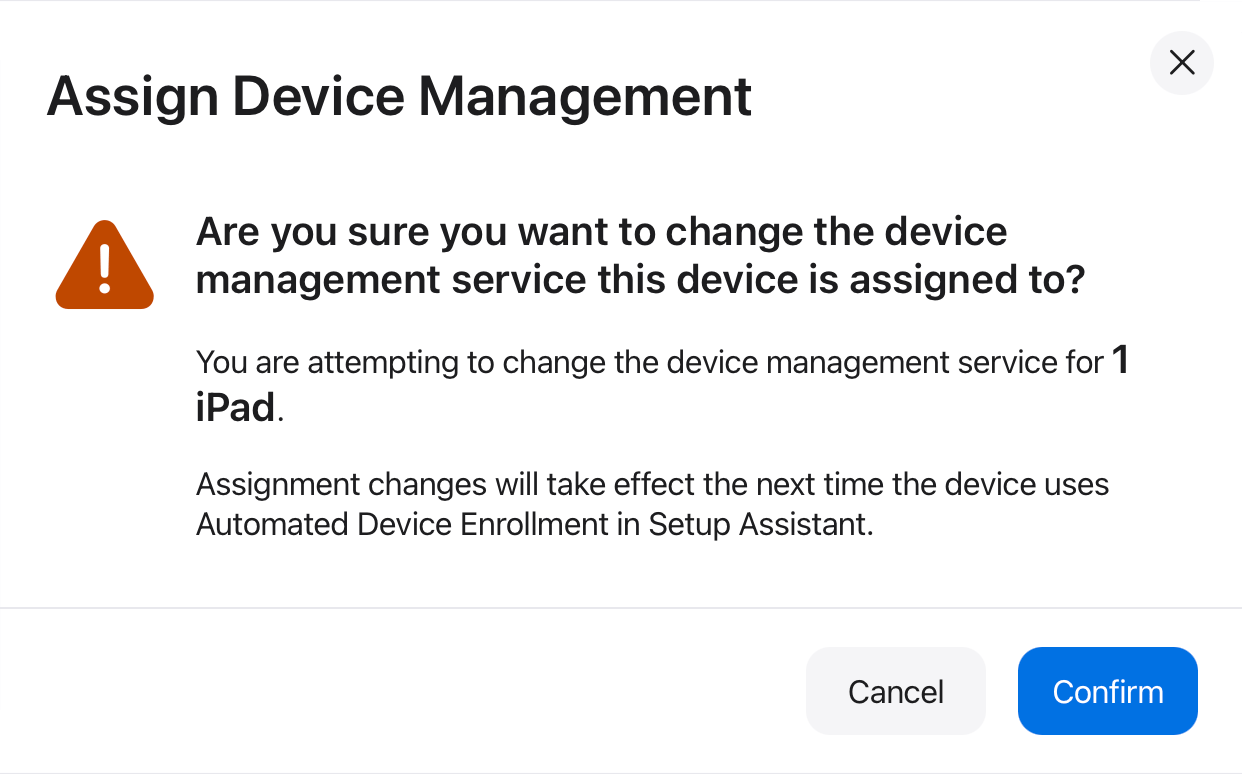
 기기가 할당된 MDM 서버를 변경할 것인지 **확인**합니다.
 ## 기본 MDM 서버 할당 설정
Apple Business 또는 Apple School Manager에서 페이지 상단 중앙의 **기기** 탭을 선택합니다.
왼쪽 사이드바에서 **Management**를 선택합니다.
**Management Services** 아래에서 **Automatically assign devices to your preferred device management service**를 선택합니다.
## 기본 MDM 서버 할당 설정
Apple Business 또는 Apple School Manager에서 페이지 상단 중앙의 **기기** 탭을 선택합니다.
왼쪽 사이드바에서 **Management**를 선택합니다.
**Management Services** 아래에서 **Automatically assign devices to your preferred device management service**를 선택합니다.
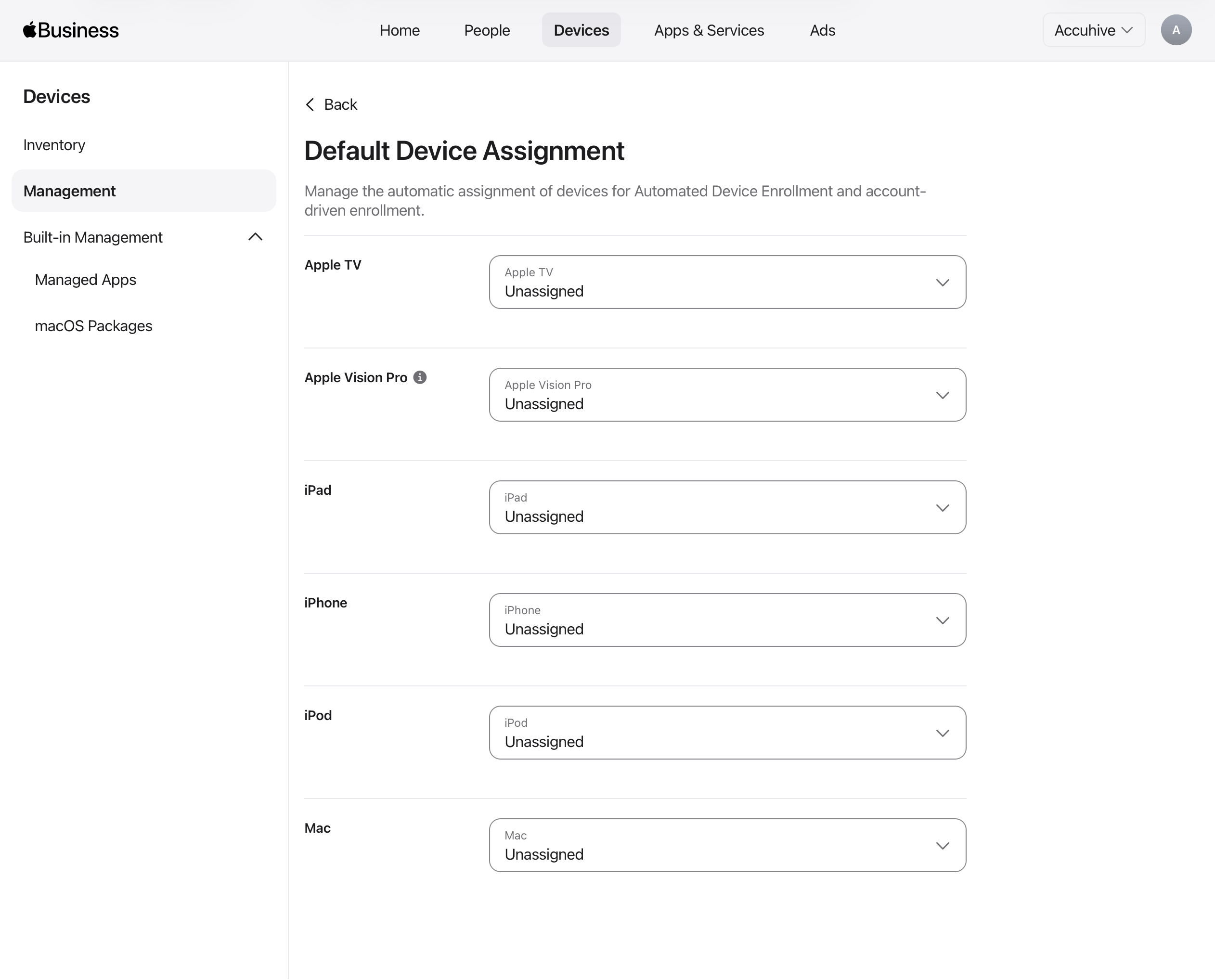
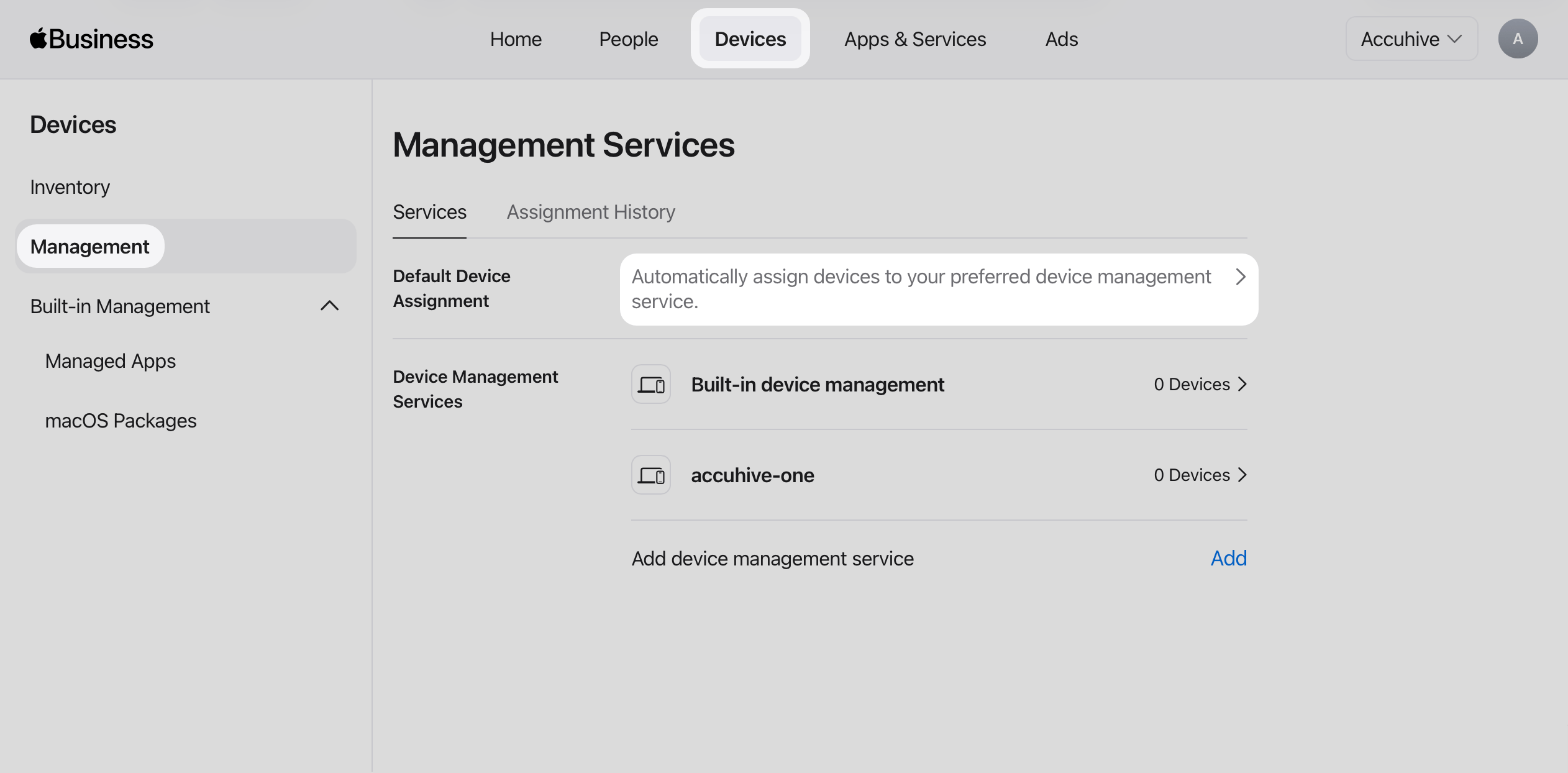 **Default Device Assignment** 페이지에서 **Apple TV**에 대해 MDM에 사용하는 Iru Endpoint 기기 관리 서비스를 선택합니다.
 ## Iru Endpoint에서 Apple TV 기기 확인
Iru Endpoint 웹 앱의 왼쪽 탐색 메뉴에서 **등록**을 선택합니다.
**등록** 페이지에서 **Automated Device Enrollment** 탭을 선택합니다.
Apple Business 또는 Apple School Manager에서 할당한 Apple TV 기기가 표시되는지 확인합니다. Apple TV 기기가 표시되지 않으면 **Fetch devices** 버튼을 선택합니다.
Apple TV에 대한 Auto Advance 구성 방법을 알아보려면 [Apple TV 및 Mac용 Auto Advance 구성](/ko/endpoint/devices/device-features/apple/configure-auto-advance-for-apple-tv-and-mac)을 참조하세요.
## Iru Endpoint에서 Apple TV 기기 확인
Iru Endpoint 웹 앱의 왼쪽 탐색 메뉴에서 **등록**을 선택합니다.
**등록** 페이지에서 **Automated Device Enrollment** 탭을 선택합니다.
Apple Business 또는 Apple School Manager에서 할당한 Apple TV 기기가 표시되는지 확인합니다. Apple TV 기기가 표시되지 않으면 **Fetch devices** 버튼을 선택합니다.
Apple TV에 대한 Auto Advance 구성 방법을 알아보려면 [Apple TV 및 Mac용 Auto Advance 구성](/ko/endpoint/devices/device-features/apple/configure-auto-advance-for-apple-tv-and-mac)을 참조하세요.