> ## Documentation Index
> Fetch the complete documentation index at: https://docs.iru.com/llms.txt
> Use this file to discover all available pages before exploring further.
# Iru Agent와 MDM
> macOS 및 Windows에서 Iru Agent가 MDM과 함께 작동하는 방식을 알아봅니다. 에이전트 기능, 통신 프로토콜 및 관리 기능을 이해합니다.
이 가이드는 Mac 컴퓨터 및 Windows 컴퓨터에 적용됩니다
**2026년 4월 8일**부터 앱 브랜딩이 **Kandji** 
 에서 **Iru**
  로 업데이트되었습니다. **Agent** 앱 이름이 **Kandji Agent**에서 **Iru Agent**로 변경되었습니다. 이전 앱 이름을 여전히 참조하는 **스크립트, 자동화 및 유틸리티**를 업데이트하세요.
### macOS 에이전트 정보
Iru Endpoint의 독자적인 macOS 에이전트는 MDM 프레임워크만으로 달성할 수 있는 범위를 넘어 플랫폼의 기능을 확장합니다. macOS용 Iru Agent는 **Apple 기기**를 위해 Swift로 맞춤 제작되었습니다. 또한 에이전트는 추가적인 기기 관리와 EDR 및 취약성 관리를 위해 Apple의 Endpoint Security 프레임워크를 사용하는 시스템 확장 프로그램을 설치합니다.
#### Iru Agent가 수행하는 작업
App Blocking Library Item에 지정된 애플리케이션을 차단하고 최종 사용자에게 Iru Endpoint 대화 상자 창을 표시합니다. 차단이 최대한 빠르고 효과적으로 이루어지도록 Iru 시스템 확장 프로그램에서 처리합니다.
Auto Apps를 설치하고 업데이트를 적용합니다. 제한된 네트워크에서는 적용 시점이 임박할 때까지 백그라운드 업데이트 다운로드가 연기될 수 있습니다. 아래의 [제한된 네트워크에서의 다운로드](#downloads-on-limited-networks)를 참조하세요.
MDM 프레임워크가 항상 가져올 수 없는 전체 애플리케이션 목록과 기타 시스템 세부 정보를 수집합니다. Prism의 애플리케이션 인벤토리 데이터는 Iru 시스템 확장 프로그램이 수집하므로 거의 실시간으로 제공될 수 있습니다.
DMG, PKG 및 ZIP 파일을 설치하고 감사, 설치 전 및 설치 후 스크립트를 실행합니다. 해당 옵션이 활성화된 경우 강제로 재시작할 수 있습니다. [Mac Custom App Library Item 구성](/ko/endpoint/library/library-items-profiles/configure-the-custom-apps-library-item)도 참조하세요.
다운로드 가능한 파일이 있는 Custom Printers를 설치합니다. 제한된 네트워크에서는 적용 시점이 임박할 때까지 백그라운드 다운로드가 연기될 수 있습니다. 아래의 [제한된 네트워크에서의 다운로드](#downloads-on-limited-networks)를 참조하세요.
EDR 및 관련 검사는 Iru Agent를 사용하여 수행됩니다.
Mac 컴퓨터의 시스템 수준 설정을 제어하는 기본 제공 Blueprint 옵션입니다. Iru Agent가 체크인 시 이를 적용합니다.
모든 스크립트는 Iru Agent에 의해 root로 실행됩니다.
취약성 관리 및 관련 검사는 Iru Agent를 사용하여 수행됩니다.
#### 제한된 네트워크에서의 다운로드
macOS가 현재 연결이 제한됨(예: 저데이터 모드), 비용이 많이 듦(예: 모바일 핫스팟) 또는 둘 다라고 보고하면 Iru Agent는 관리 소프트웨어를 다운로드하는 시점을 조정합니다.
[체크인](/ko/endpoint/devices/device-check-in/device-check-in) 시 백그라운드 처리 중에 에이전트는 설치 기한이 8시간 이내가 아닌 한 제한된 네트워크에서 Auto App 업데이트 다운로드와 Custom Printer 파일 다운로드를 연기합니다. 적용 시점이 다가오면 에이전트는 다운로드를 진행하고 그 이유를 에이전트 로그에 기록합니다.
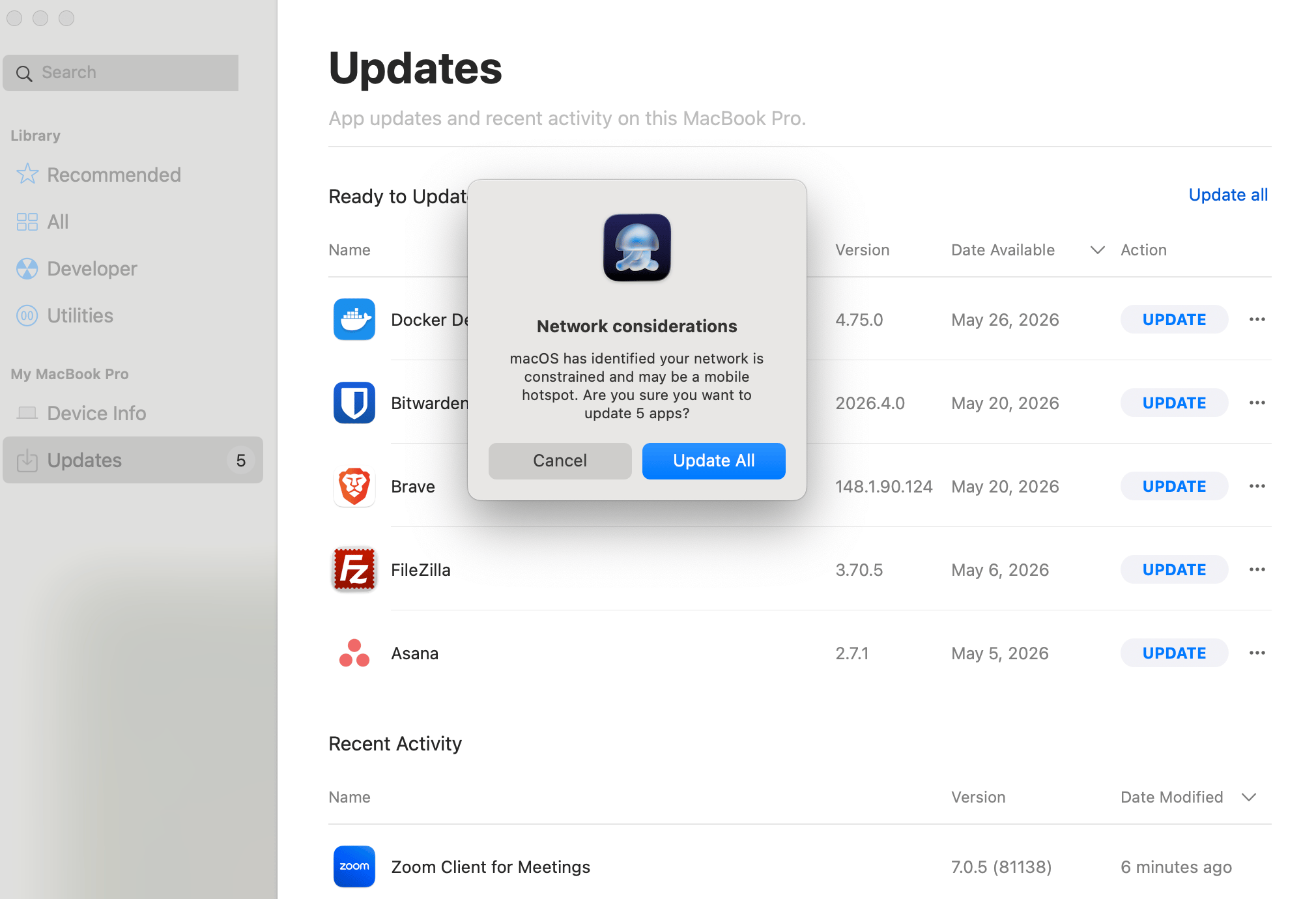
사용자가 [Iru Self Service](/ko/endpoint/settings/self-service/self-service-for-macos) 또는 Iru 메뉴 막대 앱에서 시작하는 설치, 업데이트 및 재설치의 경우 에이전트는 제한된 연결에서 다운로드하기 전에 경고를 표시합니다. 메시지에는 macOS가 감지한 네트워크 유형이 반영됩니다.
로 업데이트되었습니다. **Agent** 앱 이름이 **Kandji Agent**에서 **Iru Agent**로 변경되었습니다. 이전 앱 이름을 여전히 참조하는 **스크립트, 자동화 및 유틸리티**를 업데이트하세요.
### macOS 에이전트 정보
Iru Endpoint의 독자적인 macOS 에이전트는 MDM 프레임워크만으로 달성할 수 있는 범위를 넘어 플랫폼의 기능을 확장합니다. macOS용 Iru Agent는 **Apple 기기**를 위해 Swift로 맞춤 제작되었습니다. 또한 에이전트는 추가적인 기기 관리와 EDR 및 취약성 관리를 위해 Apple의 Endpoint Security 프레임워크를 사용하는 시스템 확장 프로그램을 설치합니다.
#### Iru Agent가 수행하는 작업
App Blocking Library Item에 지정된 애플리케이션을 차단하고 최종 사용자에게 Iru Endpoint 대화 상자 창을 표시합니다. 차단이 최대한 빠르고 효과적으로 이루어지도록 Iru 시스템 확장 프로그램에서 처리합니다.
Auto Apps를 설치하고 업데이트를 적용합니다. 제한된 네트워크에서는 적용 시점이 임박할 때까지 백그라운드 업데이트 다운로드가 연기될 수 있습니다. 아래의 [제한된 네트워크에서의 다운로드](#downloads-on-limited-networks)를 참조하세요.
MDM 프레임워크가 항상 가져올 수 없는 전체 애플리케이션 목록과 기타 시스템 세부 정보를 수집합니다. Prism의 애플리케이션 인벤토리 데이터는 Iru 시스템 확장 프로그램이 수집하므로 거의 실시간으로 제공될 수 있습니다.
DMG, PKG 및 ZIP 파일을 설치하고 감사, 설치 전 및 설치 후 스크립트를 실행합니다. 해당 옵션이 활성화된 경우 강제로 재시작할 수 있습니다. [Mac Custom App Library Item 구성](/ko/endpoint/library/library-items-profiles/configure-the-custom-apps-library-item)도 참조하세요.
다운로드 가능한 파일이 있는 Custom Printers를 설치합니다. 제한된 네트워크에서는 적용 시점이 임박할 때까지 백그라운드 다운로드가 연기될 수 있습니다. 아래의 [제한된 네트워크에서의 다운로드](#downloads-on-limited-networks)를 참조하세요.
EDR 및 관련 검사는 Iru Agent를 사용하여 수행됩니다.
Mac 컴퓨터의 시스템 수준 설정을 제어하는 기본 제공 Blueprint 옵션입니다. Iru Agent가 체크인 시 이를 적용합니다.
모든 스크립트는 Iru Agent에 의해 root로 실행됩니다.
취약성 관리 및 관련 검사는 Iru Agent를 사용하여 수행됩니다.
#### 제한된 네트워크에서의 다운로드
macOS가 현재 연결이 제한됨(예: 저데이터 모드), 비용이 많이 듦(예: 모바일 핫스팟) 또는 둘 다라고 보고하면 Iru Agent는 관리 소프트웨어를 다운로드하는 시점을 조정합니다.
[체크인](/ko/endpoint/devices/device-check-in/device-check-in) 시 백그라운드 처리 중에 에이전트는 설치 기한이 8시간 이내가 아닌 한 제한된 네트워크에서 Auto App 업데이트 다운로드와 Custom Printer 파일 다운로드를 연기합니다. 적용 시점이 다가오면 에이전트는 다운로드를 진행하고 그 이유를 에이전트 로그에 기록합니다.
사용자가 [Iru Self Service](/ko/endpoint/settings/self-service/self-service-for-macos) 또는 Iru 메뉴 막대 앱에서 시작하는 설치, 업데이트 및 재설치의 경우 에이전트는 제한된 연결에서 다운로드하기 전에 경고를 표시합니다. 메시지에는 macOS가 감지한 네트워크 유형이 반영됩니다.
 다음의 경우 에이전트는 연기 없이 관리 소프트웨어를 다운로드합니다.
* [Automated Device Enrollment](/ko/endpoint/settings/apple-integrations/configure-automated-device-enrollment) 중 설치하도록 선택된 Library Items를 포함한 최초 설치
* [Vulnerability Response](/ko/endpoint/vulnerability-management/configure-the-vulnerability-response-library-item)에 의한 강제 설치
에이전트 로그에는 연기, 진행 결정 및 사용자 취소가 기록되므로 설치나 업데이트가 실행되었거나 실행되지 않은 이유를 확인할 수 있습니다. 로그 위치 및 관련 단계는 [에이전트 체크인 문제 해결](/ko/endpoint/devices/device-check-in/troubleshooting-agent-check-ins)을 참조하세요.
```text agent.log theme={null}
AutoApp Discord: deferring download because network is constrained
AutoApp Firefox: network is constrained, proceeding with download due to impending enforcement at 2025-11-12 23:00:00 +0000
AutoApp Asana: network is expensive and constrained, proceeding with download due to impending enforcement at 2023-09-29 16:00:00 +0000
Install/update of 1Password 8 cancelled by user on limited network.
```
### MDM 프레임워크 정보
macOS, iOS, iPadOS 및 tvOS의 Apple MDM 프레임워크를 사용하면 앱과 설정을 배포 및 구성하고, 기기 정보를 수집하고, 원격으로 기기를 잠그거나 지울 수 있습니다. 이는 회사 소유 기기뿐만 아니라 개인 소유 기기(BYOD)에서도 수행할 수 있습니다.
Apple MDM 프레임워크를 사용하는 한 가지 장점은 기기와 빠르게 통신할 수 있다는 것입니다. 즉, 명령(예: 기기 잠금 또는 지우기)이 거의 즉시 실행됩니다. 이는 [Apple Push Notification service(APNs)](/ko/endpoint/settings/apple-integrations/configure-apple-push-notification-service) 덕분에 가능합니다. Apple 기기는 관리 기기가 MDM 서버에 체크인하도록 요청하는 알림을 받기 위해 APNs를 지속적으로 폴링합니다. 이러한 지속적인 폴링 덕분에 온라인 기기의 관리가 거의 즉시 이루어질 수 있습니다.
#### MDM이 수행하는 작업
Apple Business 또는 Apple School Manager의 Apps and Books를 통해 구입한 앱을 설치합니다. Apps and Books는 이전에 Volume Purchase Program(VPP)이라고 불렸습니다. [Apps and Books에서 앱 추가](/ko/endpoint/settings/apple-integrations/add-apps-from-apps-and-books-to-iru-endpoint)도 참조하세요.
이전에 Device Enrollment Program(DEP)이라고 불렸던 Automated Device Enrollment를 통해 설정 지원 중에 기기를 등록합니다.
macOS 기기가 Iru Endpoint에 등록될 때 가장 먼저 실행되는 명령 중 하나는 Iru Agent를 설치하는 `InstallEnterpriseApplication`입니다.
기기가 지난 7일 동안 MDM을 통해서는 체크인했지만 Iru Agent를 통해서는 체크인하지 않은 경우 자동으로 `InstallEnterpriseApplication`을 보냅니다. 에이전트가 체크인하지 않는 경우 [에이전트 체크인 문제 해결](/ko/endpoint/devices/device-check-in/troubleshooting-agent-check-ins)을 참조하세요.
기기 Action 메뉴에 있는 명령과 같은 명령을 MDM 프로토콜을 통해 전달합니다.
사용자가 등록 포털에서 등록 프로필을 다운로드하면 기기 등록은 MDM 프로토콜을 통해 처리됩니다.
MDM 구성 프로필을 기기에 전달합니다. 프로필과 Library Items가 관리되는 방식은 [Library 개요](/ko/endpoint/library/library-items-profiles/library-overview)를 참조하세요.
### Windows 에이전트 정보
Iru Endpoint의 Windows 컴퓨터는 Windows MDM(모바일 기기 관리)과 Iru Agent의 조합을 통해 관리됩니다. MDM은 기기 정책과 구성을 전달합니다. Iru Agent는 15분 체크인 주기로 앱 인벤토리, 앱 배포 및 PowerShell 스크립트를 처리합니다. 기기는 [등록 포털](/ko/endpoint/enrollment/windows/configuring-windows-enrollment)을 통해 등록되며, 에이전트는 MDM 등록의 일부로 자동 설치됩니다.
체크인 타이밍과 MDM 적용이 에이전트 작업과 어떻게 다른지는 [기기 체크인](/ko/endpoint/devices/device-check-in/device-check-in)을 참조하세요.
#### Iru Agent가 수행하는 작업
할당된 Auto Apps의 설치와 업데이트는 Iru Agent를 통해 처리됩니다.
zip 아카이브로 전달된 MSI 및 EXE 설치 프로그램을 설치합니다. [Windows Custom App Library Item 구성](/ko/endpoint/library/library-items-profiles/configure-the-windows-custom-app-library-item)도 참조하세요.
에이전트 체크인 시마다 애플리케이션 인벤토리를 수집하여 Iru Endpoint에 제출합니다.
Library Items를 통해 할당된 사용자 지정 PowerShell 스크립트를 에이전트 체크인 주기에 실행합니다.
새 버전이 있으면 에이전트가 스스로 업데이트합니다.
### MDM 프레임워크 정보
Windows에는 [MDM 프로토콜](https://learn.microsoft.com/en-us/windows/client-management/mdm-overview)을 사용하여 관리 서버와 통신하는 기본 제공 관리 구성 요소가 포함되어 있습니다. Windows MDM을 사용하면 Windows 컴퓨터를 등록하고, 구성 프로필과 시스템 정책을 배포하고, 지우기 또는 사용 중지와 같은 명령을 보낼 수 있습니다.
관리자의 새 정책 및 설정 변경 사항은 [Windows Push Notification Services(WNS)](https://learn.microsoft.com/en-us/windows/client-management/push-notification-windows-mdm)를 통해 이벤트 기반으로 전달됩니다. 온라인 기기에서는 일반적으로 몇 분 이내에 적용됩니다. 사용자가 기기에서 무언가를 수동으로 변경하는 경우(예: 로컬 방화벽 설정) MDM은 일일 체크인(24시간마다) 시 해당 편차를 수정합니다. **Perform Recurring Check-In**은 배포 대기 중인 MDM 정책을 푸시하며, 기존 정책을 수정하지는 않습니다.
#### MDM이 수행하는 작업
등록 중에 MDM 연결을 설정하고 그 과정의 일부로 Iru Agent를 설치합니다. [Windows 등록](/ko/endpoint/getting-started/enrollment/windows-enrollment), [수동 Windows 등록의 사용자 경험](/ko/endpoint/enrollment/windows/user-experience-with-windows-enrollment) 및 [자동 Windows 등록의 사용자 경험](/ko/endpoint/enrollment/windows/user-experience-with-automatic-windows-enrollment)을 참조하세요.
MDM 채널을 통해 Wi-Fi, Windows Firewall, BitLocker 및 기타 시스템 정책을 전달합니다. 이는 Microsoft의 [MDM 보안 기준](https://learn.microsoft.com/en-us/windows/client-management/mdm-overview#mdm-security-baseline)에 부합합니다. [Wi-Fi](/ko/endpoint/library/library-items-profiles/configure-the-wi-fi-library-item), [Windows Firewall](/ko/endpoint/library/library-items-profiles/configure-the-windows-firewall-library-item) 및 [BitLocker](/ko/endpoint/library/library-items-profiles/configure-the-bitlocker-library-item)와 같은 Library Items를 통해 구성합니다.
새 관리자 정책 및 설정 변경 사항(그리고 지우기 또는 사용 중지와 같은 명령)은 WNS를 통해 전송되며, 기기가 온라인 상태이면 일반적으로 몇 분 이내에 적용됩니다.
24시간마다 MDM은 관리자의 의도에 따라 구성을 검증하고 로컬 편차(예: 사용자가 방화벽 설정을 수동으로 변경한 경우)를 수정하며 일일 기기 정보를 수집합니다.
MDM 프로토콜을 통해 구성 프로필을 전달합니다. Library Items와 프로필이 관리되는 방식은 [Library 개요](/ko/endpoint/library/library-items-profiles/library-overview)를 참조하세요.
Windows 에이전트 문제 해결(강제 체크인, 재설치)은 [에이전트 체크인 문제 해결](/ko/endpoint/devices/device-check-in/troubleshooting-agent-check-ins)을 참조하세요. Windows 에이전트 로그는 `%ProgramData%\kandji\agent\logs`에 있습니다.
다음의 경우 에이전트는 연기 없이 관리 소프트웨어를 다운로드합니다.
* [Automated Device Enrollment](/ko/endpoint/settings/apple-integrations/configure-automated-device-enrollment) 중 설치하도록 선택된 Library Items를 포함한 최초 설치
* [Vulnerability Response](/ko/endpoint/vulnerability-management/configure-the-vulnerability-response-library-item)에 의한 강제 설치
에이전트 로그에는 연기, 진행 결정 및 사용자 취소가 기록되므로 설치나 업데이트가 실행되었거나 실행되지 않은 이유를 확인할 수 있습니다. 로그 위치 및 관련 단계는 [에이전트 체크인 문제 해결](/ko/endpoint/devices/device-check-in/troubleshooting-agent-check-ins)을 참조하세요.
```text agent.log theme={null}
AutoApp Discord: deferring download because network is constrained
AutoApp Firefox: network is constrained, proceeding with download due to impending enforcement at 2025-11-12 23:00:00 +0000
AutoApp Asana: network is expensive and constrained, proceeding with download due to impending enforcement at 2023-09-29 16:00:00 +0000
Install/update of 1Password 8 cancelled by user on limited network.
```
### MDM 프레임워크 정보
macOS, iOS, iPadOS 및 tvOS의 Apple MDM 프레임워크를 사용하면 앱과 설정을 배포 및 구성하고, 기기 정보를 수집하고, 원격으로 기기를 잠그거나 지울 수 있습니다. 이는 회사 소유 기기뿐만 아니라 개인 소유 기기(BYOD)에서도 수행할 수 있습니다.
Apple MDM 프레임워크를 사용하는 한 가지 장점은 기기와 빠르게 통신할 수 있다는 것입니다. 즉, 명령(예: 기기 잠금 또는 지우기)이 거의 즉시 실행됩니다. 이는 [Apple Push Notification service(APNs)](/ko/endpoint/settings/apple-integrations/configure-apple-push-notification-service) 덕분에 가능합니다. Apple 기기는 관리 기기가 MDM 서버에 체크인하도록 요청하는 알림을 받기 위해 APNs를 지속적으로 폴링합니다. 이러한 지속적인 폴링 덕분에 온라인 기기의 관리가 거의 즉시 이루어질 수 있습니다.
#### MDM이 수행하는 작업
Apple Business 또는 Apple School Manager의 Apps and Books를 통해 구입한 앱을 설치합니다. Apps and Books는 이전에 Volume Purchase Program(VPP)이라고 불렸습니다. [Apps and Books에서 앱 추가](/ko/endpoint/settings/apple-integrations/add-apps-from-apps-and-books-to-iru-endpoint)도 참조하세요.
이전에 Device Enrollment Program(DEP)이라고 불렸던 Automated Device Enrollment를 통해 설정 지원 중에 기기를 등록합니다.
macOS 기기가 Iru Endpoint에 등록될 때 가장 먼저 실행되는 명령 중 하나는 Iru Agent를 설치하는 `InstallEnterpriseApplication`입니다.
기기가 지난 7일 동안 MDM을 통해서는 체크인했지만 Iru Agent를 통해서는 체크인하지 않은 경우 자동으로 `InstallEnterpriseApplication`을 보냅니다. 에이전트가 체크인하지 않는 경우 [에이전트 체크인 문제 해결](/ko/endpoint/devices/device-check-in/troubleshooting-agent-check-ins)을 참조하세요.
기기 Action 메뉴에 있는 명령과 같은 명령을 MDM 프로토콜을 통해 전달합니다.
사용자가 등록 포털에서 등록 프로필을 다운로드하면 기기 등록은 MDM 프로토콜을 통해 처리됩니다.
MDM 구성 프로필을 기기에 전달합니다. 프로필과 Library Items가 관리되는 방식은 [Library 개요](/ko/endpoint/library/library-items-profiles/library-overview)를 참조하세요.
### Windows 에이전트 정보
Iru Endpoint의 Windows 컴퓨터는 Windows MDM(모바일 기기 관리)과 Iru Agent의 조합을 통해 관리됩니다. MDM은 기기 정책과 구성을 전달합니다. Iru Agent는 15분 체크인 주기로 앱 인벤토리, 앱 배포 및 PowerShell 스크립트를 처리합니다. 기기는 [등록 포털](/ko/endpoint/enrollment/windows/configuring-windows-enrollment)을 통해 등록되며, 에이전트는 MDM 등록의 일부로 자동 설치됩니다.
체크인 타이밍과 MDM 적용이 에이전트 작업과 어떻게 다른지는 [기기 체크인](/ko/endpoint/devices/device-check-in/device-check-in)을 참조하세요.
#### Iru Agent가 수행하는 작업
할당된 Auto Apps의 설치와 업데이트는 Iru Agent를 통해 처리됩니다.
zip 아카이브로 전달된 MSI 및 EXE 설치 프로그램을 설치합니다. [Windows Custom App Library Item 구성](/ko/endpoint/library/library-items-profiles/configure-the-windows-custom-app-library-item)도 참조하세요.
에이전트 체크인 시마다 애플리케이션 인벤토리를 수집하여 Iru Endpoint에 제출합니다.
Library Items를 통해 할당된 사용자 지정 PowerShell 스크립트를 에이전트 체크인 주기에 실행합니다.
새 버전이 있으면 에이전트가 스스로 업데이트합니다.
### MDM 프레임워크 정보
Windows에는 [MDM 프로토콜](https://learn.microsoft.com/en-us/windows/client-management/mdm-overview)을 사용하여 관리 서버와 통신하는 기본 제공 관리 구성 요소가 포함되어 있습니다. Windows MDM을 사용하면 Windows 컴퓨터를 등록하고, 구성 프로필과 시스템 정책을 배포하고, 지우기 또는 사용 중지와 같은 명령을 보낼 수 있습니다.
관리자의 새 정책 및 설정 변경 사항은 [Windows Push Notification Services(WNS)](https://learn.microsoft.com/en-us/windows/client-management/push-notification-windows-mdm)를 통해 이벤트 기반으로 전달됩니다. 온라인 기기에서는 일반적으로 몇 분 이내에 적용됩니다. 사용자가 기기에서 무언가를 수동으로 변경하는 경우(예: 로컬 방화벽 설정) MDM은 일일 체크인(24시간마다) 시 해당 편차를 수정합니다. **Perform Recurring Check-In**은 배포 대기 중인 MDM 정책을 푸시하며, 기존 정책을 수정하지는 않습니다.
#### MDM이 수행하는 작업
등록 중에 MDM 연결을 설정하고 그 과정의 일부로 Iru Agent를 설치합니다. [Windows 등록](/ko/endpoint/getting-started/enrollment/windows-enrollment), [수동 Windows 등록의 사용자 경험](/ko/endpoint/enrollment/windows/user-experience-with-windows-enrollment) 및 [자동 Windows 등록의 사용자 경험](/ko/endpoint/enrollment/windows/user-experience-with-automatic-windows-enrollment)을 참조하세요.
MDM 채널을 통해 Wi-Fi, Windows Firewall, BitLocker 및 기타 시스템 정책을 전달합니다. 이는 Microsoft의 [MDM 보안 기준](https://learn.microsoft.com/en-us/windows/client-management/mdm-overview#mdm-security-baseline)에 부합합니다. [Wi-Fi](/ko/endpoint/library/library-items-profiles/configure-the-wi-fi-library-item), [Windows Firewall](/ko/endpoint/library/library-items-profiles/configure-the-windows-firewall-library-item) 및 [BitLocker](/ko/endpoint/library/library-items-profiles/configure-the-bitlocker-library-item)와 같은 Library Items를 통해 구성합니다.
새 관리자 정책 및 설정 변경 사항(그리고 지우기 또는 사용 중지와 같은 명령)은 WNS를 통해 전송되며, 기기가 온라인 상태이면 일반적으로 몇 분 이내에 적용됩니다.
24시간마다 MDM은 관리자의 의도에 따라 구성을 검증하고 로컬 편차(예: 사용자가 방화벽 설정을 수동으로 변경한 경우)를 수정하며 일일 기기 정보를 수집합니다.
MDM 프로토콜을 통해 구성 프로필을 전달합니다. Library Items와 프로필이 관리되는 방식은 [Library 개요](/ko/endpoint/library/library-items-profiles/library-overview)를 참조하세요.
Windows 에이전트 문제 해결(강제 체크인, 재설치)은 [에이전트 체크인 문제 해결](/ko/endpoint/devices/device-check-in/troubleshooting-agent-check-ins)을 참조하세요. Windows 에이전트 로그는 `%ProgramData%\kandji\agent\logs`에 있습니다.