> ## Documentation Index
> Fetch the complete documentation index at: https://docs.iru.com/llms.txt
> Use this file to discover all available pages before exploring further.
# Library から App Store App を削除する
> Iru Endpoint の Library から App Store App を削除します。Apps and Books のライセンスを取り消し、Blueprint から App の割り当てを解除して、未使用の App を整理します。
**Apple Business Manager** は **Apple Business** になりました。**Apple School Manager** は変更されていません。詳細については、[Introducing Apple Business](https://www.apple.com/newsroom/2026/03/introducing-apple-business-a-new-all-in-one-platform-for-businesses-of-all-sizes/) および [Apple Business Manager is now Apple Business](https://support.apple.com/guide/apple-business-manager/apple-business-manager-is-now-apple-business-axmd79d79dea/web) を参照してください。
## Library からの App Store App の削除について
Apple Business または Apple School Manager で Iru Endpoint テナントの Apps and Books トークンにライセンスが割り当てられていない場合、App Store App の Library Item を Library から削除できます。まずポータルで App のライセンスの割り当てを解除し、その後 Iru Endpoint の Library から App を削除します。
## Apple Business または Apple School Manager で App Store のライセンスの割り当てを解除する
Iru Endpoint の Library から App を削除する前に、Apple Business または Apple School Manager で、Iru Endpoint テナントの Apps and Books トークンに使用されている[組織単位](https://support.apple.com/guide/business/configure-organizational-units-axmfdbe2cb0d/web)から App のすべてのライセンスの割り当てを解除します。
Apps and Books を管理できる Managed Apple Account で [Apple Business](https://business.apple.com) または [Apple School Manager](https://school.apple.com) にサインインします。
Apple Business または Apple School Manager で [組織単位を構成するための Apple の手順](https://support.apple.com/guide/business/configure-organizational-units-axmfdbe2cb0d/web)に従います。後の手順で、App のライセンスをこの組織単位に移管します。
ページ右上の **組織名** を選択します。
**設定** を選択します。
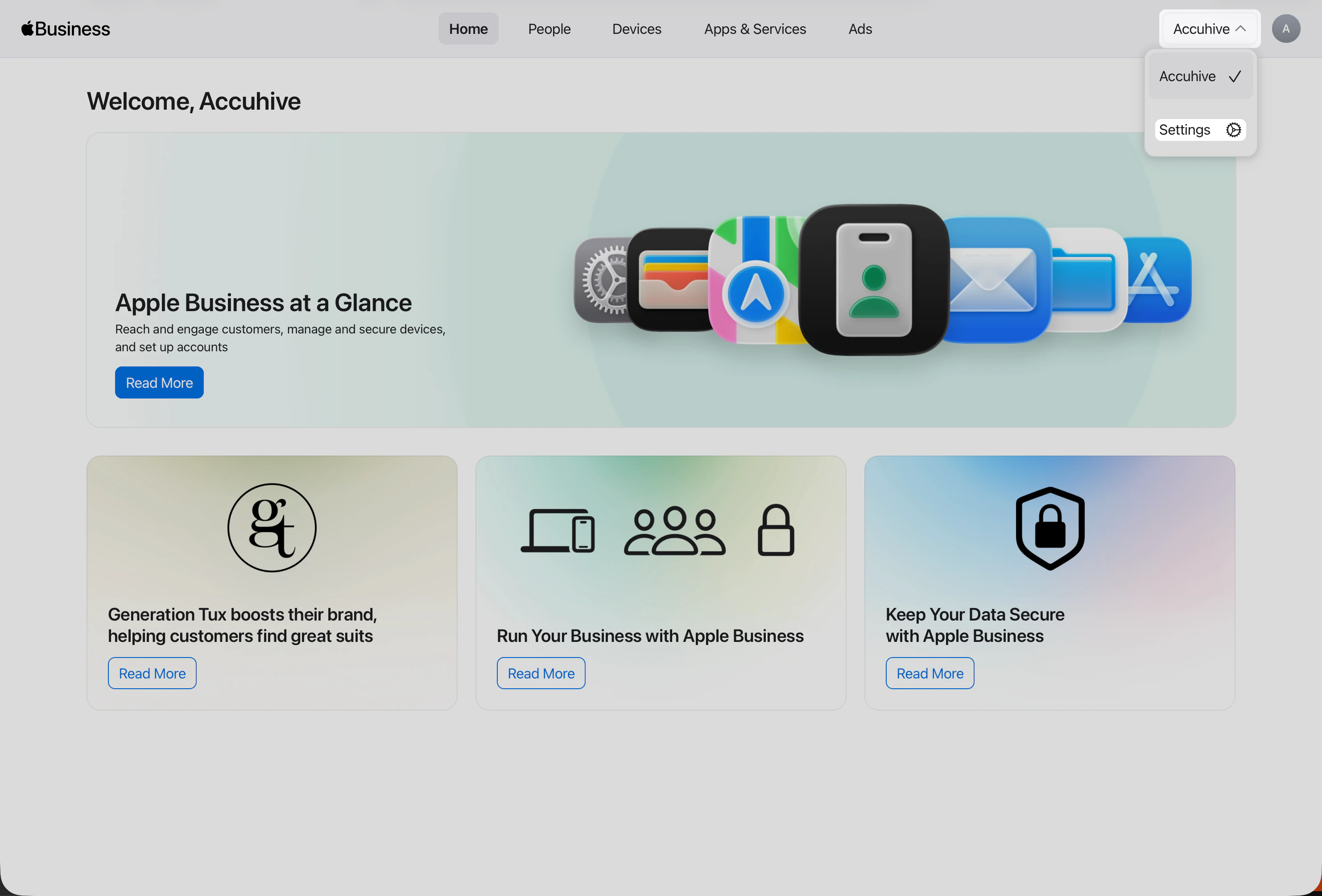 **設定** を開いたら、まだ表示されていない場合は **Payments & Billing** → **Apps & Books** に移動します。この画面で、組織の Apps and Books のライセンスとコンテンツトークンを管理します。
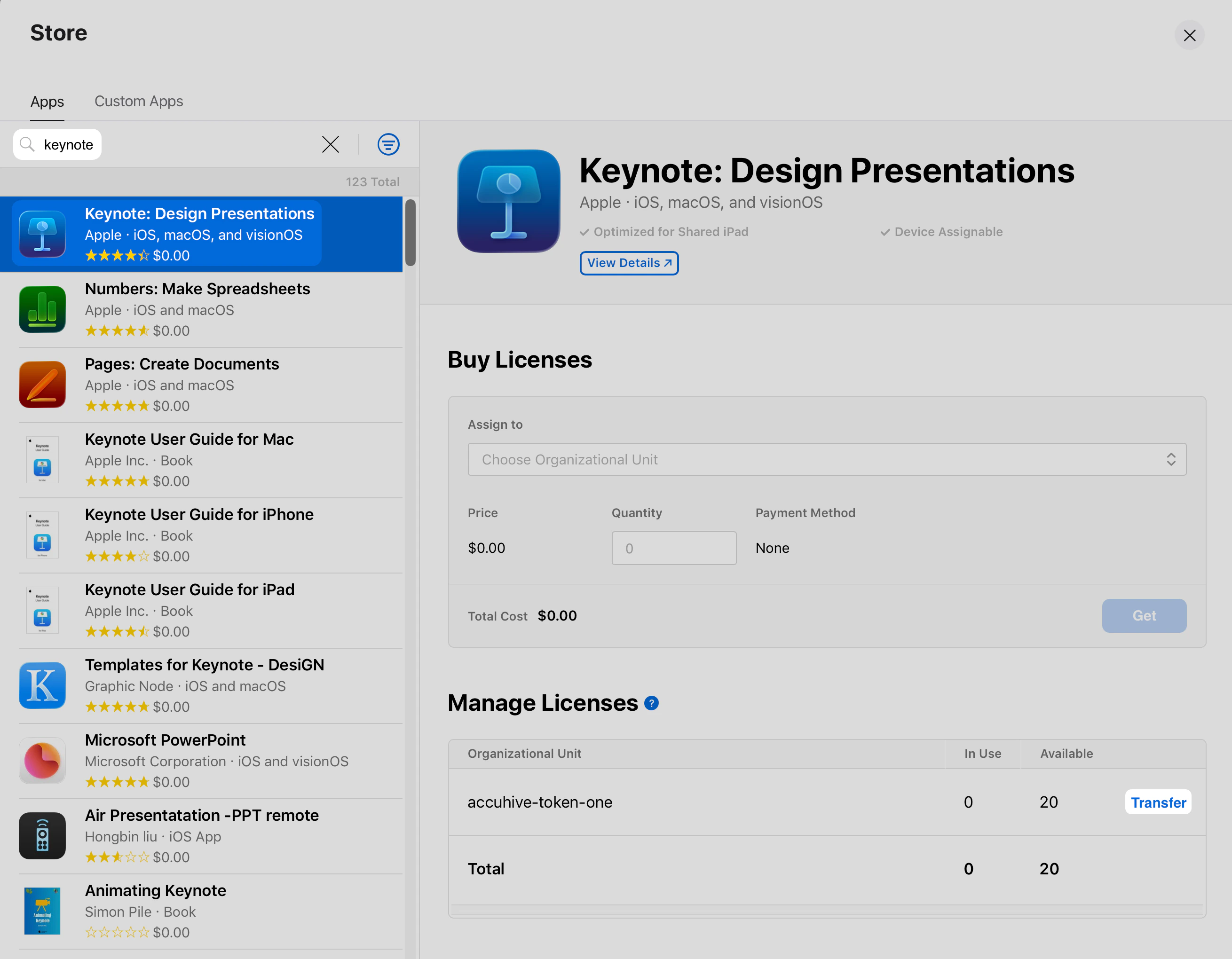
ライセンスの割り当てを解除する App を見つけて選択します。
Iru Endpoint テナントの Apps and Books トークンに使用されている組織単位の横にある **Transfer** を選択します。
**設定** を開いたら、まだ表示されていない場合は **Payments & Billing** → **Apps & Books** に移動します。この画面で、組織の Apps and Books のライセンスとコンテンツトークンを管理します。
ライセンスの割り当てを解除する App を見つけて選択します。
Iru Endpoint テナントの Apps and Books トークンに使用されている組織単位の横にある **Transfer** を選択します。
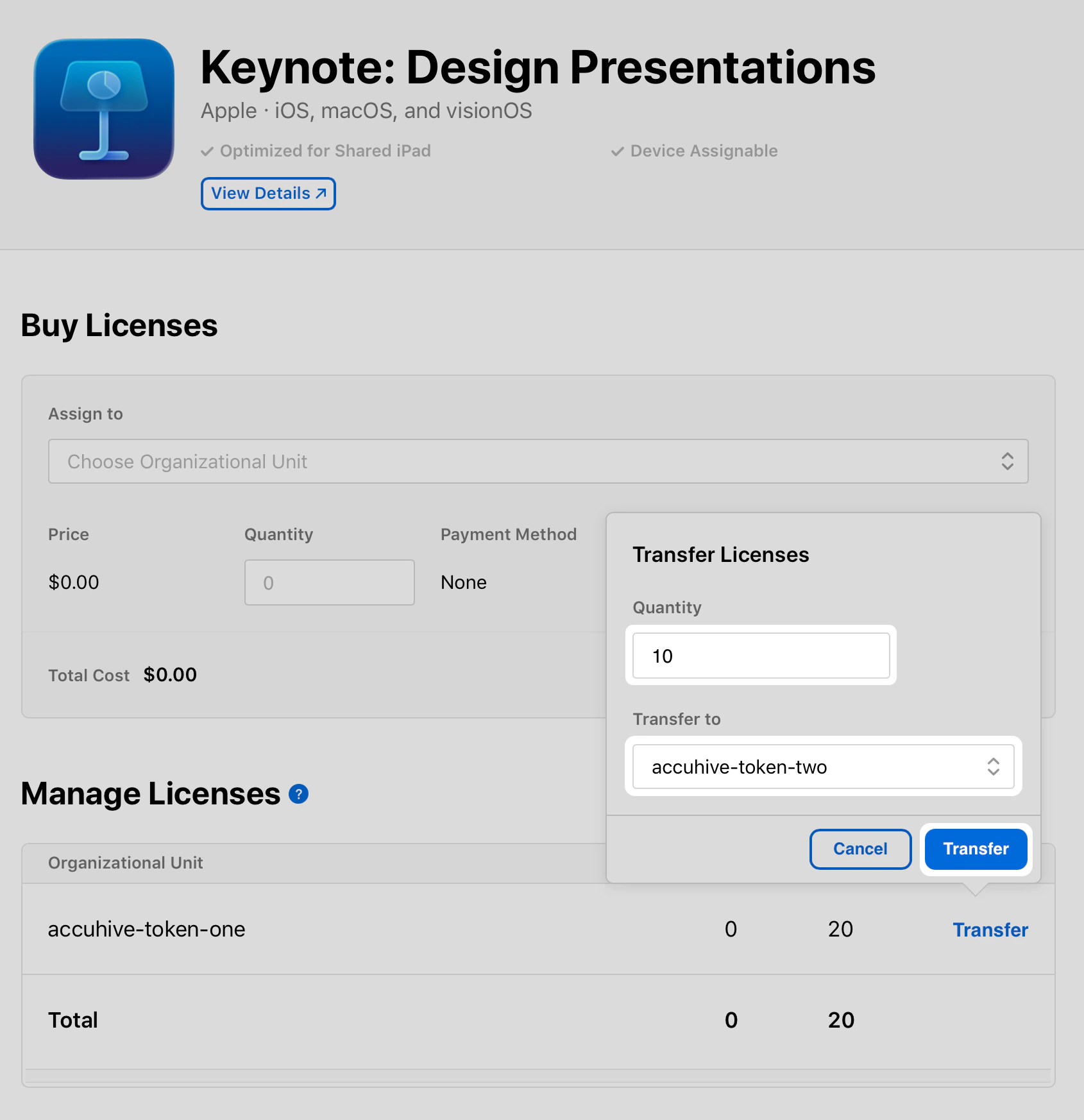
 **Quantity** フィールドに、その組織単位に割り当てられているライセンスの合計数を入力します。
**Transfer to** で、この手順の前半で作成した組織単位を選択します。
**Transfer** を選択します。
**Quantity** フィールドに、その組織単位に割り当てられているライセンスの合計数を入力します。
**Transfer to** で、この手順の前半で作成した組織単位を選択します。
**Transfer** を選択します。
 以前 Transfer オプションがあった場所に **Processing** ステータスが表示されます。これが完了するまで待ってから続行してください。
ライセンスが新しい組織単位の下に表示されるようになります。以下の手順を使用して、Library から App を削除します。
## Library から App Store App を削除する
Apple Business または Apple School Manager でライセンスの割り当てを解除したら、Iru Endpoint の Library から App を削除します。
Web ブラウザで Iru Endpoint テナントを開き、必要に応じてサインインします。
左側のナビゲーションから **Library** を選択します。
ページ右上付近にある **App Store Appsを同期** ボタンを選択します。
以前 Transfer オプションがあった場所に **Processing** ステータスが表示されます。これが完了するまで待ってから続行してください。
ライセンスが新しい組織単位の下に表示されるようになります。以下の手順を使用して、Library から App を削除します。
## Library から App Store App を削除する
Apple Business または Apple School Manager でライセンスの割り当てを解除したら、Iru Endpoint の Library から App を削除します。
Web ブラウザで Iru Endpoint テナントを開き、必要に応じてサインインします。
左側のナビゲーションから **Library** を選択します。
ページ右上付近にある **App Store Appsを同期** ボタンを選択します。
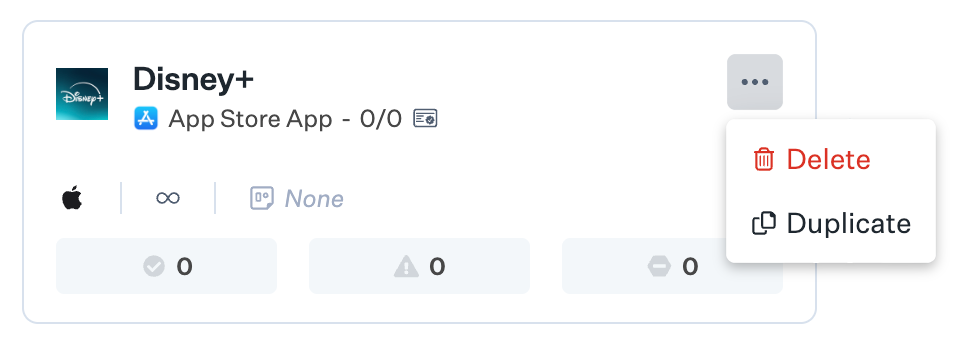 Library から削除する App を検索します。
App タイルの省略記号を選択します。
メニューから **削除** を選択します。
Library から削除する App を検索します。
App タイルの省略記号を選択します。
メニューから **削除** を選択します。
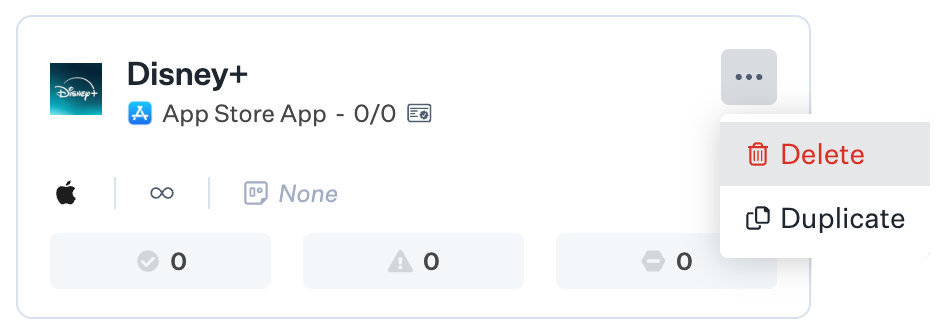 **削除** オプションが利用できない場合は、しばらくしてから再度 **App Store Appsを同期** を選択してください。それでも表示されない場合は、Apple Business または Apple School Manager を開きます。Iru Endpoint テナントの Apps and Books トークンに使用されている組織単位に、その App のライセンスが割り当てられていないことを確認してください。
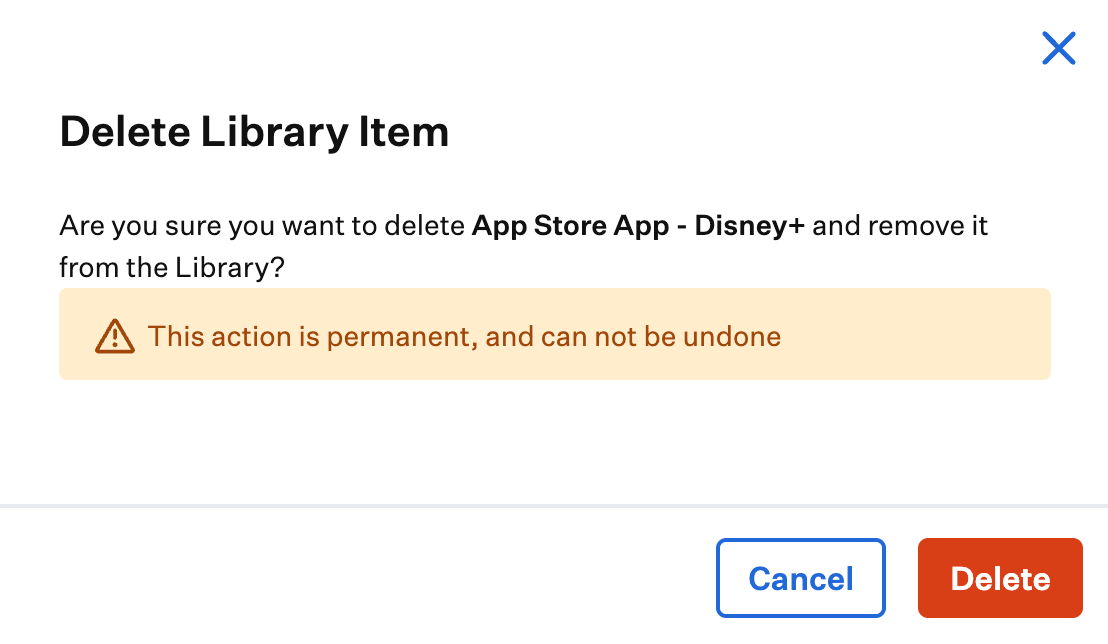
プロンプトで **削除** を選択して確定します。
**削除** オプションが利用できない場合は、しばらくしてから再度 **App Store Appsを同期** を選択してください。それでも表示されない場合は、Apple Business または Apple School Manager を開きます。Iru Endpoint テナントの Apps and Books トークンに使用されている組織単位に、その App のライセンスが割り当てられていないことを確認してください。
プロンプトで **削除** を選択して確定します。
 ## 関連ドキュメント
Library Item を選定、管理し、Blueprint に追加します。
App Store App の配布とライセンス管理のために Apps and Books 統合を設定します。
Apple Business または Apple School Manager 統合を通じて App Store App および Custom Apps を展開します。
Apple Business または Apple School Manager、APNs、Apps and Books、および関連する統合。
## 関連ドキュメント
Library Item を選定、管理し、Blueprint に追加します。
App Store App の配布とライセンス管理のために Apps and Books 統合を設定します。
Apple Business または Apple School Manager 統合を通じて App Store App および Custom Apps を展開します。
Apple Business または Apple School Manager、APNs、Apps and Books、および関連する統合。