> ## Documentation Index
> Fetch the complete documentation index at: https://docs.iru.com/llms.txt
> Use this file to discover all available pages before exploring further.
# Apple silicon 搭載 Mac コンピュータの Rosetta
> Rosetta が Apple silicon 搭載の Mac で Intel ベースのアプリを実行する仕組み、macOS のバージョンによる提供状況の変化、およびアプリが必要とする場合に Iru Endpoint が Rosetta をインストールする方法について説明します。
このガイドは Mac コンピュータに適用されます
Rosetta は、Intel ベースのアプリを Apple silicon 搭載の Mac で実行できるように変換します。Rosetta はバックグラウンドで動作します。Rosetta を開いたり操作したりする必要はありません。Apple による変換の説明については、[About the Rosetta translation environment](https://developer.apple.com/documentation/apple-silicon/about-the-rosetta-translation-environment) を参照してください。
### macOS バージョン別の Rosetta
macOS 27 までは、Rosetta は Apple silicon 搭載の Mac で Intel ベースの Mac アプリを実行するための汎用的な手段です。Intel ベースのアプリを使用している場合は、Apple silicon 版またはユニバーサル版が提供されているか、または予定されているかを開発元に確認してください。macOS 27 以前では、Intel ベースのアプリを実行する前に Rosetta をインストールする必要があります。Intel ベースのアプリを開くと、macOS がインストールを求めます。詳細については、Apple のサポート記事 [Apple シリコン搭載の Mac で Intel ベースのアプリを使う](https://support.apple.com/en-us/102527)を参照してください。
macOS 27 には、ARM 仮想マシン内の Intel Linux バイナリおよび Intel Linux コンテナ向けの Intel バイナリ変換も含まれています。この変換は macOS に組み込まれています。そのために Rosetta をインストールする必要はありません。
macOS 28 以降では、Rosetta は Intel ベースのフレームワークに依存する、メンテナンスされていない特定の古いゲームに限定されます。Intel ベースのアプリを実行するための汎用的な手段ではなくなります。アップグレードする前に、使用している Intel ベースのアプリをユニバーサル版または Apple silicon 版に置き換えてください。詳細については、Apple の [About Intel-based apps, Rosetta, and the transition to Apple silicon](https://support.apple.com/en-us/102527#about) セクションを参照してください。
### Auto Apps の自動インストール
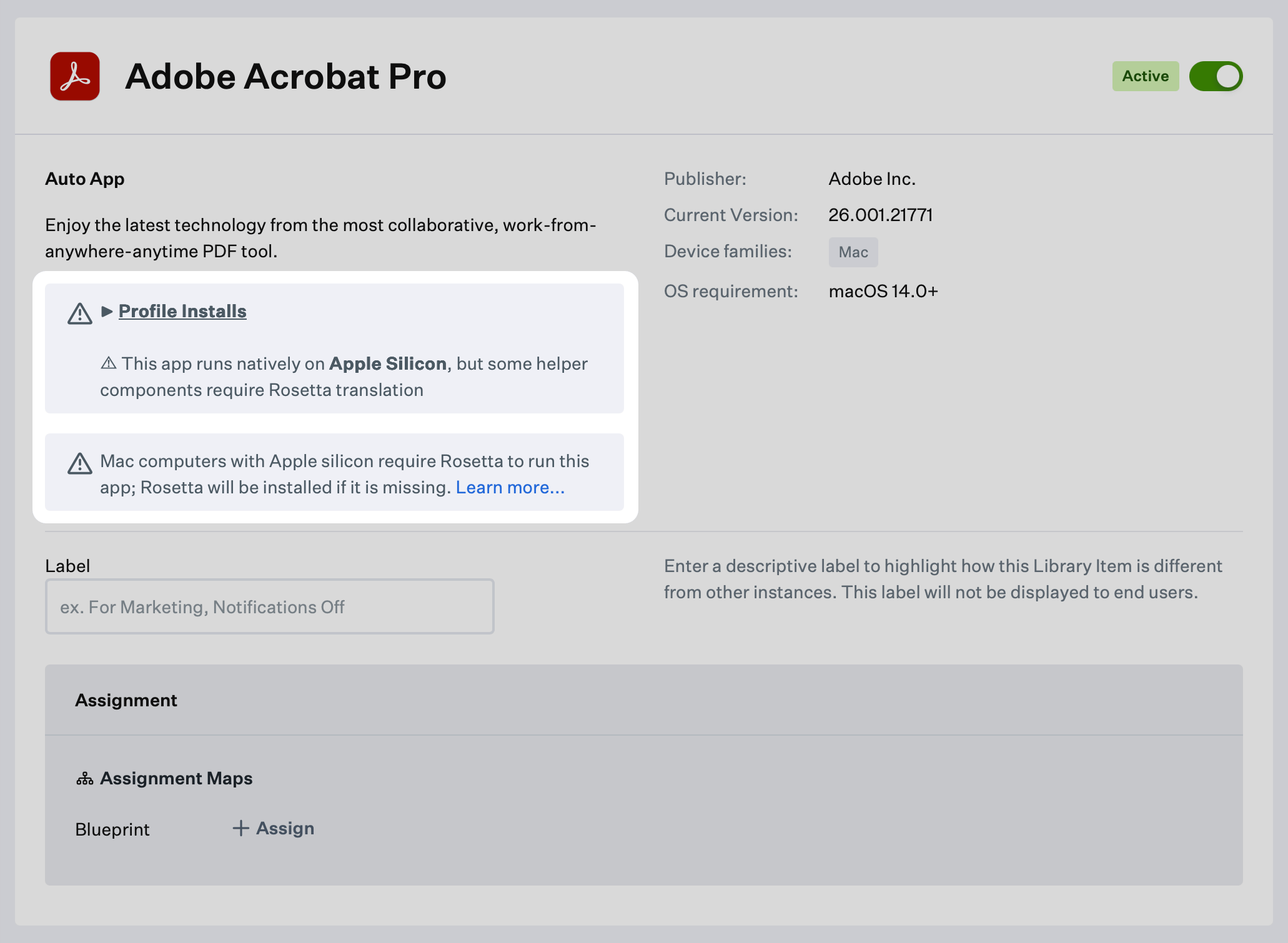
macOS 27 以前では、Apple silicon 搭載の Mac で Auto App が Rosetta を必要とする場合、Library Item に以下の警告が表示されます。Iru Agent は Rosetta の有無を確認し、アプリが必要とする場合にインストールします。開発元がユニバーサルアプリを出荷すると、これらの警告は削除される場合があります。
 ### Intel ベースの Custom Apps
macOS 27 以前では、Intel ベースのインストーラには Rosetta が必要です。
* ユーザーがインストーラを開くと、macOS が Rosetta のインストールを求めます。
* Iru Endpoint がインストーラを実行する際に Rosetta がインストールされていない場合、インストールはエラーで失敗します。
Rosetta を必要とする Custom App を展開する前に、Iru Endpoint で Rosetta をインストールしてください。macOS 28 では、Apple が引き続きサポートしている古いゲームにのみ Rosetta を使用します。その他の Intel ベースのアプリには、Apple silicon 版またはユニバーサル版が必要です。
### Iru Endpoint で Rosetta をインストールする
Iru Endpoint は Library Item の種類を特定の順序で処理し、同じ種類の項目は英数字順(大文字が小文字より先)で処理します。Custom Scripts は Custom Printers と Custom Apps より前に実行されます。
Intel ベースのアプリをインストールする Blueprint に Rosetta の Custom Script を追加し、**00 Install Rosetta for Apple silicon** という名前を付けます。Rosetta に依存する Custom Script の名前は、後で実行されるように **01** 以上の番号で始めます。Custom Printers と Custom Apps は、すでに Custom Scripts の後に実行されます。処理順序とタイムアウトの詳細については、[処理順序とタイムアウト](/ja/endpoint/devices/device-check-in/device-check-in#order-of-operations-and-timeouts)を参照してください。
この Library Item を Iru Endpoint Library に追加するには、[Library の概要](/ja/endpoint/library/library-items-profiles/library-overview)の記事の手順に従ってください。
スクリプトの **名前** を **00 Install Rosetta for Apple silicon** に設定します。
展開先の **Blueprints** にスクリプトを割り当てます。
**実行頻度** を **Once per device** に設定します。
[Install Rosetta スクリプト](https://github.com/kandji-inc/support/blob/main/Scripts/InstallRosetta2.sh)をスクリプトの詳細に貼り付けます。
**保存** を選択します。
### Intel ベースの Custom Apps
macOS 27 以前では、Intel ベースのインストーラには Rosetta が必要です。
* ユーザーがインストーラを開くと、macOS が Rosetta のインストールを求めます。
* Iru Endpoint がインストーラを実行する際に Rosetta がインストールされていない場合、インストールはエラーで失敗します。
Rosetta を必要とする Custom App を展開する前に、Iru Endpoint で Rosetta をインストールしてください。macOS 28 では、Apple が引き続きサポートしている古いゲームにのみ Rosetta を使用します。その他の Intel ベースのアプリには、Apple silicon 版またはユニバーサル版が必要です。
### Iru Endpoint で Rosetta をインストールする
Iru Endpoint は Library Item の種類を特定の順序で処理し、同じ種類の項目は英数字順(大文字が小文字より先)で処理します。Custom Scripts は Custom Printers と Custom Apps より前に実行されます。
Intel ベースのアプリをインストールする Blueprint に Rosetta の Custom Script を追加し、**00 Install Rosetta for Apple silicon** という名前を付けます。Rosetta に依存する Custom Script の名前は、後で実行されるように **01** 以上の番号で始めます。Custom Printers と Custom Apps は、すでに Custom Scripts の後に実行されます。処理順序とタイムアウトの詳細については、[処理順序とタイムアウト](/ja/endpoint/devices/device-check-in/device-check-in#order-of-operations-and-timeouts)を参照してください。
この Library Item を Iru Endpoint Library に追加するには、[Library の概要](/ja/endpoint/library/library-items-profiles/library-overview)の記事の手順に従ってください。
スクリプトの **名前** を **00 Install Rosetta for Apple silicon** に設定します。
展開先の **Blueprints** にスクリプトを割り当てます。
**実行頻度** を **Once per device** に設定します。
[Install Rosetta スクリプト](https://github.com/kandji-inc/support/blob/main/Scripts/InstallRosetta2.sh)をスクリプトの詳細に貼り付けます。
**保存** を選択します。