> ## Documentation Index
> Fetch the complete documentation index at: https://docs.iru.com/llms.txt
> Use this file to discover all available pages before exploring further.
# ServiceNow 統合: Iru Endpoint の構成
> OAuth とサービスアカウントを使用して Iru Endpoint を ServiceNow に接続し、SAM Pro のライセンスがある場合は、必要に応じて Mac アプリケーションのインベントリと使用状況データを送信します。
### 始める前に
ここに進む前に、[ServiceNow 統合: ServiceNow の構成](/ja/endpoint/integrations/servicenow/servicenow-integration-servicenow-configuration)に従って、Kandji ServiceNow アプリをテナントにインストールしてください。
### ServiceNow 統合を設定する
Iru Endpoint で **Connect to ServiceNow** を選択する前に、ServiceNow ストアから Kandji ServiceNow アプリをインストールしてください。
Iru Endpoint にログインします。
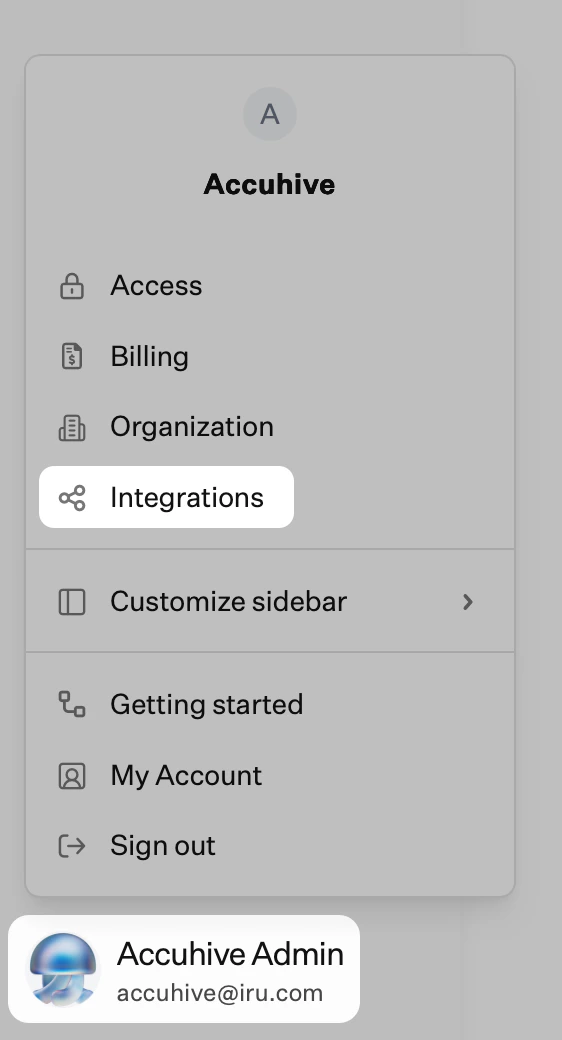
サイドバーで [**アカウントメニューボタン**](/ja/iru/platform-overview/account-menu) を選択し、**インテグレーション** を選択します。
 Integrations ページの右上にある **すべてのインテグレーションを参照** を選択します。
**ServiceNow** タイルを選択します。
ServiceNow テナントのプレフィックス、つまり `.service-now.com` の前の部分のみを入力します (例: `acme.service-now.com` の場合は `acme`)。
先ほど作成した ServiceNow OAuth アプリの Client ID を入力します。
先ほど作成した ServiceNow OAuth アプリの Client Secret を入力します。
先ほど作成したサービスアカウントのユーザー名を入力します。
先ほど作成したサービスアカウントのパスワードを入力します。
Kandji ServiceNow アプリをまだインストールしていない場合は、Iru Endpoint でセットアップを完了する前に、ServiceNow ストアからインストールし、[ServiceNow の構成](/ja/endpoint/integrations/servicenow/servicenow-integration-servicenow-configuration)を完了してください。
**Connect to ServiceNow** を選択します。
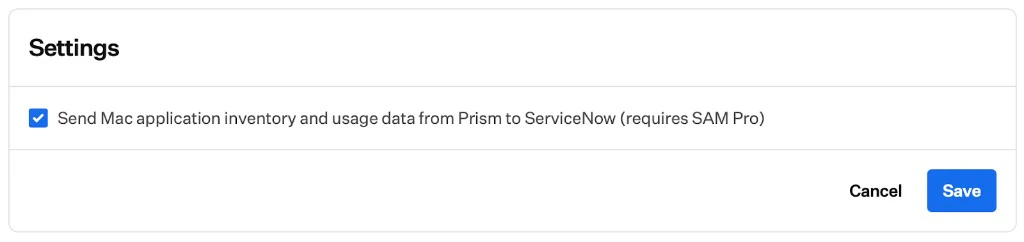
Software Asset Management Professional (SAM Pro) のライセンスがある場合は、**編集** を選択し、Mac アプリケーションのインベントリと使用状況データを毎晩 ServiceNow に送信するオプションをオンにして、**保存** を選択します。
Integrations ページの右上にある **すべてのインテグレーションを参照** を選択します。
**ServiceNow** タイルを選択します。
ServiceNow テナントのプレフィックス、つまり `.service-now.com` の前の部分のみを入力します (例: `acme.service-now.com` の場合は `acme`)。
先ほど作成した ServiceNow OAuth アプリの Client ID を入力します。
先ほど作成した ServiceNow OAuth アプリの Client Secret を入力します。
先ほど作成したサービスアカウントのユーザー名を入力します。
先ほど作成したサービスアカウントのパスワードを入力します。
Kandji ServiceNow アプリをまだインストールしていない場合は、Iru Endpoint でセットアップを完了する前に、ServiceNow ストアからインストールし、[ServiceNow の構成](/ja/endpoint/integrations/servicenow/servicenow-integration-servicenow-configuration)を完了してください。
**Connect to ServiceNow** を選択します。
Software Asset Management Professional (SAM Pro) のライセンスがある場合は、**編集** を選択し、Mac アプリケーションのインベントリと使用状況データを毎晩 ServiceNow に送信するオプションをオンにして、**保存** を選択します。
 セットアップが完了すると、Iru Endpoint は Apple デバイスのデータの ServiceNow への同期を開始します。
### 統合を管理する
統合が接続されたら、Iru Endpoint で ServiceNow 統合の詳細ページを開いて、接続状況、テナント情報、使用中の OAuth アプリを確認します。
#### 再認証
統合の構成に使用した ServiceNow の資格情報を更新する必要がある場合は、Iru Endpoint の統合の詳細ページから再認証します。
ServiceNow 統合で再認証が必要な場合、Iru Endpoint は再認証が完了するまでテナントにバナーを表示します。また、ServiceNow OAuth 資格情報の有効期限が切れる 30 日前から、Admin または Account Owner の権限を持つチームメンバーにメールでリマインダーを送信します。
サイドバーで **アカウントメニューボタン** を選択し、**インテグレーション** を選択します。
Asset Management セクションで **ServiceNow** を選択します。
右上隅にある**省略記号** (⋯) を選択します。
**再認証** を選択します。
ServiceNow テナントのドメインとクライアント ID がまだ正確であることを確認し、新しいアカウントの資格情報を入力します。
**Connect to ServiceNow** を選択します。
資格情報が受け入れられると、ServiceNow の統合の詳細ページに戻ります。
#### 統合を削除する
Iru Endpoint で ServiceNow 統合を削除するには、次の手順を使用します。
この操作は元に戻せません。統合を削除するとすぐに、デバイスの資産データの ServiceNow への同期が停止します。
サイドバーで **アカウントメニューボタン** を選択し、**インテグレーション** を選択します。
Asset Management セクションで **ServiceNow** を選択します。
右上隅にある**省略記号** (⋯) を選択します。
**Delete Integration** を選択します。
**Delete Integration** を選択する前に、確認メッセージをよく読んでください。
## 考慮事項
Iru Endpoint でこの統合を完了する前に、ServiceNow ストアから Kandji ServiceNow アプリをインストールしてください。
OAuth アプリの資格情報は安全に保管し、組織のスケジュールに従ってローテーションしてください。
ServiceNow OAuth 資格情報の有効期限が近づくと、Iru Endpoint はテナントにバナーを表示し、有効期限の 30 日前から Admin または Account Owner の権限を持つチームメンバーにメールでリマインダーを送信します。プロンプトが表示されたら、ServiceNow 統合の詳細ページから再認証してください。
統合を広くロールアウトする前に、少数のデバイスでテストしてください。
統合が接続されると、デバイスのインベントリが自動的に同期されます。
### 関連記事
Iru Endpoint から ServiceNow のステージングテーブルとターゲットテーブルにデバイスのインベントリが同期される仕組みと、有効な場合に SAM Pro のアプリデータが同期される仕組みについて説明します。
Kandji ServiceNow アプリをインストールし、OAuth とサービスアカウントを作成して、Kandji が表示されない場合は検出ソースを修正します。
セットアップが完了すると、Iru Endpoint は Apple デバイスのデータの ServiceNow への同期を開始します。
### 統合を管理する
統合が接続されたら、Iru Endpoint で ServiceNow 統合の詳細ページを開いて、接続状況、テナント情報、使用中の OAuth アプリを確認します。
#### 再認証
統合の構成に使用した ServiceNow の資格情報を更新する必要がある場合は、Iru Endpoint の統合の詳細ページから再認証します。
ServiceNow 統合で再認証が必要な場合、Iru Endpoint は再認証が完了するまでテナントにバナーを表示します。また、ServiceNow OAuth 資格情報の有効期限が切れる 30 日前から、Admin または Account Owner の権限を持つチームメンバーにメールでリマインダーを送信します。
サイドバーで **アカウントメニューボタン** を選択し、**インテグレーション** を選択します。
Asset Management セクションで **ServiceNow** を選択します。
右上隅にある**省略記号** (⋯) を選択します。
**再認証** を選択します。
ServiceNow テナントのドメインとクライアント ID がまだ正確であることを確認し、新しいアカウントの資格情報を入力します。
**Connect to ServiceNow** を選択します。
資格情報が受け入れられると、ServiceNow の統合の詳細ページに戻ります。
#### 統合を削除する
Iru Endpoint で ServiceNow 統合を削除するには、次の手順を使用します。
この操作は元に戻せません。統合を削除するとすぐに、デバイスの資産データの ServiceNow への同期が停止します。
サイドバーで **アカウントメニューボタン** を選択し、**インテグレーション** を選択します。
Asset Management セクションで **ServiceNow** を選択します。
右上隅にある**省略記号** (⋯) を選択します。
**Delete Integration** を選択します。
**Delete Integration** を選択する前に、確認メッセージをよく読んでください。
## 考慮事項
Iru Endpoint でこの統合を完了する前に、ServiceNow ストアから Kandji ServiceNow アプリをインストールしてください。
OAuth アプリの資格情報は安全に保管し、組織のスケジュールに従ってローテーションしてください。
ServiceNow OAuth 資格情報の有効期限が近づくと、Iru Endpoint はテナントにバナーを表示し、有効期限の 30 日前から Admin または Account Owner の権限を持つチームメンバーにメールでリマインダーを送信します。プロンプトが表示されたら、ServiceNow 統合の詳細ページから再認証してください。
統合を広くロールアウトする前に、少数のデバイスでテストしてください。
統合が接続されると、デバイスのインベントリが自動的に同期されます。
### 関連記事
Iru Endpoint から ServiceNow のステージングテーブルとターゲットテーブルにデバイスのインベントリが同期される仕組みと、有効な場合に SAM Pro のアプリデータが同期される仕組みについて説明します。
Kandji ServiceNow アプリをインストールし、OAuth とサービスアカウントを作成して、Kandji が表示されない場合は検出ソースを修正します。