> ## Documentation Index
> Fetch the complete documentation index at: https://docs.iru.com/llms.txt
> Use this file to discover all available pages before exploring further.
# Google Workspace とのユーザーディレクトリ連携
> Google Workspace を Iru Endpoint に接続して、ユーザーとグループを同期します。Google のサインイン、権限、ディレクトリのセットアップを完了します。
### Google Workspace とのユーザーディレクトリ連携
Iru Endpoint の Google Workspace 連携は、Google Workspace のユーザーオブジェクトとグループオブジェクトを Iru Endpoint のユーザーディレクトリに同期します。Iru Endpoint は、Google API を通じてこれらの委任された権限を使用し、そのディレクトリ情報を同期します。ディレクトリ連携が重要な理由、マーケットプレイスのフィルター、同期、再認証、削除については、[ユーザーディレクトリ連携の概要とプロバイダー](/ja/endpoint/integrations/directory-services/user-directory-integration)を参照してください。
### Google Workspace 連携を追加する
サイドバーで [**アカウントメニューボタン**](/ja/iru/platform-overview/account-menu) を選択し、**インテグレーション** を選択します。
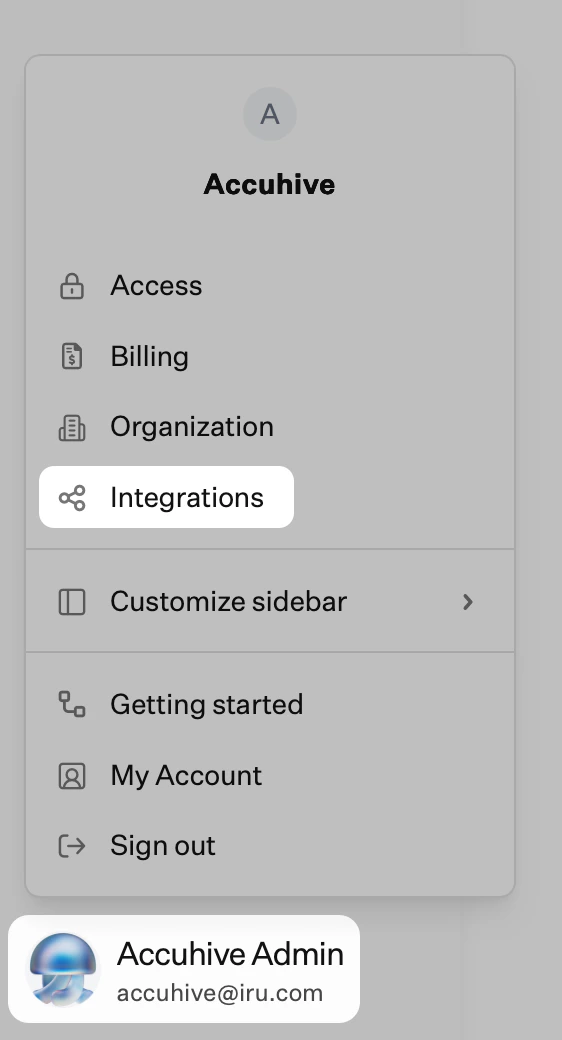 Integrations ページの右上にある **すべてのインテグレーションを参照** を選択します。
**Google Workspace** タイルを選択します。
**Get Started** を選択します。
一意の名前を入力します。この名前は、ユーザーの取得元ディレクトリを示すために Iru Endpoint で使用されます。
**Sign in with Google** を選択します。
連携するディレクトリへの管理者アクセス権を持つ Google アカウントでサインインします。
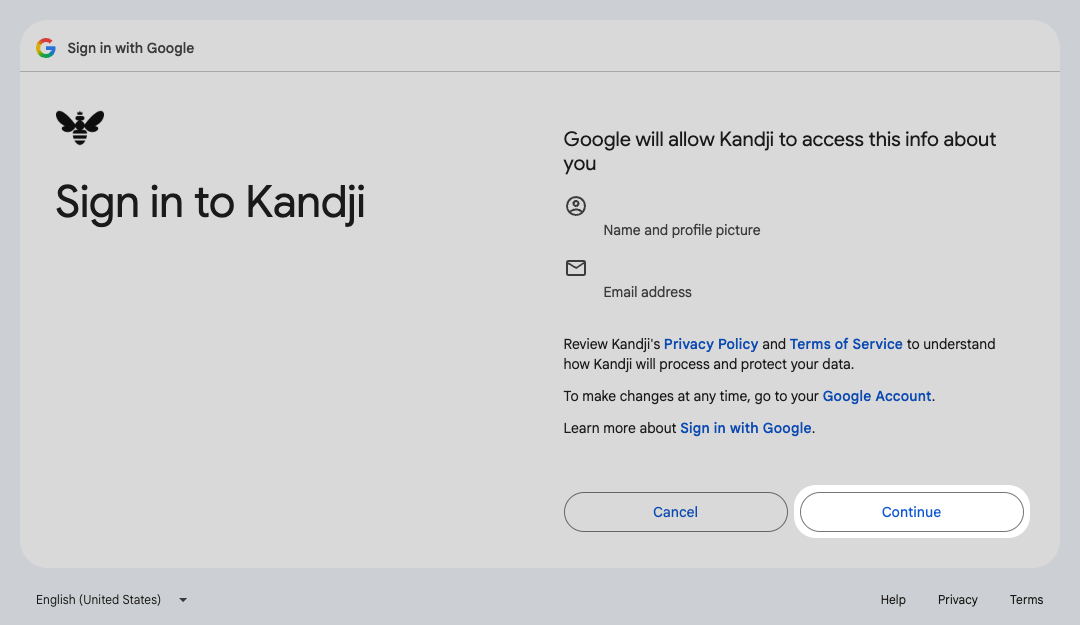
Iru Endpoint が要求する基本的なアカウント情報を確認し、**続ける** を選択します。
Google でアクセスを許可する際、Google ではこのアプリの名前が引き続き **Kandji**
Integrations ページの右上にある **すべてのインテグレーションを参照** を選択します。
**Google Workspace** タイルを選択します。
**Get Started** を選択します。
一意の名前を入力します。この名前は、ユーザーの取得元ディレクトリを示すために Iru Endpoint で使用されます。
**Sign in with Google** を選択します。
連携するディレクトリへの管理者アクセス権を持つ Google アカウントでサインインします。
Iru Endpoint が要求する基本的なアカウント情報を確認し、**続ける** を選択します。
Google でアクセスを許可する際、Google ではこのアプリの名前が引き続き **Kandji** 
 と表示されます。**Kandji** アプリを許可して、Google Workspace ディレクトリを Iru Endpoint に接続してください。
 権限の画面で、**Select all** のチェックボックスをオンにします。
[連携を再認証する](/ja/endpoint/integrations/directory-services/user-directory-integration#re-authenticate-a-directory-integration)際は、再度 **Select all** を選択してから **続ける** を選択してください。再認証では、これらの権限を再度付与しない限り、ユーザーとグループへのアクセスは復元されません。
**View groups on your domain** と **See info about users on your domain** が選択されていることを確認し、**続ける** を選択します。
権限の画面で、**Select all** のチェックボックスをオンにします。
[連携を再認証する](/ja/endpoint/integrations/directory-services/user-directory-integration#re-authenticate-a-directory-integration)際は、再度 **Select all** を選択してから **続ける** を選択してください。再認証では、これらの権限を再度付与しない限り、ユーザーとグループへのアクセスは復元されません。
**View groups on your domain** と **See info about users on your domain** が選択されていることを確認し、**続ける** を選択します。
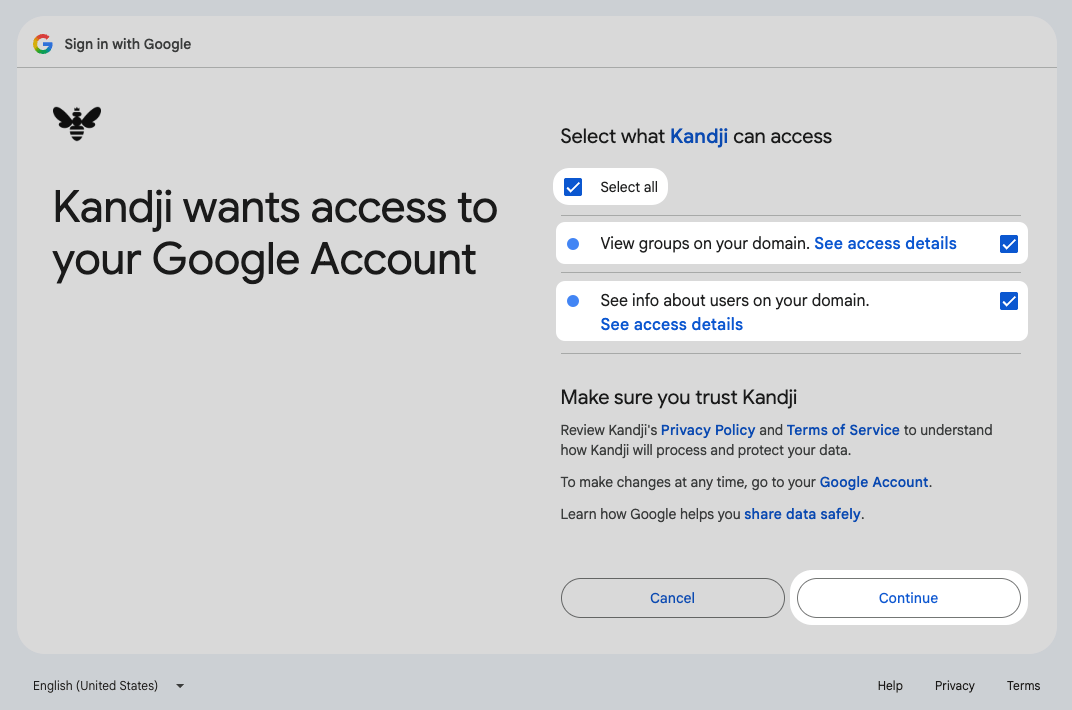 ドメインのグループの表示とドメインのユーザー情報の参照を Iru Endpoint に許可せずに続行すると、連携は正常に接続されますが、ユーザーとグループは正しく同期されません。これを修正するには、[連携を再認証](/ja/endpoint/integrations/directory-services/user-directory-integration#re-authenticate-a-directory-integration)し、要求されたすべての権限を付与してください。
**インテグレーション** ページに新しいユーザーディレクトリが表示されます。
連携が接続されたら、[追加情報の表示](/ja/endpoint/integrations/directory-services/user-directory-integration#view-additional-information-about-a-directory-integration)、[ユーザーディレクトリの強制同期](/ja/endpoint/integrations/directory-services/user-directory-integration#force-a-user-directory-sync)、[再認証](/ja/endpoint/integrations/directory-services/user-directory-integration#re-authenticate-a-directory-integration)、または[連携の削除](/ja/endpoint/integrations/directory-services/user-directory-integration#remove-a-directory-integration)を行うことができます。
### Google Workspace の権限
以下の権限は自動的に要求され、Google Workspace のユーザーを Iru Endpoint に正常に同期するために必要です。Google の管理者は、以下の権限を Iru Endpoint に委任するための十分な権限を持っている必要があります。
| 権限 | 表示テキスト | 理由 |
| - | - | - |
| openid | See info about users on your domain | Google 上の個人情報とユーザーを関連付けます |
| userinfo.profile | See info about users on your domain | 一般公開している個人情報を含む、ユーザーの個人情報を参照します |
| userinfo.email | See info about users on your domain | ユーザーのメインの Google アカウントのメールアドレスを参照します |
| admin.directory.group.readonly | View groups on your domain | ドメイン内のグループの詳細(名前、メンバーなど)とメタデータ(ログインの詳細など)を表示します |
| admin.directory.user.readonly | See info about users on your domain | ドメインユーザーの名前、メールアドレス、役職、部署などのプロフィール情報を参照する権限 |
### ユーザーとグループの同期のトラブルシューティング
連携を接続した後にユーザーまたはグループが Iru Endpoint に表示されない場合は、以下の確認を順番に行ってください。
最も一般的な原因は、同意が不完全なことです。管理者がすべての権限を選択せずに Google の権限画面を先に進めた場合、連携は接続されて成功と表示されますが、Iru Endpoint はディレクトリを読み取ることができません。
[連携を再認証](/ja/endpoint/integrations/directory-services/user-directory-integration#re-authenticate-a-directory-integration)し、権限の画面で **Select all** のチェックボックスをオンにしてから **続ける** を選択します。連携が再接続されたら、次の 4 時間ごとの同期を待たずに[ユーザーディレクトリの同期を強制実行](/ja/endpoint/integrations/directory-services/user-directory-integration#force-a-user-directory-sync)してください。
Iru Endpoint は、連携を承認した管理者の権限を使用してディレクトリを読み取るため、そのアカウントにはユーザーとグループの両方に対する読み取りアクセス権が必要です。
Google 管理コンソールで **ディレクトリ** > **ユーザー** に移動し、連携の承認に使用したアカウントを選択して、**Admin roles and privileges** を開きます。割り当てられている各ロールを開き、ユーザーとグループの読み取り権限が付与されていることを確認します。
Directory API は Google Admin SDK に属しており、管理者に限定されています。アカウントにこれらの権限がない場合、Google は `403 Not Authorized to access this resource/api` エラーを返し、ディレクトリデータは Iru Endpoint に届きません。スコープの完全なリストについては、Google の [Choose Directory API scopes](https://developers.google.com/workspace/admin/directory/v1/guides/authorizing) を参照してください。
Google Workspace の管理者は、Google Workspace API にアクセスできるアプリケーションを制限できます。この場合、同意画面が正しく見えていても同期がブロックされます。
Google 管理コンソールで **セキュリティ** > **Access and data control** > **API controls** > **App access control** に移動し、Iru Endpoint が使用する OAuth アプリが **Limited** や **Blocked** ではなく **Trusted** になっていることを確認します。Google の同意画面では、このアプリの名前は引き続き **Kandji** です。
これらの制御の動作の詳細については、Google の [Google Workspace のデータにアクセスできるアプリを管理する](https://knowledge.workspace.google.com/admin/apps/control-which-apps-access-google-workspace-data)を参照してください。
Google は現在サインインしているアカウントに同意を適用するため、管理者以外のアカウントの既存のセッションがあると、誤ったユーザーで連携が承認される可能性があります。
[Safari](https://support.apple.com/guide/safari/browse-in-private-ibrw1069/mac) でプライベートブラウズウィンドウを開くか、[Chrome](https://support.google.com/chrome/answer/95464) でシークレットウィンドウを開き、Google のセッションを保持している他のブラウザウィンドウをすべて閉じてから、Iru Endpoint にサインインし、正しい管理者アカウントで[連携を再認証](/ja/endpoint/integrations/directory-services/user-directory-integration#re-authenticate-a-directory-integration)してください。
### Google から連携の接続を解除する
[https://myaccount.google.com/permissions.](https://myaccount.google.com/permissions) に移動します。最初に連携を構成したのと同じアカウントでサインインしていることを確認してください。
アプリケーションのリストで **Kandji** アプリケーションの **削除** を選択します。Google では、このアプリの名前は引き続き **Kandji** です。
ドメインのグループの表示とドメインのユーザー情報の参照を Iru Endpoint に許可せずに続行すると、連携は正常に接続されますが、ユーザーとグループは正しく同期されません。これを修正するには、[連携を再認証](/ja/endpoint/integrations/directory-services/user-directory-integration#re-authenticate-a-directory-integration)し、要求されたすべての権限を付与してください。
**インテグレーション** ページに新しいユーザーディレクトリが表示されます。
連携が接続されたら、[追加情報の表示](/ja/endpoint/integrations/directory-services/user-directory-integration#view-additional-information-about-a-directory-integration)、[ユーザーディレクトリの強制同期](/ja/endpoint/integrations/directory-services/user-directory-integration#force-a-user-directory-sync)、[再認証](/ja/endpoint/integrations/directory-services/user-directory-integration#re-authenticate-a-directory-integration)、または[連携の削除](/ja/endpoint/integrations/directory-services/user-directory-integration#remove-a-directory-integration)を行うことができます。
### Google Workspace の権限
以下の権限は自動的に要求され、Google Workspace のユーザーを Iru Endpoint に正常に同期するために必要です。Google の管理者は、以下の権限を Iru Endpoint に委任するための十分な権限を持っている必要があります。
| 権限 | 表示テキスト | 理由 |
| - | - | - |
| openid | See info about users on your domain | Google 上の個人情報とユーザーを関連付けます |
| userinfo.profile | See info about users on your domain | 一般公開している個人情報を含む、ユーザーの個人情報を参照します |
| userinfo.email | See info about users on your domain | ユーザーのメインの Google アカウントのメールアドレスを参照します |
| admin.directory.group.readonly | View groups on your domain | ドメイン内のグループの詳細(名前、メンバーなど)とメタデータ(ログインの詳細など)を表示します |
| admin.directory.user.readonly | See info about users on your domain | ドメインユーザーの名前、メールアドレス、役職、部署などのプロフィール情報を参照する権限 |
### ユーザーとグループの同期のトラブルシューティング
連携を接続した後にユーザーまたはグループが Iru Endpoint に表示されない場合は、以下の確認を順番に行ってください。
最も一般的な原因は、同意が不完全なことです。管理者がすべての権限を選択せずに Google の権限画面を先に進めた場合、連携は接続されて成功と表示されますが、Iru Endpoint はディレクトリを読み取ることができません。
[連携を再認証](/ja/endpoint/integrations/directory-services/user-directory-integration#re-authenticate-a-directory-integration)し、権限の画面で **Select all** のチェックボックスをオンにしてから **続ける** を選択します。連携が再接続されたら、次の 4 時間ごとの同期を待たずに[ユーザーディレクトリの同期を強制実行](/ja/endpoint/integrations/directory-services/user-directory-integration#force-a-user-directory-sync)してください。
Iru Endpoint は、連携を承認した管理者の権限を使用してディレクトリを読み取るため、そのアカウントにはユーザーとグループの両方に対する読み取りアクセス権が必要です。
Google 管理コンソールで **ディレクトリ** > **ユーザー** に移動し、連携の承認に使用したアカウントを選択して、**Admin roles and privileges** を開きます。割り当てられている各ロールを開き、ユーザーとグループの読み取り権限が付与されていることを確認します。
Directory API は Google Admin SDK に属しており、管理者に限定されています。アカウントにこれらの権限がない場合、Google は `403 Not Authorized to access this resource/api` エラーを返し、ディレクトリデータは Iru Endpoint に届きません。スコープの完全なリストについては、Google の [Choose Directory API scopes](https://developers.google.com/workspace/admin/directory/v1/guides/authorizing) を参照してください。
Google Workspace の管理者は、Google Workspace API にアクセスできるアプリケーションを制限できます。この場合、同意画面が正しく見えていても同期がブロックされます。
Google 管理コンソールで **セキュリティ** > **Access and data control** > **API controls** > **App access control** に移動し、Iru Endpoint が使用する OAuth アプリが **Limited** や **Blocked** ではなく **Trusted** になっていることを確認します。Google の同意画面では、このアプリの名前は引き続き **Kandji** です。
これらの制御の動作の詳細については、Google の [Google Workspace のデータにアクセスできるアプリを管理する](https://knowledge.workspace.google.com/admin/apps/control-which-apps-access-google-workspace-data)を参照してください。
Google は現在サインインしているアカウントに同意を適用するため、管理者以外のアカウントの既存のセッションがあると、誤ったユーザーで連携が承認される可能性があります。
[Safari](https://support.apple.com/guide/safari/browse-in-private-ibrw1069/mac) でプライベートブラウズウィンドウを開くか、[Chrome](https://support.google.com/chrome/answer/95464) でシークレットウィンドウを開き、Google のセッションを保持している他のブラウザウィンドウをすべて閉じてから、Iru Endpoint にサインインし、正しい管理者アカウントで[連携を再認証](/ja/endpoint/integrations/directory-services/user-directory-integration#re-authenticate-a-directory-integration)してください。
### Google から連携の接続を解除する
[https://myaccount.google.com/permissions.](https://myaccount.google.com/permissions) に移動します。最初に連携を構成したのと同じアカウントでサインインしていることを確認してください。
アプリケーションのリストで **Kandji** アプリケーションの **削除** を選択します。Google では、このアプリの名前は引き続き **Kandji** です。