> ## Documentation Index
> Fetch the complete documentation index at: https://docs.iru.com/llms.txt
> Use this file to discover all available pages before exploring further.
# Apple TVデバイスの登録
> Automated Device Enrollmentを使用して、Iru EndpointでApple TVデバイスを登録および管理します。ADEプロファイルを設定し、tvOSデバイスに構成を展開します。
このガイドはApple TVに適用されます
Iru Endpointは、Apple BusinessまたはApple School ManagerアカウントでIru Endpointに割り当てられているtvOSデバイスのみを管理できます。Apple TVがそこに表示されていない場合は、[こちらの手順に従ってください](https://support.apple.com/en-us/HT208124)。
登録はApple TVの初期セットアップ中に行われます。すでに初期セットアップ画面を過ぎているデバイスは、登録するために消去する必要があります。
## Apple TVデバイスをIru Endpointに割り当てる
[Apple Business](https://business.apple.com)または[Apple School Manager](https://school.apple.com)にサインインします。
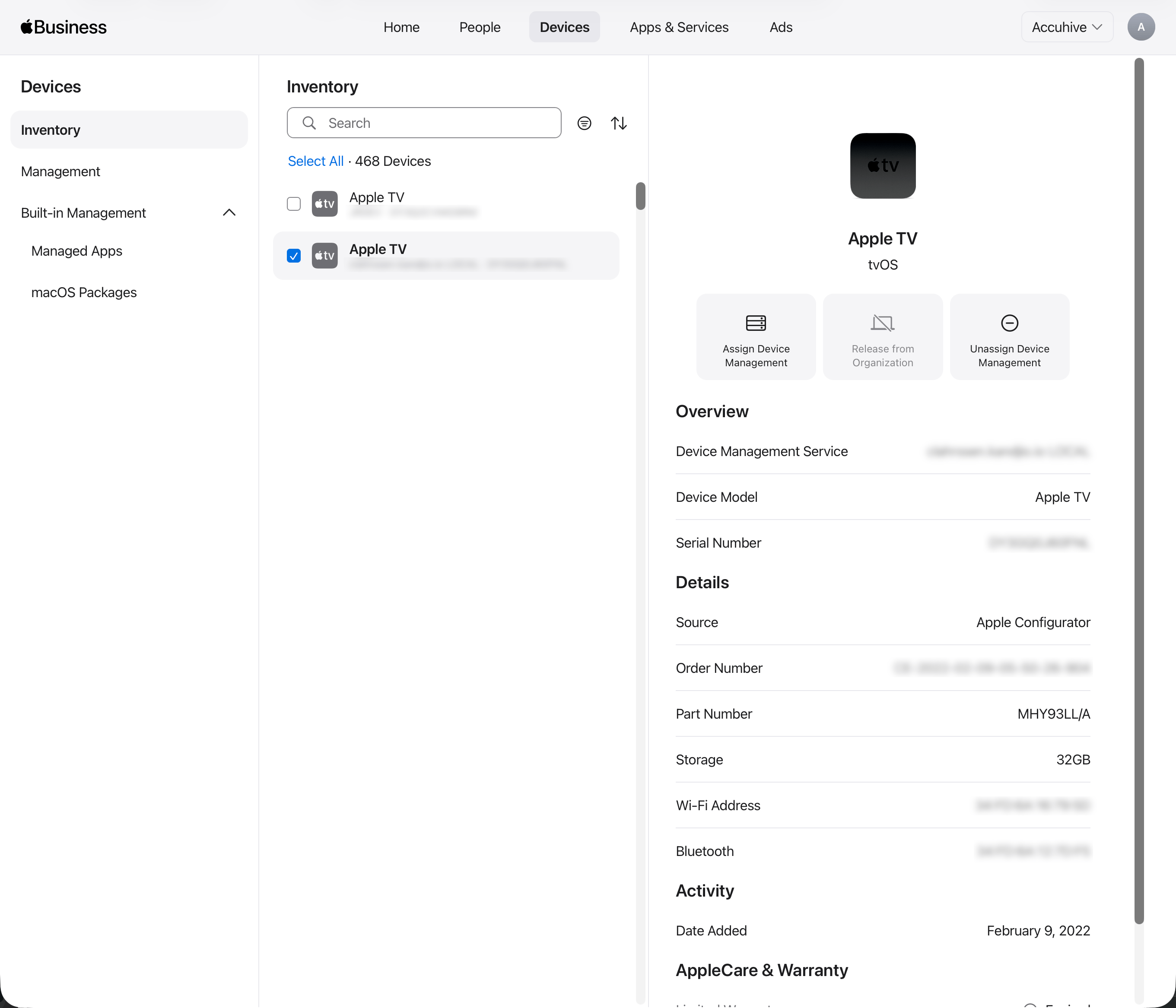
ページ上部中央にある**デバイス**タブを選択します。
検索フィールドでデバイスを検索します。
リストからデバイスを選択します。
**Assign Device Management**を選択します。
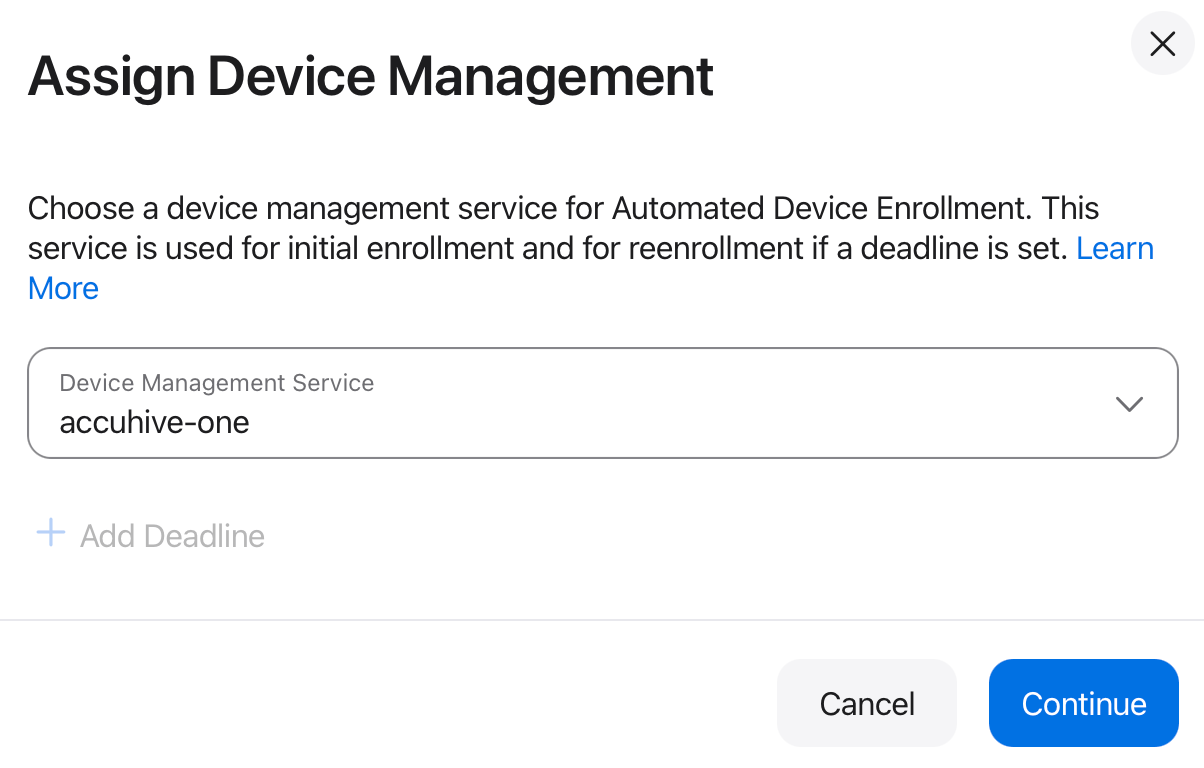
 **Assign to the following MDM**を選択し、Iru EndpointでMDMを有効にした際に作成したIru Endpointサーバーを選択します。
**続ける**を選択します。
**Assign to the following MDM**を選択し、Iru EndpointでMDMを有効にした際に作成したIru Endpointサーバーを選択します。
**続ける**を選択します。
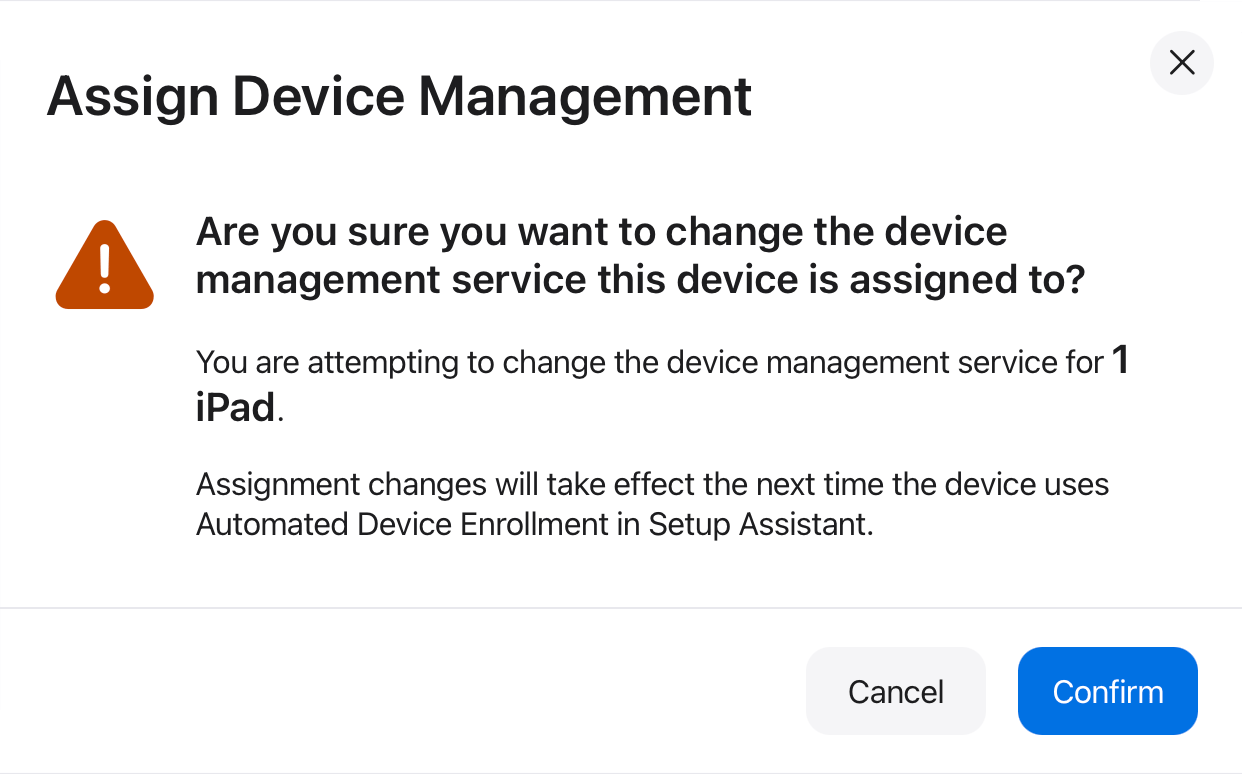
 デバイスが割り当てられているMDMサーバーを変更することを**確認**します。
 ## デフォルトのMDMサーバー割り当てを設定する
Apple BusinessまたはApple School Managerで、ページ上部中央にある**デバイス**タブを選択します。
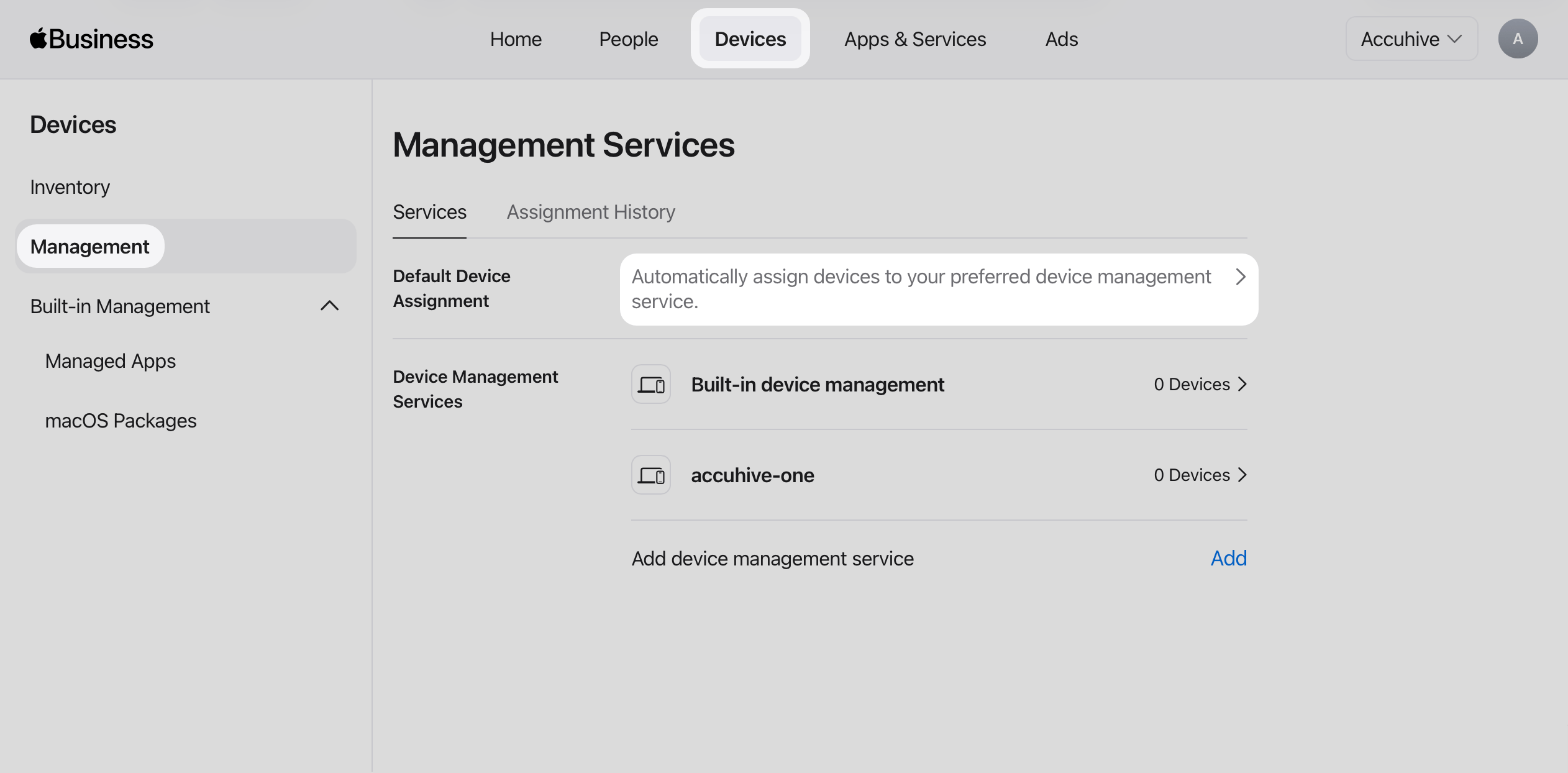
左側のサイドバーで**Management**を選択します。
**Management Services**で、**Automatically assign devices to your preferred device management service**を選択します。
## デフォルトのMDMサーバー割り当てを設定する
Apple BusinessまたはApple School Managerで、ページ上部中央にある**デバイス**タブを選択します。
左側のサイドバーで**Management**を選択します。
**Management Services**で、**Automatically assign devices to your preferred device management service**を選択します。
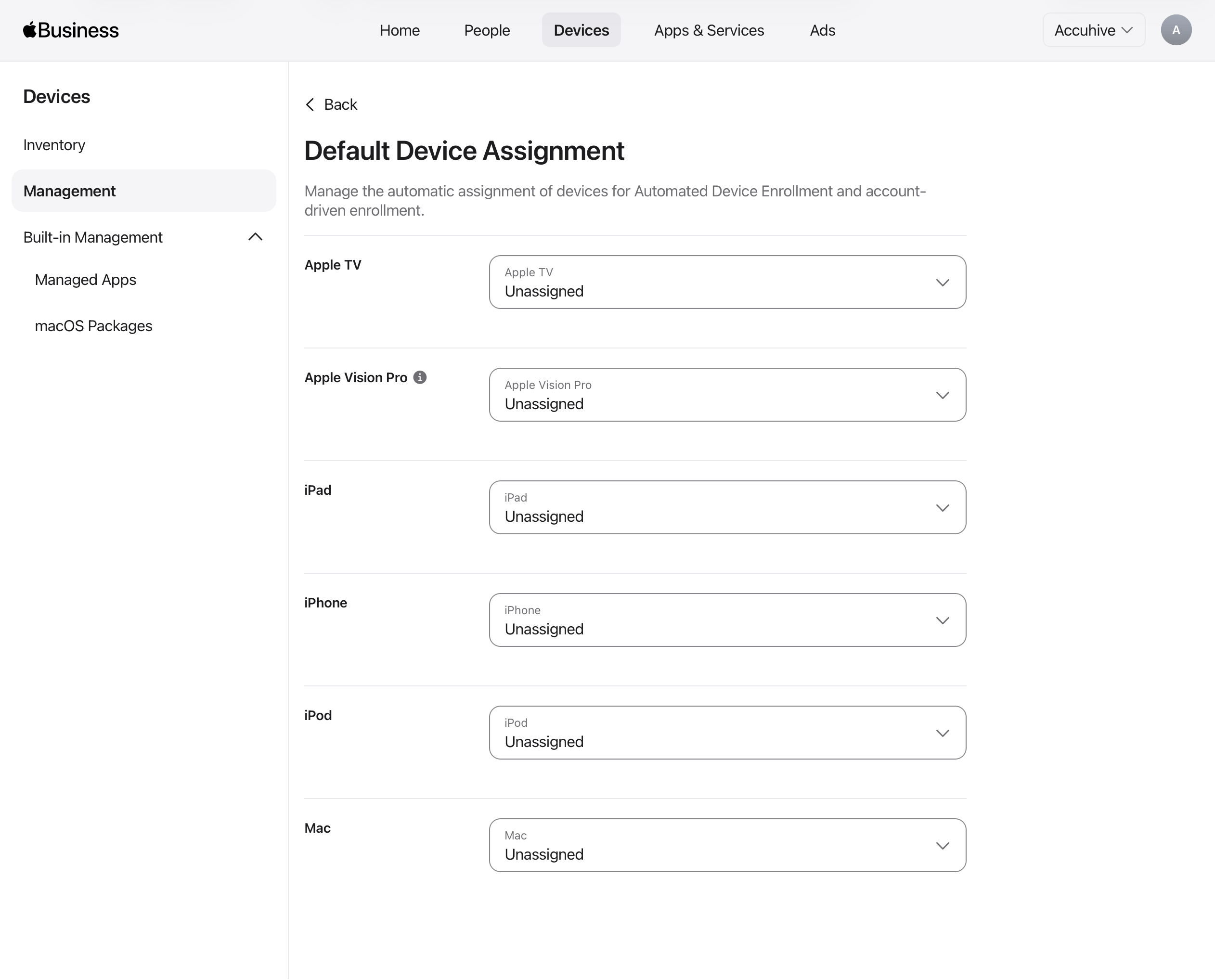
 **Default Device Assignment**ページで、**Apple TV**にMDMに使用するIru Endpointデバイス管理サービスを選択します。
 ## Iru EndpointでApple TVデバイスを確認する
Iru Endpoint Web Appで、左側のナビゲーションの**登録**を選択します。
**登録**ページで、**Automated Device Enrollment**タブを選択します。
Apple BusinessまたはApple School Managerから割り当てたApple TVデバイスが表示されていることを確認します。Apple TVデバイスが表示されない場合は、**Fetch devices**ボタンを選択します。
Apple TVのAuto Advanceを設定する方法については、[Apple TVとMacのAuto Advanceを設定する](/ja/endpoint/devices/device-features/apple/configure-auto-advance-for-apple-tv-and-mac)を参照してください。
## Iru EndpointでApple TVデバイスを確認する
Iru Endpoint Web Appで、左側のナビゲーションの**登録**を選択します。
**登録**ページで、**Automated Device Enrollment**タブを選択します。
Apple BusinessまたはApple School Managerから割り当てたApple TVデバイスが表示されていることを確認します。Apple TVデバイスが表示されない場合は、**Fetch devices**ボタンを選択します。
Apple TVのAuto Advanceを設定する方法については、[Apple TVとMacのAuto Advanceを設定する](/ja/endpoint/devices/device-features/apple/configure-auto-advance-for-apple-tv-and-mac)を参照してください。