> ## Documentation Index
> Fetch the complete documentation index at: https://docs.iru.com/llms.txt
> Use this file to discover all available pages before exploring further.
# Blueprint の変更
> Iru Endpoint で Blueprint の設定と Assignment Maps を編集します。Library Item の割り当ての更新、パラメーターの変更、デバイス構成の調整を行います。
このガイドはすべてのデバイスプラットフォームに適用されます
### Blueprint の変更について
Blueprint を変更すると、Blueprint の詳細 (名前、説明、外観) の更新、Assignment Map のロジックの調整、Mac デバイスの Parameters の管理を行うことができます。
2026 年 4 月 1 日をもって、従来のすべての Classic Blueprints は、Blueprints のデフォルトかつ改良版である Assignment Maps に自動的に変換されました。
### 仕組み
Blueprint の変更は、チェックインの動作と Assignment Map で割り当てられた特定の項目に基づいてデバイスに適用されます。メタデータ (名前、説明、アイコン) の変更は整理にのみ影響し、割り当てやルールの変更はデバイスが受け取る内容に影響します。Blueprint の更新は [Activity ページ](/ja/endpoint/devices/activity-page)に記録されます。
### Blueprint の詳細を変更する
**Blueprintを編集** では、製品内での Blueprint の表示方法を変更します。具体的には、**名前**、オプションの**説明**、Blueprint タイルなどに表示される**アイコン**と**色**です。これらの更新は整理のためだけのもので、Assignment Map の内容、Library Item の割り当て、デバイスが受け取る内容は変更されません。
#### Blueprints ページの Blueprint タイルから変更する
左側のナビゲーションで **Blueprints** を開きます。
編集する Blueprint の**タイル**で、**省略記号** (**…**) を選択します。
**Blueprintを編集** を選択します。
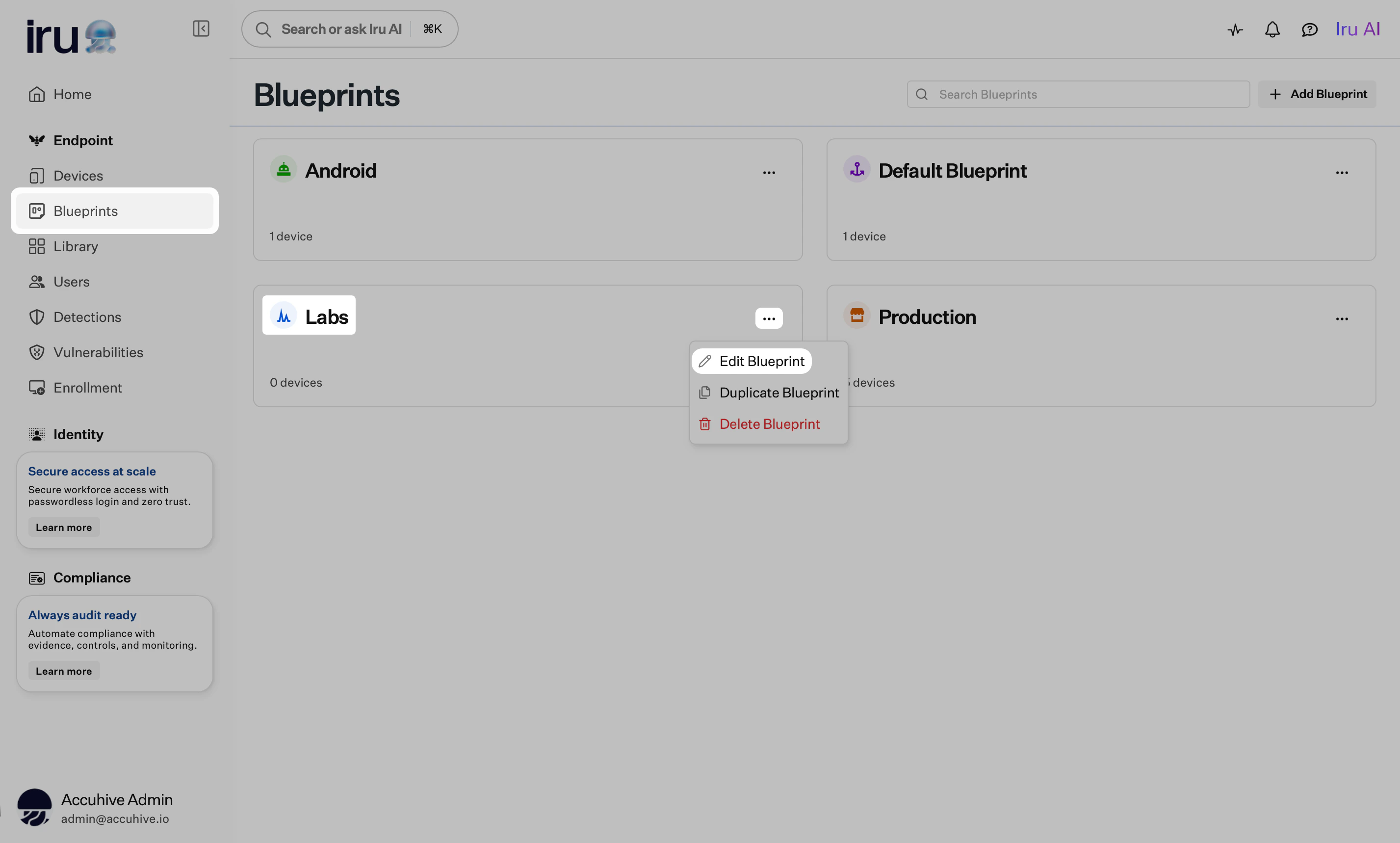 必要に応じて、Blueprint の**名前**、オプションの**説明**、アイコン/色を更新します。
**確認** を選択します。
#### Blueprint ページから変更する
左側のナビゲーションで **Blueprints** を開きます。
Blueprints ページで、編集する Blueprint の**タイル**を選択します。
Blueprint ヘッダーの**省略記号** (**…**) を選択します。
**Blueprintを編集** を選択します。
必要に応じて、Blueprint の**名前**、オプションの**説明**、アイコン/色を更新します。
**確認** を選択します。
#### Blueprint ページから変更する
左側のナビゲーションで **Blueprints** を開きます。
Blueprints ページで、編集する Blueprint の**タイル**を選択します。
Blueprint ヘッダーの**省略記号** (**…**) を選択します。
**Blueprintを編集** を選択します。
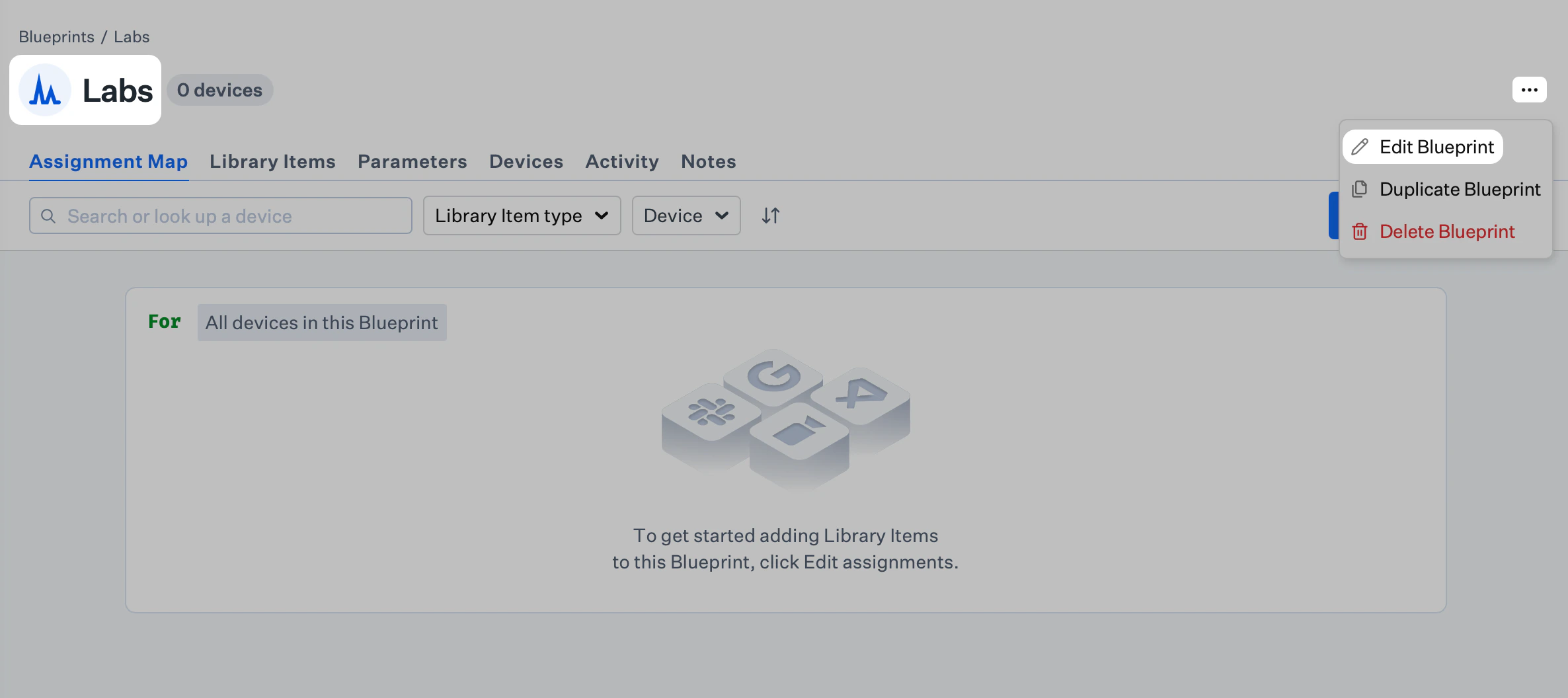 必要に応じて、Blueprint の**名前**、オプションの**説明**、アイコン/色を更新します。
**確認** を選択します。
### Assignment Map の内容を変更する
Assignment Map ビューから **割り当てを編集** を選択します。
Library Items の追加または削除、Assignment Node の調整、条件ブロックの編集を行います。
完了したら **保存** を選択します。
### Parameters を変更する (Mac のみ)
Blueprint で **Parameters** タブを開きます。
**Parametersを編集** を選択し、必要な Parameters を有効化、無効化、または調整します。
**保存** を選択します。
### 関連記事
Assignment Maps、Library Items、Parameters を作成および管理します
既存の Blueprint と Assignment Map をコピーします
使用していない Blueprint を安全に削除します
条件ロジックを使用して割り当ての対象範囲を設定します
必要に応じて、Blueprint の**名前**、オプションの**説明**、アイコン/色を更新します。
**確認** を選択します。
### Assignment Map の内容を変更する
Assignment Map ビューから **割り当てを編集** を選択します。
Library Items の追加または削除、Assignment Node の調整、条件ブロックの編集を行います。
完了したら **保存** を選択します。
### Parameters を変更する (Mac のみ)
Blueprint で **Parameters** タブを開きます。
**Parametersを編集** を選択し、必要な Parameters を有効化、無効化、または調整します。
**保存** を選択します。
### 関連記事
Assignment Maps、Library Items、Parameters を作成および管理します
既存の Blueprint と Assignment Map をコピーします
使用していない Blueprint を安全に削除します
条件ロジックを使用して割り当ての対象範囲を設定します