> ## Documentation Index
> Fetch the complete documentation index at: https://docs.iru.com/llms.txt
> Use this file to discover all available pages before exploring further.
# MSP Billing
> Set up MSP billing, review estimated spend, and download invoices from the Partner portal.
### About MSP Billing
**MSP Billing** is the billing page in the [Partner portal](/en/iru/platform-overview/partner-portal-page). You set up billing, review estimated spend, and download invoices in Iru. This page is only available in the United States. Support for the European Union is coming in a future update.
**MSP billing** is part of the Partner portal. **Partner portal** appears in the [Account Menu](/en/iru/platform-overview/account-menu) only for **Account Owners** and **Administrators** on an MSP parent tenant. See [Team Member Role Permissions](/en/iru/access/team-member-role-permissions).
### How to Open MSP Billing
In the sidebar, select the [**Account Menu Button**](/en/iru/platform-overview/account-menu), then select **Partner portal**.
In the left-hand navigation, select **MSP billing**.
To return to your parent tenant, use **Home** in the Account Menu. See [Partner Portal](/en/iru/platform-overview/partner-portal-page#return-to-the-parent-tenant).
The rest of the Partner portal stays available before billing is set up. You must finish billing setup before you can [create a tenant](/en/iru/platform-overview/partner-dashboard#create-a-tenant).
### First-time setup
Complete billing in the Partner portal. There is no email and no redirect to an outside page to add a bank account.
If billing is not set up yet, **MSP Billing** shows **Billing setup**. You also see that prompt if you try to create a tenant before billing is set up.
In the [Partner portal](/en/iru/platform-overview/partner-portal-page), select **MSP billing** in the left-hand navigation.
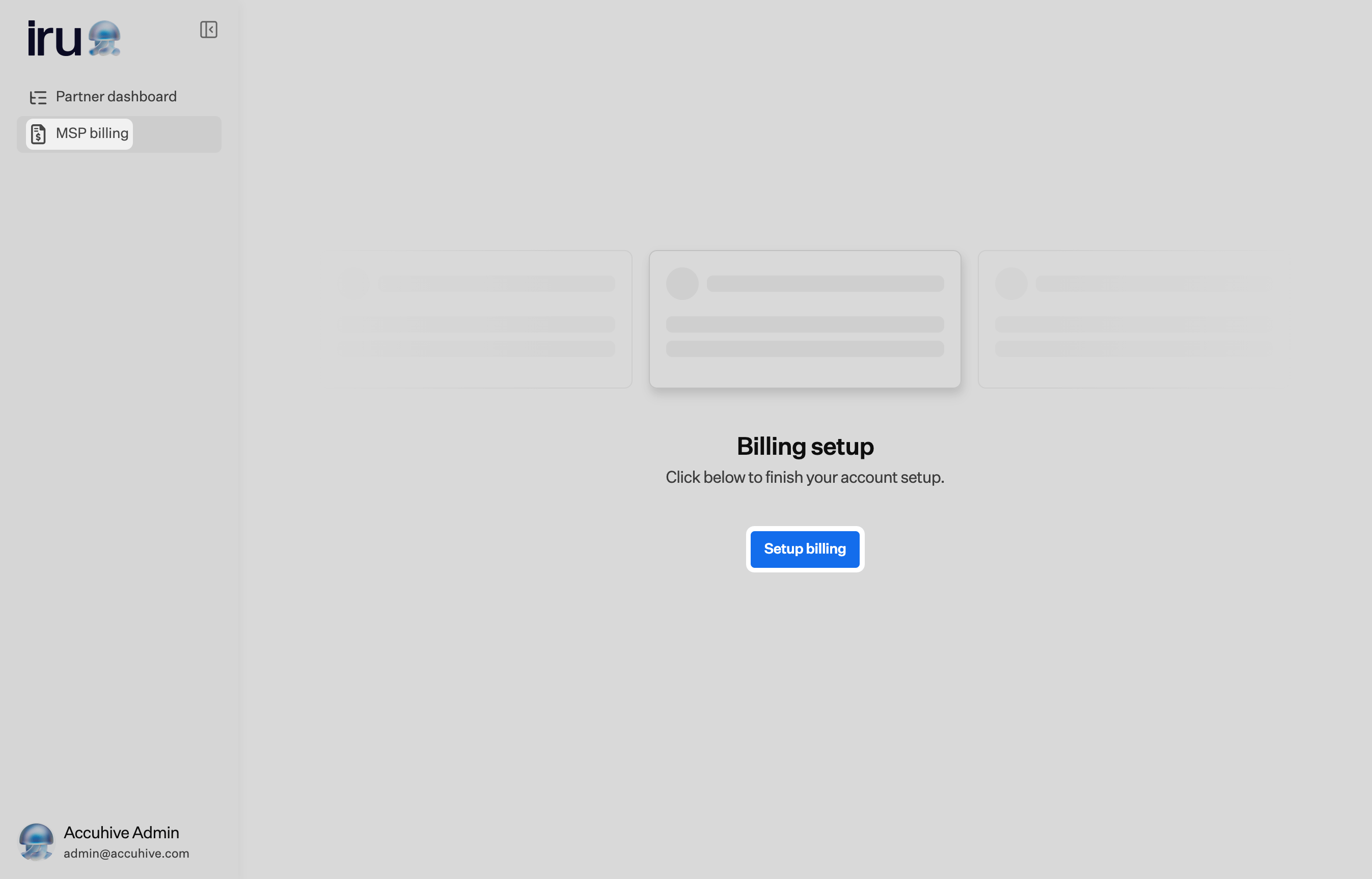 Select **Setup billing**.
In **Organization details**, fill in the organization address, then select **Save details**.
Select **Setup billing**.
In **Organization details**, fill in the organization address, then select **Save details**.
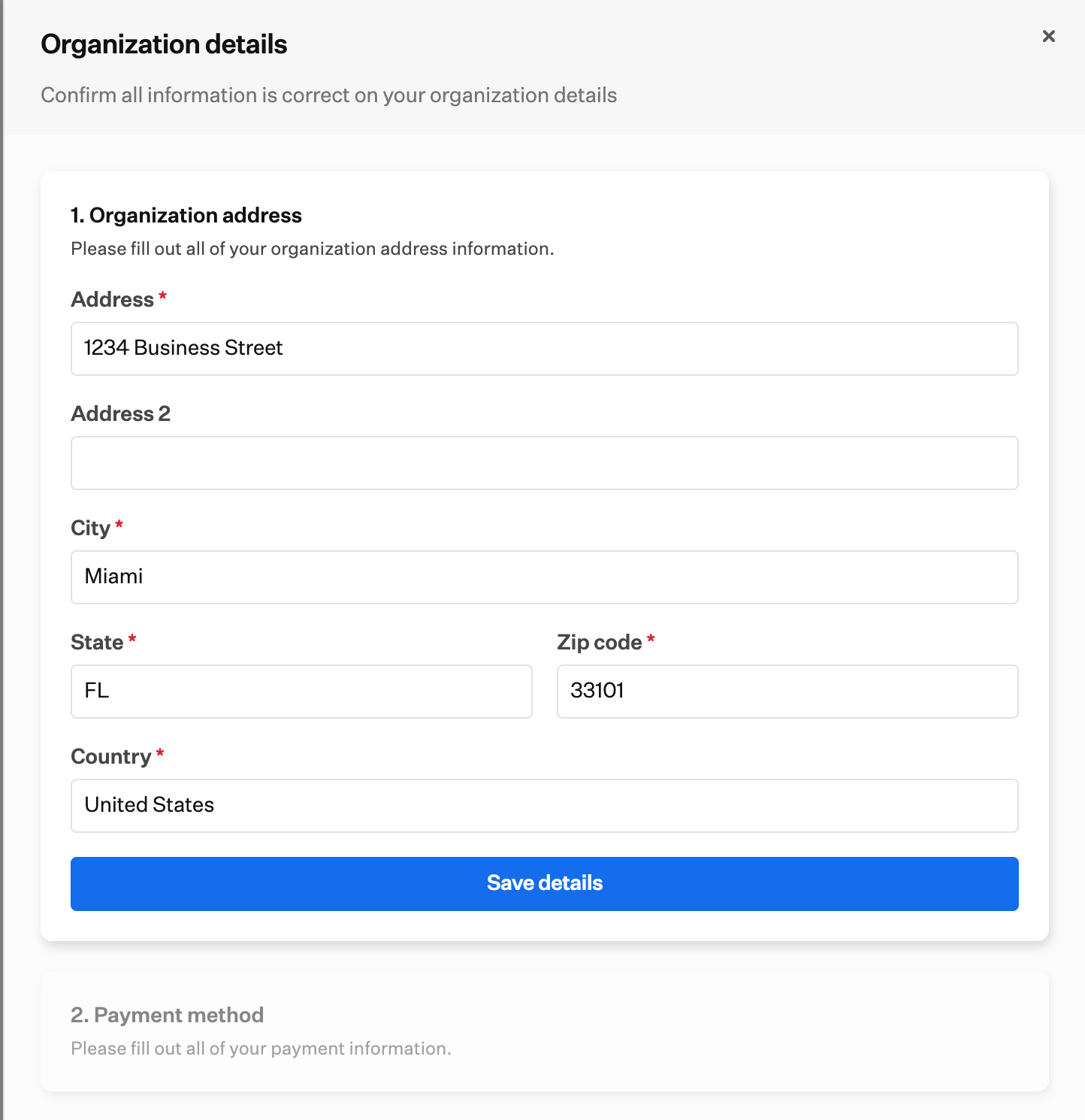 The message **We could not save your organization address. Try again.** means the address could not be validated. Check that it was entered correctly, then try again.
Enter **Email**, **Full name**, and bank information, then select **Save details**. By providing your payment information, you authorize Iru to debit this bank account for future payments.
The message **We could not save your organization address. Try again.** means the address could not be validated. Check that it was entered correctly, then try again.
Enter **Email**, **Full name**, and bank information, then select **Save details**. By providing your payment information, you authorize Iru to debit this bank account for future payments.
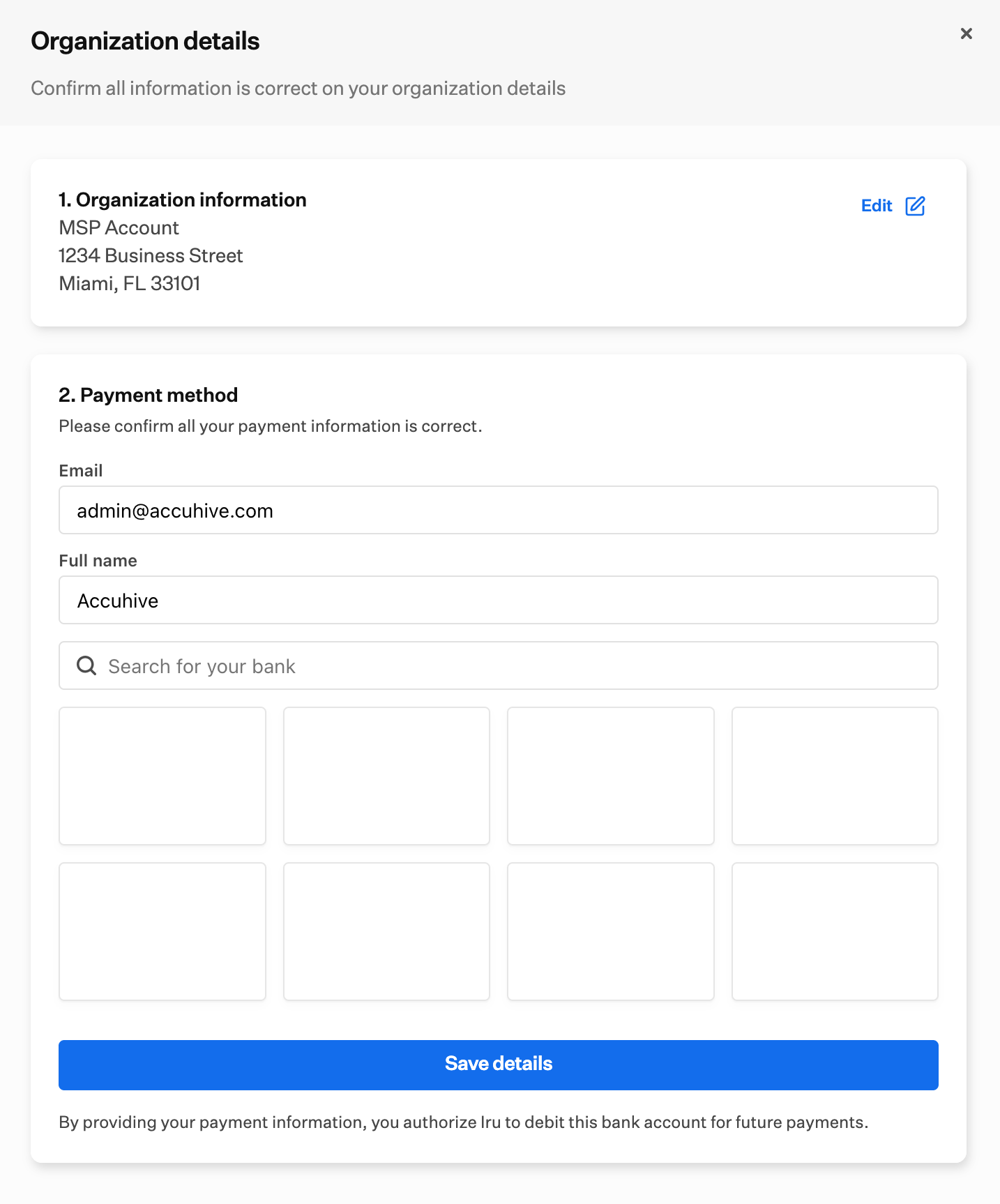 Confirm the organization information and payment method, then select **Done**. Automatic payment is on from that point, and you can [create a tenant](/en/iru/platform-overview/partner-dashboard#create-a-tenant) right away.
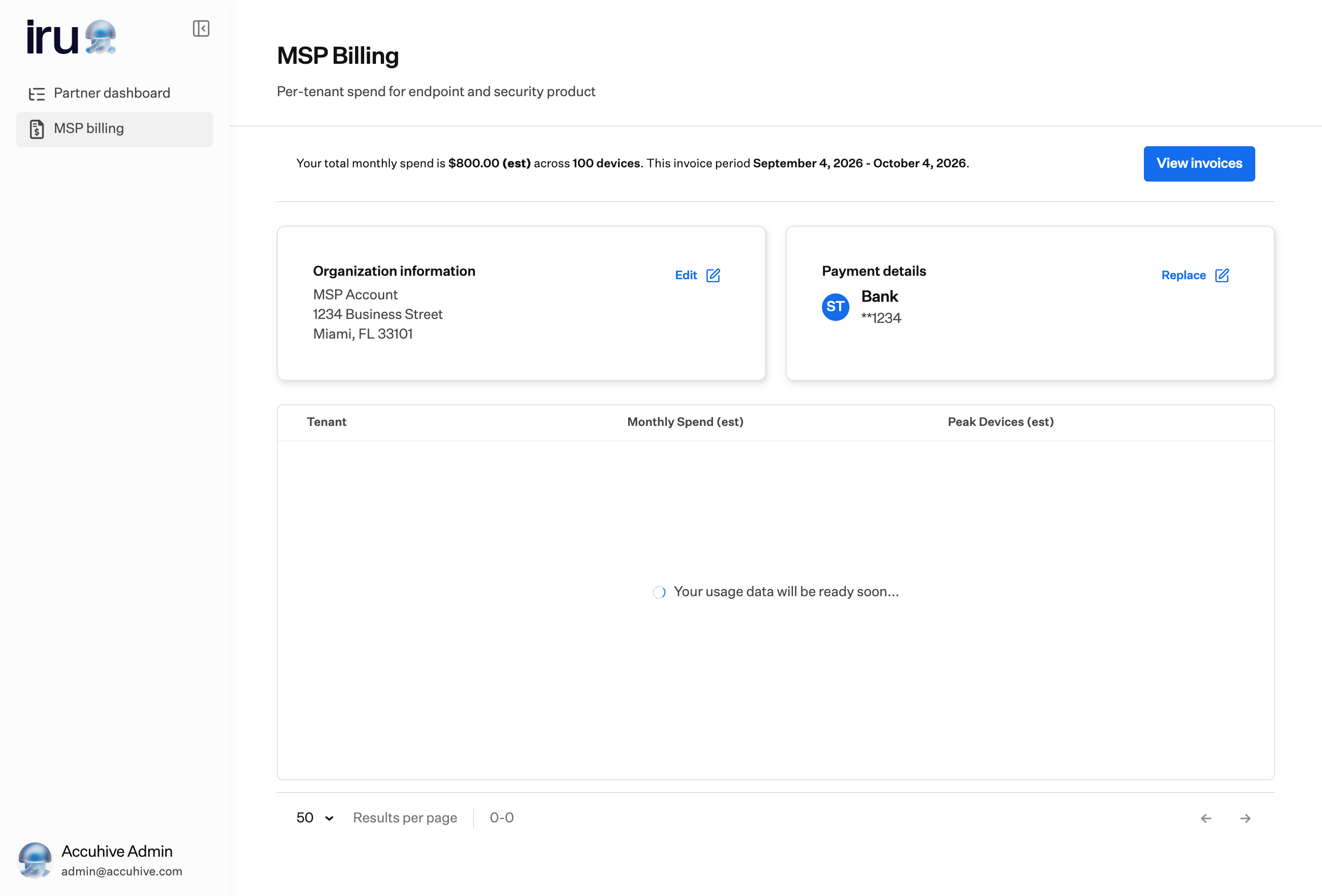
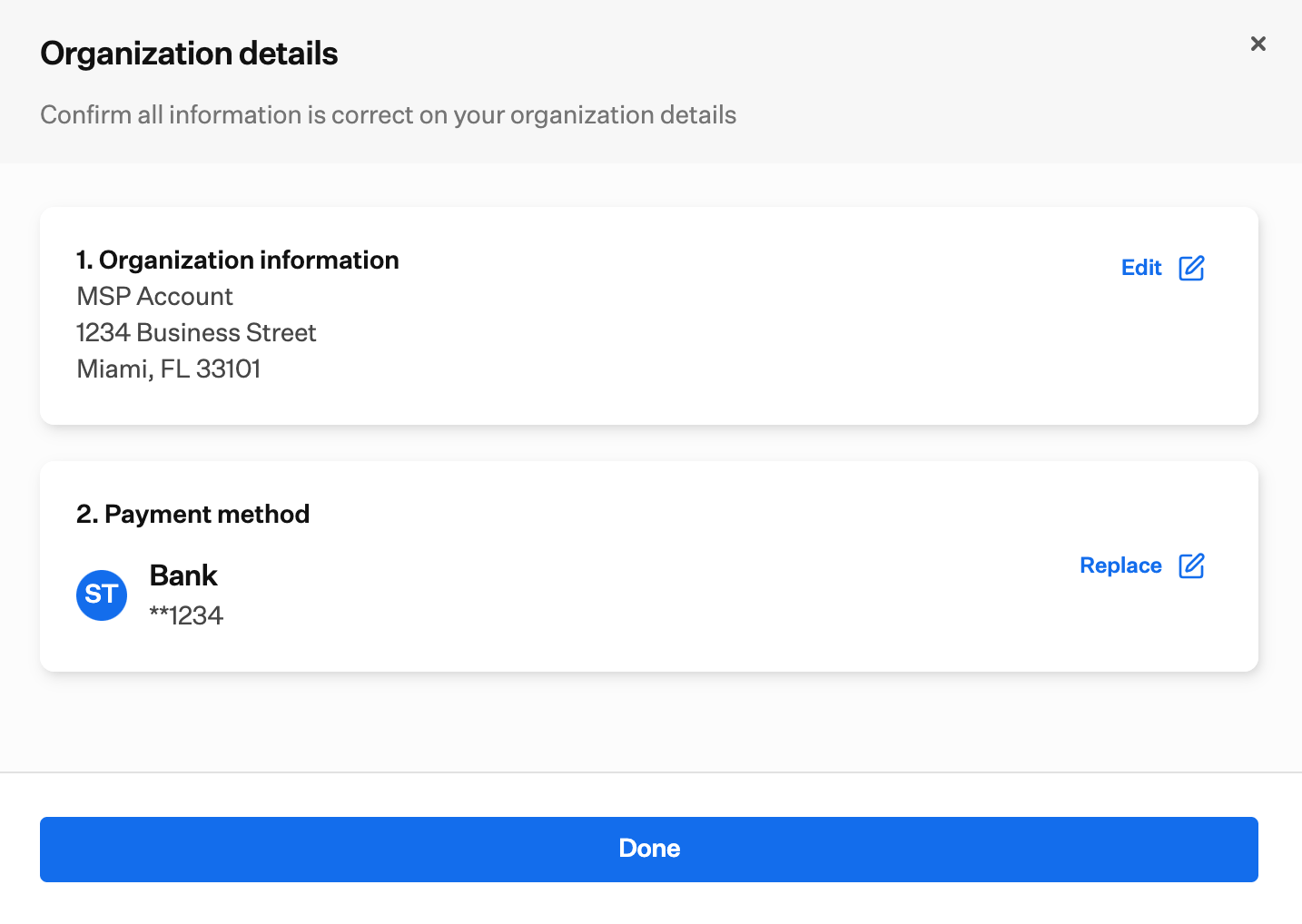 **MSP Billing** is then ready to view. In the tenant table, **Your usage data will be ready soon...** appears until spend and peak device counts are available.
After setup, it can take up to **12 hours** for billing data to populate.
**MSP Billing** is then ready to view. In the tenant table, **Your usage data will be ready soon...** appears until spend and peak device counts are available.
After setup, it can take up to **12 hours** for billing data to populate.
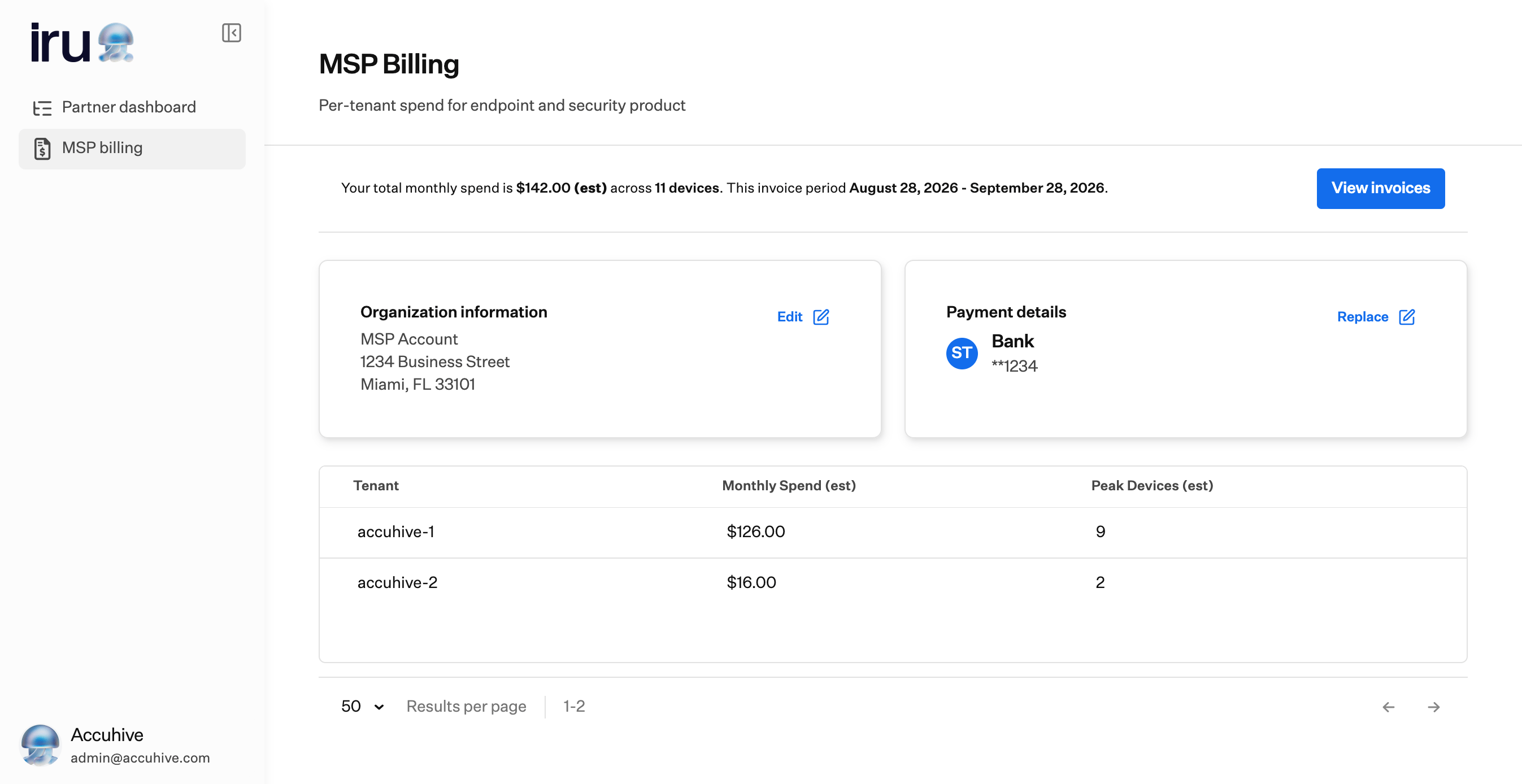
 After usage data is available, the tenant table lists **Tenant**, **Monthly Spend (est)**, and **Peak Devices (est)**.
 ### Edit Organization Information
After billing is set up, you can update the company name and address from **MSP Billing**.
In the [Partner portal](/en/iru/platform-overview/partner-portal-page), select **MSP billing** in the left-hand navigation.
Select **Edit** on **Organization information**.
Update the company name and address in **Organization details**, then select **Save details**. Select **Cancel** to discard.
### Edit Organization Information
After billing is set up, you can update the company name and address from **MSP Billing**.
In the [Partner portal](/en/iru/platform-overview/partner-portal-page), select **MSP billing** in the left-hand navigation.
Select **Edit** on **Organization information**.
Update the company name and address in **Organization details**, then select **Save details**. Select **Cancel** to discard.
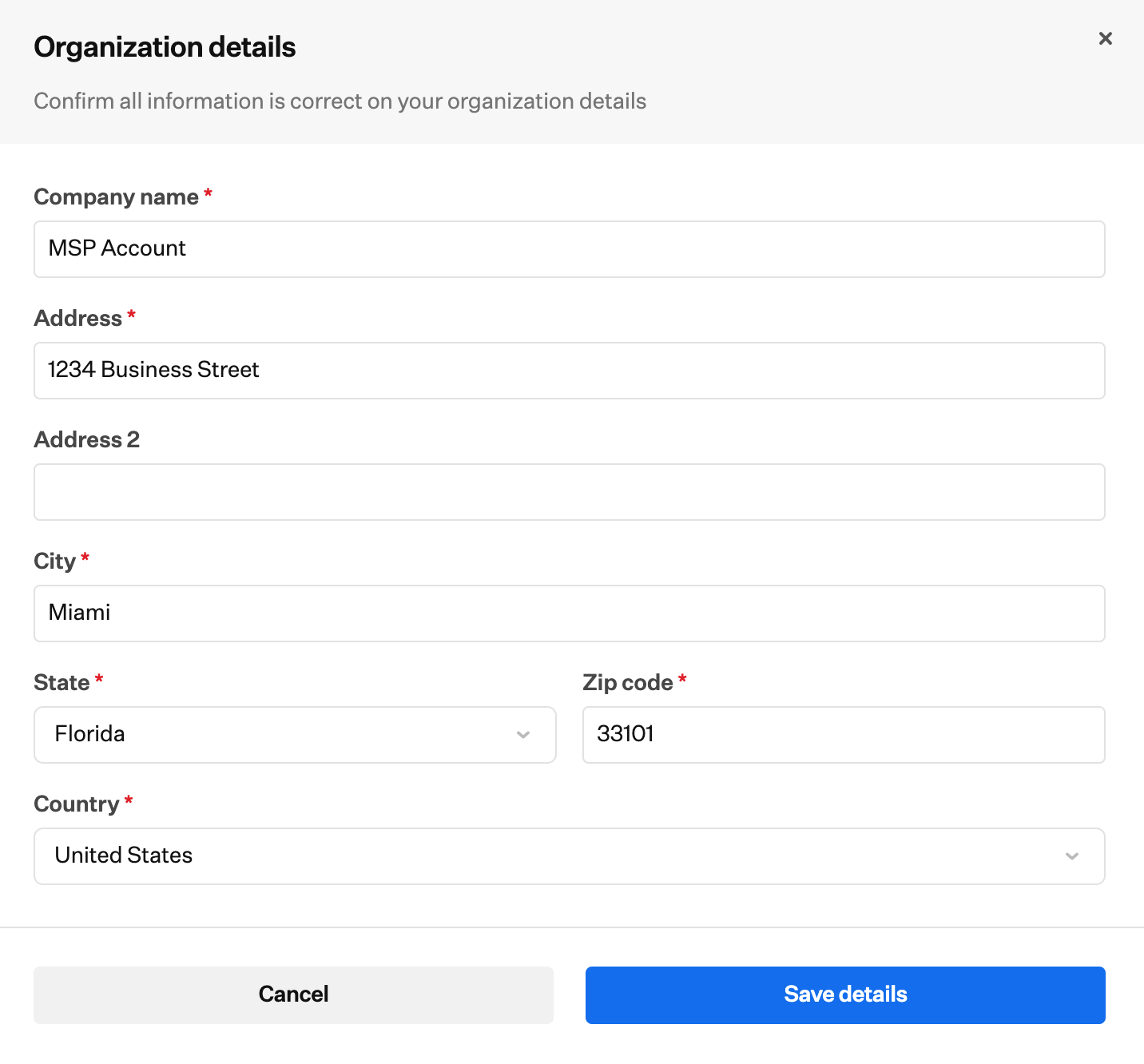 The message **We could not save your organization address. Try again.** means the address could not be validated. Check that it was entered correctly, then try again.
### Replace Payment Details
After billing is set up, you can replace the bank account on **MSP Billing**.
In the [Partner portal](/en/iru/platform-overview/partner-portal-page), select **MSP billing** in the left-hand navigation.
Select **Replace** on **Payment details**.
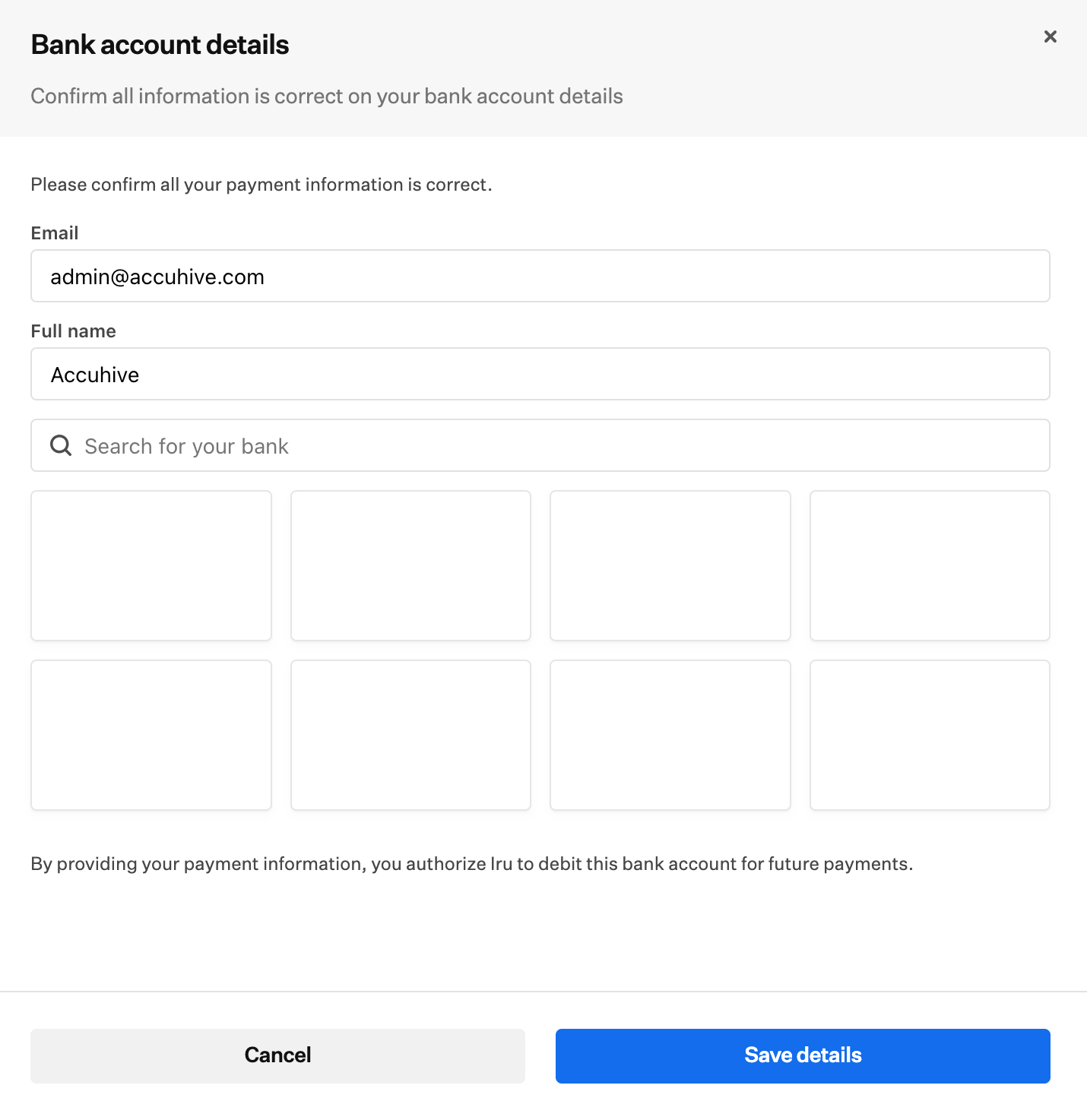
Enter **Email** and **Full name**, then search for your bank or select it from the list. Select **Save details**, or **Cancel** to discard. By providing your payment information, you authorize Iru to debit this bank account for future payments.
The message **We could not save your organization address. Try again.** means the address could not be validated. Check that it was entered correctly, then try again.
### Replace Payment Details
After billing is set up, you can replace the bank account on **MSP Billing**.
In the [Partner portal](/en/iru/platform-overview/partner-portal-page), select **MSP billing** in the left-hand navigation.
Select **Replace** on **Payment details**.
Enter **Email** and **Full name**, then search for your bank or select it from the list. Select **Save details**, or **Cancel** to discard. By providing your payment information, you authorize Iru to debit this bank account for future payments.
 ### View Invoices
After billing is set up, you can view and download invoices from **MSP Billing**.
In the [Partner portal](/en/iru/platform-overview/partner-portal-page), select **MSP billing** in the left-hand navigation.
Select **View invoices**. **Invoices** lists each invoice so you can see or download it.
### View Invoices
After billing is set up, you can view and download invoices from **MSP Billing**.
In the [Partner portal](/en/iru/platform-overview/partner-portal-page), select **MSP billing** in the left-hand navigation.
Select **View invoices**. **Invoices** lists each invoice so you can see or download it.
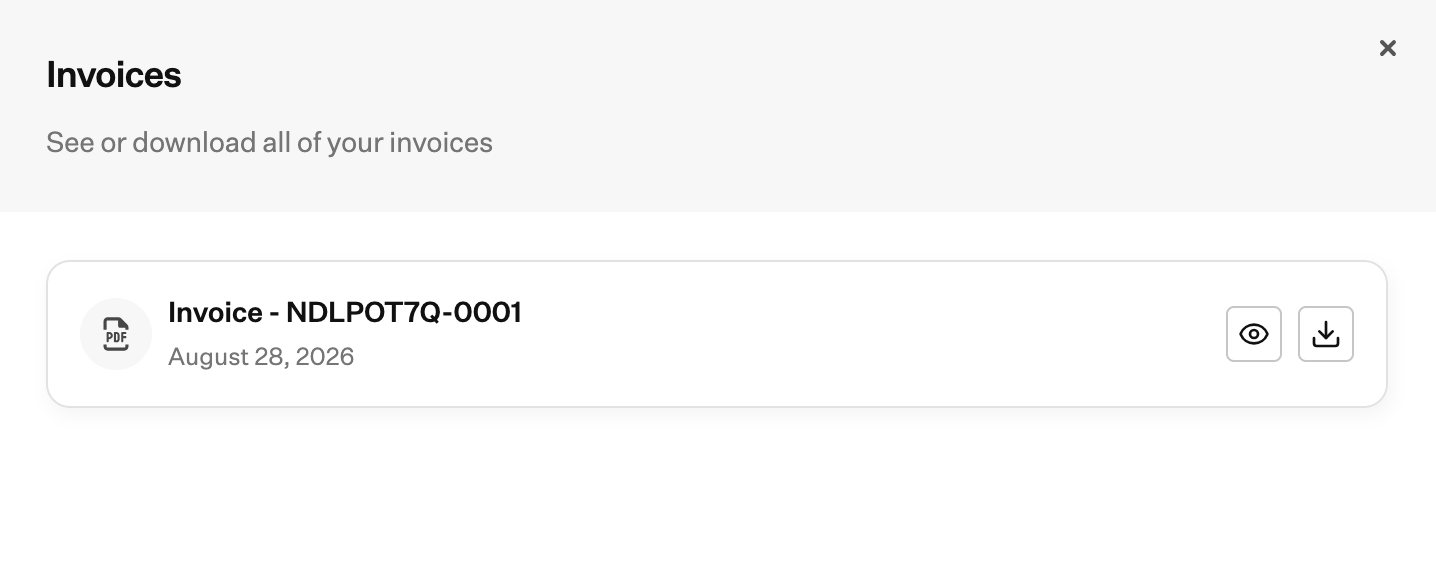 On an invoice tile, use the **eye** icon to view the invoice, or the **download** icon to download a PDF.
Viewing an invoice opens it in a new browser tab. From there you can:
* Download the PDF
* View invoice and payment details, which opens a side panel with a breakdown of the invoice
* Choose a payment option and select **Pay**
* Choose a payment method and schedule a payment
Close that tab when you are finished to return to the Partner portal tab in your browser. Close **Invoices** to return to **MSP Billing**.
### Automatic payment
Adding your payment method sets up automatic renewal, so invoices are paid without any action needed from you. If a bank account is already on file, automatic payment continues at renewal and does not switch back to paying each invoice manually.
### Considerations
**MSP billing** is part of the Partner portal, which is available only from your MSP parent tenant. You cannot open it from a child tenant's account menu. See [Partner Portal](/en/iru/platform-overview/partner-portal-page).
On a child tenant, [Billing](/en/iru/platform-overview/billing-page) shows that license management for that tenant is handled by the MSP admin. Review spend and invoices from the parent tenant instead.
You can use the rest of the Partner portal before billing is set up. Creating a child tenant waits until billing setup is complete. See [Create a Tenant](/en/iru/platform-overview/partner-dashboard#create-a-tenant).
### Related Articles
Open the Partner portal and return to your parent tenant with **Home**.
List tenants, provision products, and open customer environments.
License management on a tenant, including the message on child tenants.
Open **Partner portal** from the Account Menu Button.
On an invoice tile, use the **eye** icon to view the invoice, or the **download** icon to download a PDF.
Viewing an invoice opens it in a new browser tab. From there you can:
* Download the PDF
* View invoice and payment details, which opens a side panel with a breakdown of the invoice
* Choose a payment option and select **Pay**
* Choose a payment method and schedule a payment
Close that tab when you are finished to return to the Partner portal tab in your browser. Close **Invoices** to return to **MSP Billing**.
### Automatic payment
Adding your payment method sets up automatic renewal, so invoices are paid without any action needed from you. If a bank account is already on file, automatic payment continues at renewal and does not switch back to paying each invoice manually.
### Considerations
**MSP billing** is part of the Partner portal, which is available only from your MSP parent tenant. You cannot open it from a child tenant's account menu. See [Partner Portal](/en/iru/platform-overview/partner-portal-page).
On a child tenant, [Billing](/en/iru/platform-overview/billing-page) shows that license management for that tenant is handled by the MSP admin. Review spend and invoices from the parent tenant instead.
You can use the rest of the Partner portal before billing is set up. Creating a child tenant waits until billing setup is complete. See [Create a Tenant](/en/iru/platform-overview/partner-dashboard#create-a-tenant).
### Related Articles
Open the Partner portal and return to your parent tenant with **Home**.
List tenants, provision products, and open customer environments.
License management on a tenant, including the message on child tenants.
Open **Partner portal** from the Account Menu Button.