> ## Documentation Index
> Fetch the complete documentation index at: https://docs.iru.com/llms.txt
> Use this file to discover all available pages before exploring further.
# Prism Data Analytics
> Use Prism data analytics in Iru to query and visualize device fleet data. Build custom reports, filter by attributes, and export results for analysis.
Prism is Iru's device data collection and analytics platform that powers [Iru AI](/en/iru/iru-ai/using-iru-ai)'s intelligent insights. Prism automatically collects and organizes detailed information about your devices, providing the data foundation for AI-powered analysis and recommendations.
## About Prism
Prism serves as the data foundation that powers Iru AI's ability to answer questions about your device fleet and provide actionable recommendations. Prism automatically collects and organizes data about your devices, while Iru AI makes this data accessible through conversational interfaces and proactive insights.
Together, Prism and Iru AI provide a powerful combination of detailed data visibility and intelligent analysis.
## Prism Data Categories
Prism currently exposes the following data categories that power Iru AI's capabilities:
General information about your enrolled devices.
Activation lock details and status across iOS, iPadOS, visionOS and macOS devices.
Information about the status of the built-in macOS application firewall. This category does not include firewall exceptions. These will be available at a later time in their own category.
Application inventory across your device fleet, including iOS, iPadOS, tvOS, visionOS, macOS, and Windows devices. For Mac apps, the Iru Agent also records each app's last-opened date/timestamp.
Desktop and screensaver configuration for macOS devices.
FileVault status on macOS devices.
Gatekeeper and XProtect version and status information on macOS clients. Gatekeeper exceptions will be coming as a separate category.
All installed profiles across all device types, including profiles not installed by Iru Endpoint.
All installed kernel extensions and their status for macOS devices.
All launch daemons and launch agents and their status for macOS devices.
All local users for macOS devices.
Information such as System Integrity Protection (SIP) status, Sealed System Volume (SSV) status, and other core security settings for macOS.
All installed system extensions and their status for macOS devices.
User-set Transparency, Consent, and Control (TCC) permissions for macOS devices.
The **Transparency Database** category reports TCC values that users set on the device—for example, in **System Settings > Privacy & Security**.
{/*
PRIVATE NOTE:
- Apple devices show their public IP address on the device record Details tab, as an optional Prism column, and in the enterprise API Get Device Details endpoint (`GET /api/v1/devices/{device_id}/details`).
- Devices' public IP addresses are captured during their daily full MDM check-in.
- If the user asks about Public IP in Prism, the accurate answer is that Public IP is an optional Prism column for Apple devices and is collected during the daily full MDM check-in.
*/}
## Collection Frequency
Collection frequency depends on the category and method in which Iru collects the data.
| **Category** | **Source** | **Collection Frequency** | **Compatibility** |
| --------------------------------------------- | ------------------------------------------- | --------------------------------------------------------------------------------------------------- | ----------------------------------------------------------------------------------------------------------------------------- |
| **Devices** | Agent/MDM | 24 Hours (Apple platforms)
Daily (Windows)
When something changes on the device (Android) | Apple, Windows, Android |
| **Activation Lock** | MDM | 24 Hours | iOS, iPadOS, visionOS, macOS |
| **Application Firewall** | Agent/MDM | 15 Minutes / 24 Hours | macOS |
| **Apps** | Agent/MDM | 24 Hours (iOS, iPadOS, tvOS, visionOS)
Near-instant (macOS)
15 Minutes (Windows) | iOS, iPadOS, tvOS, visionOS, macOS; Windows |
| **App Last Opened** | Agent | Daily (at agent check-in) | macOS |
| **Desktop & Screensaver** | Agent | 15 Minutes | macOS |
| **FileVault** | Agent/MDM | 15 Minutes | macOS |
| **Gatekeeper & XProtect** | Agent | 15 Minutes | macOS |
| **Installed Profiles** | MDM | 24 Hours | iOS, iPadOS, tvOS, visionOS, macOS |
| **Kernel Extensions** | Agent | 15 Minutes | macOS |
| **Launch Agents & Daemons** | Agent | 15 Minutes | macOS |
| **Local Users** | Agent | Hourly | macOS |
| **Startup Settings** | MDM | 24 Hours | macOS |
| **System Extensions** | Agent | 15 Minutes | macOS |
| **Transparency Database** | Agent | 15 Minutes | macOS |
| **Security Patch Level** | MDM | Status report sent upon attribute change | Android |
| **API Level** | MDM | Status report sent upon attribute change | Android |
## Platform-Specific Data Collection
### Apple Device Data Collection
Prism collects detailed data from Apple devices including:
#### Hardware Information
* Device model and specifications
* Serial number and UDID
* Storage capacity and usage
* Battery health and status
#### Software Information
* Operating system version and build
* Installed applications and versions
* Mac app last-opened date/timestamp (daily from agent; macOS updates as used)
* System extensions and kernel extensions
* Launch agents and daemons
#### Security Information
* FileVault encryption status
* Gatekeeper and XProtect status
* Activation Lock status
* Installed security profiles
#### User Information
* Local user accounts
* User preferences and settings
* Login items and startup programs
### Windows Device Data Collection
Prism collects data from Windows devices including:
#### Hardware Information
* Device specifications and model
* Serial number and hardware ID
* Storage and memory information
* Network adapter details
#### Software Information
* Windows version and build
* Installed applications and versions
* Windows updates and patches
* System services and processes
#### Security Information
* BitLocker encryption status
* Windows Defender status
* Firewall configuration
* Security policies and compliance
#### User Information
* User accounts and permissions
* Group membership
* Login history and activity
### Android Device Data Collection
Prism collects data from Android devices including:
#### Hardware Information
* Device model and specifications
* Storage capacity and usage
* Network connectivity status
#### Software Information
* Android version and API level
* System updates and patches
* Installed applications in work profile
* Application versions and sources
* Work profile configuration
#### Security Information
* Security patch level
* Device compliance status
* Work profile security settings
* Certificate and encryption status
## Data Collection Methods
### Agent-Based Collection
The Iru Agent collects data through:
* **System APIs**: Direct access to system information and status
* **File System Monitoring**: Tracking changes to system files and configurations
* **Process Monitoring**: Monitoring running processes and services
* **Event Logging**: Collecting system events and security logs
### MDM-Based Collection
MDM protocols collect data through:
* **Device Queries**: Requesting specific device information
* **Status Reports**: Receiving automatic status updates
* **Command Responses**: Collecting data from MDM command responses
* **Profile Information**: Gathering data from installed configuration profiles
## Using Prism
### Prism Interface
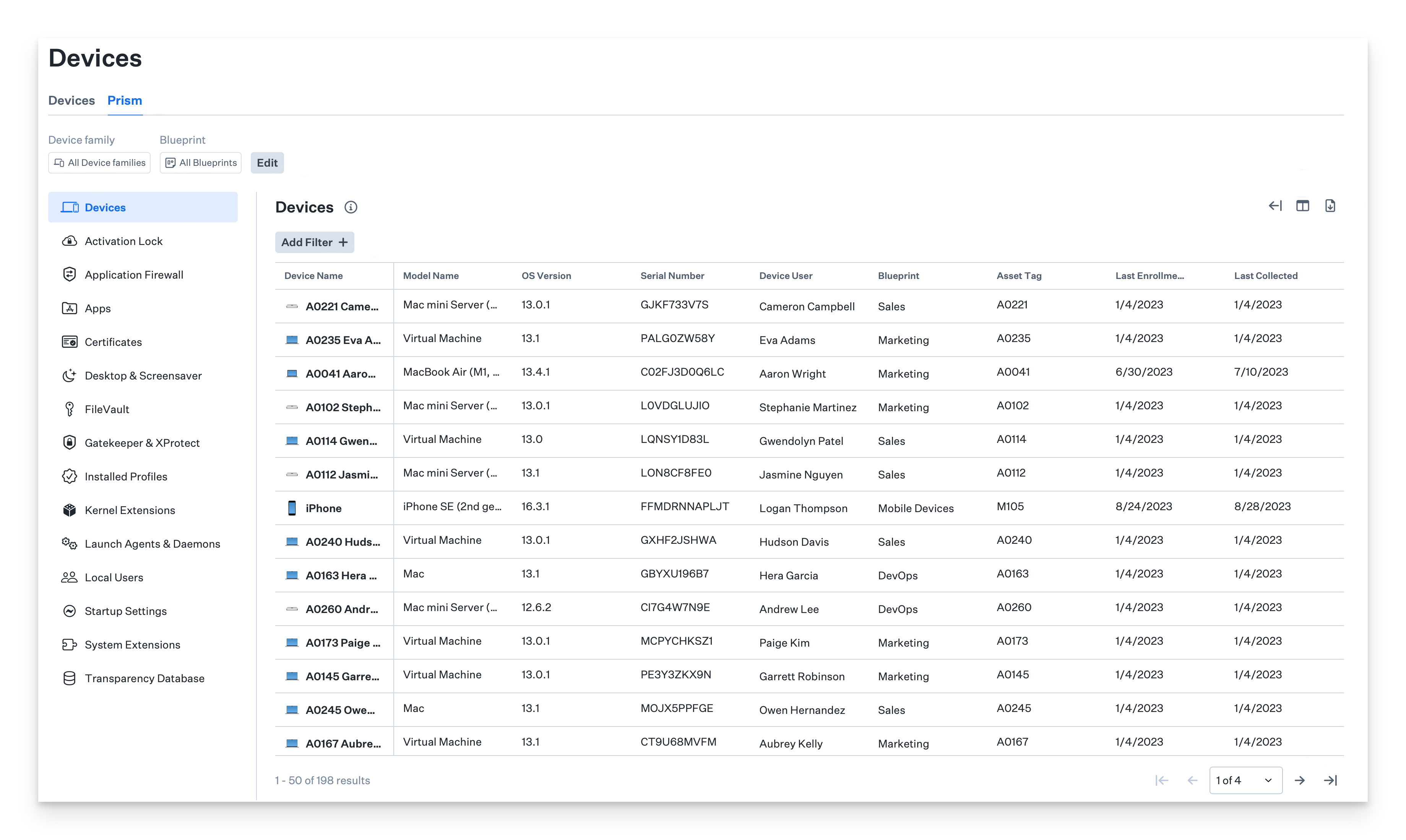 #### The Prism Tab
This is the new tabbed navigation layout to switch between the Devices and Prism pages of the Devices section in Iru Endpoint. Clicking Prism will open the Prism tab.
#### Global Filters
The Edit view button allows you to filter the available categories and the results within all categories based on Blueprint or device family. For example, you may want to show only iOS devices within the All Employees Blueprint.
This global filter affects all categories. Some categories may become grayed out if they are not applicable to the filtered platform. For example, FileVault becomes grayed out if you select the global filter for iOS devices.
#### Collapse Sidebar
This button hides or unhides the prism category sidebar, allowing you to have a larger display area for the table. Additionally, you can hide the main Iru sidebar to get an even larger display area.
#### Edit Columns
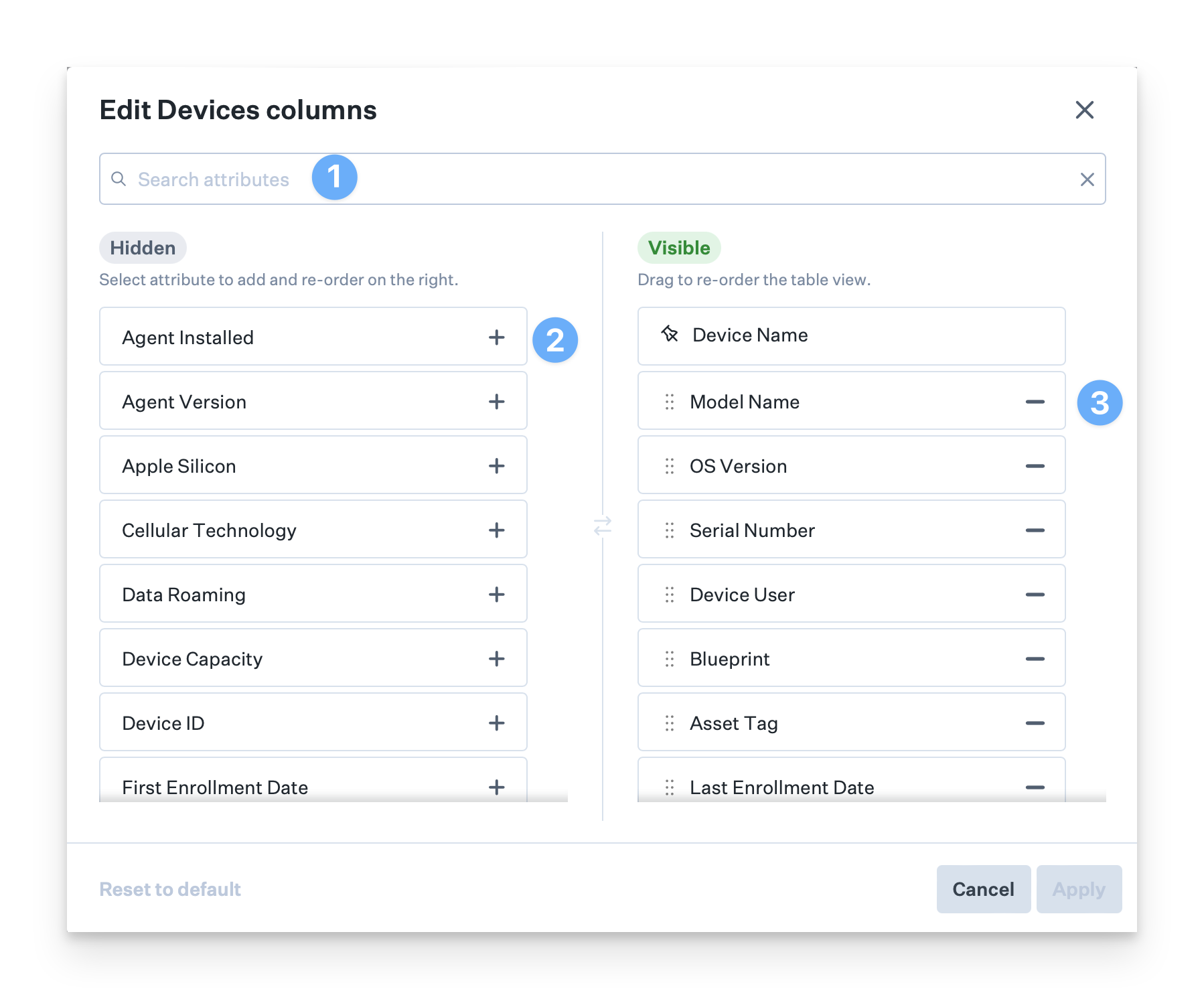
When clicked, the column selector will open the column selection dialog. This modal dialog allows you to select the specific attributes you want visible in the table for the current category.
Search for a specific attribute if you have one in mind.
Add an individual attribute to the table.
Remove an attribute from the displayed table.
Drag and drop attributes to reorder the view.
#### The Prism Tab
This is the new tabbed navigation layout to switch between the Devices and Prism pages of the Devices section in Iru Endpoint. Clicking Prism will open the Prism tab.
#### Global Filters
The Edit view button allows you to filter the available categories and the results within all categories based on Blueprint or device family. For example, you may want to show only iOS devices within the All Employees Blueprint.
This global filter affects all categories. Some categories may become grayed out if they are not applicable to the filtered platform. For example, FileVault becomes grayed out if you select the global filter for iOS devices.
#### Collapse Sidebar
This button hides or unhides the prism category sidebar, allowing you to have a larger display area for the table. Additionally, you can hide the main Iru sidebar to get an even larger display area.
#### Edit Columns
When clicked, the column selector will open the column selection dialog. This modal dialog allows you to select the specific attributes you want visible in the table for the current category.
Search for a specific attribute if you have one in mind.
Add an individual attribute to the table.
Remove an attribute from the displayed table.
Drag and drop attributes to reorder the view.
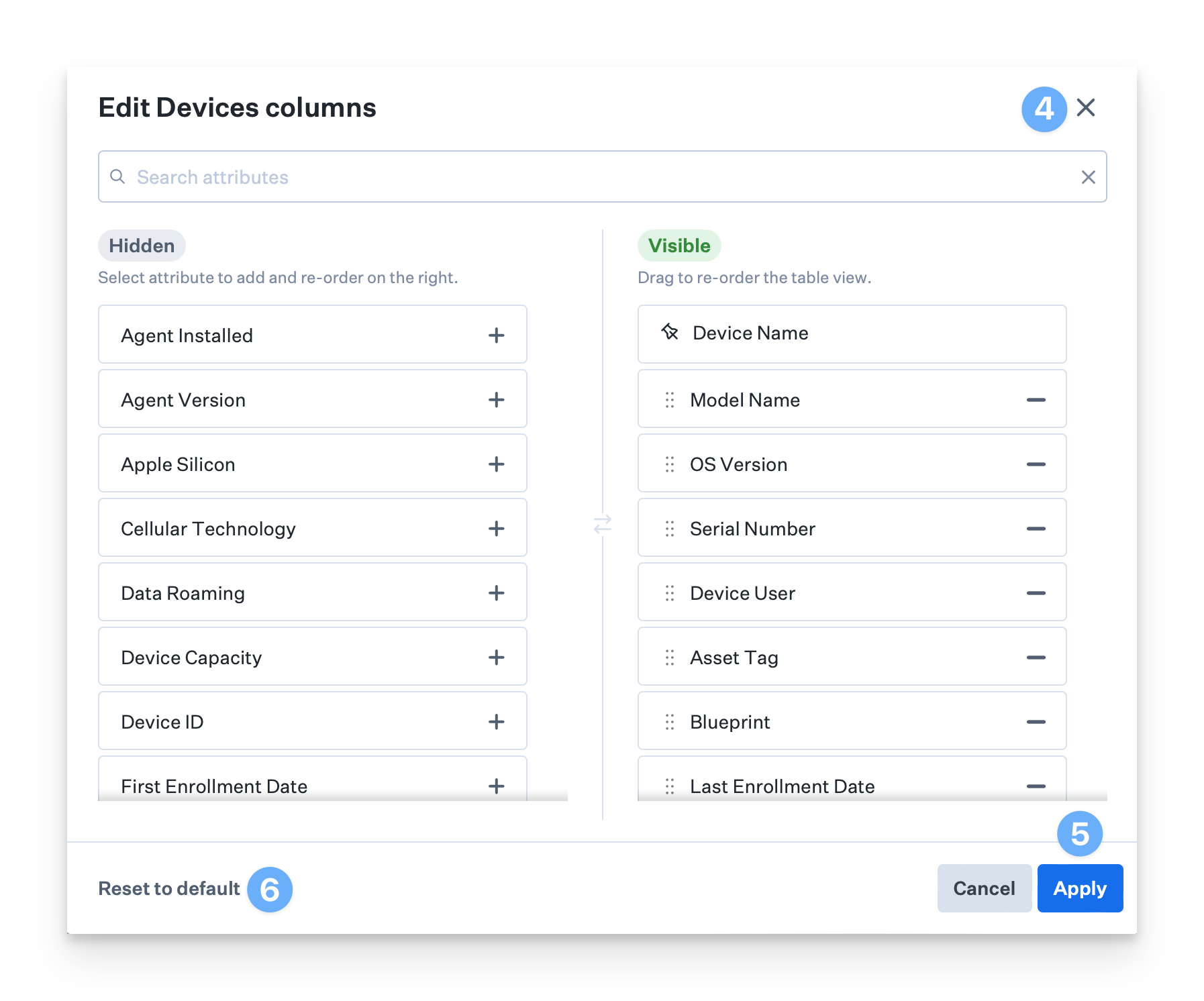
 Close the modal without saving changes, which can also be done via cancel.
Apply and save the changes.
Reset the category view to the Iru default.
Close the modal without saving changes, which can also be done via cancel.
Apply and save the changes.
Reset the category view to the Iru default.
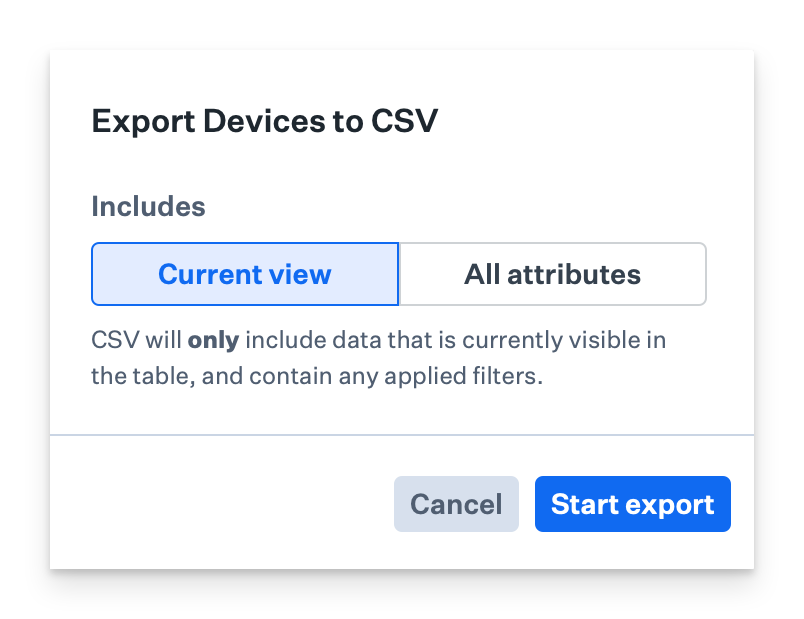
 #### CSV Export
The CSV export button allows you to export all the contents of the category you are viewing. You can choose whether to include the currently displayed columns or all attributes of the category.
#### CSV Export
The CSV export button allows you to export all the contents of the category you are viewing. You can choose whether to include the currently displayed columns or all attributes of the category.
 #### Add Filters
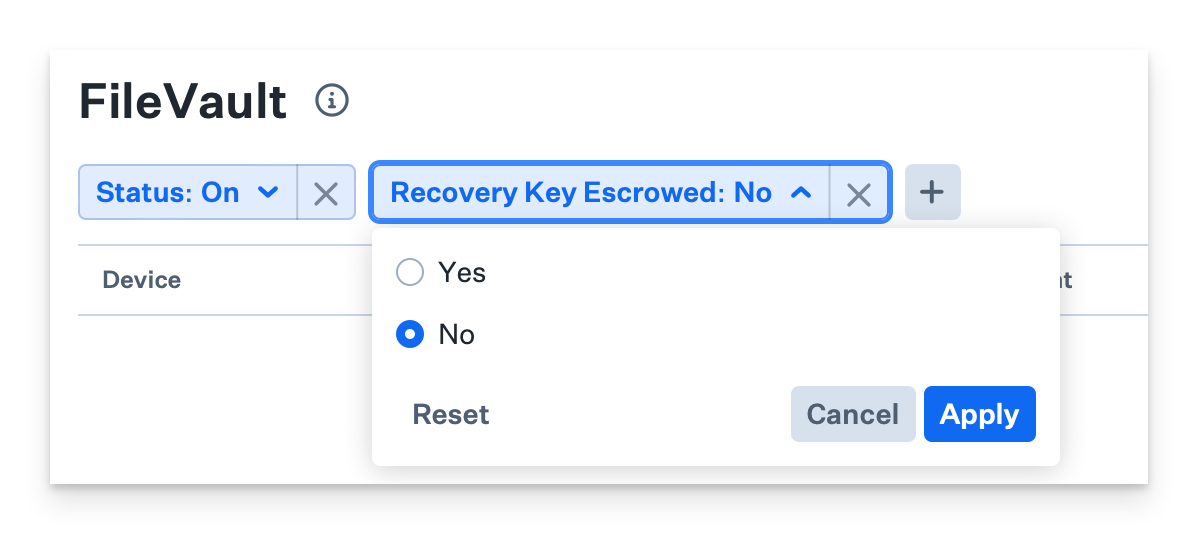
The Add Filter button allows you to filter the results of the table based on the value of any attribute within the category. For example, within the FileVault category, you may want to create a filter that shows you where FileVault is ON but Iru does not yet have the FileVault Recovery Key escrowed.
#### Add Filters
The Add Filter button allows you to filter the results of the table based on the value of any attribute within the category. For example, within the FileVault category, you may want to create a filter that shows you where FileVault is ON but Iru does not yet have the FileVault Recovery Key escrowed.
 #### Pagination Controls
The pagination controls will allow you to page through a category.
### Attribute Values
It's important to understand the possible values for individual attributes within Prism.
A single attribute may:
* **Have a value**
* Boolean (true/false, yes/no, on/off), strings, numeric values, etc.
* **May have an empty value** (for attributes that return an empty value)
* For example, a launch daemon that doesn't have any program arguments
* **May be null**, especially if not applicable to the device platform
* For example, application signature on iOS devices, because Apple does not expose application signing information over the MDM protocol
### Cross-Category Shared Attributes
You will notice that some attributes are present in each Prism category:
* **Device**
* The name of the enrolled device–links to the device record
* **Assigned User**
* The assigned user of the device record–links to the user record
* **Blueprint**
* The assigned Blueprint for the device–links to the Blueprint record
* **Last Collected**
* The last timestamp at which the data was collected
* **Last Changed**
* The last timestamp at which the data was collected and the values mutated from their previous state. For example, FileVault status was collected and has toggled to On.
## Privacy and Security
### Data Protection
Iru implements data protection measures:
* **Encryption**: All data is encrypted in transit and at rest
* **Access Controls**: Strict access controls limit who can view device data
* **Audit Logging**: All data access is logged and auditable
* **Data Retention**: Configurable data retention policies
### Compliance
Prism data collection complies with:
* **GDPR**: European data protection regulations
* **CCPA**: California consumer privacy laws
* **SOC 2**: Security and availability standards
* **ISO 27001**: Information security management
## API Access
Prism was designed with an 'API-first' approach. From day one, everything you can do via the web application is achievable through the [Iru API](/en/endpoint/api/iru-api-overview).
With the Prism API, you can programmatically:
* Query any individual category with any subset of filters
* Request a CSV export of any category and retrieve the result set asynchronously
## Best Practices
Regularly review Prism data to identify security issues and compliance gaps
Use Prism data to make informed decisions about device management policies
Use Prism security data to improve organizational security posture
Use Prism data to ensure devices meet compliance requirements
## Troubleshooting
**Possible causes:**
* Device offline or not checking in
* Agent not running properly
* Network connectivity issues
**Solutions:**
* Check device online status
* Verify agent is running
* Test network connectivity
**Possible causes:**
* Platform-specific limitations
* Agent version incompatibility
* Permission issues
**Solutions:**
* Check platform compatibility
* Update agent to latest version
* Verify necessary permissions
**Possible causes:**
* Data collection timing issues
* System state changes during collection
* Agent synchronization problems
**Solutions:**
* Wait for next collection cycle
* Force device check-in
* Restart agent if necessary
#### Pagination Controls
The pagination controls will allow you to page through a category.
### Attribute Values
It's important to understand the possible values for individual attributes within Prism.
A single attribute may:
* **Have a value**
* Boolean (true/false, yes/no, on/off), strings, numeric values, etc.
* **May have an empty value** (for attributes that return an empty value)
* For example, a launch daemon that doesn't have any program arguments
* **May be null**, especially if not applicable to the device platform
* For example, application signature on iOS devices, because Apple does not expose application signing information over the MDM protocol
### Cross-Category Shared Attributes
You will notice that some attributes are present in each Prism category:
* **Device**
* The name of the enrolled device–links to the device record
* **Assigned User**
* The assigned user of the device record–links to the user record
* **Blueprint**
* The assigned Blueprint for the device–links to the Blueprint record
* **Last Collected**
* The last timestamp at which the data was collected
* **Last Changed**
* The last timestamp at which the data was collected and the values mutated from their previous state. For example, FileVault status was collected and has toggled to On.
## Privacy and Security
### Data Protection
Iru implements data protection measures:
* **Encryption**: All data is encrypted in transit and at rest
* **Access Controls**: Strict access controls limit who can view device data
* **Audit Logging**: All data access is logged and auditable
* **Data Retention**: Configurable data retention policies
### Compliance
Prism data collection complies with:
* **GDPR**: European data protection regulations
* **CCPA**: California consumer privacy laws
* **SOC 2**: Security and availability standards
* **ISO 27001**: Information security management
## API Access
Prism was designed with an 'API-first' approach. From day one, everything you can do via the web application is achievable through the [Iru API](/en/endpoint/api/iru-api-overview).
With the Prism API, you can programmatically:
* Query any individual category with any subset of filters
* Request a CSV export of any category and retrieve the result set asynchronously
## Best Practices
Regularly review Prism data to identify security issues and compliance gaps
Use Prism data to make informed decisions about device management policies
Use Prism security data to improve organizational security posture
Use Prism data to ensure devices meet compliance requirements
## Troubleshooting
**Possible causes:**
* Device offline or not checking in
* Agent not running properly
* Network connectivity issues
**Solutions:**
* Check device online status
* Verify agent is running
* Test network connectivity
**Possible causes:**
* Platform-specific limitations
* Agent version incompatibility
* Permission issues
**Solutions:**
* Check platform compatibility
* Update agent to latest version
* Verify necessary permissions
**Possible causes:**
* Data collection timing issues
* System state changes during collection
* Agent synchronization problems
**Solutions:**
* Wait for next collection cycle
* Force device check-in
* Restart agent if necessary