> ## Documentation Index
> Fetch the complete documentation index at: https://docs.iru.com/llms.txt
> Use this file to discover all available pages before exploring further.
# Modify or Remove Team Members
> Change roles or remove team members from your Iru account. Update permissions, transfer ownership, and revoke access for departing administrators.
### About Team Member Management
Team Members are users who have access to the Iru Web App. Administrators can adjust the access level, edit details, and remove other Team Members (suspend first, then delete).
When using SSO to sign into Iru, the team member's account must be created in the Access settings under Admin Team to sign into the Iru web app.
### How It Works
Team member management allows administrators to control access levels, edit user details, and transfer account ownership within the Iru platform. Changes to team members are recorded on the [Unified Activity](/en/iru/platform-overview/unified-activity). To help a team member regain access (for example, if they lost their passkey), use **Manage authenticators** in Access. See [Passkeys & Social Login](/en/iru/access/passkeys-and-social-login).
### Change a Team Member's Account Permissions
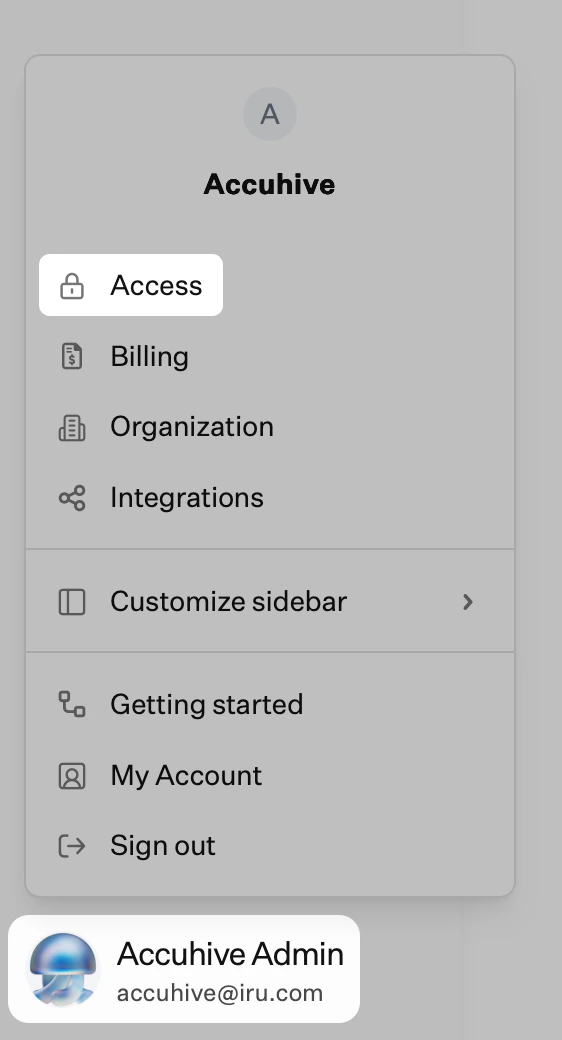
In Iru Endpoint, in the sidebar, click the [**Account Menu Button**](/en/iru/platform-overview/account-menu).
Click the **Access** option in the menu.
 On the **Access** page, under **Team Members**, select the **Access Level** drop-down for the user in the **Role** column, then choose the level you want.
### Edit a Team Member's Details
In Iru Endpoint, in the sidebar, click the **Account Menu Button**.
Click the **Access** option in the menu.
Click the **ellipsis** (⋮) next to the Team Member you wish to edit.
From the ellipsis (⋮) menu, select **Edit user**.
Edit the first or last name of the Team Member in the displayed text fields, then click **Save**.
### Delete a Team Member
You must **suspend** a user before the **Delete user** menu option is available.
In Iru Endpoint, in the sidebar, click the **Account Menu Button**.
Click the **Access** option in the menu.
Click the **ellipsis** (⋮) next to the user you want to remove.
From the ellipsis (⋮) menu, select **Suspend user**.
If you suspended the wrong user, or you want to restore access without deleting them, click the **ellipsis** (⋮) next to that user, then select **Unsuspend user**.
Click the **ellipsis** (⋮) next to the same user again.
From the ellipsis (⋮) menu, select **Delete user**.
When you delete an Admin user, **API tokens they created are not removed**; those tokens **stay active** until someone revokes them in **Access** on the **API tokens** tab. To cut off API access from that person’s integrations, revoke or rotate those tokens there. Anyone with permission to open **Access** can manage **every** tenant API token (permissions, rename, revoke); you do not need to be the creator. The bearer secret is only shown **once** at creation, so other admins cannot copy it later unless it was shared with them then. See **[Iru API Overview](/en/endpoint/api/iru-api-overview#considerations)** under **Removed administrators and API tokens**.
Their **display name** may no longer appear on some historical activity in the Iru Web App after the user is deleted, while token lifecycle and API access follow the behavior above.
### Transfer Account Ownership
The Account Owner can transfer ownership to any admin on their Iru team.
In Iru Endpoint, in the sidebar, click the **Account Menu Button**.
Click the **Access** option in the menu.
Click the **ellipsis** (⋮) on the right-hand side of the admin to whom you wish to assign ownership, then select **Make Account Owner**.
On the **Access** page, under **Team Members**, select the **Access Level** drop-down for the user in the **Role** column, then choose the level you want.
### Edit a Team Member's Details
In Iru Endpoint, in the sidebar, click the **Account Menu Button**.
Click the **Access** option in the menu.
Click the **ellipsis** (⋮) next to the Team Member you wish to edit.
From the ellipsis (⋮) menu, select **Edit user**.
Edit the first or last name of the Team Member in the displayed text fields, then click **Save**.
### Delete a Team Member
You must **suspend** a user before the **Delete user** menu option is available.
In Iru Endpoint, in the sidebar, click the **Account Menu Button**.
Click the **Access** option in the menu.
Click the **ellipsis** (⋮) next to the user you want to remove.
From the ellipsis (⋮) menu, select **Suspend user**.
If you suspended the wrong user, or you want to restore access without deleting them, click the **ellipsis** (⋮) next to that user, then select **Unsuspend user**.
Click the **ellipsis** (⋮) next to the same user again.
From the ellipsis (⋮) menu, select **Delete user**.
When you delete an Admin user, **API tokens they created are not removed**; those tokens **stay active** until someone revokes them in **Access** on the **API tokens** tab. To cut off API access from that person’s integrations, revoke or rotate those tokens there. Anyone with permission to open **Access** can manage **every** tenant API token (permissions, rename, revoke); you do not need to be the creator. The bearer secret is only shown **once** at creation, so other admins cannot copy it later unless it was shared with them then. See **[Iru API Overview](/en/endpoint/api/iru-api-overview#considerations)** under **Removed administrators and API tokens**.
Their **display name** may no longer appear on some historical activity in the Iru Web App after the user is deleted, while token lifecycle and API access follow the behavior above.
### Transfer Account Ownership
The Account Owner can transfer ownership to any admin on their Iru team.
In Iru Endpoint, in the sidebar, click the **Account Menu Button**.
Click the **Access** option in the menu.
Click the **ellipsis** (⋮) on the right-hand side of the admin to whom you wish to assign ownership, then select **Make Account Owner**.