> ## Documentation Index
> Fetch the complete documentation index at: https://docs.iru.com/llms.txt
> Use this file to discover all available pages before exploring further.
# Import Administrators via CSV
> Bulk invite administrators to Iru with a CSV file. Download the sample, review required columns and roles, then import from Access.
Use **Import via CSV** when you need to invite more than one administrator at a time. Prepare a CSV with the required columns, or start from the sample file in the import dialog.
For a single invitation, see [Invite New Team Members](/en/iru/access/invite-new-team-members) or [Admins and Access](/en/endpoint/getting-started/foundation/admins-and-access).
Invitations expire after 24 hours. If 24 hours pass before an account is created, an existing administrator or account owner must resend the invitation from **Access**. See [How to Resend Invitations](/en/iru/access/invite-new-team-members#how-to-resend-invitations).
## Import administrators via CSV
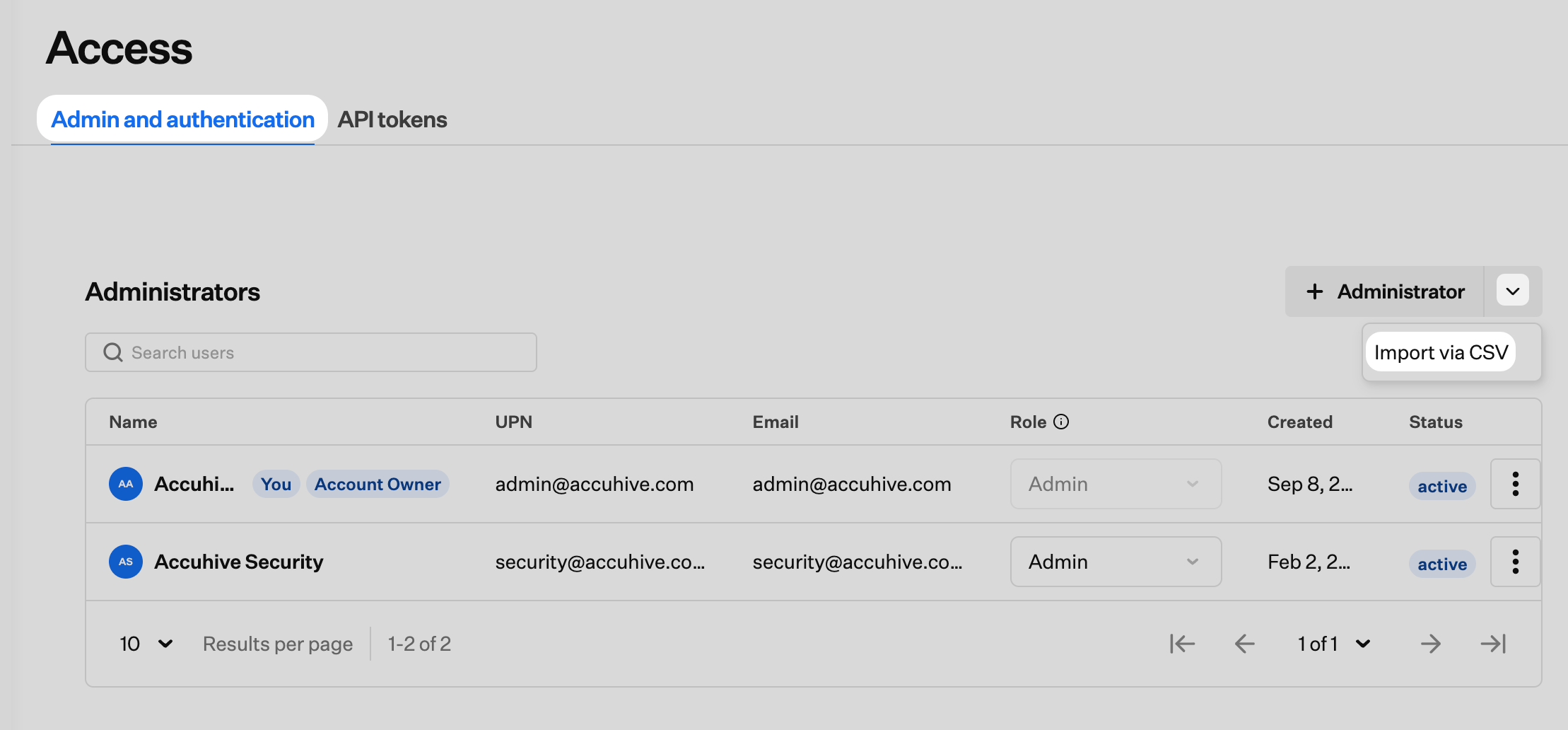
In the sidebar, click the [**Account Menu Button**](/en/iru/platform-overview/account-menu), then select **Access**. Open the **Admin and authentication** tab if it is not already selected.
Next to **+ Administrator**, click the caret.
Click **Import via CSV**.
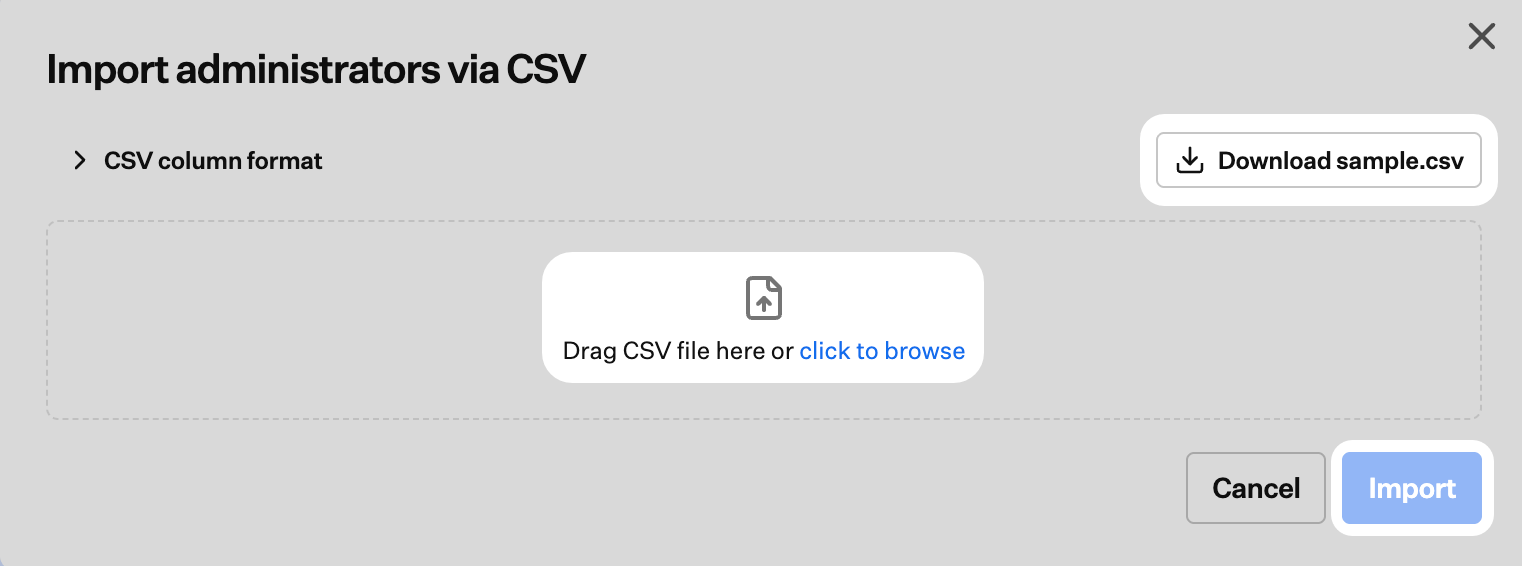
 In the **Import administrators via CSV** dialog, click **Download sample.csv** to get a template you can edit.
Drag your CSV into the upload area, or choose **click to browse** and select the file. Then click **Import**.
In the **Import administrators via CSV** dialog, click **Download sample.csv** to get a template you can edit.
Drag your CSV into the upload area, or choose **click to browse** and select the file. Then click **Import**.
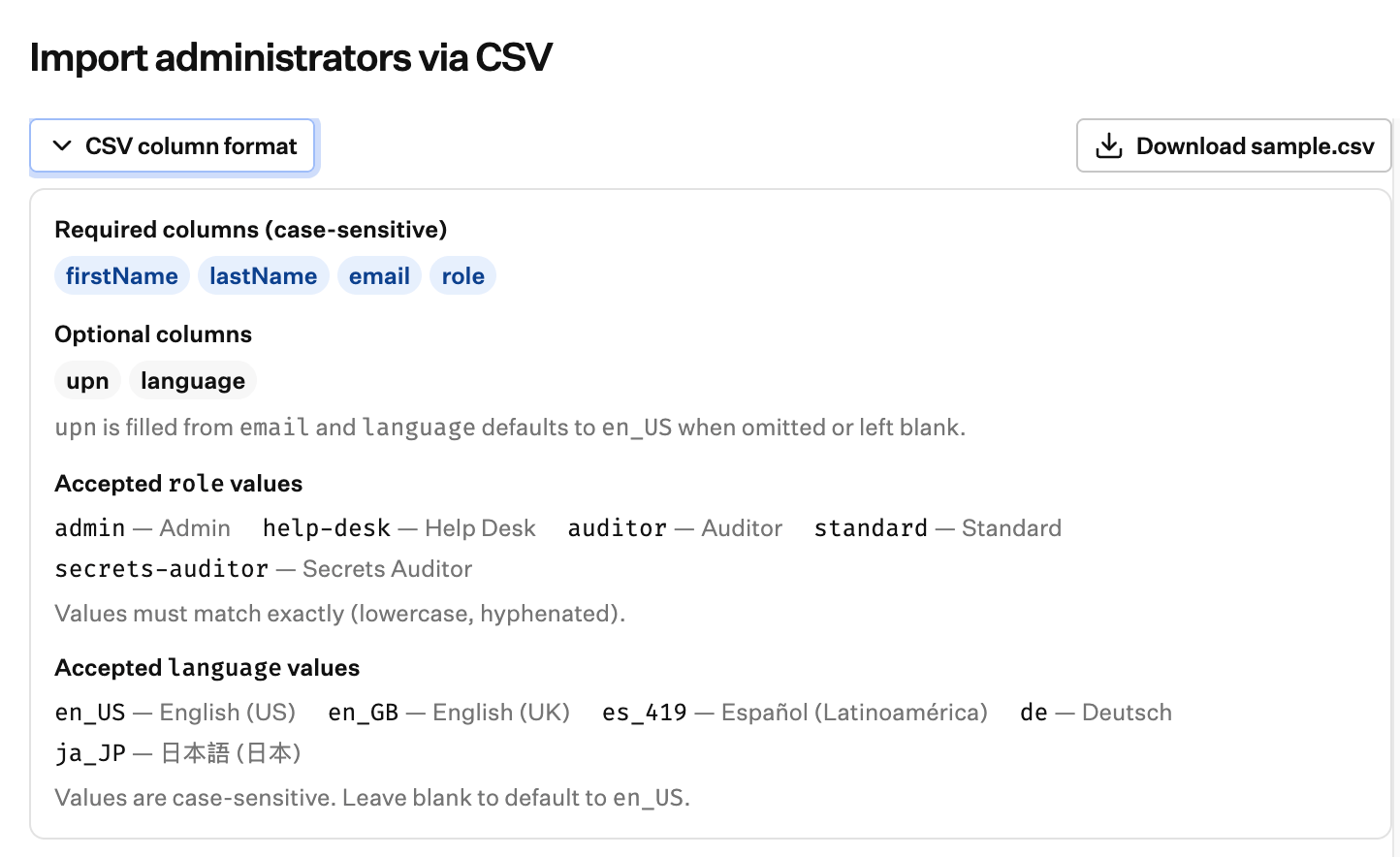
 Expand **CSV column format** in the dialog for required and optional columns, accepted role values, and language values.
 ## CSV column format
Column names are case-sensitive. Match the sample file headers exactly. The downloaded **sample.csv** uses this header order and includes one example row:
```csv theme={null}
firstName,lastName,email,upn,role,language
Alex,Smith,alex.smith@example.com,,admin,en_US
```
Leave `upn` blank to have Iru fill it from the email, as in the sample row.
### Required columns
| Column | Description |
| ----------- | ------------------------------------------------------------------------------ |
| `firstName` | First name |
| `lastName` | Last name |
| `email` | Email address for the invitation |
| `role` | Access level. Must be one of the [accepted role values](#accepted-role-values) |
### Optional columns
| Column | Description |
| ---------- | ------------------------------------------------------------ |
| `upn` | User principal name. If blank, Iru fills this from the email |
| `language` | Preferred language. If blank, defaults to `en_US` |
### Accepted role values
Values must match exactly (lowercase, hyphenated where shown):
| Value | Access level |
| ----------------- | --------------- |
| `admin` | Admin |
| `help-desk` | Help Desk |
| `auditor` | Auditor |
| `standard` | Standard |
| `secrets-auditor` | Secrets Auditor |
For what each level can do, see [Team Member Role Permissions](/en/iru/access/team-member-role-permissions).
### Accepted language values
Values are case-sensitive. If `language` is blank, Iru uses `en_US`.
| Value | Language |
| -------- | ----------------------- |
| `en_US` | English (US) |
| `en_GB` | English (UK) |
| `es_419` | Español (Latinoamérica) |
| `de` | Deutsch |
| `ja_JP` | 日本語 (日本) |
## CSV column format
Column names are case-sensitive. Match the sample file headers exactly. The downloaded **sample.csv** uses this header order and includes one example row:
```csv theme={null}
firstName,lastName,email,upn,role,language
Alex,Smith,alex.smith@example.com,,admin,en_US
```
Leave `upn` blank to have Iru fill it from the email, as in the sample row.
### Required columns
| Column | Description |
| ----------- | ------------------------------------------------------------------------------ |
| `firstName` | First name |
| `lastName` | Last name |
| `email` | Email address for the invitation |
| `role` | Access level. Must be one of the [accepted role values](#accepted-role-values) |
### Optional columns
| Column | Description |
| ---------- | ------------------------------------------------------------ |
| `upn` | User principal name. If blank, Iru fills this from the email |
| `language` | Preferred language. If blank, defaults to `en_US` |
### Accepted role values
Values must match exactly (lowercase, hyphenated where shown):
| Value | Access level |
| ----------------- | --------------- |
| `admin` | Admin |
| `help-desk` | Help Desk |
| `auditor` | Auditor |
| `standard` | Standard |
| `secrets-auditor` | Secrets Auditor |
For what each level can do, see [Team Member Role Permissions](/en/iru/access/team-member-role-permissions).
### Accepted language values
Values are case-sensitive. If `language` is blank, Iru uses `en_US`.
| Value | Language |
| -------- | ----------------------- |
| `en_US` | English (US) |
| `en_GB` | English (UK) |
| `es_419` | Español (Latinoamérica) |
| `de` | Deutsch |
| `ja_JP` | 日本語 (日本) |