> ## Documentation Index
> Fetch the complete documentation index at: https://docs.iru.com/llms.txt
> Use this file to discover all available pages before exploring further.
# Accessing your apps
> Open the applications your organization has given you straight from Iru Access, with no separate passwords to remember.
Once you've [set up Iru Access](/en/identity/end-user/installing-iru-access), all
the applications your organization has assigned to you are a click away, and you
sign in to each one without a separate password.
 ## Find and open an app
In your browser, open your organization's Iru site. The address is your
organization's name followed by `.iru.com`, for example `yourcompany.iru.com`.
That's your **app dashboard**. Not sure of the address? Ask your IT team, and
bookmark it once you're there.
Confirm it's you with your [passkey or the Iru Access app](/en/identity/end-user/manage-authenticators): a quick fingerprint,
face, or screen-lock gesture. There's no separate password.
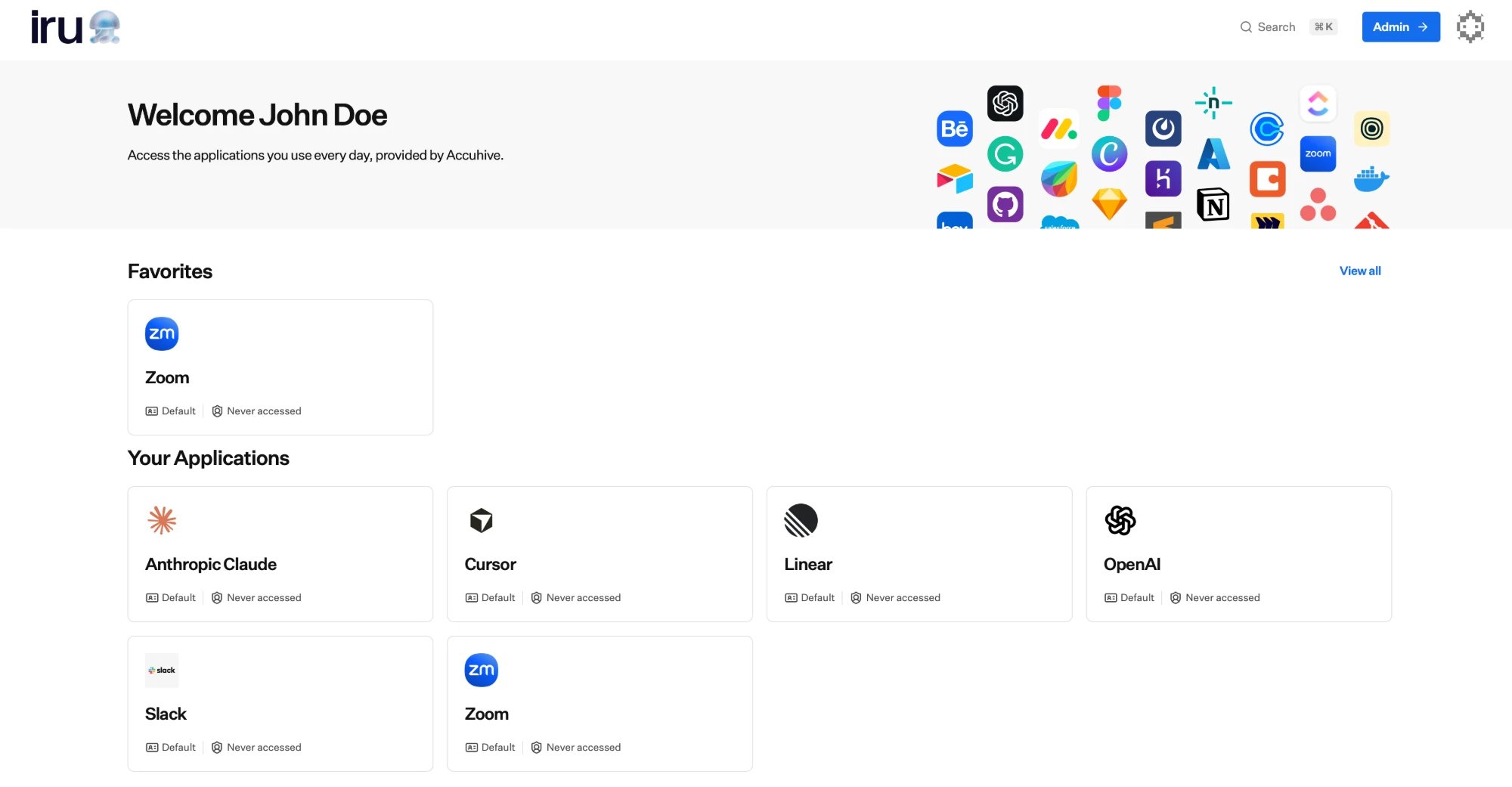
Your **app dashboard** shows your assigned apps as tiles. Selecting one signs
you straight in; Iru handles the sign-on for you.
**On macOS**, if you are prompted for a passkey but the prompt does not include
the passkey you previously created, open **System Settings > Privacy &
Security > Passkeys Access for Web Browsers** and turn on access for the
browser you are using. Then close and re-open your browser and try
authenticating again. To add or manage passkeys, see
[Manage authenticators](/en/identity/end-user/manage-authenticators).
Each tile shows the app's name and icon, a short description, your role in the app
(when it applies), and when you last opened it.
You'll also find your apps in the **Iru Access** app itself: the **desktop app**
shows them on a **Home** view with your favorites at the top, and the **mobile
app** has a dedicated **Favorites** tab.
## Favorites and search
* **Favorite** the apps you use most so they're front and center; look for the
star on a tile to add or remove it.
* **Search** your apps by name to jump straight to one, and recently opened apps
stay close at hand.
Your list only ever shows the apps assigned to you, so what you see reflects the
access your organization has granted you.
## Your account settings
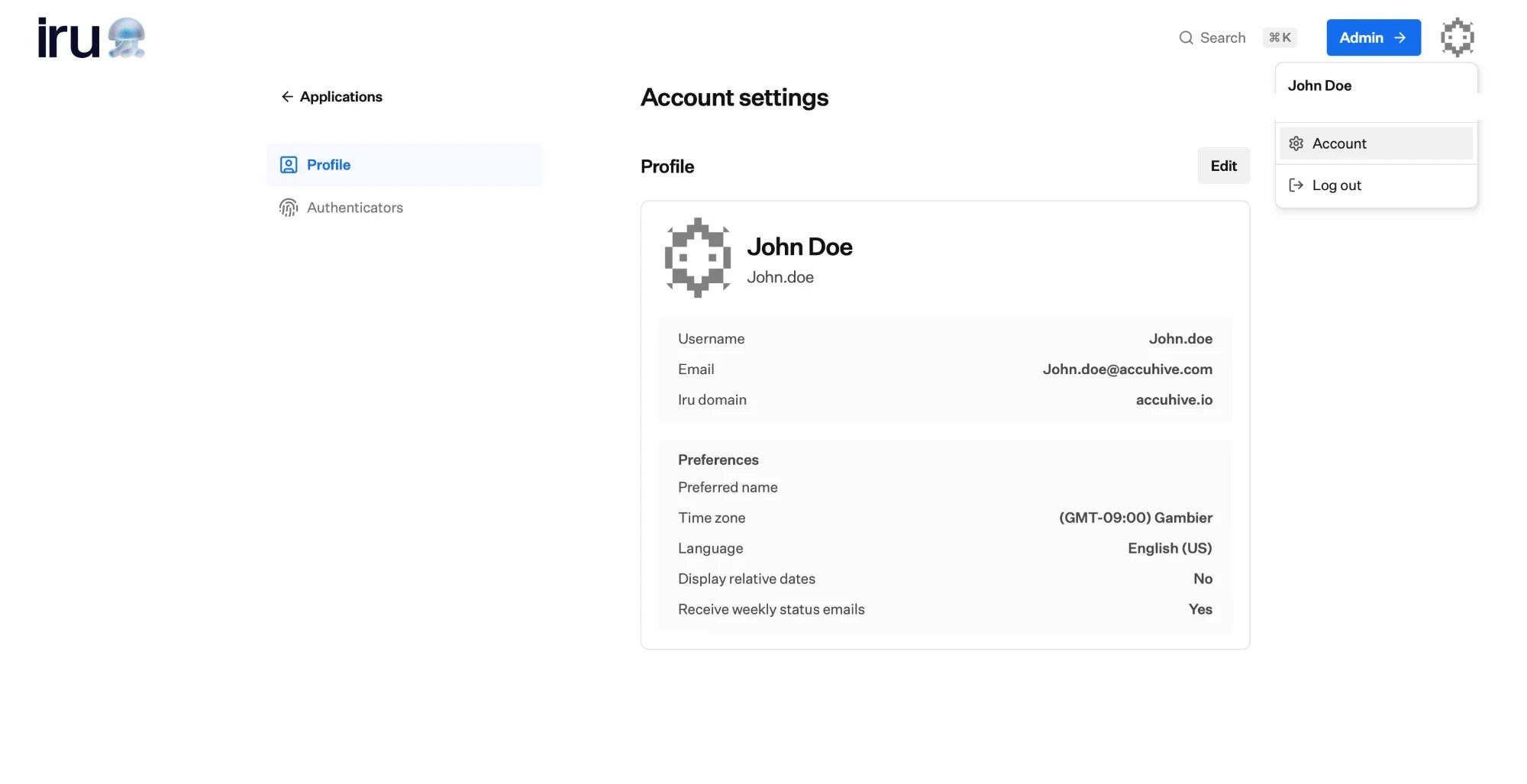
From your **avatar** in the top-right of the dashboard, open **Account** to manage
your own details and sign-in. It has two tabs:
* **Profile:** your name, username, email, and Iru domain, plus preferences such
as time zone, language, and whether you get weekly status emails. Use **Edit** to
update them.
* **Authenticators:** the passkeys and Iru Access devices registered to you. See
[Manage authenticators](/en/identity/end-user/manage-authenticators).
## Find and open an app
In your browser, open your organization's Iru site. The address is your
organization's name followed by `.iru.com`, for example `yourcompany.iru.com`.
That's your **app dashboard**. Not sure of the address? Ask your IT team, and
bookmark it once you're there.
Confirm it's you with your [passkey or the Iru Access app](/en/identity/end-user/manage-authenticators): a quick fingerprint,
face, or screen-lock gesture. There's no separate password.
Your **app dashboard** shows your assigned apps as tiles. Selecting one signs
you straight in; Iru handles the sign-on for you.
**On macOS**, if you are prompted for a passkey but the prompt does not include
the passkey you previously created, open **System Settings > Privacy &
Security > Passkeys Access for Web Browsers** and turn on access for the
browser you are using. Then close and re-open your browser and try
authenticating again. To add or manage passkeys, see
[Manage authenticators](/en/identity/end-user/manage-authenticators).
Each tile shows the app's name and icon, a short description, your role in the app
(when it applies), and when you last opened it.
You'll also find your apps in the **Iru Access** app itself: the **desktop app**
shows them on a **Home** view with your favorites at the top, and the **mobile
app** has a dedicated **Favorites** tab.
## Favorites and search
* **Favorite** the apps you use most so they're front and center; look for the
star on a tile to add or remove it.
* **Search** your apps by name to jump straight to one, and recently opened apps
stay close at hand.
Your list only ever shows the apps assigned to you, so what you see reflects the
access your organization has granted you.
## Your account settings
From your **avatar** in the top-right of the dashboard, open **Account** to manage
your own details and sign-in. It has two tabs:
* **Profile:** your name, username, email, and Iru domain, plus preferences such
as time zone, language, and whether you get weekly status emails. Use **Edit** to
update them.
* **Authenticators:** the passkeys and Iru Access devices registered to you. See
[Manage authenticators](/en/identity/end-user/manage-authenticators).
 ## Iru Spotlight (macOS)
**Iru Spotlight** is Iru Access's built-in launcher: a quick way to find and open
your apps, or find a user in your organization, without leaving what you're
doing.
## Iru Spotlight (macOS)
**Iru Spotlight** is Iru Access's built-in launcher: a quick way to find and open
your apps, or find a user in your organization, without leaving what you're
doing.
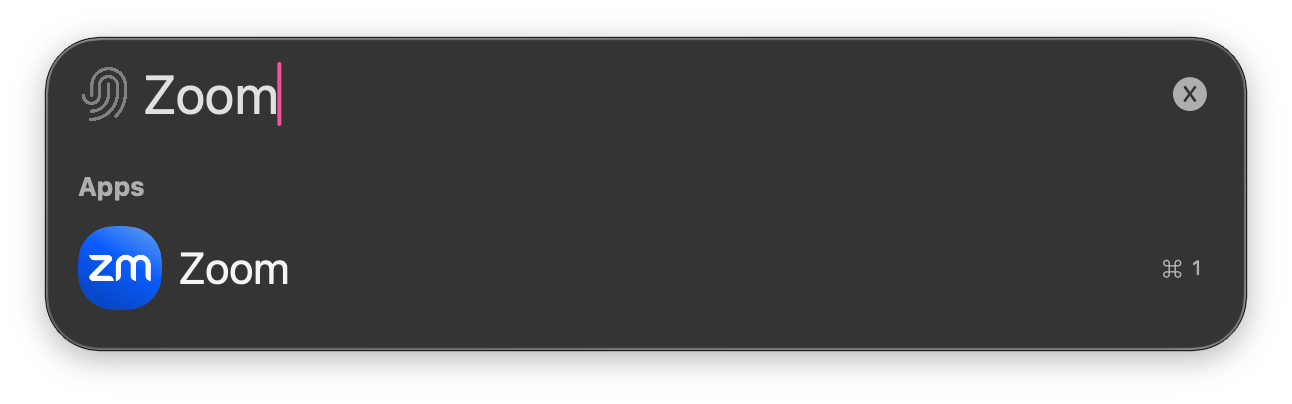 From anywhere, press **⇧⌘ Space** (the default shortcut). You can turn
**Iru Spotlight** on or off and customize the shortcut in
[Iru Access settings (macOS)](#iru-access-settings-macos).
Start typing. Matching apps appear under **Apps**, alongside users in your
organization.
Press the number next to a result (**⌘ 1** for the first) or select it. Iru
Access signs you in to that app in your chosen browser. Press **Esc** to close.
## Your apps in macOS Spotlight
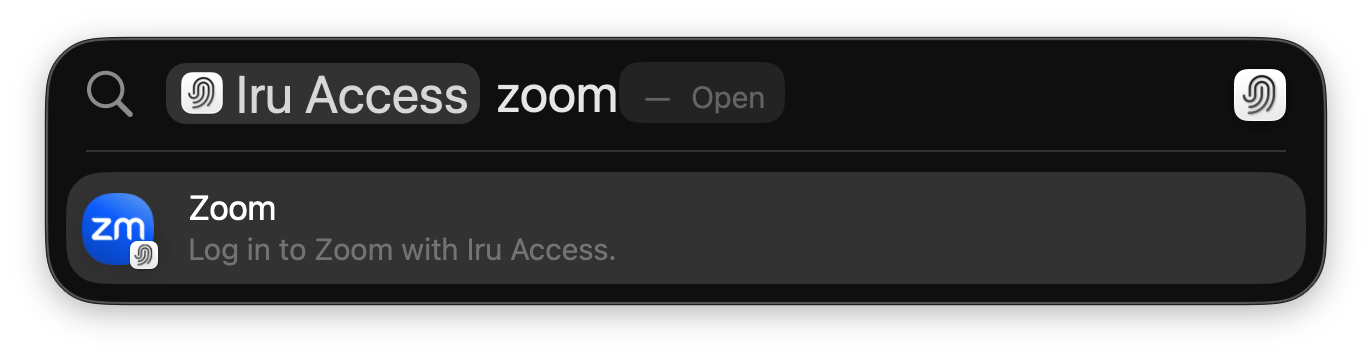
Iru Access also plugs into **macOS's own Spotlight** (**⌘ Space**). Search an app's
name there and you'll see a **"Log in to Zoom with Iru Access"** action you can run
right from Spotlight, with no need to open Iru Access first.
From anywhere, press **⇧⌘ Space** (the default shortcut). You can turn
**Iru Spotlight** on or off and customize the shortcut in
[Iru Access settings (macOS)](#iru-access-settings-macos).
Start typing. Matching apps appear under **Apps**, alongside users in your
organization.
Press the number next to a result (**⌘ 1** for the first) or select it. Iru
Access signs you in to that app in your chosen browser. Press **Esc** to close.
## Your apps in macOS Spotlight
Iru Access also plugs into **macOS's own Spotlight** (**⌘ Space**). Search an app's
name there and you'll see a **"Log in to Zoom with Iru Access"** action you can run
right from Spotlight, with no need to open Iru Access first.
 * Favorited apps rank higher in the results.
* The same action is available through **Siri** and the **Shortcuts** app.
This is macOS's system search (**⌘ Space**), separate from **Iru Spotlight**
(default **⇧⌘ Space**, customizable in
[Iru Access settings (macOS)](#iru-access-settings-macos)) above. You need
**macOS 15 or later**. On **iPhone and iPad** (iOS/iPadOS 18+), your apps appear
the same way in **Spotlight search**.
## Iru Access settings (macOS)
On a Mac, open the **Iru Access** menu and choose **Settings…** (or press **⌘ ,**)
to control how Iru Access behaves.
* **Open apps with:** choose which browser your apps open in. By default that's
your system browser; pick any installed browser and it saves right away, so every
app you launch from Iru Access opens there. To use a different browser just once,
**right-click an app** and choose **Open Once With** (your current default is
marked **(Default)**).
* **Show Iru Access in the Menu Bar:** keep Iru Access in the macOS menu bar so
your apps are a click away without opening the main window.
* **Iru Spotlight Shortcut:** turn **Iru Spotlight** on or off and set the keyboard
shortcut that opens it from anywhere. The default is **⇧⌘ Space**.
* **Appearance:** match your system theme, or force light or dark.
These settings are macOS-only. On iPhone and iPad, apps open in your system
default browser.
## Where to go next
Set up Iru Access if you haven't yet.
Add a backup passkey so you're never locked out.
Overview of passkeys, Iru Access, and how sign-in works.
* Favorited apps rank higher in the results.
* The same action is available through **Siri** and the **Shortcuts** app.
This is macOS's system search (**⌘ Space**), separate from **Iru Spotlight**
(default **⇧⌘ Space**, customizable in
[Iru Access settings (macOS)](#iru-access-settings-macos)) above. You need
**macOS 15 or later**. On **iPhone and iPad** (iOS/iPadOS 18+), your apps appear
the same way in **Spotlight search**.
## Iru Access settings (macOS)
On a Mac, open the **Iru Access** menu and choose **Settings…** (or press **⌘ ,**)
to control how Iru Access behaves.
* **Open apps with:** choose which browser your apps open in. By default that's
your system browser; pick any installed browser and it saves right away, so every
app you launch from Iru Access opens there. To use a different browser just once,
**right-click an app** and choose **Open Once With** (your current default is
marked **(Default)**).
* **Show Iru Access in the Menu Bar:** keep Iru Access in the macOS menu bar so
your apps are a click away without opening the main window.
* **Iru Spotlight Shortcut:** turn **Iru Spotlight** on or off and set the keyboard
shortcut that opens it from anywhere. The default is **⇧⌘ Space**.
* **Appearance:** match your system theme, or force light or dark.
These settings are macOS-only. On iPhone and iPad, apps open in your system
default browser.
## Where to go next
Set up Iru Access if you haven't yet.
Add a backup passkey so you're never locked out.
Overview of passkeys, Iru Access, and how sign-in works.