> ## Documentation Index
> Fetch the complete documentation index at: https://docs.iru.com/llms.txt
> Use this file to discover all available pages before exploring further.
# Users
> Create and manage users in your directory: their profiles, lifecycle statuses, and the difference between suspending and removing.
A **user** is someone in your directory. Each user has a sign-in identity, a
profile made up of attributes, and a status that reflects where they are in
their lifecycle. You manage users in **Directory → Users**, where the list shows
each user's name, status, username, domain, primary email, role, source, and
sign-in activity.
Use these steps to manage users one at a time. To add many users at once, see
[Importing users](/en/identity/directory/importing-users) or sync them from an
HR system with [Directory Sync](/en/identity/directory/directory-sync).
## Create a user
In **Directory → Users**, choose to add a **User**. A blank profile form
opens.
Give the user a name, a username, and at least one email address. The
username and a domain together form how the user signs in.
Add any other built-in details (phone numbers, addresses, a role) and fill
in the custom attributes you have defined in your
[schema](/en/identity/directory/schema).
The user is created with a **pending** status. Invite them when you're ready
for them to sign in.
A user created this way has a **source** of having been added manually, which
distinguishes them from users brought in by import or HR sync.
## The user profile
A profile is a collection of facets. Some are built in; the rest are the custom
attributes you define. Built-in facets include:
| Facet | Notes |
| ----------------------- | --------------------------------------------------------------------------------------------------------------------------------------------------- |
| **Name** | The user's name, used to build their display name. |
| **Emails** | One or more email addresses, each with a label such as work or personal. One is the primary email. |
| **Phone numbers** | Zero or more numbers, each labeled. |
| **Addresses** | Zero or more addresses, each labeled. |
| **Username and domain** | Together, the identifier the user signs in with. |
| **Role** | The role the user holds, which governs what they can do in Iru. See [Administrators & roles](/en/identity/administration/administrators-and-roles). |
| **Status** | Where the user is in their lifecycle: pending, active, or suspended. |
| **Source** | Where the user originated: added manually, imported, or synced from an HR system. |
Beyond these, every **custom attribute** you define appears on the profile in
its category. See
[Schema](/en/identity/directory/schema) for how
the schema is built.
The attributes on a profile are the raw material that applications and
policies use. An application maps profile attributes into the identity details
it receives, and an [Auto Group](/en/identity/directory/auto-groups) can
compute its membership from an attribute's value.
## Find and filter users
The users list can be filtered, searched, and saved as reusable **views** -
useful once your directory grows beyond a handful of users.
### Filters
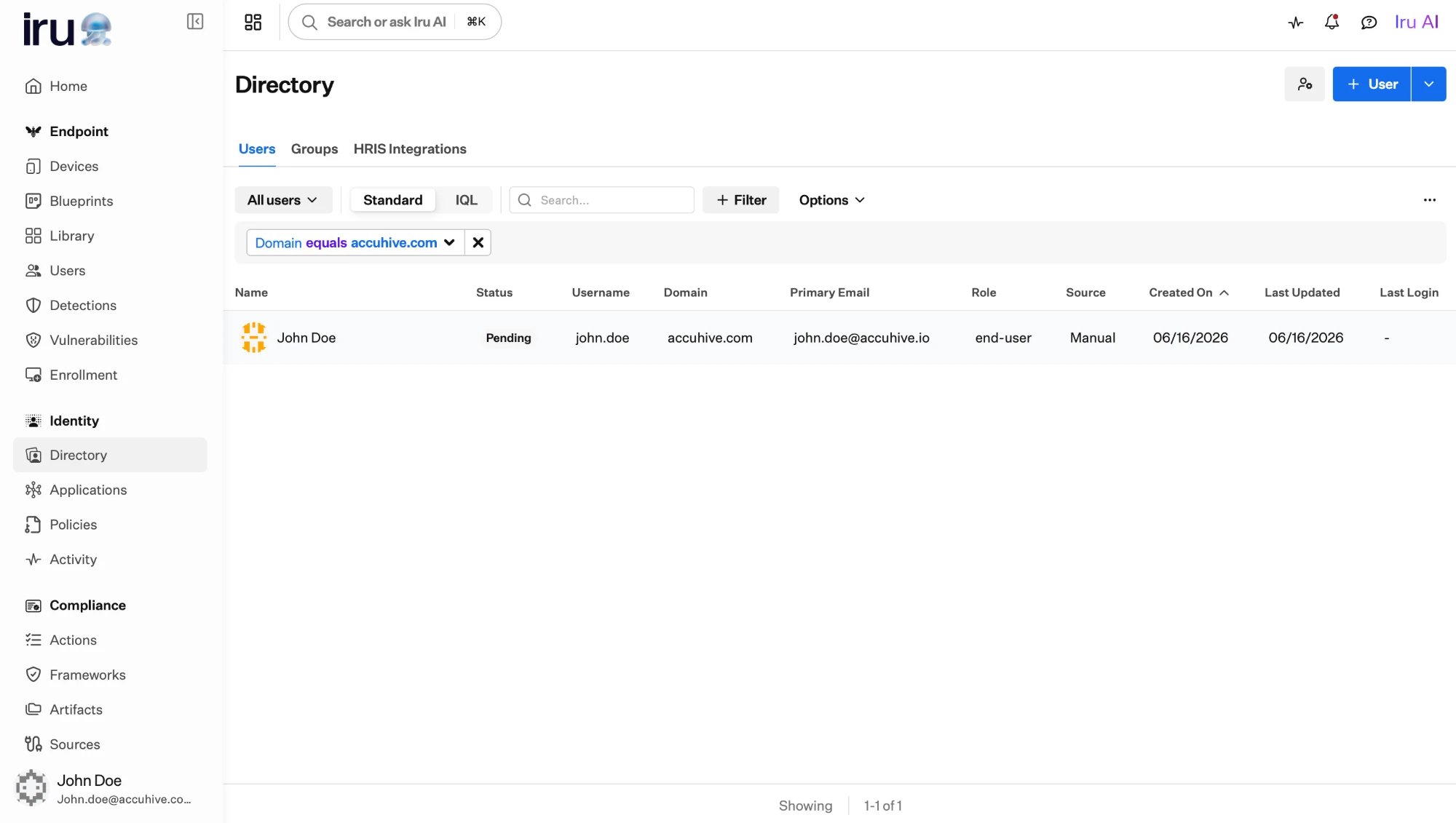
Add a **filter** to narrow the list by any attribute, built-in (status, domain,
role, created date) or a custom attribute you have defined. Pick the attribute,
choose an operator such as **equals**, and set the value; add more than one filter
to combine conditions.
 ### IQL filters
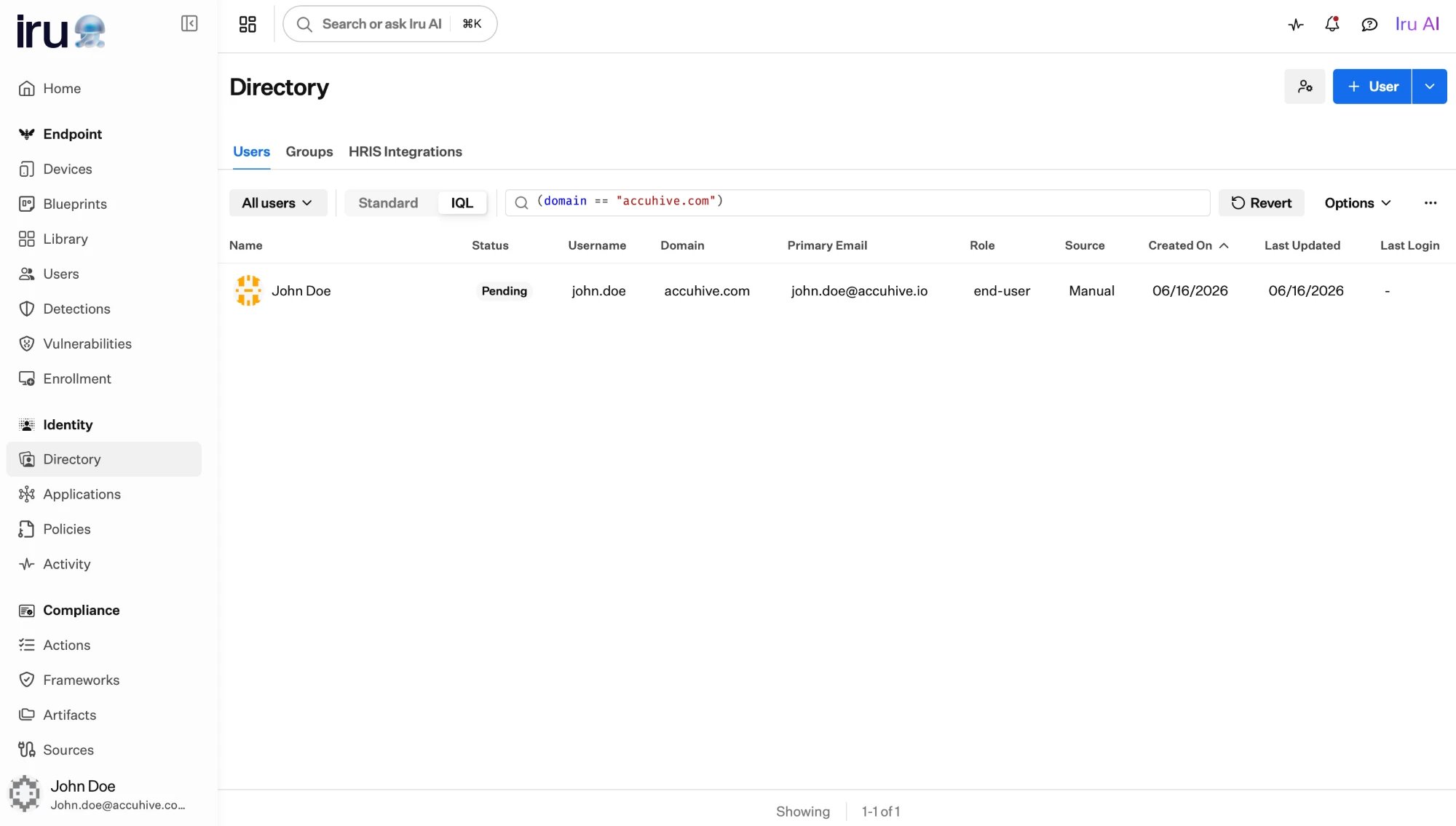
For more precise queries, switch the list from **Standard** to **IQL** and write
the filter as an [IQL](/en/identity/getting-started/iql-expressions) expression,
for example `domain == "accuhive.com"`. This is the same expression language that
powers Auto Group rules and mapping.
### IQL filters
For more precise queries, switch the list from **Standard** to **IQL** and write
the filter as an [IQL](/en/identity/getting-started/iql-expressions) expression,
for example `domain == "accuhive.com"`. This is the same expression language that
powers Auto Group rules and mapping.
 ### Saved views
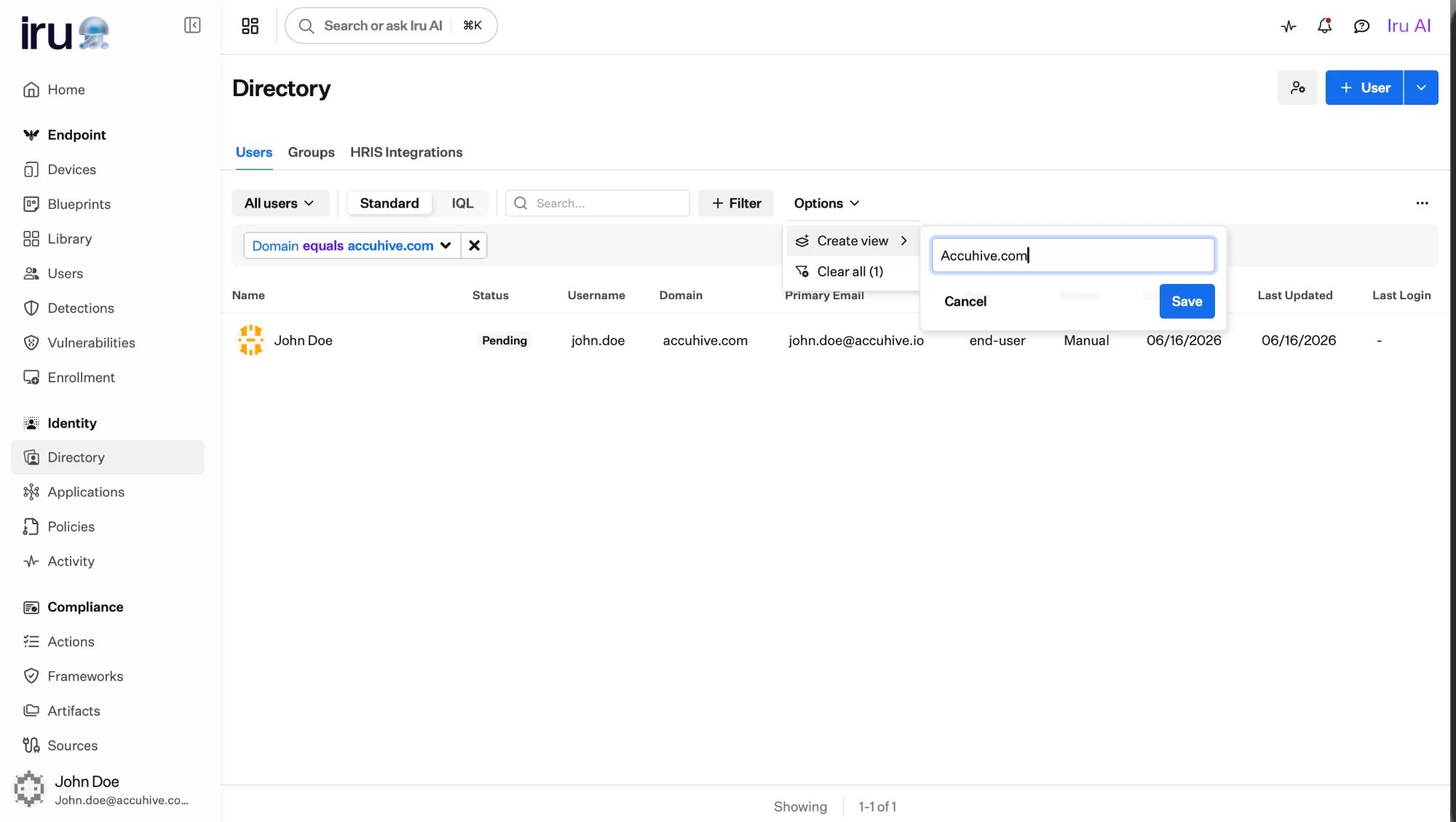
Once you have built a filter you will reuse, open **Options → Create view**, give
it a name, and save it. The view remembers your filters, so you can return to the
same slice of the directory in one click.
### Saved views
Once you have built a filter you will reuse, open **Options → Create view**, give
it a name, and save it. The view remembers your filters, so you can return to the
same slice of the directory in one click.
 ## User statuses
A user is always in one of three statuses, and you can filter the users list by
status.
Created but not yet active. This is where a freshly added or imported user
starts, before they finish setting up their account.
Fully enabled. The user can sign in and reach the applications assigned to
them.
Access is blocked, but the record and history are preserved. The user
cannot sign in until they are reinstated.
### Suspending vs. removing
Both stop a user from signing in, but they are different tools for different
situations.
Suspending blocks a user's access while keeping their record, profile, and
history intact. Reinstating a suspended user returns them to the status they
held before, so this is the right choice when someone is on leave, under
investigation, or being offboarded but not yet fully gone. You can suspend a
user whether they are active or still pending.
Removing a user deletes their directory record. Reach for this only when a
user has left for good and you no longer need to keep their identity. When
your HR system is connected, an offboarding there can remove users from the
directory automatically; see
[Directory Sync](/en/identity/directory/directory-sync).
Removing a user cannot be undone. If there is any chance the user will
return, or you need to retain their history, suspend them instead.
## Inviting users
A newly created user is **pending** until they finish setting up their account.
Inviting a user sends an invitation to their email with a secure link to
complete first-time setup, including registering an
[authenticator](/en/identity/authentication/authenticators) such as a passkey.
* You can invite a single user from their profile, or invite your pending users
in bulk from the users list.
* Invitations expire **48 hours** after they are sent. You can resend one if it
was missed or has expired; sending a new invitation supersedes any earlier one
for that user.
* Invitations are sent to the user's primary email address.
If a user loses access to their authenticators, **Reset** them from the user's
profile. A reset removes their registered authenticators, ends their active
sessions, and returns them to **pending**; then send a fresh invitation so they
can register a new authenticator. (Sending an invitation is blocked while a user
still has authenticators, which is why you reset first.)
## Next steps
Define the custom attributes every user profile can hold.
Assign access to groups instead of individuals so it scales.
Add many users at once from a CSV file.
Let your HR system create, update, and remove users for you.
## User statuses
A user is always in one of three statuses, and you can filter the users list by
status.
Created but not yet active. This is where a freshly added or imported user
starts, before they finish setting up their account.
Fully enabled. The user can sign in and reach the applications assigned to
them.
Access is blocked, but the record and history are preserved. The user
cannot sign in until they are reinstated.
### Suspending vs. removing
Both stop a user from signing in, but they are different tools for different
situations.
Suspending blocks a user's access while keeping their record, profile, and
history intact. Reinstating a suspended user returns them to the status they
held before, so this is the right choice when someone is on leave, under
investigation, or being offboarded but not yet fully gone. You can suspend a
user whether they are active or still pending.
Removing a user deletes their directory record. Reach for this only when a
user has left for good and you no longer need to keep their identity. When
your HR system is connected, an offboarding there can remove users from the
directory automatically; see
[Directory Sync](/en/identity/directory/directory-sync).
Removing a user cannot be undone. If there is any chance the user will
return, or you need to retain their history, suspend them instead.
## Inviting users
A newly created user is **pending** until they finish setting up their account.
Inviting a user sends an invitation to their email with a secure link to
complete first-time setup, including registering an
[authenticator](/en/identity/authentication/authenticators) such as a passkey.
* You can invite a single user from their profile, or invite your pending users
in bulk from the users list.
* Invitations expire **48 hours** after they are sent. You can resend one if it
was missed or has expired; sending a new invitation supersedes any earlier one
for that user.
* Invitations are sent to the user's primary email address.
If a user loses access to their authenticators, **Reset** them from the user's
profile. A reset removes their registered authenticators, ends their active
sessions, and returns them to **pending**; then send a fresh invitation so they
can register a new authenticator. (Sending an invitation is blocked while a user
still has authenticators, which is why you reset first.)
## Next steps
Define the custom attributes every user profile can hold.
Assign access to groups instead of individuals so it scales.
Add many users at once from a CSV file.
Let your HR system create, update, and remove users for you.