> ## Documentation Index
> Fetch the complete documentation index at: https://docs.iru.com/llms.txt
> Use this file to discover all available pages before exploring further.
# Manual Groups
> Groups whose members you choose by hand, including nesting other groups, for teams and ad-hoc sets of users that don't follow a rule.
A **manual group** is one you build by hand: you add and remove members directly,
and the membership stays exactly as you set it. Reach for a manual group when
membership doesn't follow a rule: a project team, a pilot cohort, or any ad-hoc
set of users.
## Direct members and effective users
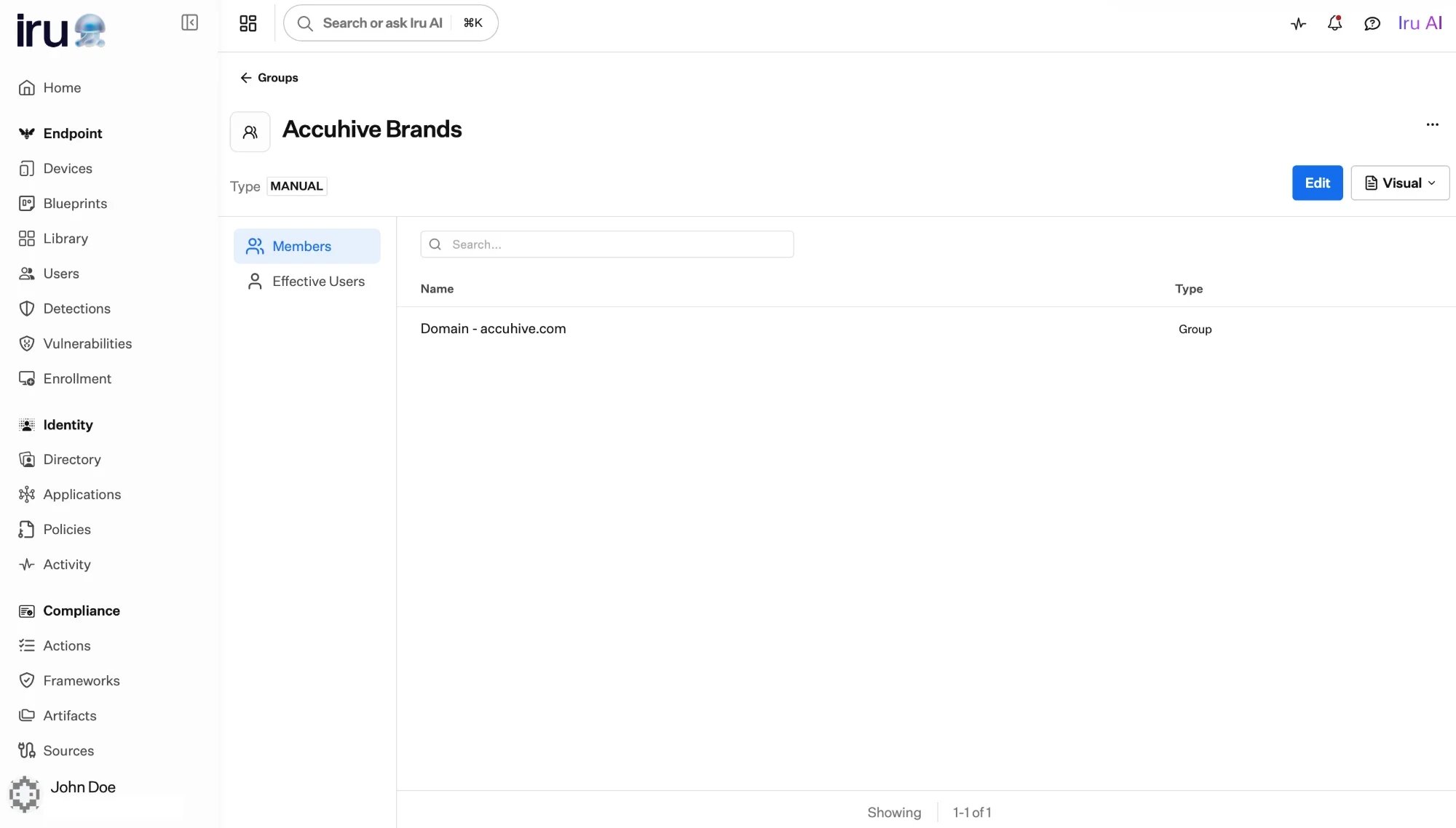
A manual group's **direct members** are whatever you add to it by hand, and a
member can be a **user** or **another group**, including an **Auto Group**.
Nesting groups lets you model your organization and roll smaller groups up into
larger ones.
The group's page reflects this with two views:
* **Members:** the **direct members** you added: users and groups, each labeled
by type.
* **Effective Users:** the fully-resolved list of **only the users**, found by
expanding every nested group recursively. This is who actually gains access when
you assign the group to an application.
 Roll several **Region** [Auto Groups](/en/identity/directory/auto-groups) up into
a manual **Super Region** group: everyone in those Region groups is included
automatically, and membership follows as users move, with no upkeep on the
umbrella group.
## Create a manual group
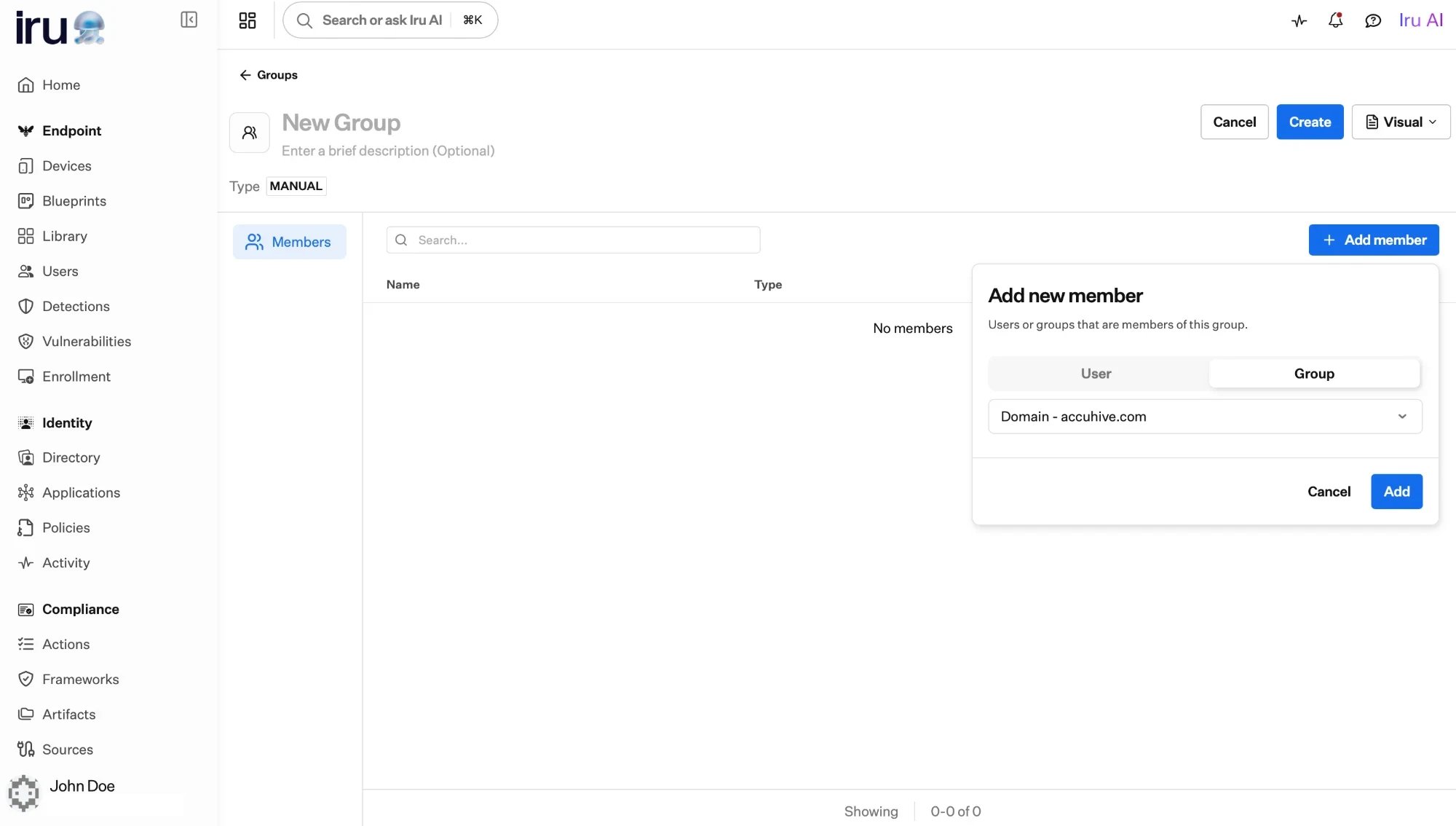
In **Directory → Groups**, add a group and give it a name and description.
Add users, or add other groups to nest them. Membership stays exactly as you
set it until you change it.
Assign the group to applications so its members gain access. See
[Assigning access](/en/identity/applications/assigning-access).
Roll several **Region** [Auto Groups](/en/identity/directory/auto-groups) up into
a manual **Super Region** group: everyone in those Region groups is included
automatically, and membership follows as users move, with no upkeep on the
umbrella group.
## Create a manual group
In **Directory → Groups**, add a group and give it a name and description.
Add users, or add other groups to nest them. Membership stays exactly as you
set it until you change it.
Assign the group to applications so its members gain access. See
[Assigning access](/en/identity/applications/assigning-access).
 Membership is yours to manage; it doesn't update on its own. When who-needs-access
follows an attribute (department, location, and so on), use an
[Auto Group](/en/identity/directory/auto-groups) instead so it stays current.
## Next steps
How manual, built-in, and Auto Groups compare.
Let membership compute itself from a profile attribute.
Membership is yours to manage; it doesn't update on its own. When who-needs-access
follows an attribute (department, location, and so on), use an
[Auto Group](/en/identity/directory/auto-groups) instead so it stays current.
## Next steps
How manual, built-in, and Auto Groups compare.
Let membership compute itself from a profile attribute.