> ## Documentation Index
> Fetch the complete documentation index at: https://docs.iru.com/llms.txt
> Use this file to discover all available pages before exploring further.
# Groups
> Use manual, built-in, and auto groups in Iru Identity to assign application access to users as a unit, and learn how to grant access through group membership.
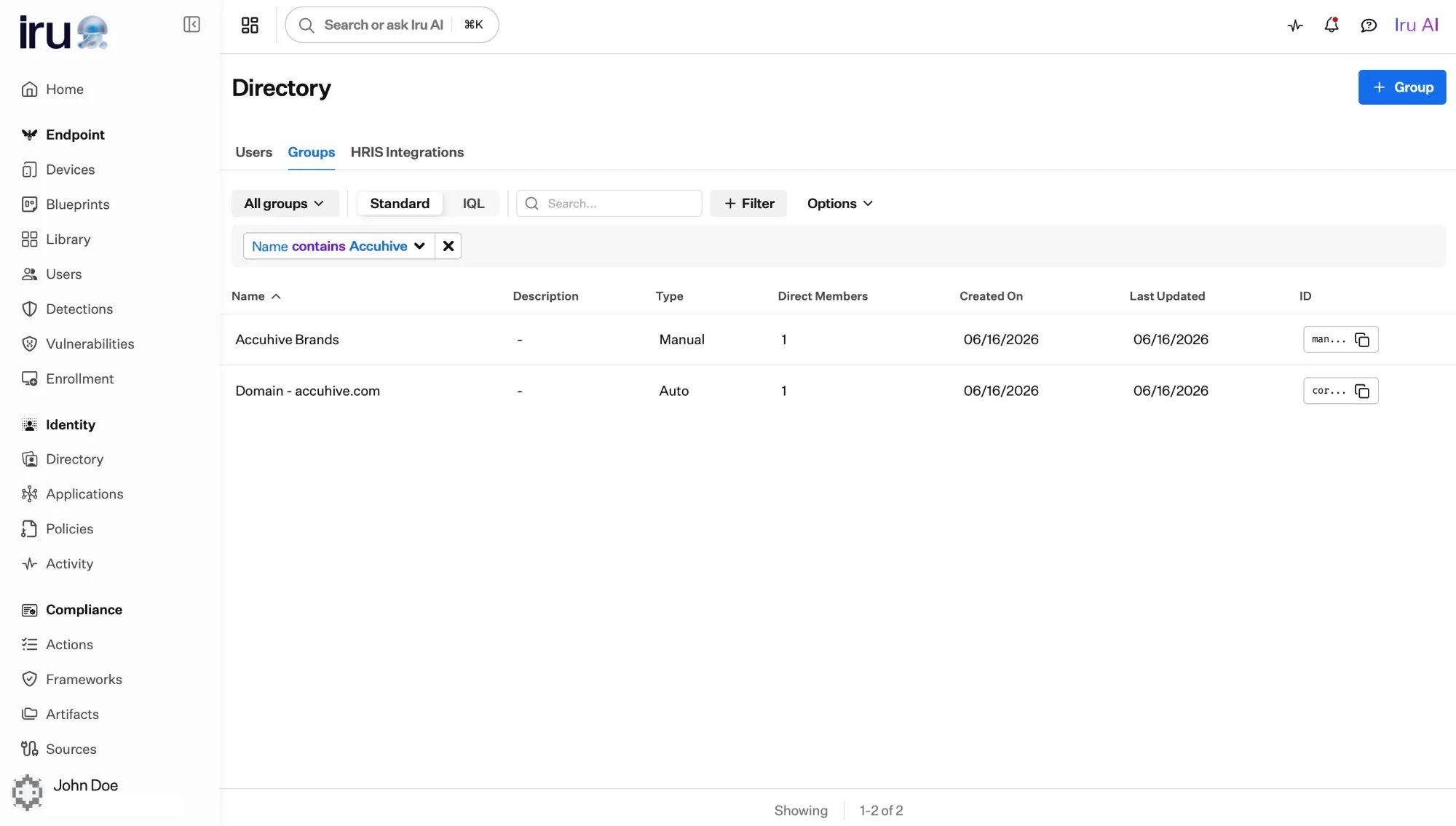
A **group** is a collection of users that you assign access to as a unit. Grant
an application to a group once, and everyone in the group inherits that access,
so you manage access by editing membership instead of touching each user. You
manage groups in **Directory → Groups**, where a single catalog lists every group
with its name, description, type, and direct member count.
 ## The three kinds of group
Iru Identity has three kinds of group. They share the catalog and are all
assignable to applications; what differs is how membership is decided.
You choose the members yourself, and can nest other groups. Membership changes
only when you change it.
Provided automatically for every organization, for example a group that
contains all your users.
Membership is computed from a profile attribute and updates itself as profiles
change.
**Manual Groups** and **Auto Groups** each have their own guide; **built-in
groups** are covered just below.
### Built-in groups
**Built-in groups** exist for every organization without any setup. The primary
example is a group that always contains **all users**, a convenient way to grant
something to everyone. Because they are managed by Iru, their membership is
maintained for you.
## Which kind should you use?
Use an **[Auto Group](/en/identity/directory/auto-groups)**. If everyone in
"Engineering" or everyone in a given office should get the same access, base the
group on the attribute that says so. Membership then maintains itself as users
join, move, and leave.
Use the **built-in all-users group**. It's the simplest way to grant something
to your whole organization.
Use a **[manual group](/en/identity/directory/manual-groups)**. For a project
team or a one-off set of users, pick the members yourself and nest other
groups inside when it helps.
## Assigning access to groups
Groups exist so you can grant access to many users at once. You assign a group to
an application the same way you assign an individual. Everyone in the group,
including members of any nested groups, gains access.
```mermaid theme={null}
flowchart LR
u1["User"] --> g["Group"]
u2["User"] --> g
nested["Nested group"] --> g
g -->|"assigned to"| app["Application"]
app --> access["Effective access
## The three kinds of group
Iru Identity has three kinds of group. They share the catalog and are all
assignable to applications; what differs is how membership is decided.
You choose the members yourself, and can nest other groups. Membership changes
only when you change it.
Provided automatically for every organization, for example a group that
contains all your users.
Membership is computed from a profile attribute and updates itself as profiles
change.
**Manual Groups** and **Auto Groups** each have their own guide; **built-in
groups** are covered just below.
### Built-in groups
**Built-in groups** exist for every organization without any setup. The primary
example is a group that always contains **all users**, a convenient way to grant
something to everyone. Because they are managed by Iru, their membership is
maintained for you.
## Which kind should you use?
Use an **[Auto Group](/en/identity/directory/auto-groups)**. If everyone in
"Engineering" or everyone in a given office should get the same access, base the
group on the attribute that says so. Membership then maintains itself as users
join, move, and leave.
Use the **built-in all-users group**. It's the simplest way to grant something
to your whole organization.
Use a **[manual group](/en/identity/directory/manual-groups)**. For a project
team or a one-off set of users, pick the members yourself and nest other
groups inside when it helps.
## Assigning access to groups
Groups exist so you can grant access to many users at once. You assign a group to
an application the same way you assign an individual. Everyone in the group,
including members of any nested groups, gains access.
```mermaid theme={null}
flowchart LR
u1["User"] --> g["Group"]
u2["User"] --> g
nested["Nested group"] --> g
g -->|"assigned to"| app["Application"]
app --> access["Effective access
for all members"]
```
The full set of users who end up with access through a group is the application's
**effective users**. Removing someone from the group removes their access; adding
someone grants it, with no change to the application itself.
Assign access to **groups** rather than individuals wherever you can, and base
those groups on **attributes** where a rule fits. Access then follows your
directory automatically. That's lifecycle automation in Iru Identity.
See [Assigning access](/en/identity/applications/assigning-access) for the full
assignment workflow.
## Next steps
Build a group by hand, and nest groups for roll-ups.
Compute group membership from a profile attribute.
Shape the profile fields that Auto Groups build on.
Assign groups to applications and review effective users.