> ## Documentation Index
> Fetch the complete documentation index at: https://docs.iru.com/llms.txt
> Use this file to discover all available pages before exploring further.
# Directory Sync
> Keep your directory current by connecting an HRIS or directory solution for automatic sync, or import users from a file.
Keep your
[directory](/en/identity/directory/directory-overview) populated and up to date
from the system that's the source of truth for who's in your organization. There
are two ways to do it:
Link a **live source** (an **HRIS** such as **Workday** or **BambooHR**, or
another **directory solution**) and Iru pulls users from it and syncs on a
schedule, creating, updating, and removing users on its own. More providers are
on the way.
No direct connector for your system? Export your users to a **CSV** (from a
legacy HR system, a **Student Information System (SIS)**, or anything you can
produce a file from) and upload it. Re-upload an updated export whenever your
list changes to keep users current.
When you connect a live source, updates flow into Iru on their own, so when
someone is hired, changes roles, or leaves, your directory follows with no manual
work. The rest of this guide covers connecting a source system; for the manual
route, see [CSV import](/en/identity/directory/importing-users).
Today you can connect the HR systems **Workday** and **BambooHR**, with more
providers (including other directory solutions) on the way. Setup is the same
guided flow for each; only a couple of steps differ by provider.
Connecting a source system needs administrator access to your Iru tenant and
administrator credentials for that system. The connection only **reads** users
from the source; it never writes back to it.
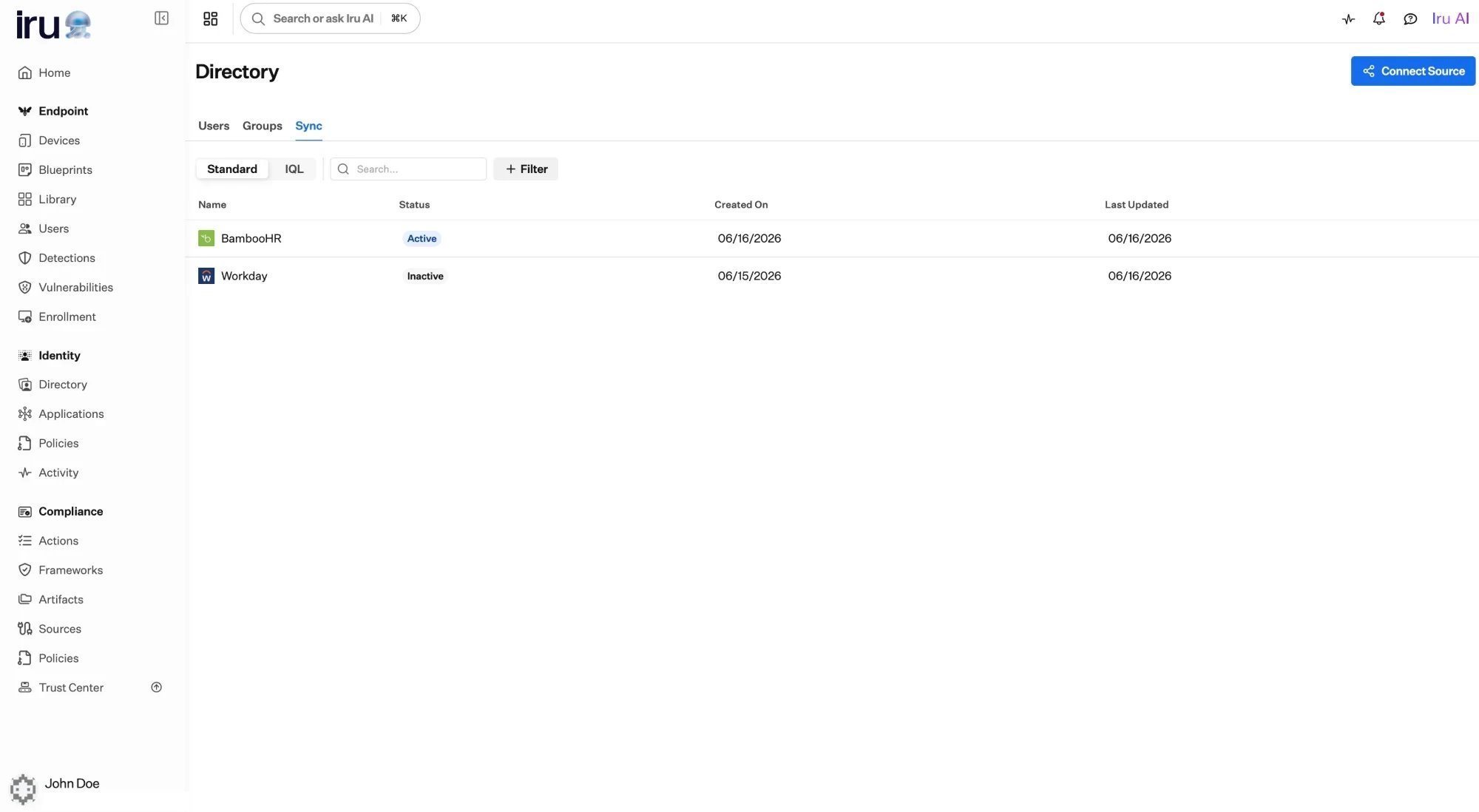 ## How it works at a glance
1. **Choose** your provider.
2. **Connect:** authorize Iru to read your user data.
3. **Configure** (some providers only): tell Iru where your data lives.
4. **Map** the source's fields to Iru fields.
5. **Enable:** turn on syncing.
```mermaid theme={null}
flowchart LR
connect["Connect
## How it works at a glance
1. **Choose** your provider.
2. **Connect:** authorize Iru to read your user data.
3. **Configure** (some providers only): tell Iru where your data lives.
4. **Map** the source's fields to Iru fields.
5. **Enable:** turn on syncing.
```mermaid theme={null}
flowchart LR
connect["Connect
+ authorize"] --> discover["Iru reads
available fields"]
discover --> map["Map fields
source → Iru"]
map --> enable["Enable"]
enable --> sync["Scheduled sync"]
sync -->|"create / update / remove"| dir["Directory"]
sync -->|"problems"| errors["Sync errors to review"]
```
Once a connection is enabled, Iru re-syncs it automatically on a schedule, every
**60 minutes**, so changes in your source (new hires, role changes, departures)
flow into your directory within the hour, with no manual steps.
## Ideas that apply to every connection
* **Your source system leads.** Once connected, it's the authority on user data;
Iru reflects what it sends.
* **Every user needs a stable ID.** You pick one field that uniquely and
permanently identifies each user, so Iru always updates the right record.
* **You decide how fields line up.** Iru doesn't guess. You map each source field
to the matching Iru field, and can transform values with **IQL** when they don't
line up one-to-one.
## Set it up
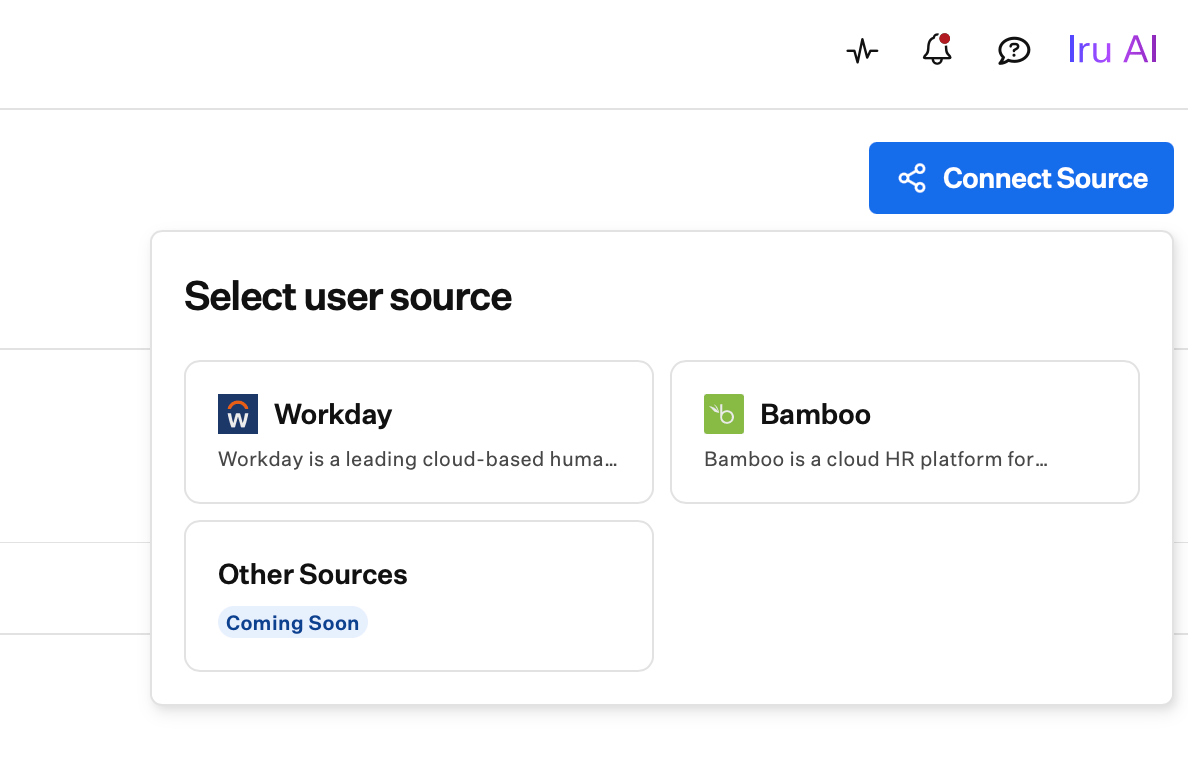
In **Directory → Sync**, select **Connect Source** and pick your provider:
**Workday** or **BambooHR**.
 Give the connection a **name** (and optional **description**), then
**Connect**. A secure window opens where you sign in to your provider and
authorize access with your administrator credentials. When the provider
confirms it, the window closes and Iru continues.
Use a dedicated admin / integration account where you can, so the connection
keeps working regardless of any one user's status.
Some providers need you to point Iru at the right data source. **Workday** asks
for the **report** that exposes the worker fields you want, plus the
**integration user** that runs it. **BambooHR** reads its standard employee
directory, so it skips this step. See the [provider guides](#choose-your-provider)
below.
Iru reads the fields your provider makes available and lays them out for you to
match. See [Map your data](#map-your-data) below.
Save your mappings to finish setup. A new connection starts **disabled**, so
nothing syncs until you've reviewed it, then **Enable** it to run the first
import and keep syncing on a schedule.
## Map your data
Mapping is where most of the setup happens: connecting your source's fields to the matching
fields in Iru.
Give the connection a **name** (and optional **description**), then
**Connect**. A secure window opens where you sign in to your provider and
authorize access with your administrator credentials. When the provider
confirms it, the window closes and Iru continues.
Use a dedicated admin / integration account where you can, so the connection
keeps working regardless of any one user's status.
Some providers need you to point Iru at the right data source. **Workday** asks
for the **report** that exposes the worker fields you want, plus the
**integration user** that runs it. **BambooHR** reads its standard employee
directory, so it skips this step. See the [provider guides](#choose-your-provider)
below.
Iru reads the fields your provider makes available and lays them out for you to
match. See [Map your data](#map-your-data) below.
Save your mappings to finish setup. A new connection starts **disabled**, so
nothing syncs until you've reviewed it, then **Enable** it to run the first
import and keep syncing on a schedule.
## Map your data
Mapping is where most of the setup happens: connecting your source's fields to the matching
fields in Iru.
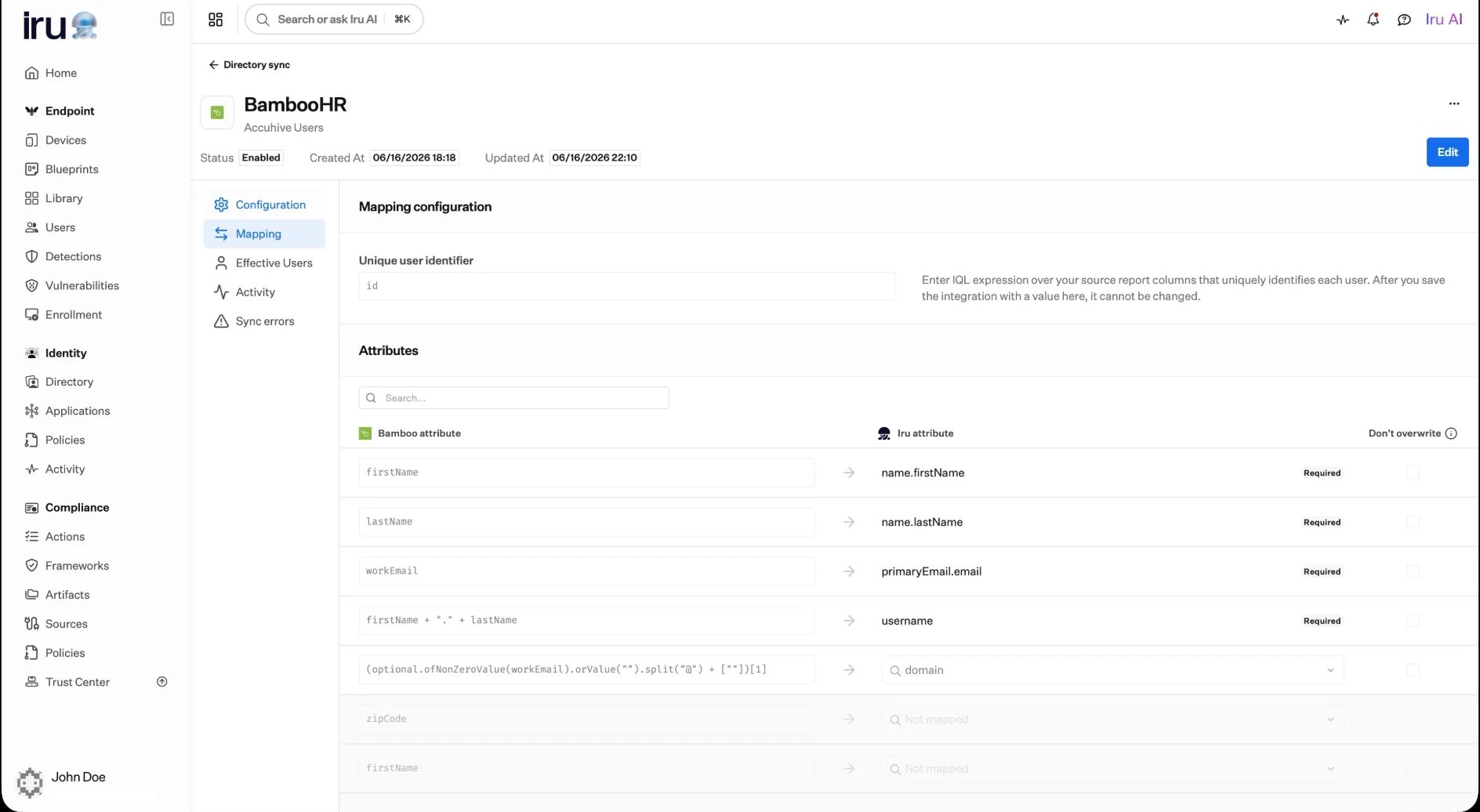 ### Set a unique identifier
Choose the field that uniquely identifies each user, often an **employee ID** or
similar stable identifier. Iru relies on one stable value per user to update the
*right* record on every sync, even when names or emails change.
Pick something that never changes for a user. **Once you save the connection,
the unique identifier can't be changed.** Changing it would break Iru's ability
to recognize the users it has already imported.
### Match fields to Iru
For each Iru attribute, pick the source field that should fill it. Four attributes
are **required** and always mapped:
* **Email**
* **First name**
* **Last name**
* **Username**
Any attribute you've marked required in your
[schema](/en/identity/directory/schema) is required here too. Everything
else is optional, but mapping it brings over the full picture of each user:
title, department, manager, location, and more.
### Transform values with IQL
Most fields are a simple pick-and-go. When the value you want needs to be *built*
from a field rather than copied as-is, write a short **IQL** expression instead. As
you type, Iru suggests the available fields and checks your expression, so you
catch a typo or a missing field *before* you save, not during a sync. See
[Attribute mapping](/en/identity/directory/attribute-mapping) and
[IQL expressions](/en/identity/getting-started/iql-expressions) for the full syntax.
Common examples (use your provider's own field names):
* **Build a username from an email** (everything before the `@`):
`email.split("@")[0]`
* **Combine two fields** into one value:
`firstName + " " + lastName`
* **Prefer one field, fall back to another** when the first is blank:
`optional.ofNonZeroValue(workEmail).orValue(homeEmail)`
If a field is sometimes blank, guard against it so the sync doesn't trip on empty
records. Wrap the value with `optional.ofNonZeroValue(...).orValue("")` before
transforming it. For example, only deriving a username when an email exists:
`optional.ofNonZeroValue(email).orValue("").split("@")[0]`
## Choose your provider
The flow is the same for each; these guides cover the steps that differ.
Read workers from a Workday report. Includes the report and integration-user
step.
Read from BambooHR's standard employee directory. No report to configure.
| Step | Workday | BambooHR |
| -------------------------------------------- | ------- | -------------------- |
| Connect and authorize | Yes | Yes |
| Configure a report | Yes | No (standard fields) |
| Map fields (unique ID, required fields, IQL) | Yes | Yes |
| Enable and sync on a schedule | Yes | Yes |
## What happens on each sync
Once enabled, Iru syncs on a schedule and reconciles your directory with the source
system:
| Change at the source | What Iru does |
| --------------------------- | ----------------------------------------- |
| A new user appears | Creates a matching user in your directory |
| A user's details change | Updates the user's profile attributes |
| A user is no longer present | Removes the user from your directory |
As profiles arrive and change, [Auto Groups](/en/identity/directory/auto-groups)
update their membership automatically, so access follows users without manual
work.
### Set a unique identifier
Choose the field that uniquely identifies each user, often an **employee ID** or
similar stable identifier. Iru relies on one stable value per user to update the
*right* record on every sync, even when names or emails change.
Pick something that never changes for a user. **Once you save the connection,
the unique identifier can't be changed.** Changing it would break Iru's ability
to recognize the users it has already imported.
### Match fields to Iru
For each Iru attribute, pick the source field that should fill it. Four attributes
are **required** and always mapped:
* **Email**
* **First name**
* **Last name**
* **Username**
Any attribute you've marked required in your
[schema](/en/identity/directory/schema) is required here too. Everything
else is optional, but mapping it brings over the full picture of each user:
title, department, manager, location, and more.
### Transform values with IQL
Most fields are a simple pick-and-go. When the value you want needs to be *built*
from a field rather than copied as-is, write a short **IQL** expression instead. As
you type, Iru suggests the available fields and checks your expression, so you
catch a typo or a missing field *before* you save, not during a sync. See
[Attribute mapping](/en/identity/directory/attribute-mapping) and
[IQL expressions](/en/identity/getting-started/iql-expressions) for the full syntax.
Common examples (use your provider's own field names):
* **Build a username from an email** (everything before the `@`):
`email.split("@")[0]`
* **Combine two fields** into one value:
`firstName + " " + lastName`
* **Prefer one field, fall back to another** when the first is blank:
`optional.ofNonZeroValue(workEmail).orValue(homeEmail)`
If a field is sometimes blank, guard against it so the sync doesn't trip on empty
records. Wrap the value with `optional.ofNonZeroValue(...).orValue("")` before
transforming it. For example, only deriving a username when an email exists:
`optional.ofNonZeroValue(email).orValue("").split("@")[0]`
## Choose your provider
The flow is the same for each; these guides cover the steps that differ.
Read workers from a Workday report. Includes the report and integration-user
step.
Read from BambooHR's standard employee directory. No report to configure.
| Step | Workday | BambooHR |
| -------------------------------------------- | ------- | -------------------- |
| Connect and authorize | Yes | Yes |
| Configure a report | Yes | No (standard fields) |
| Map fields (unique ID, required fields, IQL) | Yes | Yes |
| Enable and sync on a schedule | Yes | Yes |
## What happens on each sync
Once enabled, Iru syncs on a schedule and reconciles your directory with the source
system:
| Change at the source | What Iru does |
| --------------------------- | ----------------------------------------- |
| A new user appears | Creates a matching user in your directory |
| A user's details change | Updates the user's profile attributes |
| A user is no longer present | Removes the user from your directory |
As profiles arrive and change, [Auto Groups](/en/identity/directory/auto-groups)
update their membership automatically, so access follows users without manual
work.
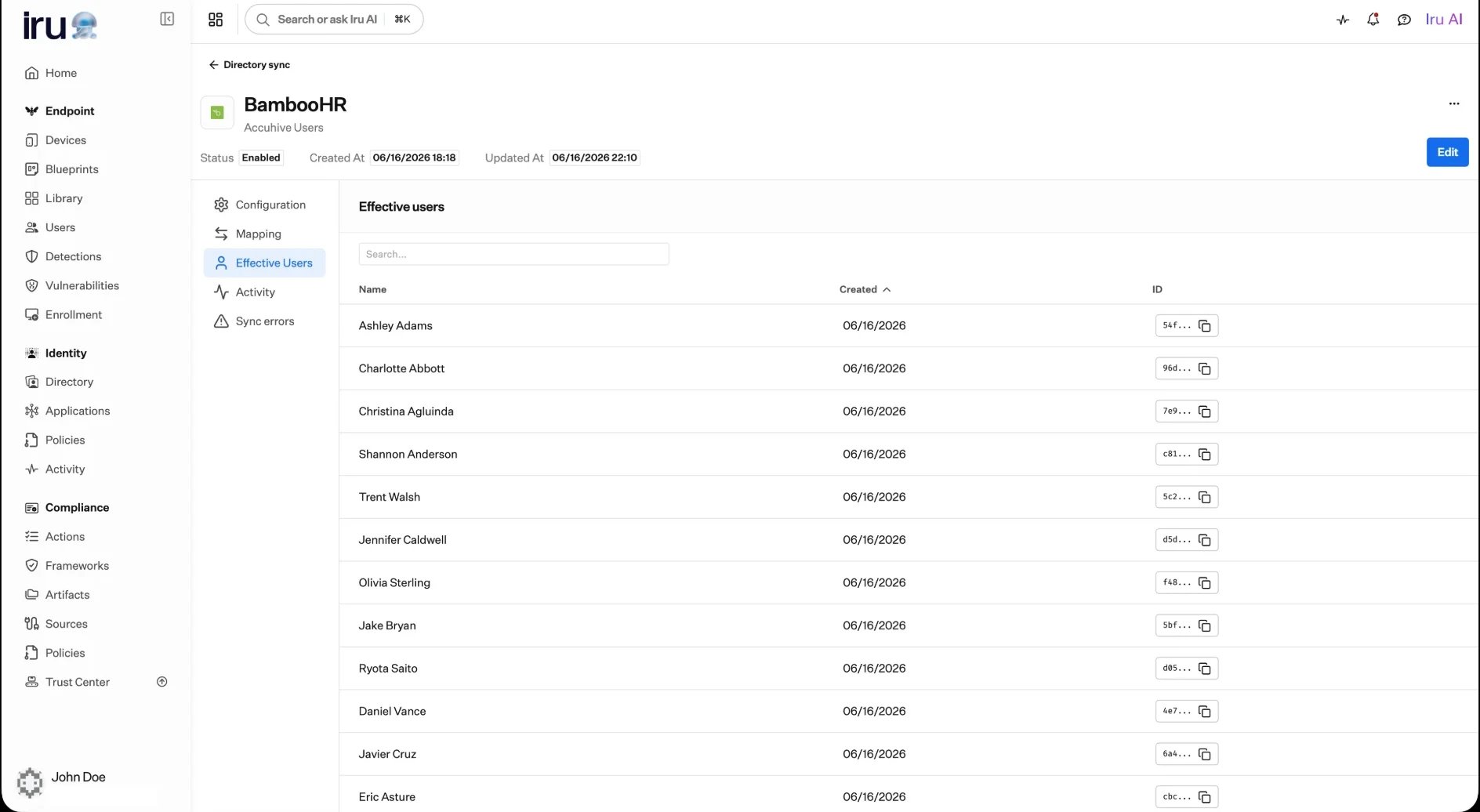 ## Manage the connection over time
From a connection's detail page you can:
* **Re-authenticate:** submit fresh credentials when they expire or change,
without touching your mappings.
* **Edit your configuration or mappings:** adjust what's imported as your needs
evolve.
* **Force attribute sync** (Workday): re-read the latest available fields from
your report without waiting.
* **Review activity, effective users, and sync errors:** see what's flowing in
and spot anything that needs attention.
* **Enable or disable** the connection, or remove it.
## Manage the connection over time
From a connection's detail page you can:
* **Re-authenticate:** submit fresh credentials when they expire or change,
without touching your mappings.
* **Edit your configuration or mappings:** adjust what's imported as your needs
evolve.
* **Force attribute sync** (Workday): re-read the latest available fields from
your report without waiting.
* **Review activity, effective users, and sync errors:** see what's flowing in
and spot anything that needs attention.
* **Enable or disable** the connection, or remove it.
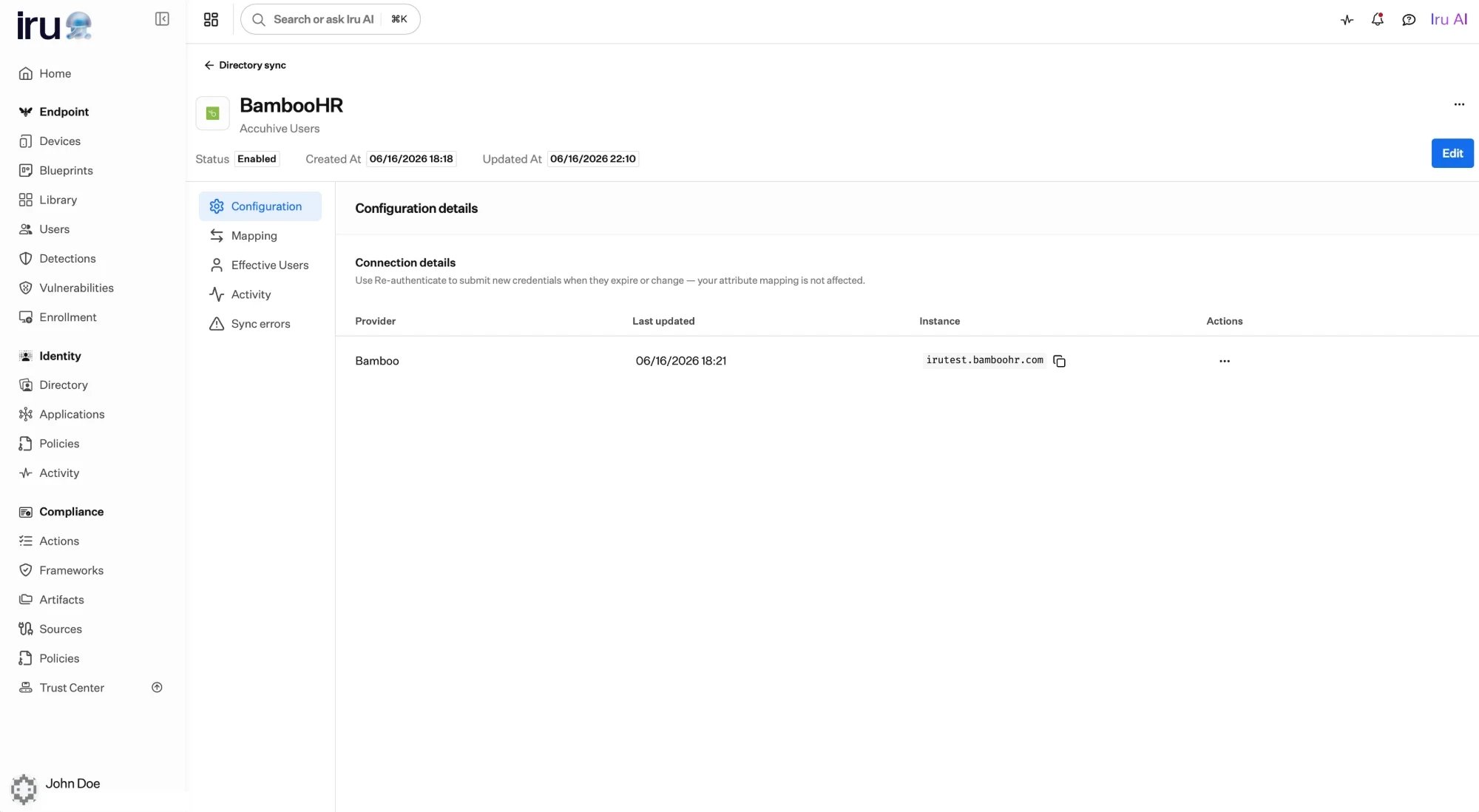 The connection shows its **status** and when it was **last updated**. If your
provider credentials expire or change, use **Re-authenticate** to submit new
ones. Your attribute mappings are not affected.
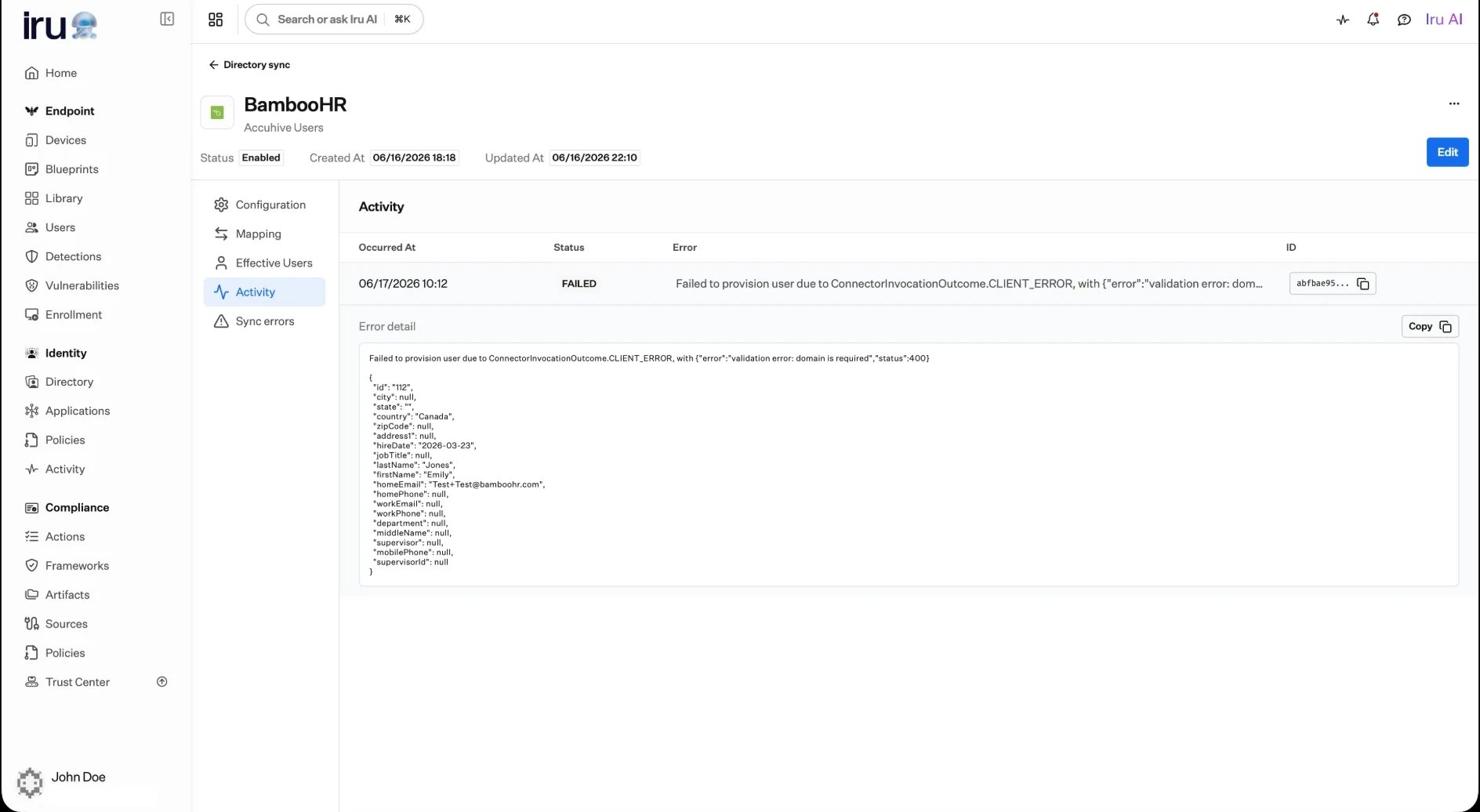
When Iru can't process a particular record, it records a **sync error** you can
review: when it occurred, the affected user, the action Iru attempted, an
error code, and a message. If many records fail with the same error, the cause
is usually a mapping: a required attribute left unmapped, or a unique identifier
that isn't actually unique. Fix the mapping, then let the next sync run.
The connection shows its **status** and when it was **last updated**. If your
provider credentials expire or change, use **Re-authenticate** to submit new
ones. Your attribute mappings are not affected.
When Iru can't process a particular record, it records a **sync error** you can
review: when it occurred, the affected user, the action Iru attempted, an
error code, and a message. If many records fail with the same error, the cause
is usually a mapping: a required attribute left unmapped, or a unique identifier
that isn't actually unique. Fix the mapping, then let the next sync run.
 ## Related
The Workday-specific setup, including the report step.
The BambooHR-specific setup.
The IQL you use to shape incoming values.
The attributes your source fields map into.
## Related
The Workday-specific setup, including the report step.
The BambooHR-specific setup.
The IQL you use to shape incoming values.
The attributes your source fields map into.