> ## Documentation Index
> Fetch the complete documentation index at: https://docs.iru.com/llms.txt
> Use this file to discover all available pages before exploring further.
# Authentication policies
> Decide who can sign in to each application in Iru Identity and what factors they must prove, using authentication policy rules evaluated on every sign-in.
An **authentication policy** is the rulebook Iru applies whenever someone signs
in to an application. It looks at the sign-in, evaluates a set of conditions you
define, and produces a single **decision** (allow or deny). You manage policies
in the dashboard under **Policies → Authentication policies**.
A policy lets you express requirements like *"only allow sign-in from a managed,
encrypted device"* or *"only allow current macOS versions"*, and have them
enforced consistently for every user and every sign-in.
A policy only takes effect once it is **assigned to one or more
applications**. An application's policy governs sign-in to that application;
see [Assign a policy to applications](#assign-a-policy-to-applications).
## How a policy is structured
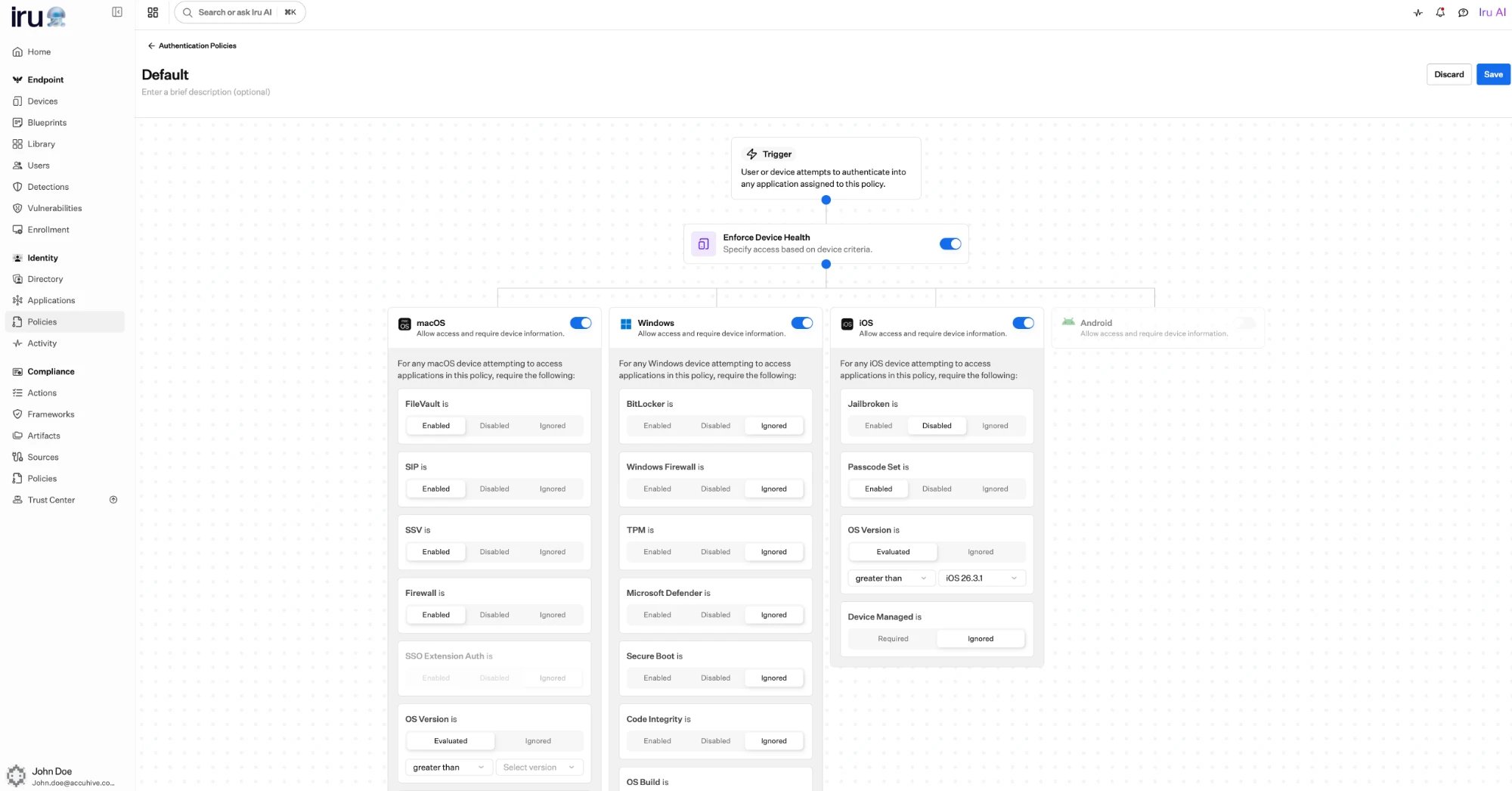
A policy is a set of **rules** arranged as a tree of **conditions**. Iru walks
the tree from the top each time it evaluates the policy:
* **Branch conditions** send the sign-in down different paths based on context.
For example, a policy branches on the kind of device signing in, so a macOS
device is checked against macOS requirements and a Windows device against
Windows requirements.
* **Requirement conditions** check that something is true; for example, that a
device's disk is encrypted or that it is managed. Each requirement that is not
met is recorded as a **violation**.
When the walk finishes, the policy has either passed (no violations) or failed
(one or more violations).
```mermaid theme={null}
flowchart TD
start["Sign-in to an assigned app"] --> branch{"What kind of
device is this?"}
branch -->|"macOS"| mac["Check macOS
requirements"]
branch -->|"Windows"| win["Check Windows
requirements"]
branch -->|"Mobile"| ios["Check mobile
requirements"]
mac --> decision{"All requirements
met?"}
win --> decision
ios --> decision
decision -->|"Yes"| allow["Allow: issue sign-on"]
decision -->|"No"| deny["Deny: record violations"]
```
 ## How a policy is evaluated at sign-in
```mermaid theme={null}
sequenceDiagram
participant U as Person
participant A as Application
participant I as Iru Identity
U->>A: Open the app
A->>I: Ask Iru to authenticate
I->>I: Confirm who the user is
I->>I: Evaluate the assigned policy
alt Policy passes
I-->>A: Issue single sign-on
A-->>U: Grant access
else Policy fails
I-->>U: Deny and explain what was missing
end
```
Every sign-in to an application produces a decision, and Iru records that
decision, including any violations, so you can review what happened later in
the [activity log](/en/identity/administration/activity-log).
A policy decides **whether** a sign-in is allowed and **what must be true**
for it. Whether a user is *assigned* the application is a separate check.
Both must succeed for someone to reach an app. See
[Assigning access](/en/identity/applications/assigning-access).
## What a policy can require
A passkey or Iru Access authenticator is **always required** to sign in; that is
built in for everyone, not something a policy turns on. What a policy adds on top
is **device trust**: which devices may sign in and the shape they must be in.
Require sign-in from a known, healthy, managed device (for example, one with
disk encryption on. See
[Device trust](/en/identity/authentication/device-trust).
Allow sign-in only from the device platforms you choose, and deny the rest.
Require per-platform signals such as disk encryption, a firewall, or a minimum
OS version. See [Device trust](/en/identity/authentication/device-trust).
## What happens when a policy fails
When a sign-in does not meet a policy's requirements, Iru **denies** it and
records the reason as one or more **violations**. Each violation captures the
requirement that was not met, what the policy expected, and what was actually
seen; for example, a requirement that disk encryption be *enabled* when it was
found *disabled*.
If a policy is configured so that no path can succeed (for example, no device
platform is allowed, then every sign-in to the applications it governs will be
denied. Review the policy's allowed platforms before assigning it broadly.
## Build a policy
In **Policies → Authentication policies**, choose **Add policy** and give it
a clear name and description. The name is how you will recognize it when
assigning it to applications.
Add the conditions the sign-in must meet. You can allow sign-in only from
specific device platforms and, for each, require device health signals such
as disk encryption being on or the device being managed. See
[Device trust](/en/identity/authentication/device-trust) for the full set of
available signals.
Attach the policy to the applications it should govern. From that point on,
every sign-in to those apps is evaluated against this policy.
Sign in as a test user to an assigned app and confirm the outcome. If access
is denied unexpectedly, review the recorded violations in the
[activity log](/en/identity/administration/activity-log).
## Assign a policy to applications
A policy does nothing until it is attached to applications. Each policy keeps a
list of the applications it is **scoped to**, and you attach or detach
applications from the policy's page in the dashboard. An application's assigned
policy is what Iru evaluates whenever someone signs in to that application.
Group applications with the same security needs under a shared policy. When
your requirements change, you update one policy instead of editing every app.
## Where to go next
The credentials users use to prove who they are on every sign-in.
Require known, healthy, managed devices as a condition of access.
Let access adapt to how trustworthy a sign-in looks.
See what evaluation looks like from the user's side.
## How a policy is evaluated at sign-in
```mermaid theme={null}
sequenceDiagram
participant U as Person
participant A as Application
participant I as Iru Identity
U->>A: Open the app
A->>I: Ask Iru to authenticate
I->>I: Confirm who the user is
I->>I: Evaluate the assigned policy
alt Policy passes
I-->>A: Issue single sign-on
A-->>U: Grant access
else Policy fails
I-->>U: Deny and explain what was missing
end
```
Every sign-in to an application produces a decision, and Iru records that
decision, including any violations, so you can review what happened later in
the [activity log](/en/identity/administration/activity-log).
A policy decides **whether** a sign-in is allowed and **what must be true**
for it. Whether a user is *assigned* the application is a separate check.
Both must succeed for someone to reach an app. See
[Assigning access](/en/identity/applications/assigning-access).
## What a policy can require
A passkey or Iru Access authenticator is **always required** to sign in; that is
built in for everyone, not something a policy turns on. What a policy adds on top
is **device trust**: which devices may sign in and the shape they must be in.
Require sign-in from a known, healthy, managed device (for example, one with
disk encryption on. See
[Device trust](/en/identity/authentication/device-trust).
Allow sign-in only from the device platforms you choose, and deny the rest.
Require per-platform signals such as disk encryption, a firewall, or a minimum
OS version. See [Device trust](/en/identity/authentication/device-trust).
## What happens when a policy fails
When a sign-in does not meet a policy's requirements, Iru **denies** it and
records the reason as one or more **violations**. Each violation captures the
requirement that was not met, what the policy expected, and what was actually
seen; for example, a requirement that disk encryption be *enabled* when it was
found *disabled*.
If a policy is configured so that no path can succeed (for example, no device
platform is allowed, then every sign-in to the applications it governs will be
denied. Review the policy's allowed platforms before assigning it broadly.
## Build a policy
In **Policies → Authentication policies**, choose **Add policy** and give it
a clear name and description. The name is how you will recognize it when
assigning it to applications.
Add the conditions the sign-in must meet. You can allow sign-in only from
specific device platforms and, for each, require device health signals such
as disk encryption being on or the device being managed. See
[Device trust](/en/identity/authentication/device-trust) for the full set of
available signals.
Attach the policy to the applications it should govern. From that point on,
every sign-in to those apps is evaluated against this policy.
Sign in as a test user to an assigned app and confirm the outcome. If access
is denied unexpectedly, review the recorded violations in the
[activity log](/en/identity/administration/activity-log).
## Assign a policy to applications
A policy does nothing until it is attached to applications. Each policy keeps a
list of the applications it is **scoped to**, and you attach or detach
applications from the policy's page in the dashboard. An application's assigned
policy is what Iru evaluates whenever someone signs in to that application.
Group applications with the same security needs under a shared policy. When
your requirements change, you update one policy instead of editing every app.
## Where to go next
The credentials users use to prove who they are on every sign-in.
Require known, healthy, managed devices as a condition of access.
Let access adapt to how trustworthy a sign-in looks.
See what evaluation looks like from the user's side.