> ## Documentation Index
> Fetch the complete documentation index at: https://docs.iru.com/llms.txt
> Use this file to discover all available pages before exploring further.
# Applications overview
> Connect the services your users sign in to: how Iru acts as their identity provider over SAML or OIDC, and how you add and version an app.
An **application** is a service your users sign in to through Iru. For each
application, Iru is the **identity provider**: when someone opens the app, the
app trusts Iru to run the sign-on and vouch for who they are. Iru sends the app
a signed statement of identity using the single sign-on standard the app
supports.
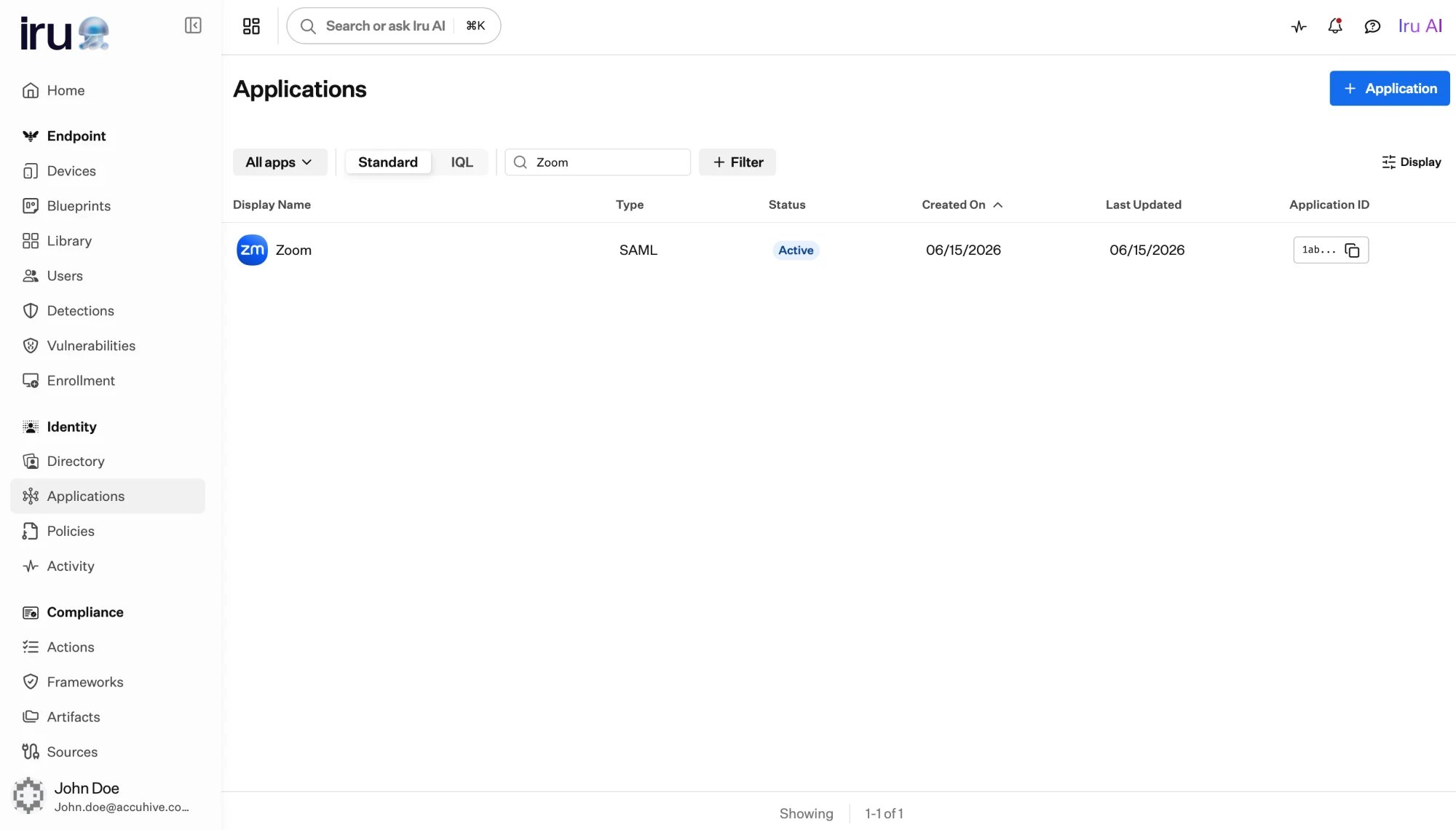
You manage applications in two dashboard areas:
* **Apps:** the apps you have added, including custom apps and apps created
from a template.
* **App Templates:** a catalog of ready-made app definitions you can start
from. See [Application templates](/en/identity/applications/application-templates).
 ## Choose a protocol: SAML or OIDC
Every application uses one **protocol type**, chosen when you add it: **SAML**
or **OIDC**. Pick whichever standard the app supports for single sign-on. Both
let Iru sign users in; they differ in the details Iru exchanges with the app.
Iru gives the app **service-provider-facing details** (an entity ID, an
ACS URL, and downloadable metadata) and signs the response and assertion it
sends. You choose the NameID format and map profile attributes into the
assertion.
Configure one in [SAML applications](/en/identity/applications/saml-applications).
Iru issues the app a **client ID** and **client secret**, and sends an ID
token after sign-on. You set redirect URIs, choose scopes, and map profile
attributes into the token's claims.
Configure one in [OIDC applications](/en/identity/applications/oidc-applications).
| | SAML | OIDC |
| ----------------------- | ------------------------------------------------------ | ------------------------------------------------------- |
| Iru gives the app | Entity ID, ACS URL, metadata, signing certificate | Client ID, client secret, discovery and token endpoints |
| Identity is sent as | A signed assertion | A signed ID token |
| Identifier for the user | **NameID** (Subject) | **Subject** (`sub` claim) |
| You configure | NameID format, attribute mapping, signing certificates | Redirect URIs, scopes, claim mapping, key rotation |
A protocol is chosen per application and cannot be switched afterward. If you
need the other protocol, add a new application.
## How an application maps identity
Each application maps **user-profile attributes** into the identity Iru sends,
so the app receives the fields it expects. Every app has a **subject**, the
primary identifier for the signed-in user, plus any additional attributes you
add.
* For **OIDC**, the default subject is the `sub` claim, mapped from the user's
`user.id`.
* For **SAML**, the default Subject is mapped from the user's `user.username`.
You can add, rename, enable, and disable attributes, and a live preview shows
the assertion or token that will be produced. See
[Application mapping](/en/identity/applications/application-mapping) for how
mapping works and the IQL behind it, and each protocol's page for its specifics.
## How versioning works
Applications are **versioned** so you can change configuration safely without
disrupting users who are signing in.
```mermaid theme={null}
flowchart LR
draft["Draft
## Choose a protocol: SAML or OIDC
Every application uses one **protocol type**, chosen when you add it: **SAML**
or **OIDC**. Pick whichever standard the app supports for single sign-on. Both
let Iru sign users in; they differ in the details Iru exchanges with the app.
Iru gives the app **service-provider-facing details** (an entity ID, an
ACS URL, and downloadable metadata) and signs the response and assertion it
sends. You choose the NameID format and map profile attributes into the
assertion.
Configure one in [SAML applications](/en/identity/applications/saml-applications).
Iru issues the app a **client ID** and **client secret**, and sends an ID
token after sign-on. You set redirect URIs, choose scopes, and map profile
attributes into the token's claims.
Configure one in [OIDC applications](/en/identity/applications/oidc-applications).
| | SAML | OIDC |
| ----------------------- | ------------------------------------------------------ | ------------------------------------------------------- |
| Iru gives the app | Entity ID, ACS URL, metadata, signing certificate | Client ID, client secret, discovery and token endpoints |
| Identity is sent as | A signed assertion | A signed ID token |
| Identifier for the user | **NameID** (Subject) | **Subject** (`sub` claim) |
| You configure | NameID format, attribute mapping, signing certificates | Redirect URIs, scopes, claim mapping, key rotation |
A protocol is chosen per application and cannot be switched afterward. If you
need the other protocol, add a new application.
## How an application maps identity
Each application maps **user-profile attributes** into the identity Iru sends,
so the app receives the fields it expects. Every app has a **subject**, the
primary identifier for the signed-in user, plus any additional attributes you
add.
* For **OIDC**, the default subject is the `sub` claim, mapped from the user's
`user.id`.
* For **SAML**, the default Subject is mapped from the user's `user.username`.
You can add, rename, enable, and disable attributes, and a live preview shows
the assertion or token that will be produced. See
[Application mapping](/en/identity/applications/application-mapping) for how
mapping works and the IQL behind it, and each protocol's page for its specifics.
## How versioning works
Applications are **versioned** so you can change configuration safely without
disrupting users who are signing in.
```mermaid theme={null}
flowchart LR
draft["Draft
(editing)"] -->|"Set as current"| current["Current
(live sign-on)"]
current -->|"a new version
is set current"| archived["Archived
(kept for reference)"]
current -->|"Clone & edit"| draft2["New draft"]
archived -.->|"can be restored"| current
```
You make changes in a **draft** version. Drafts are not live, so editing one
never affects the version users are signing in with.
Publishing a draft makes it the **current** version, the configuration Iru
uses for live sign-on. There is one current version at a time.
When a new version becomes current, the previous current version becomes
**archived**. Archived versions are kept for reference and can be restored
at any time from the version selector.
To revise a published app, use **Clone & Edit** to copy the current version into
a new draft, make your changes, then set the draft as current.
## Active and inactive
Separately from versioning, an application is either **active** or **inactive**,
toggled from the app's header.
The current version is live. People who are assigned can sign in, and any
configured provisioning runs.
Sign-on is stopped without deleting the app or its configuration. People can
no longer reach it, and further provisioning actions pause. Deactivating is
reversible; reactivate the app at any time.
An active application cannot be deleted. Deactivate it first if you intend to
remove it.
## Add an application
From **Apps**, choose to add an application and either start from a template or
build a custom app.
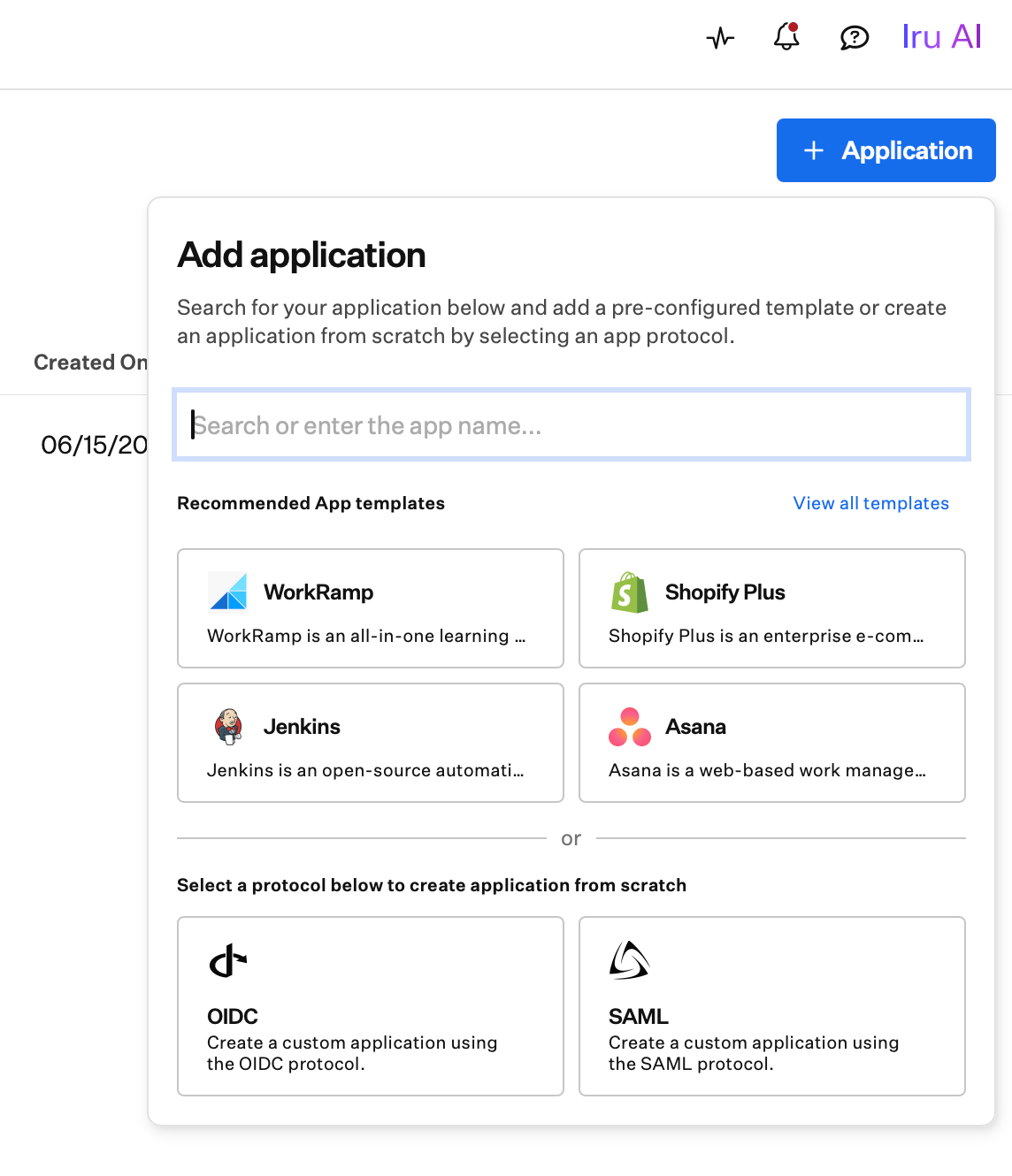 Search the catalog for your service and create the app from a template. The
standard configuration is filled in, so you only supply what is specific to
your tenant. See
[Application templates](/en/identity/applications/application-templates).
Enter a name and pick a protocol (**SAML** or **OIDC**) to build the app
from scratch. Iru creates it as a draft for you to configure.
Fill in the SAML or OIDC settings and the attribute mapping. See
[SAML applications](/en/identity/applications/saml-applications) or
[OIDC applications](/en/identity/applications/oidc-applications).
Assign the groups that should have the app, then activate it. See
[Assigning access](/en/identity/applications/assigning-access).
## Where to go next
Start from a ready-made definition in the catalog.
Configure a SAML app: provider details, NameID, and signing certificates.
Configure an OIDC app: credentials, redirect URIs, scopes, and claims.
Grant the app to users and groups, and review who has access.
Create and remove accounts in the app automatically as access changes.
Decide who can sign in to the app and what they must prove.
Search the catalog for your service and create the app from a template. The
standard configuration is filled in, so you only supply what is specific to
your tenant. See
[Application templates](/en/identity/applications/application-templates).
Enter a name and pick a protocol (**SAML** or **OIDC**) to build the app
from scratch. Iru creates it as a draft for you to configure.
Fill in the SAML or OIDC settings and the attribute mapping. See
[SAML applications](/en/identity/applications/saml-applications) or
[OIDC applications](/en/identity/applications/oidc-applications).
Assign the groups that should have the app, then activate it. See
[Assigning access](/en/identity/applications/assigning-access).
## Where to go next
Start from a ready-made definition in the catalog.
Configure a SAML app: provider details, NameID, and signing certificates.
Configure an OIDC app: credentials, redirect URIs, scopes, and claims.
Grant the app to users and groups, and review who has access.
Create and remove accounts in the app automatically as access changes.
Decide who can sign in to the app and what they must prove.