> ## Documentation Index
> Fetch the complete documentation index at: https://docs.iru.com/llms.txt
> Use this file to discover all available pages before exploring further.
# End-user experience
> What end users see in Iru: an app dashboard that launches their apps, favorites for quick access, and a self-service account for passkeys and preferences.
For users in your directory, everything you configure shows up in two places: an
**app dashboard** that launches the applications assigned to them, and a
**self-service account** where they manage their authenticators and preferences.
Use this page when you're testing a setup or helping someone who is stuck.
This is the **end-user** view, not the administrator dashboard.
End users reach it after they sign in; administrators get a link to switch
into the admin console.
## The app dashboard
After signing in, each user lands on their app dashboard, an **app launcher** that
shows the applications assigned to them as tiles. It opens with a welcome that
notes their apps are provided by your organization, using the name you set in
[organization settings](/en/identity/administration/organization-settings).
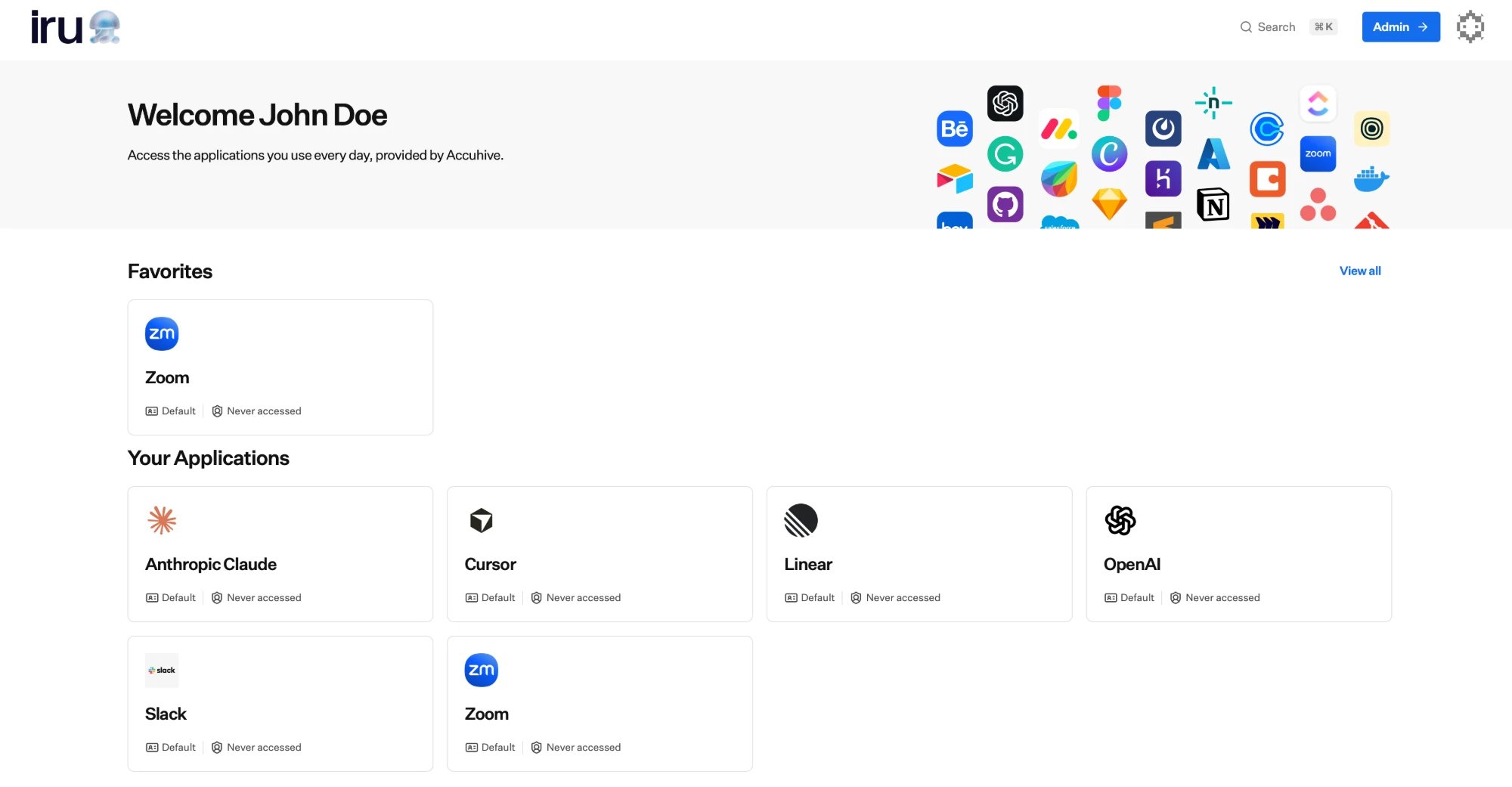 Each application tile shows:
| On the tile | What it shows |
| ----------------- | ----------------------------------------------------------------------------- |
| **Icon and name** | The application's logo and display name, so it is easy to recognize. |
| **Description** | A short line describing the app. |
| **Roles** | The role the user holds in that app, when one applies. |
| **Last accessed** | When they last opened the app from here, or that they have never accessed it. |
Selecting a tile signs the user straight in to that application; Iru completes
the single sign-on, so there is no separate password to enter at the app. The
set of tiles a user sees is exactly the applications they have been
[assigned](/en/identity/applications/assigning-access) through a group.
```mermaid theme={null}
flowchart LR
signin["User signs in to Iru"] --> dash["App dashboard
Each application tile shows:
| On the tile | What it shows |
| ----------------- | ----------------------------------------------------------------------------- |
| **Icon and name** | The application's logo and display name, so it is easy to recognize. |
| **Description** | A short line describing the app. |
| **Roles** | The role the user holds in that app, when one applies. |
| **Last accessed** | When they last opened the app from here, or that they have never accessed it. |
Selecting a tile signs the user straight in to that application; Iru completes
the single sign-on, so there is no separate password to enter at the app. The
set of tiles a user sees is exactly the applications they have been
[assigned](/en/identity/applications/assigning-access) through a group.
```mermaid theme={null}
flowchart LR
signin["User signs in to Iru"] --> dash["App dashboard
tiles for assigned apps"]
dash -->|"select a tile"| sso["Single sign-on"]
sso --> app["The application, signed in"]
```
Because the launcher reflects access in real time, it is a fast way to verify a
change: assign an app to a test user, sign in as them, and confirm the tile
appears and opens the app. See the
[Quickstart](/en/identity/getting-started/quickstart).
## Favorites
Users can mark the apps they use most as **favorites** for quicker access.
Hovering a tile reveals a star; selecting it adds or removes the app from their
favorites.
* Favorited apps appear in a **Favorites** section at the top of the app dashboard.
* A user can switch between viewing just their favorites and viewing all their
apps.
* Favorites are personal to each user and do not affect anyone else or change
who is assigned to an app.
The exact surface differs by app: the **Iru Access desktop app** shows apps on a
**Home** view with favorites surfaced at the top (alongside its other tabs),
while the **mobile app** has a dedicated **Favorites** tab rather than a separate
**Home** view.
## Finding an app quickly
Alongside browsing tiles, users can **search** their apps by name from the
app dashboard and open a match directly from the results. Recently opened apps are
kept close at hand so they are one selection away the next time someone returns.
## Self-service account
From the account menu, each user opens their **account settings**, organized
into two areas.
The **Profile** area shows a user's core identity details (name, username,
email, and their Iru domain), drawn from their directory profile. Core
identity fields are managed for them and shown read-only here.
Users can set their own **preferences** (a **preferred name**, **language**,
**time zone**, whether dates show in **relative** form, and whether they
receive **email updates**) and upload a profile photo.
The **Authenticators** area is where users manage the credentials they use
to prove who they are, primarily **passkeys**. From here a user can:
* See the authenticators registered to them, with when each was registered
and last used.
* Add a new authenticator.
* **Suspend** an authenticator to block its use temporarily, or **delete**
one they no longer use.
The authenticator securing the current session is marked, and it cannot be
suspended or deleted from that session; a safeguard against someone locking
themselves out.
**To register a passkey:** open the **Authenticators** area, choose **Add**,
and follow the device's prompt to create a passkey with its biometric or
screen lock. Registering more than one (for example, a laptop and a phone)
means losing one device won't lock you out. For end-user steps, see
[Manage authenticators](/en/identity/end-user/manage-authenticators). For
signing in with a passkey in a browser, including a macOS troubleshooting tip,
see [Accessing your apps](/en/identity/end-user/accessing-your-apps#find-and-open-an-app).
Adding a passkey requires an existing authenticator to confirm the request. A
user with no authenticator yet cannot bootstrap one from self-service alone;
send them a registration link to enroll their first authenticator. See
[Installing Iru Access](/en/identity/end-user/installing-iru-access) for the
end-user enrollment flow. Encourage users to register more than one so losing a
single device does not lock them out.
## How it ties together
What an end user sees and can do depends on how you've configured Iru:
* **The directory** determines who they are. See
[Users](/en/identity/directory/users).
* **Assignments** determine which tiles appear. See
[Assigning access](/en/identity/applications/assigning-access).
* **Authentication policies** determine what they must prove to sign in and to
open each app. See
[Authentication policies](/en/identity/authentication/authentication-policies).
* **Organization settings** determine the branding they see throughout. See
[Organization settings](/en/identity/administration/organization-settings).
## Related
The passkeys users manage in their self-service account.
What users see and do as they authenticate to reach this app dashboard.
Decide which applications appear as tiles for which users.
Set the branding and name your people see across their app dashboard.
End-user guide for passkeys, Iru Access, and backup devices
What end users see when they sign in and open apps
First-time enrollment from an invitation