> ## Documentation Index
> Fetch the complete documentation index at: https://docs.iru.com/llms.txt
> Use this file to discover all available pages before exploring further.
# My Account profile settings
> Manage your Iru Endpoint account profile settings. Update your name, email, password, notification preferences, and two-factor authentication configuration.
### About My Account
Use **My Account** in the Iru Endpoint web app to update your profile photo and preferences for your own user. Changes do not affect other users in your tenant.
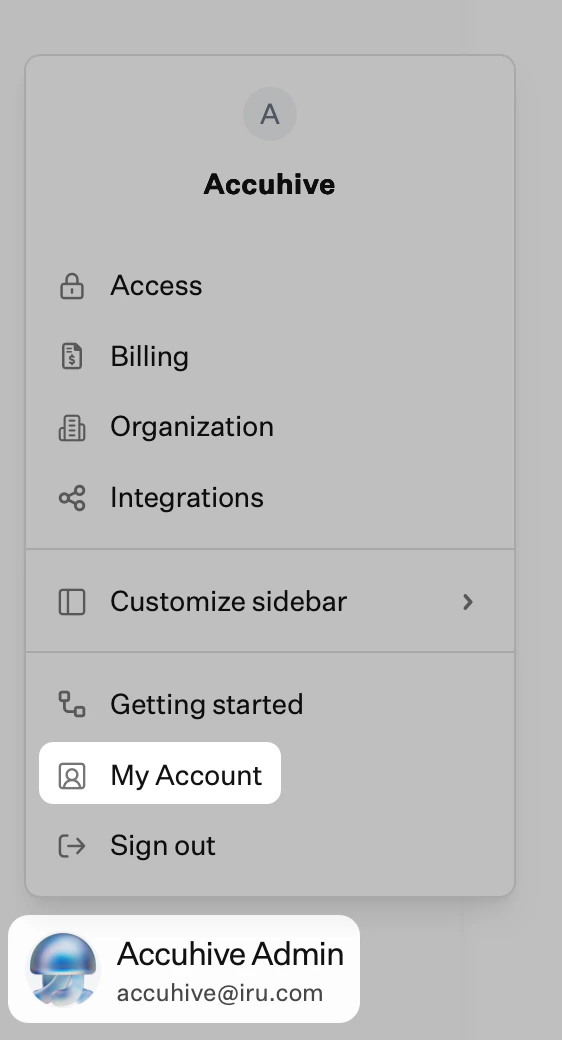
In the sidebar, click the [**Account Menu Button**](/en/iru/platform-overview/account-menu), then select **My Account**.
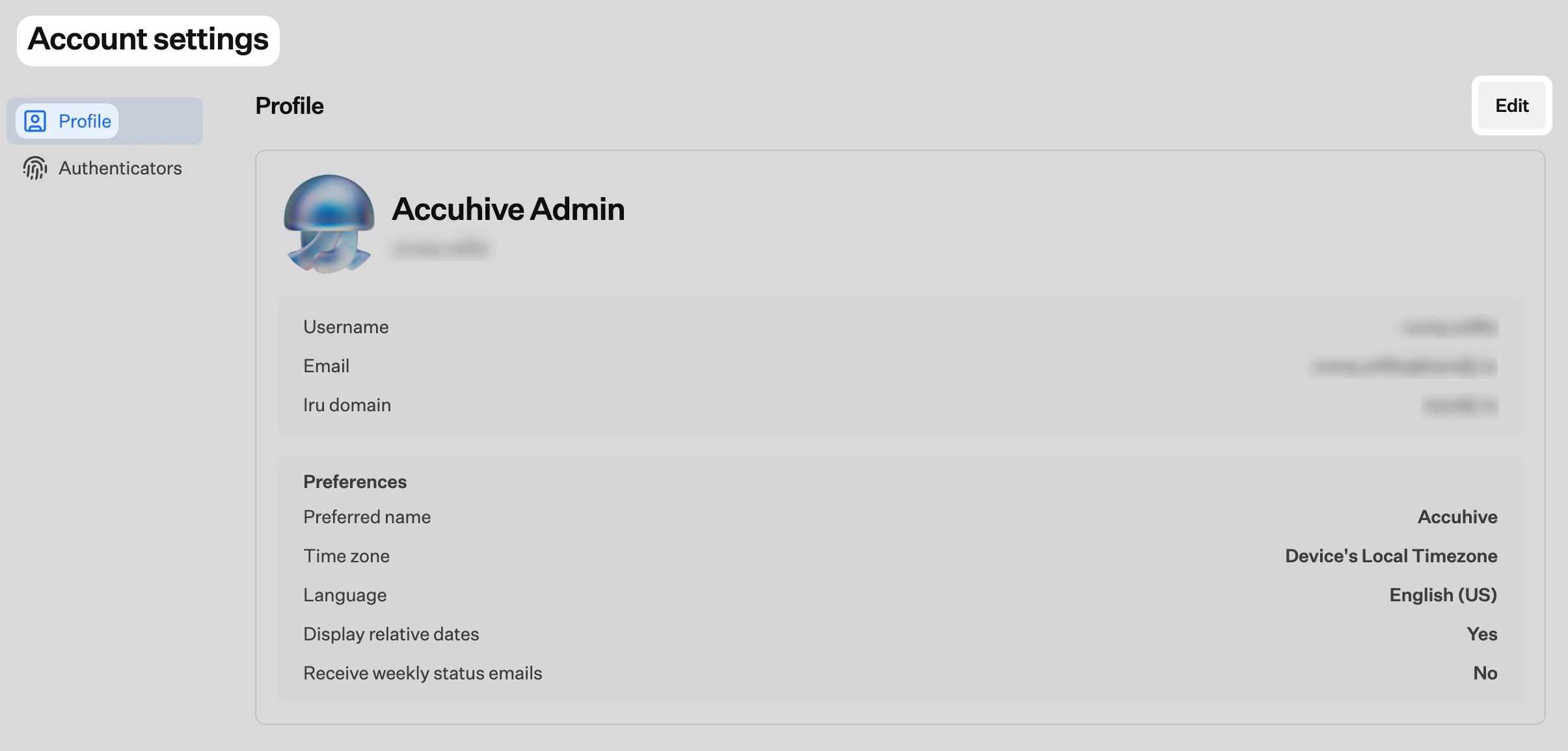
 Near the top right of the **My Account** page, click **Edit**. The page switches to edit mode and shows your profile photo with the controls you use to change it.
 ### Upload a New Profile Photo
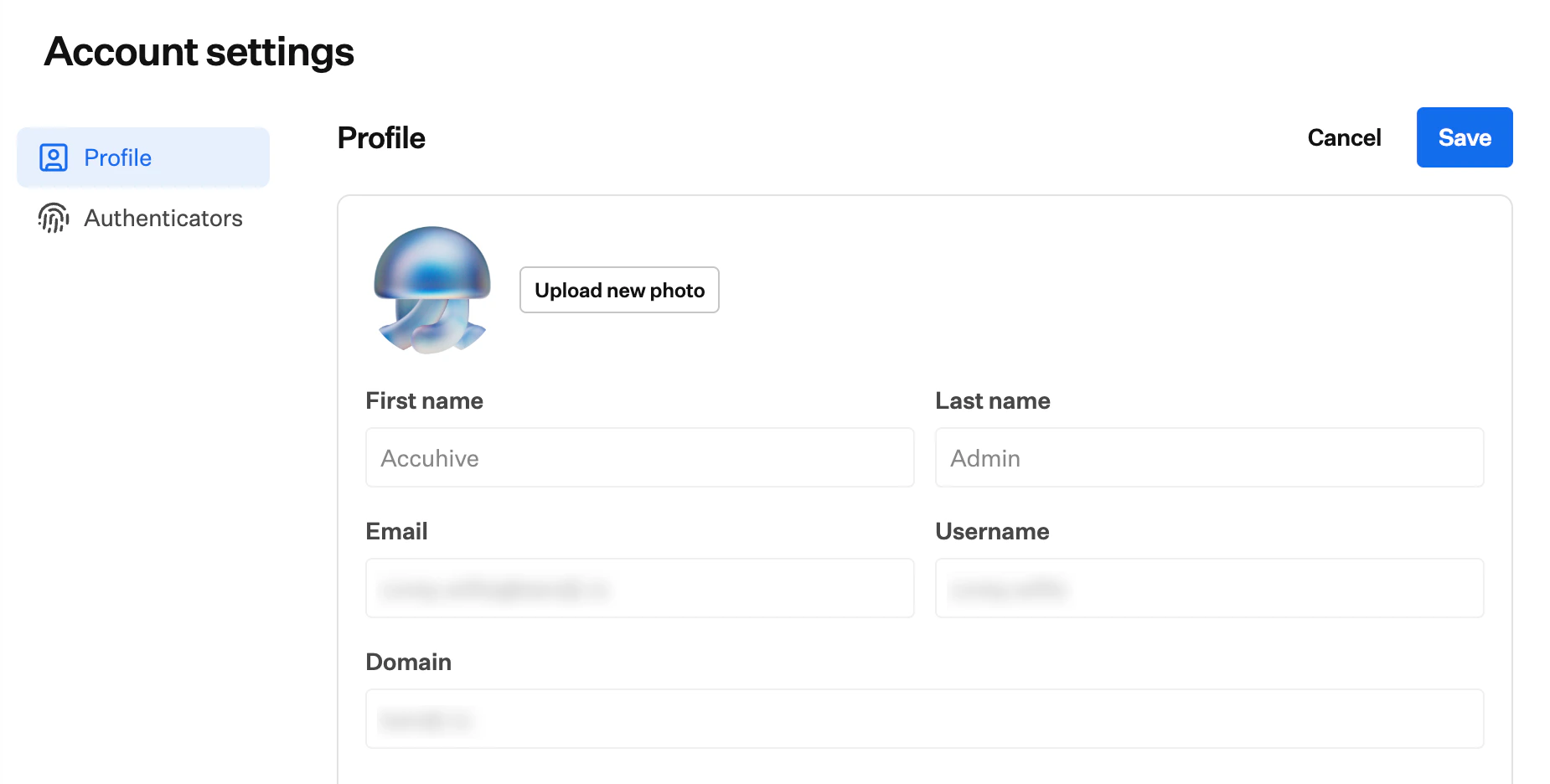
With **My Account** still in edit mode, use **Upload new photo** to pick an image from your computer.
### Upload a New Profile Photo
With **My Account** still in edit mode, use **Upload new photo** to pick an image from your computer.
 ### Preferences
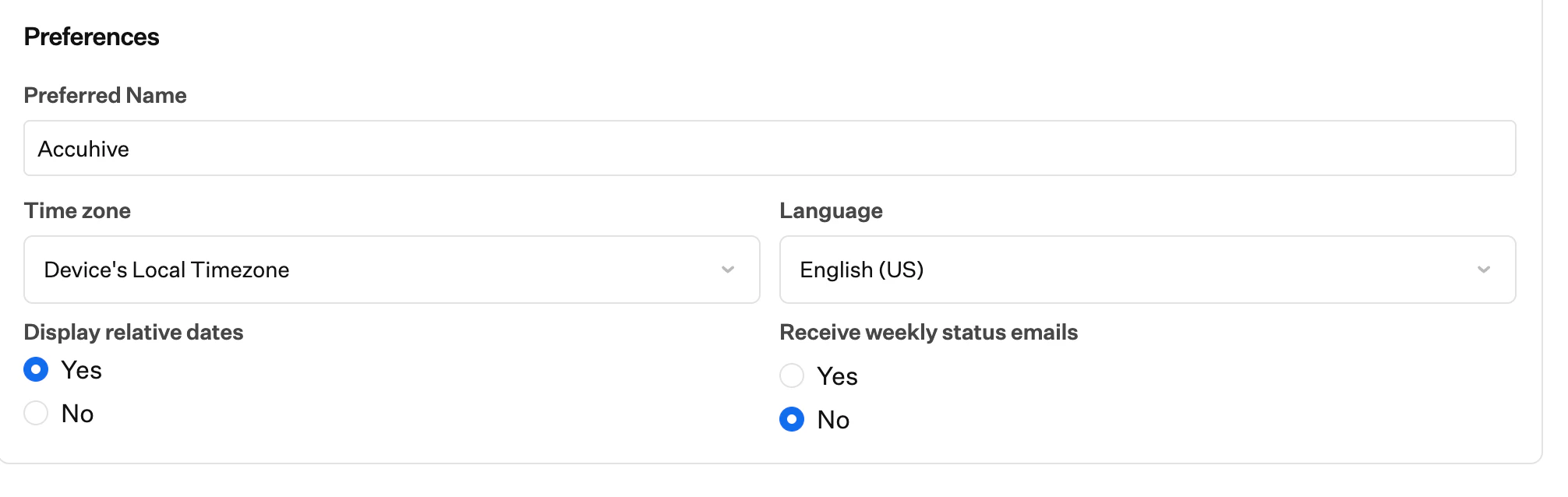
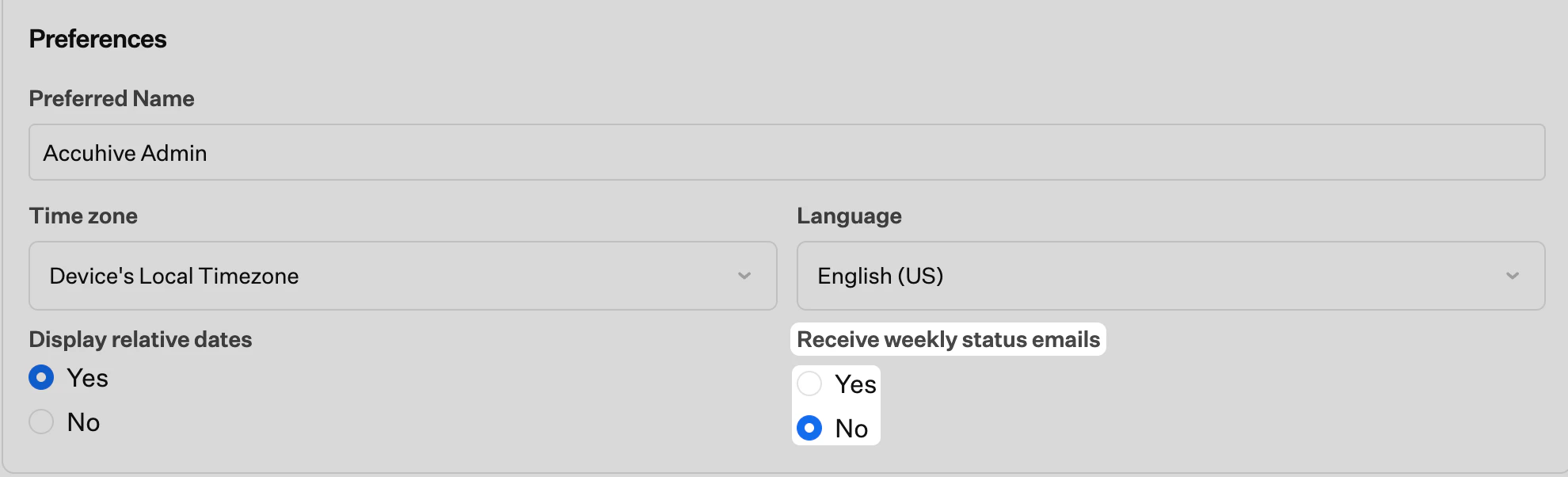
The **Preferences** section controls how your name, locale, dates, and email summaries appear for your account in the Iru Endpoint web app.
### Preferences
The **Preferences** section controls how your name, locale, dates, and email summaries appear for your account in the Iru Endpoint web app.
 #### Preferred Name
Use **Preferred name** to define how you want your name to appear. Enter or update the text in the field whenever you want to change it.
#### Time Zone
**Time zone** sets how dates and times are shown for your account. Open the list and pick the line that matches where you work (each entry lists an offset with a region or city). To follow the clock on the device you are using instead, choose **Device's Local Timezone**. Scroll the list to find the value you need.
#### Language
**Language** sets the display language for the Iru Endpoint web app for your user. Open the list and choose the locale you want. The menu shows every language Iru Endpoint currently supports for the interface.
#### Display Relative Dates
**Display relative dates** turns relative time labels on or off where the app supports them, instead of showing only fixed timestamps. Select **Yes** or **No**.
#### Weekly Status Emails
Use receive weekly status emails to turn optional summaries on or off for your **Iru Endpoint** tenant. Select **Yes** or **No**. Weekly email delivery reflects your saved choice starting the following week. If you choose **Yes**, messages follow the normal weekly schedule. This option is separate from the email categories available when subscribing on the [Iru Product Updates page](https://www.iru.com/updates/).
#### Preferred Name
Use **Preferred name** to define how you want your name to appear. Enter or update the text in the field whenever you want to change it.
#### Time Zone
**Time zone** sets how dates and times are shown for your account. Open the list and pick the line that matches where you work (each entry lists an offset with a region or city). To follow the clock on the device you are using instead, choose **Device's Local Timezone**. Scroll the list to find the value you need.
#### Language
**Language** sets the display language for the Iru Endpoint web app for your user. Open the list and choose the locale you want. The menu shows every language Iru Endpoint currently supports for the interface.
#### Display Relative Dates
**Display relative dates** turns relative time labels on or off where the app supports them, instead of showing only fixed timestamps. Select **Yes** or **No**.
#### Weekly Status Emails
Use receive weekly status emails to turn optional summaries on or off for your **Iru Endpoint** tenant. Select **Yes** or **No**. Weekly email delivery reflects your saved choice starting the following week. If you choose **Yes**, messages follow the normal weekly schedule. This option is separate from the email categories available when subscribing on the [Iru Product Updates page](https://www.iru.com/updates/).
 After you adjust preferences, click **Save** near the top right of the page to apply your changes.
These changes only affect your specific user. Your weekly status email preference takes effect starting the following week, and you can edit these preferences again at any time.
### Considerations
Profile photo and preferences apply only to your account.
[Weekly status emails](#weekly-status-emails) summarize system status, device counts, and important notifications for your tenant.
Feature and product announcements use separate subscriptions on the [Iru Product Updates page](https://www.iru.com/updates/) and are described in [Iru Product Updates](/en/iru/platform-overview/iru-product-updates) in this documentation.
Review remaining notification settings so you do not miss important alerts.
Align with your team if everyone needs weekly summaries for operations or reporting.
After you adjust preferences, click **Save** near the top right of the page to apply your changes.
These changes only affect your specific user. Your weekly status email preference takes effect starting the following week, and you can edit these preferences again at any time.
### Considerations
Profile photo and preferences apply only to your account.
[Weekly status emails](#weekly-status-emails) summarize system status, device counts, and important notifications for your tenant.
Feature and product announcements use separate subscriptions on the [Iru Product Updates page](https://www.iru.com/updates/) and are described in [Iru Product Updates](/en/iru/platform-overview/iru-product-updates) in this documentation.
Review remaining notification settings so you do not miss important alerts.
Align with your team if everyone needs weekly summaries for operations or reporting.