> ## Documentation Index
> Fetch the complete documentation index at: https://docs.iru.com/llms.txt
> Use this file to discover all available pages before exploring further.
# Self Service: Bookmarks
> Add web bookmarks to the Self Service portal in Iru Endpoint. Give users quick access to company resources, documentation, and internal tools from their device.
On iOS and iPadOS, Bookmarks are only supported on Self Service versions 1.4.4 and later.
### About Self Service Bookmarks
Self Service Bookmarks provide users with quick access to essential work resources through organized links. Bookmarks can be categorized, recommended, and customized with icons to improve user experience and productivity.
As of **April 8, 2026**, apps were updated from **Kandji** 
 to **Iru**
  branding. The **Self Service** app name changed from **Kandji Self Service** to **Iru Self Service**. Please update **scripts, automations, and utilities** that still reference the old app names.
### How It Works
Self Service Bookmarks are created as Library Items that contain one or multiple bookmarks. These bookmarks support various URL schemes including web links, email addresses, and file paths. Users can access bookmarks through the Self Service app, where they are organized by category and displayed in alphanumerical order.
### Creating a Bookmarks Library Item
Create a Bookmarks Library Item to hold bookmarks (links) for resources.
To add this Library Item to your Iru Endpoint Library, follow the steps outlined in the [Library Overview](/en/endpoint/library/library-items-profiles/library-overview) article.
At the top of the Library Item, in the **Add a title** field, add a title.
Select your desired [Blueprints](/en/endpoint/blueprints/assignment-maps/creating-a-blueprint).
### Adding Bookmarks to the Bookmarks Library Item
You can add one or multiple bookmarks to the Bookmarks Library Item. Within a category, bookmarks are displayed in alphanumerical order. You can edit [Self Service settings](/en/endpoint/settings/self-service/self-service-settings) to change the order in which categories are displayed.
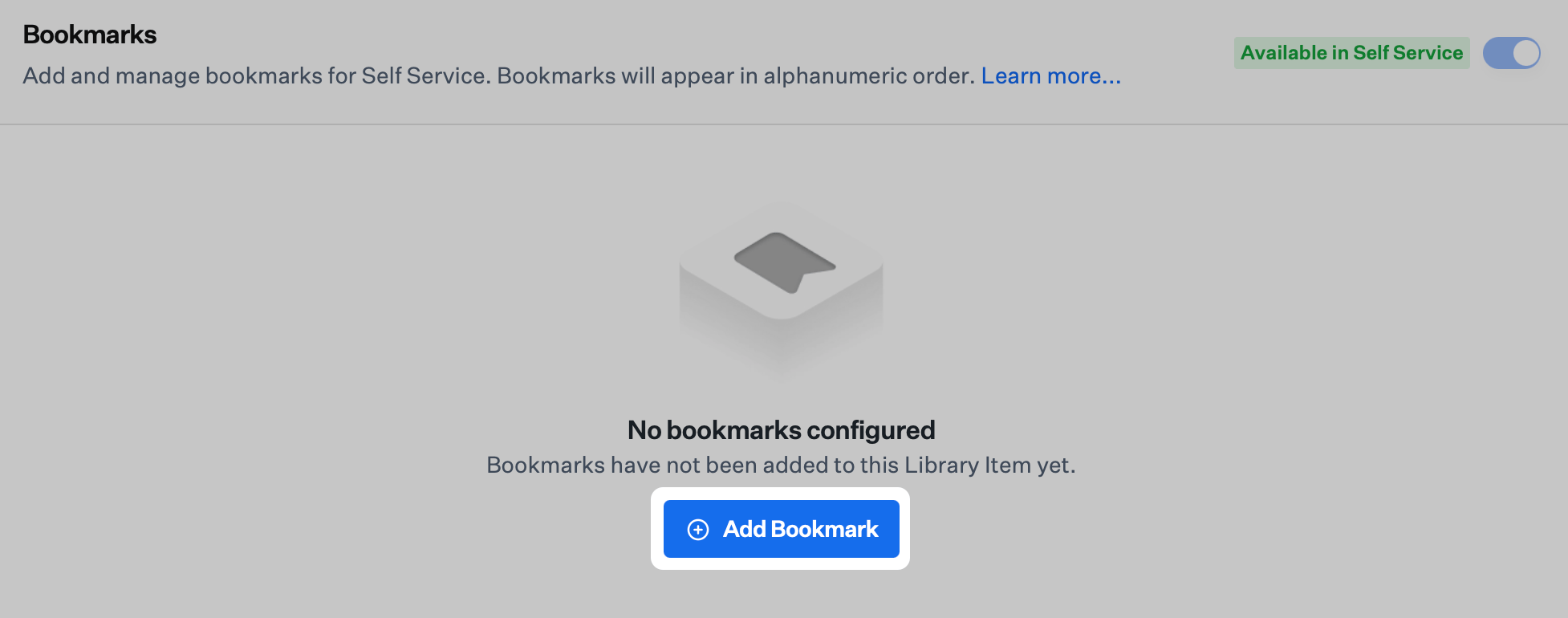
Click **Add Bookmark**.
branding. The **Self Service** app name changed from **Kandji Self Service** to **Iru Self Service**. Please update **scripts, automations, and utilities** that still reference the old app names.
### How It Works
Self Service Bookmarks are created as Library Items that contain one or multiple bookmarks. These bookmarks support various URL schemes including web links, email addresses, and file paths. Users can access bookmarks through the Self Service app, where they are organized by category and displayed in alphanumerical order.
### Creating a Bookmarks Library Item
Create a Bookmarks Library Item to hold bookmarks (links) for resources.
To add this Library Item to your Iru Endpoint Library, follow the steps outlined in the [Library Overview](/en/endpoint/library/library-items-profiles/library-overview) article.
At the top of the Library Item, in the **Add a title** field, add a title.
Select your desired [Blueprints](/en/endpoint/blueprints/assignment-maps/creating-a-blueprint).
### Adding Bookmarks to the Bookmarks Library Item
You can add one or multiple bookmarks to the Bookmarks Library Item. Within a category, bookmarks are displayed in alphanumerical order. You can edit [Self Service settings](/en/endpoint/settings/self-service/self-service-settings) to change the order in which categories are displayed.
Click **Add Bookmark**.
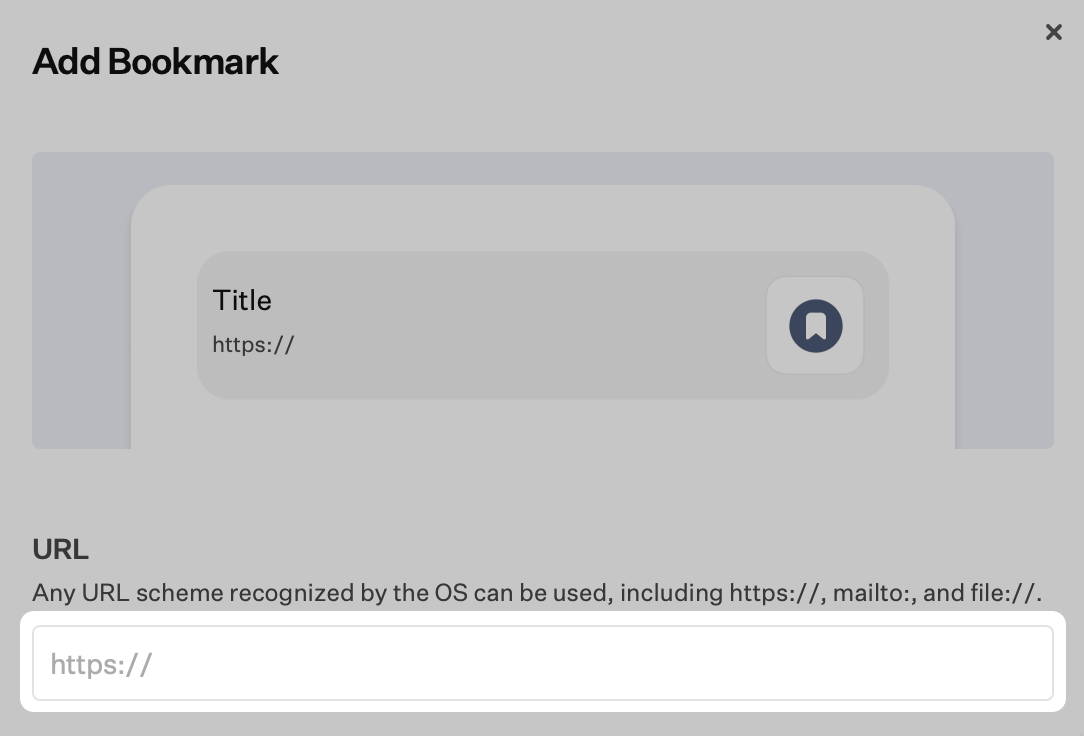
 In the **URL** field, enter the appropriate URL. Bookmarks support the following URL schemes:
* **http\://** or **https\://**: Opens in the default browser, which is Safari unless the user has selected a different one
* **mailto://**: Opens in the default mail app, which is Mail unless the user has selected a different one. On iOS and iPadOS, if the user hasn't yet configured a mail account, tapping a mailto:// bookmark results in an error
* **file://** (only supported on macOS): Opens a file from a specified path. Using three consecutive slashes, such as file:///path/to/file when defining file paths is recommended. macOS asks the user to grant Self Service the ability to read the folder that contains the file. After a user grants read access to the folder once, macOS should not ask again
In the **URL** field, enter the appropriate URL. Bookmarks support the following URL schemes:
* **http\://** or **https\://**: Opens in the default browser, which is Safari unless the user has selected a different one
* **mailto://**: Opens in the default mail app, which is Mail unless the user has selected a different one. On iOS and iPadOS, if the user hasn't yet configured a mail account, tapping a mailto:// bookmark results in an error
* **file://** (only supported on macOS): Opens a file from a specified path. Using three consecutive slashes, such as file:///path/to/file when defining file paths is recommended. macOS asks the user to grant Self Service the ability to read the folder that contains the file. After a user grants read access to the folder once, macOS should not ask again
 Optionally, in the **Icon** field, drag a custom icon or click **upload**.
In the **Title** field, enter a title.
Optionally, select a **Category** of Self Service for this bookmark to be displayed in (see [Self Service settings](/en/endpoint/settings/self-service/self-service-settings) to edit your more categories).
Optionally, select the checkbox for **Recommended**.
* When you open Self Service on macOS, Self Service displays Recommended apps, items, and bookmarks by default
* When you open Self Service on iOS and iPadOS, Self Service displays Recommended apps and bookmarks at the top of Self Service by default
* In Self Service for macOS, recommended bookmarks are displayed with a star icon
Optionally, in the **Icon** field, drag a custom icon or click **upload**.
In the **Title** field, enter a title.
Optionally, select a **Category** of Self Service for this bookmark to be displayed in (see [Self Service settings](/en/endpoint/settings/self-service/self-service-settings) to edit your more categories).
Optionally, select the checkbox for **Recommended**.
* When you open Self Service on macOS, Self Service displays Recommended apps, items, and bookmarks by default
* When you open Self Service on iOS and iPadOS, Self Service displays Recommended apps and bookmarks at the top of Self Service by default
* In Self Service for macOS, recommended bookmarks are displayed with a star icon
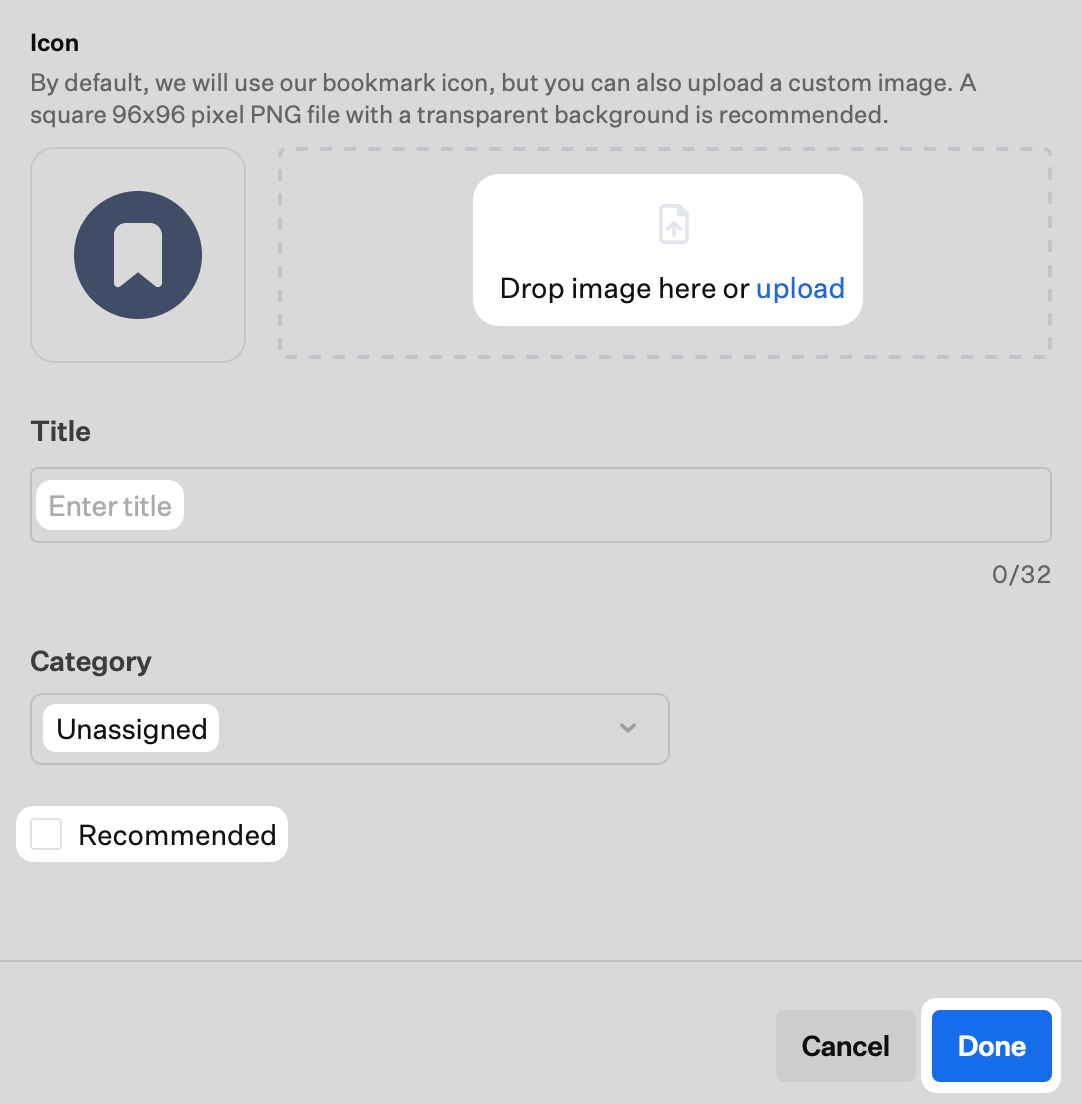 Click **Done** to save your work and return to the list of bookmarks.
Repeat the process to add more bookmarks.
### Editing or Deleting a Bookmark
At the right side of the bookmark entry, click the **ellipsis**.
Click **Delete** or **Edit**.
Click **Close** to return to the list of bookmarks without saving your changes, or click **Done** to save your changes and return to the list of bookmarks.
Click **Save** to save the changes to the Bookmarks Library Item.
### Considerations for Multiple Bookmarks Library Items
* You can create as many Bookmarks Library Items as you wish. Self Service displays the aggregate of all applicable bookmarks for each section
* If you create a bookmark in your Bookmarks Library Item, but it already exists in another Bookmarks Library Item that's assigned to one more assigned Blueprints, Iru Endpoint displays a dialog to ask if you want to "Save Duplicate Bookmarks?"
* You may want to display a bookmark for the same URL in multiple categories depending on your needs. Using a separate Bookmarks Library Item for each category is one way to achieve that goal
### Considerations
* **URL Scheme Support**: Bookmarks support various URL schemes including http/https for web links, mailto for email addresses, and file:// for local files (macOS only)
* **Platform Compatibility**: iOS and iPadOS bookmarks require Self Service version 1.4.4 or later
* **File Access Permissions**: macOS users may need to grant folder read access for file:// bookmarks, but this is typically a one-time permission
* **Email Configuration**: mailto:// bookmarks require proper email account configuration on iOS/iPadOS devices
* **Category Organization**: Use categories to organize bookmarks logically and improve user navigation
* **Recommendation Strategy**: Mark important bookmarks as recommended to highlight them for users
* **Custom Icons**: Upload custom icons to make bookmarks more visually recognizable
* **Duplicate Management**: Be aware of potential duplicate bookmarks when using multiple Library Items
* **Alphanumeric Ordering**: Bookmarks within categories are automatically sorted alphabetically
* **Cross-Platform Display**: Recommended bookmarks appear prominently on both macOS and iOS/iPadOS
* **Multiple Library Items**: Create separate Library Items for different categories or organizational needs
* **User Experience**: Consider the user experience when organizing bookmarks and categories
* **Resource Management**: Regularly review and update bookmarks to ensure they remain relevant and functional
* **Testing and Validation**: Test bookmarks across different platforms and URL schemes to ensure proper functionality
Click **Done** to save your work and return to the list of bookmarks.
Repeat the process to add more bookmarks.
### Editing or Deleting a Bookmark
At the right side of the bookmark entry, click the **ellipsis**.
Click **Delete** or **Edit**.
Click **Close** to return to the list of bookmarks without saving your changes, or click **Done** to save your changes and return to the list of bookmarks.
Click **Save** to save the changes to the Bookmarks Library Item.
### Considerations for Multiple Bookmarks Library Items
* You can create as many Bookmarks Library Items as you wish. Self Service displays the aggregate of all applicable bookmarks for each section
* If you create a bookmark in your Bookmarks Library Item, but it already exists in another Bookmarks Library Item that's assigned to one more assigned Blueprints, Iru Endpoint displays a dialog to ask if you want to "Save Duplicate Bookmarks?"
* You may want to display a bookmark for the same URL in multiple categories depending on your needs. Using a separate Bookmarks Library Item for each category is one way to achieve that goal
### Considerations
* **URL Scheme Support**: Bookmarks support various URL schemes including http/https for web links, mailto for email addresses, and file:// for local files (macOS only)
* **Platform Compatibility**: iOS and iPadOS bookmarks require Self Service version 1.4.4 or later
* **File Access Permissions**: macOS users may need to grant folder read access for file:// bookmarks, but this is typically a one-time permission
* **Email Configuration**: mailto:// bookmarks require proper email account configuration on iOS/iPadOS devices
* **Category Organization**: Use categories to organize bookmarks logically and improve user navigation
* **Recommendation Strategy**: Mark important bookmarks as recommended to highlight them for users
* **Custom Icons**: Upload custom icons to make bookmarks more visually recognizable
* **Duplicate Management**: Be aware of potential duplicate bookmarks when using multiple Library Items
* **Alphanumeric Ordering**: Bookmarks within categories are automatically sorted alphabetically
* **Cross-Platform Display**: Recommended bookmarks appear prominently on both macOS and iOS/iPadOS
* **Multiple Library Items**: Create separate Library Items for different categories or organizational needs
* **User Experience**: Consider the user experience when organizing bookmarks and categories
* **Resource Management**: Regularly review and update bookmarks to ensure they remain relevant and functional
* **Testing and Validation**: Test bookmarks across different platforms and URL schemes to ensure proper functionality