> ## Documentation Index
> Fetch the complete documentation index at: https://docs.iru.com/llms.txt
> Use this file to discover all available pages before exploring further.
# Remove App Store Apps from the Library
> Remove App Store apps from your Iru Endpoint Library. Revoke app licenses, unassign from Blueprints, and clean up unused volume-purchased applications.
**Apple Business Manager** is now **Apple Business**. **Apple School Manager** is unchanged. For more information, see [Introducing Apple Business](https://www.apple.com/newsroom/2026/03/introducing-apple-business-a-new-all-in-one-platform-for-businesses-of-all-sizes/) and [Apple Business Manager is now Apple Business](https://support.apple.com/guide/apple-business-manager/apple-business-manager-is-now-apple-business-axmd79d79dea/web).
## About Removing App Store Apps from the Library
You can remove App Store app Library Items from the Library when no licenses are assigned to the Apps and Books token in Apple Business or Apple School Manager for your Iru Endpoint tenant. First unassign the app's licenses in the portal, then remove the app from the Iru Endpoint Library.
## Unassigning App Store licenses in Apple Business or Apple School Manager
Unassign all licenses for the app from the [organizational unit](https://support.apple.com/guide/business/configure-organizational-units-axmfdbe2cb0d/web) used for your Iru Endpoint tenant's Apps and Books token in Apple Business or Apple School Manager before you remove the app from the Iru Endpoint Library.
Sign in to [Apple Business](https://business.apple.com) or [Apple School Manager](https://school.apple.com) with a Managed Apple Account that can manage Apps and Books.
Follow [Apple's instructions for configuring organizational units](https://support.apple.com/guide/business/configure-organizational-units-axmfdbe2cb0d/web) in Apple Business or Apple School Manager. You will transfer your app license(s) to this organizational unit in a later step.
Click your **organization name** at the top right of the page.
Click **Settings**.
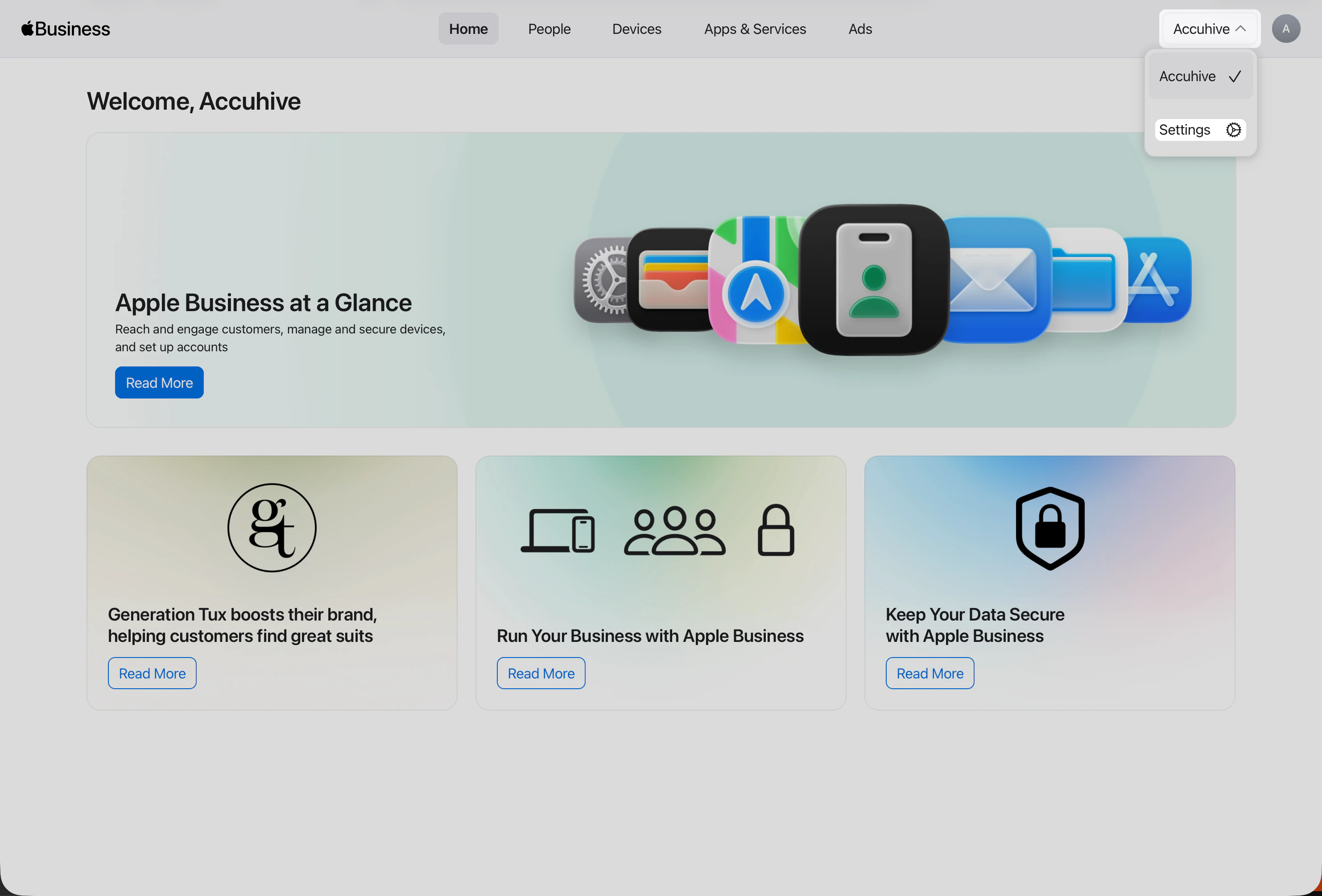 After you open **Settings**, go to **Payments & Billing** → **Apps & Books** if you are not already there. This view is where your organization manages Apps and Books licenses and content tokens.
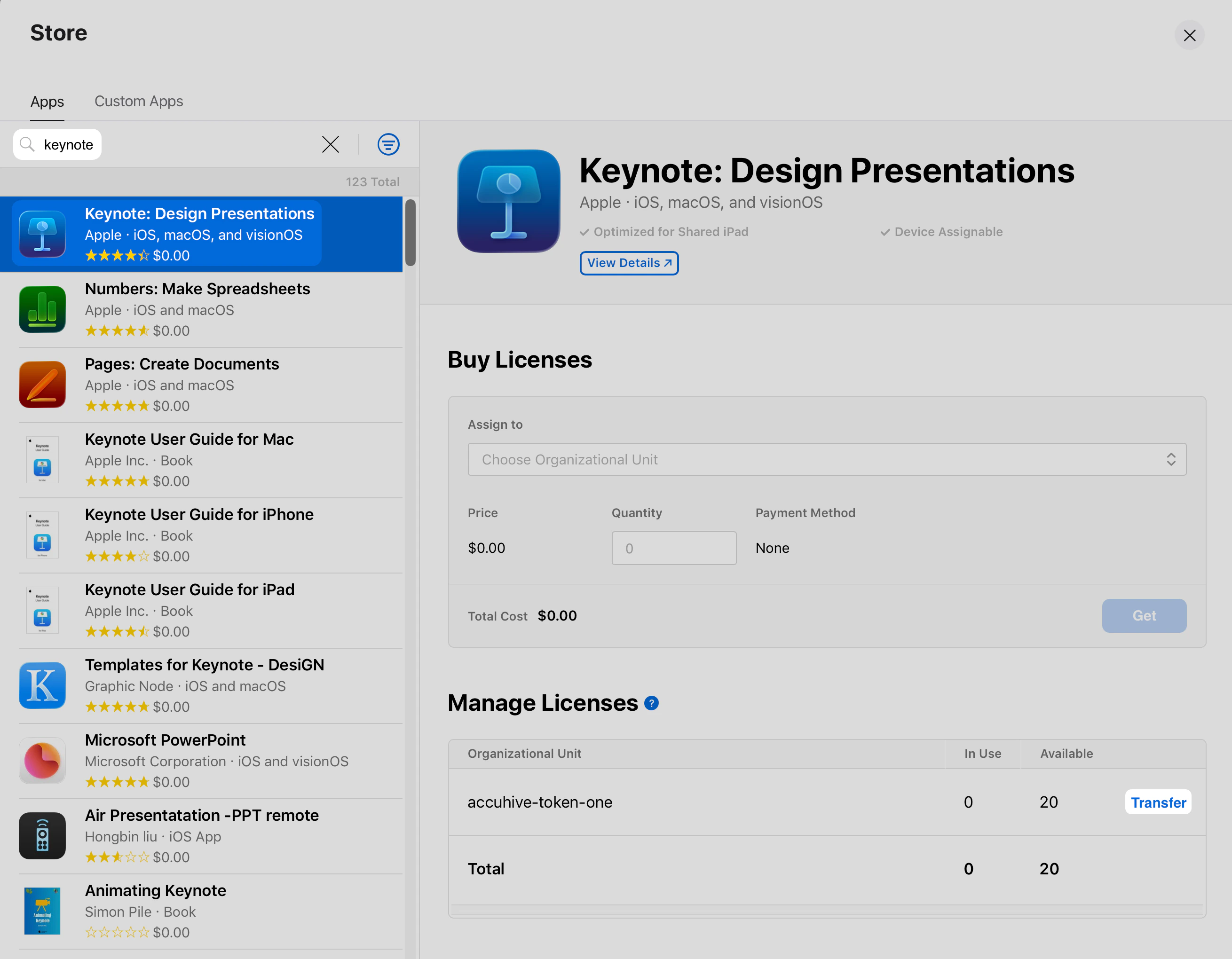
Find the app you want to unassign licenses from and select it.
Next to the organizational unit used for your Iru Endpoint tenant's Apps and Books token, click **Transfer**.
After you open **Settings**, go to **Payments & Billing** → **Apps & Books** if you are not already there. This view is where your organization manages Apps and Books licenses and content tokens.
Find the app you want to unassign licenses from and select it.
Next to the organizational unit used for your Iru Endpoint tenant's Apps and Books token, click **Transfer**.
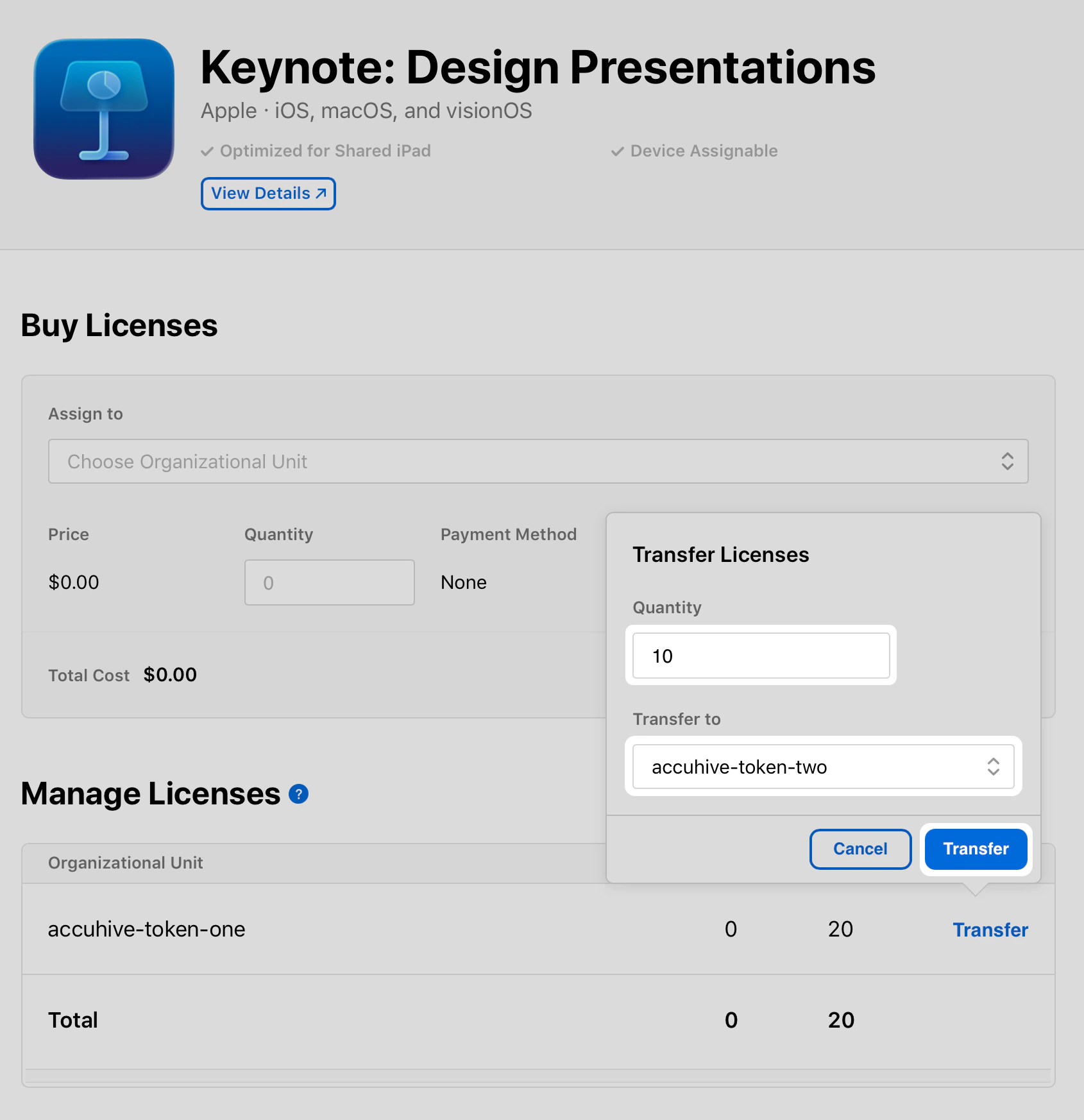
 In the **Quantity** field, enter the total number of licenses assigned to that organizational unit.
In **Transfer to**, choose the organizational unit you created earlier in these steps.
Click **Transfer**.
In the **Quantity** field, enter the total number of licenses assigned to that organizational unit.
In **Transfer to**, choose the organizational unit you created earlier in these steps.
Click **Transfer**.
 You will see a **Processing** status where the Transfer option was previously. Wait for this to complete before proceeding.
The licenses should now appear under the new organizational unit. Use the steps below to remove the app from your Library.
## Removing an App Store app from the Library
After you have unassigned licenses in Apple Business or Apple School Manager, remove the app from your Iru Endpoint Library.
Open your Iru Endpoint tenant in a web browser and sign in if needed.
Select **Library** from the left navigation.
Click the **Sync App Store Apps** button near the top right of the page.
You will see a **Processing** status where the Transfer option was previously. Wait for this to complete before proceeding.
The licenses should now appear under the new organizational unit. Use the steps below to remove the app from your Library.
## Removing an App Store app from the Library
After you have unassigned licenses in Apple Business or Apple School Manager, remove the app from your Iru Endpoint Library.
Open your Iru Endpoint tenant in a web browser and sign in if needed.
Select **Library** from the left navigation.
Click the **Sync App Store Apps** button near the top right of the page.
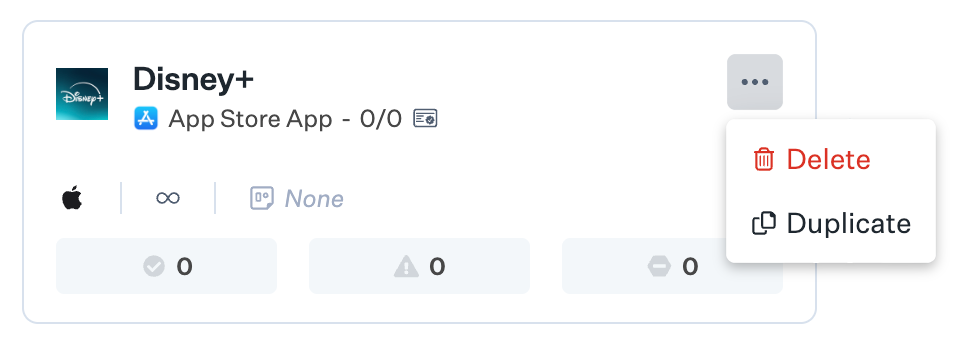 Search for the app you want to remove from the Library.
Click the ellipsis on the app tile.
Choose **Delete** from the menu.
Search for the app you want to remove from the Library.
Click the ellipsis on the app tile.
Choose **Delete** from the menu.
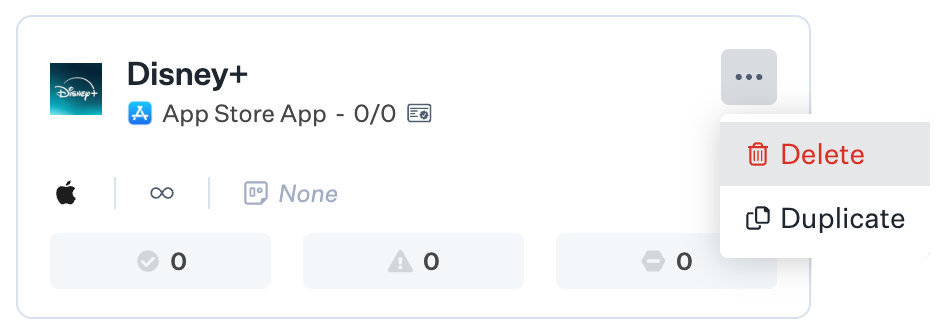 If the **Delete** option is not available, check back later and click **Sync App Store Apps** again. If you still don't see it, open Apple Business or Apple School Manager. Confirm that no licenses for that app are assigned to the organizational unit used for your Iru Endpoint tenant's Apps and Books token.
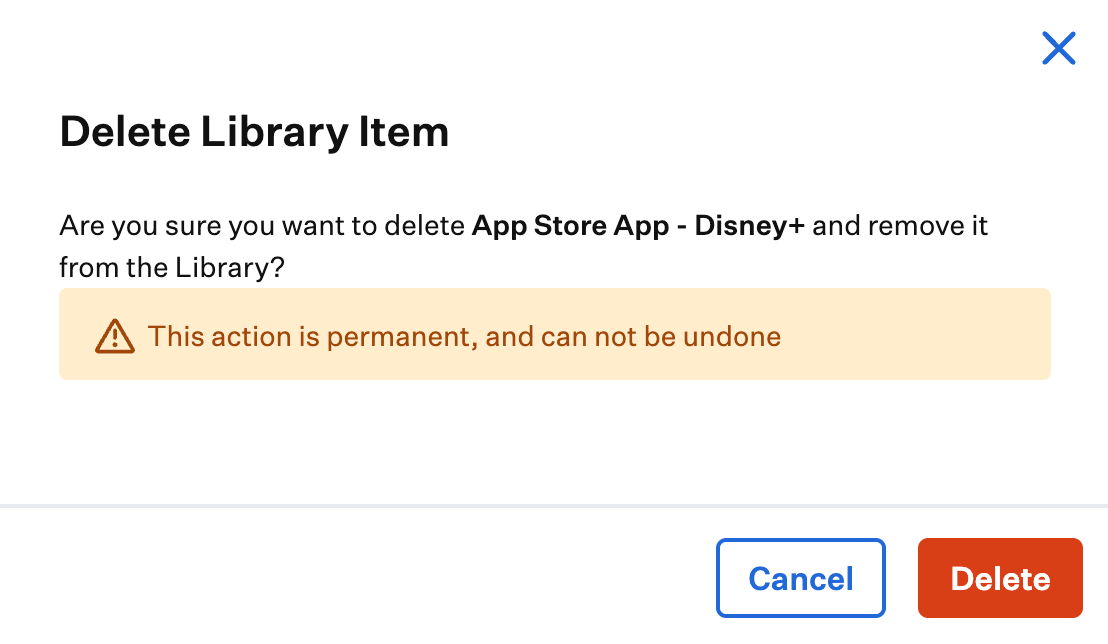
Confirm by clicking **Delete** in the prompt.
If the **Delete** option is not available, check back later and click **Sync App Store Apps** again. If you still don't see it, open Apple Business or Apple School Manager. Confirm that no licenses for that app are assigned to the organizational unit used for your Iru Endpoint tenant's Apps and Books token.
Confirm by clicking **Delete** in the prompt.
 ## Related Documentation
Curate and manage Library Items and add them to Blueprints.
Set up Apps and Books integration for App Store app distribution and license management.
Deploy App Store and Custom Apps through Apple Business or Apple School Manager integration.
Apple Business or Apple School Manager, APNs, Apps and Books, and related integrations.
## Related Documentation
Curate and manage Library Items and add them to Blueprints.
Set up Apps and Books integration for App Store app distribution and license management.
Deploy App Store and Custom Apps through Apple Business or Apple School Manager integration.
Apple Business or Apple School Manager, APNs, Apps and Books, and related integrations.