> ## Documentation Index
> Fetch the complete documentation index at: https://docs.iru.com/llms.txt
> Use this file to discover all available pages before exploring further.
# Configure Apps and Books
> Configure the Apple Apps and Books integration in Iru Endpoint. Connect Apple Business Manager to manage volume-purchased app licenses and assignments.
**Apple Business Manager** is now **Apple Business**. **Apple School Manager** is unchanged. For more information, see [Introducing Apple Business](https://www.apple.com/newsroom/2026/03/introducing-apple-business-a-new-all-in-one-platform-for-businesses-of-all-sizes/) and [Apple Business Manager is now Apple Business](https://support.apple.com/guide/apple-business-manager/apple-business-manager-is-now-apple-business-axmd79d79dea/web).
[Apple Push Notification service](/en/endpoint/settings/apple-integrations/configure-apple-push-notification-service) must be configured in your Iru Endpoint tenant before Apps and Books can be configured.
### About Apps and Books Integration
Apps and Books (formerly Apple's Volume Purchasing Program or VPP) is a feature that makes it easy for organizations to deploy App Store Apps to their Apple devices using MDM. Integrating Apps and Books allows you to distribute App Store Apps directly to managed devices without end users needing an Apple ID. It helps track and control licensing and provides a method to revoke and reassign them as needed.
### How It Works
Apps and Books integration works by connecting your Apple Business or Apple School Manager account with Iru Endpoint through Apps and Books content tokens. When you purchase app licenses in the portal and assign them to your Iru Endpoint MDM server, they become available as Library Items in your Iru Endpoint library, where they can be assigned to Assignment Maps for automated deployment.
### Prerequisites
* **Apple Push Notification Service**: [Apple Push Notification service](/en/endpoint/settings/apple-integrations/configure-apple-push-notification-service) must be configured in your Iru Endpoint tenant
* **Apple Business or Apple School Manager access**: Ensure you have administrative access to your organization's portal
* **Organizational unit setup**: Create a dedicated organizational unit in Apple Business or Apple School Manager specifically for your Iru Endpoint tenant
* **Apps and Books token**: Download a dedicated Apps and Books content token for your Iru Endpoint integration
For more information on syncing apps from Apps and Books to your Iru Endpoint library, please see our [Adding Apps from Apps and Books to Iru Endpoint](/en/endpoint/settings/apple-integrations/add-apps-from-apps-and-books-to-iru-endpoint) support article.
### Configuring Apps and Books
Apps and Books (formerly VPP) allows you to distribute App Store Apps to your organization's devices.
You cannot share the same Apps and Books token across multiple MDM servers in the portal. It is highly recommended that you [create a new organizational unit](https://support.apple.com/guide/business/configure-organizational-units-axmfdbe2cb0d/web) in Apple Business or Apple School Manager specifically for your Iru Endpoint tenant and use a dedicated Apps and Books token.
[Create a new organizational unit](https://support.apple.com/guide/business/configure-organizational-units-axmfdbe2cb0d/web) in Apple Business or Apple School Manager.
In the sidebar, click the [**Account Menu Button**](/en/iru/platform-overview/account-menu), then select **Integrations**.
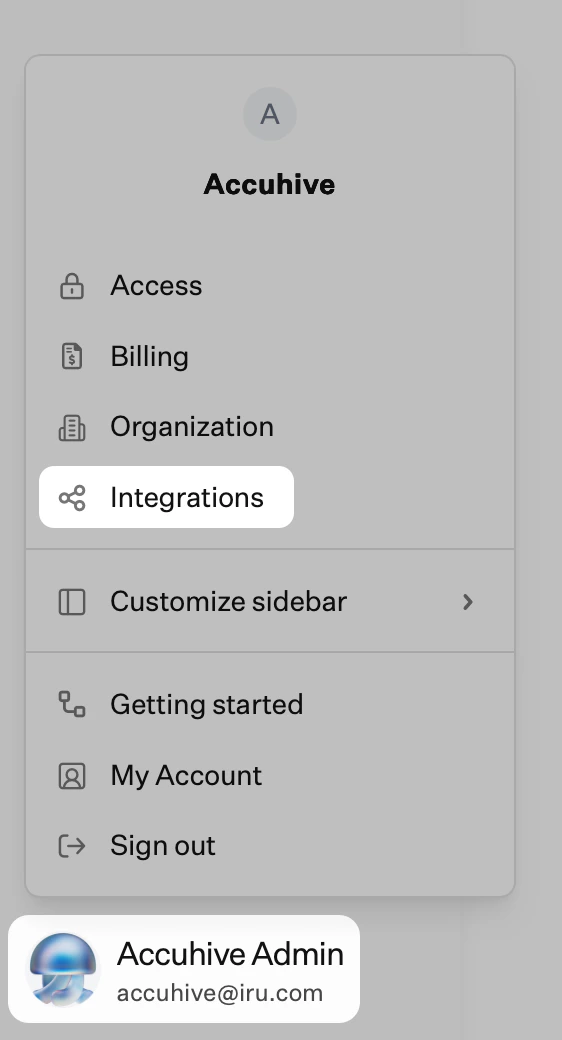 Select the **Apple integrations** section.
Click the **Set up Apps and Books** button inside **Apps and Books**.
In the new window, you will be asked to sign in to [Apple Business](https://support.apple.com/guide/business/welcome/web) or [Apple School Manager](https://support.apple.com/guide/apple-school-manager/welcome/web) to complete the final steps for integration.
In Apple Business or Apple School Manager, click your **organization name** at the top right of the page.
Click **Settings**.
Select the **Apple integrations** section.
Click the **Set up Apps and Books** button inside **Apps and Books**.
In the new window, you will be asked to sign in to [Apple Business](https://support.apple.com/guide/business/welcome/web) or [Apple School Manager](https://support.apple.com/guide/apple-school-manager/welcome/web) to complete the final steps for integration.
In Apple Business or Apple School Manager, click your **organization name** at the top right of the page.
Click **Settings**.
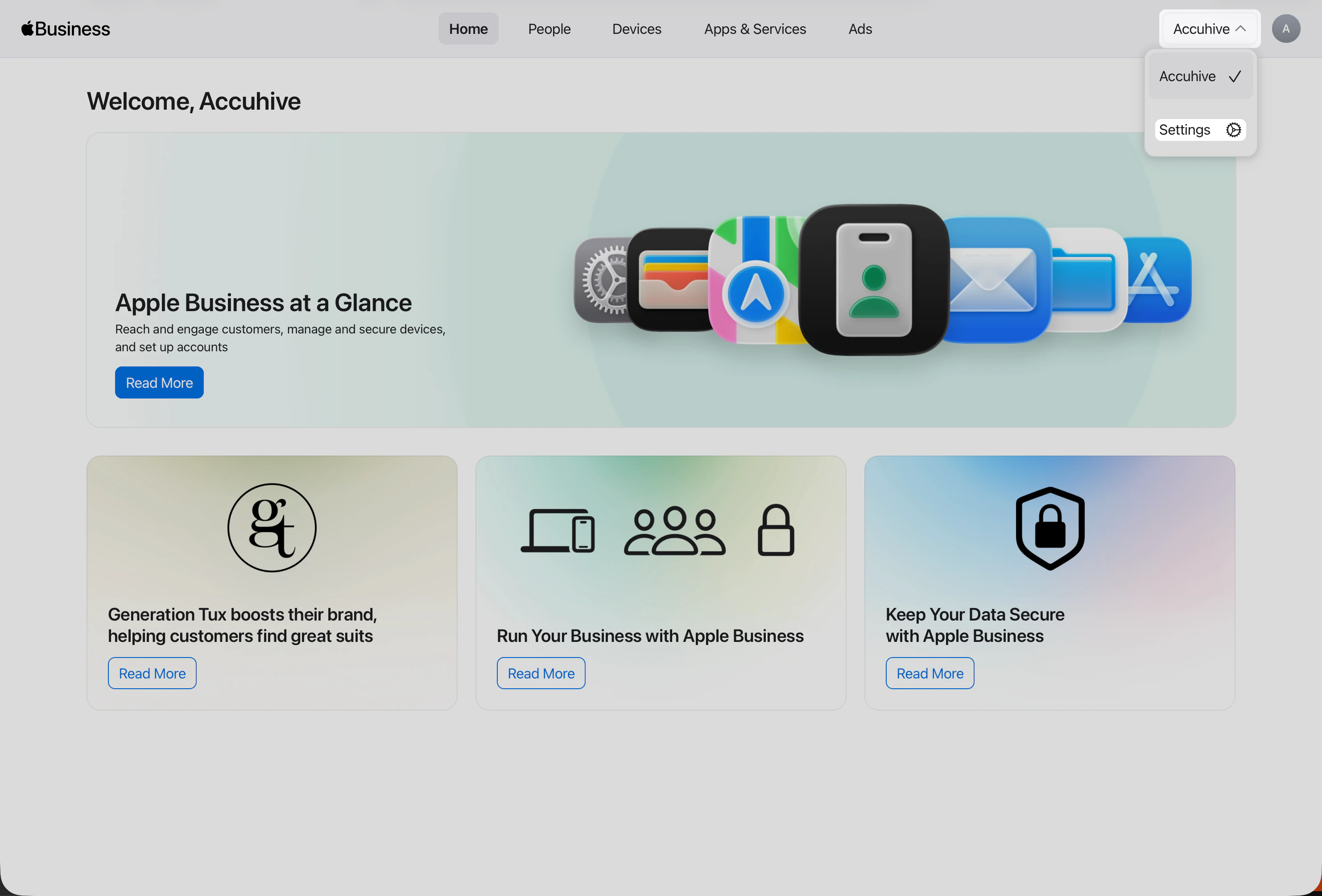 After you open **Settings**, you should already be on **Payments & Billing** → **Apps & Books**. This view is where your organization's Apps and Books content tokens appear.
Under **Content Tokens**, click **Download** next to the token you want to use with Iru Endpoint.
After you open **Settings**, you should already be on **Payments & Billing** → **Apps & Books**. This view is where your organization's Apps and Books content tokens appear.
Under **Content Tokens**, click **Download** next to the token you want to use with Iru Endpoint.
 Navigate back to the Iru Endpoint Web App and upload your **token**.
Click **Complete Apps and Books setup**.
Once the Apps and Books integration is completed, you will be able to update apps automatically when Iru Endpoint detects a new version.
### Manually Syncing Apps and Books with Apple Business or Apple School Manager
Iru Endpoint periodically checks for new apps or license changes. If you need to trigger a sync between Iru Endpoint and Apple Business or Apple School Manager immediately, you can use the **Sync App Store Apps** button (double arrows) next to the **Add Library Item** button.
Navigate back to the Iru Endpoint Web App and upload your **token**.
Click **Complete Apps and Books setup**.
Once the Apps and Books integration is completed, you will be able to update apps automatically when Iru Endpoint detects a new version.
### Manually Syncing Apps and Books with Apple Business or Apple School Manager
Iru Endpoint periodically checks for new apps or license changes. If you need to trigger a sync between Iru Endpoint and Apple Business or Apple School Manager immediately, you can use the **Sync App Store Apps** button (double arrows) next to the **Add Library Item** button.
 ### Duplicating Apps and Books Library Items
The ability to duplicate Apps and Books Library Items allows you to create multiple configurations of the same app and assign these to different Blueprints.
All Apps & Books app instances of the same Apps and Books Library Item share the same license pool across all Blueprints and assignments.
Duplication works the same way as for other Library Items; for the full flow (including duplicating from an open Library Item), see [Library Item Duplication](/en/endpoint/library/library-items-profiles/library-overview#library-item-duplication) in Library Overview.
The Okta Verify and Microsoft Authenticator Apps and Books Library Items cannot be duplicated due to their respective integrations with [Okta Device Trust](/en/endpoint/integrations/okta-device-trust-main/okta-device-trust) and [Microsoft Device Compliance](/en/endpoint/integrations/microsoft-device-compliance/getting-started-with-microsoft-device-compliance).
Navigate to **Library**, then **App Store apps**.
Find the Apps and Books Library Item you want to duplicate, then click the **ellipsis** next to its name.
Click **Duplicate**.
### Duplicating Apps and Books Library Items
The ability to duplicate Apps and Books Library Items allows you to create multiple configurations of the same app and assign these to different Blueprints.
All Apps & Books app instances of the same Apps and Books Library Item share the same license pool across all Blueprints and assignments.
Duplication works the same way as for other Library Items; for the full flow (including duplicating from an open Library Item), see [Library Item Duplication](/en/endpoint/library/library-items-profiles/library-overview#library-item-duplication) in Library Overview.
The Okta Verify and Microsoft Authenticator Apps and Books Library Items cannot be duplicated due to their respective integrations with [Okta Device Trust](/en/endpoint/integrations/okta-device-trust-main/okta-device-trust) and [Microsoft Device Compliance](/en/endpoint/integrations/microsoft-device-compliance/getting-started-with-microsoft-device-compliance).
Navigate to **Library**, then **App Store apps**.
Find the Apps and Books Library Item you want to duplicate, then click the **ellipsis** next to its name.
Click **Duplicate**.
 Click **Yes, duplicate** to confirm duplication.
Edit the duplicated Apps and Books Library Item as needed.
Once a duplicate has been created, the Library Item can be deleted, but at least one instance of the specific Apps and Books Library Item must remain.
### Removing Apps and Books Licenses
Navigate to **Library** then **App Store apps** and select the app you need to remove the license for.
Next, click the blue **Edit** button on the bottom right.
Change the Blueprint assignments in the **Assignment** section.
Click **Save**.
Within 5-10 mins of a successful MDM check-in, the application will remove itself from the device's Applications folder and free up a license to be assigned to a different Blueprint or device.
### Considerations
* **Annual Expiration**: Apps and Books tokens expire annually. Iru Endpoint will display a banner starting 30 days before the token expires, ensuring you have ample time to renew it and avoid any service interruptions
* **Password Changes**: If the password for the Apple Business or Apple School Manager account that downloaded the token is changed, the token will be invalidated and must be renewed
* **Token Renewal Process**: Follow the same setup process to renew expired tokens
* **Service Continuity**: Plan token renewal before expiration to avoid service disruptions
* **Documentation**: Keep records of token expiration dates and renewal processes
For more information about managing content tokens in Apple Business or Apple School Manager, please see the [Apple Business on Apple Support](https://support.apple.com/guide/business/manage-content-tokens-axme0f8659ec/web).
* **Dedicated organizational unit**: Create a dedicated organizational unit in Apple Business or Apple School Manager specifically for your Iru Endpoint tenant
* **Token Security**: Store Apps and Books tokens securely and never share them across multiple MDM servers
* **License Management**: Plan your app licensing strategy to avoid over-purchasing or running out of licenses
* **License Pooling**: Understand that all instances of the same app share the same license pool
* **Blueprint Assignment**: Plan your Blueprint assignments carefully to optimize license usage
* **Sync Frequency**: Understand that Iru Endpoint periodically syncs with Apple Business or Apple School Manager, but manual sync is available when needed
* **App Updates**: Configure automatic app updates to ensure users have the latest versions
* **Duplication Limitations**: Be aware that some apps (Okta Verify, Microsoft Authenticator) cannot be duplicated due to integration requirements
* **User Experience**: Test app deployment and user experience before rolling out to production
* **Compliance Requirements**: Ensure deployed apps meet your organization's security and compliance requirements
* **Backup Strategy**: Have a plan for managing apps if the Apps and Books integration becomes unavailable
* **Documentation**: Keep records of app assignments and license usage
* **Support**: Contact Iru Endpoint Support for assistance with complex Apps and Books scenarios
* **Testing**: Test Apps and Books configuration in a controlled environment before production deployment
* **Monitoring**: Regularly monitor app deployment success rates and license usage
### Related Articles
Curate, create, and manage Library Items, including App Store apps synced from Apps and Books
Sync purchased licenses into the Library and assign App Store app Library Items
Configure how Iru Endpoint surfaces alerts when App Store app deployments or other Library Items report issues
Click **Yes, duplicate** to confirm duplication.
Edit the duplicated Apps and Books Library Item as needed.
Once a duplicate has been created, the Library Item can be deleted, but at least one instance of the specific Apps and Books Library Item must remain.
### Removing Apps and Books Licenses
Navigate to **Library** then **App Store apps** and select the app you need to remove the license for.
Next, click the blue **Edit** button on the bottom right.
Change the Blueprint assignments in the **Assignment** section.
Click **Save**.
Within 5-10 mins of a successful MDM check-in, the application will remove itself from the device's Applications folder and free up a license to be assigned to a different Blueprint or device.
### Considerations
* **Annual Expiration**: Apps and Books tokens expire annually. Iru Endpoint will display a banner starting 30 days before the token expires, ensuring you have ample time to renew it and avoid any service interruptions
* **Password Changes**: If the password for the Apple Business or Apple School Manager account that downloaded the token is changed, the token will be invalidated and must be renewed
* **Token Renewal Process**: Follow the same setup process to renew expired tokens
* **Service Continuity**: Plan token renewal before expiration to avoid service disruptions
* **Documentation**: Keep records of token expiration dates and renewal processes
For more information about managing content tokens in Apple Business or Apple School Manager, please see the [Apple Business on Apple Support](https://support.apple.com/guide/business/manage-content-tokens-axme0f8659ec/web).
* **Dedicated organizational unit**: Create a dedicated organizational unit in Apple Business or Apple School Manager specifically for your Iru Endpoint tenant
* **Token Security**: Store Apps and Books tokens securely and never share them across multiple MDM servers
* **License Management**: Plan your app licensing strategy to avoid over-purchasing or running out of licenses
* **License Pooling**: Understand that all instances of the same app share the same license pool
* **Blueprint Assignment**: Plan your Blueprint assignments carefully to optimize license usage
* **Sync Frequency**: Understand that Iru Endpoint periodically syncs with Apple Business or Apple School Manager, but manual sync is available when needed
* **App Updates**: Configure automatic app updates to ensure users have the latest versions
* **Duplication Limitations**: Be aware that some apps (Okta Verify, Microsoft Authenticator) cannot be duplicated due to integration requirements
* **User Experience**: Test app deployment and user experience before rolling out to production
* **Compliance Requirements**: Ensure deployed apps meet your organization's security and compliance requirements
* **Backup Strategy**: Have a plan for managing apps if the Apps and Books integration becomes unavailable
* **Documentation**: Keep records of app assignments and license usage
* **Support**: Contact Iru Endpoint Support for assistance with complex Apps and Books scenarios
* **Testing**: Test Apps and Books configuration in a controlled environment before production deployment
* **Monitoring**: Regularly monitor app deployment success rates and license usage
### Related Articles
Curate, create, and manage Library Items, including App Store apps synced from Apps and Books
Sync purchased licenses into the Library and assign App Store app Library Items
Configure how Iru Endpoint surfaces alerts when App Store app deployments or other Library Items report issues