> ## Documentation Index
> Fetch the complete documentation index at: https://docs.iru.com/llms.txt
> Use this file to discover all available pages before exploring further.
# Configure Apple Push Notification Service
> Set up Apple Push Notification service (APNs) for Iru Endpoint. Generate the CSR, upload to Apple, and configure the push certificate for MDM communication.
### About Apple Push Notification Service
Apple Push Notification service (APNs) is a critical component in the context of Mobile Device Management (MDM) for Apple devices. APNs facilitates persistent communication between MDM solutions and Apple devices across both public and private networks. This service allows MDM servers to send notifications to devices, enabling remote management tasks such as applying configurations, installing software, locking or wiping devices, and more.
### How It Works
APNs operates through a secure certificate-based authentication system. MDM solutions require an APNs certificate to communicate with Apple devices. When an MDM action is initiated, a notification is sent to APNs, which then notifies the device. The device checks in with the MDM server, receives the command, and executes the required action. This process enables real-time device management and configuration deployment.
### Prerequisites
* **Apple Account**: Ensure you have access to a managed Apple Account for creating and renewing APNs certificates
* **Network Access**: Verify network configurations allow necessary traffic to Apple's network for APNs functionality
* **macOS Computer**: Use a macOS computer for best results when configuring APNs
* **Certificate Management**: Plan for annual certificate renewal to avoid service disruptions
For a full list of network requirements, please see our [Using Iru on Enterprise Networks](/en/iru/requirements/using-iru-on-enterprise-networks) support article.
### Best Practices for Managing Apple Push Notification service
* Use a managed Apple Account that is accessible by multiple team members for creating and renewing APNs certificates
* Plan ahead for certificate renewal to avoid disruptions in MDM communication
* Ensure network configurations allow necessary traffic to Apple's network for APNs to function correctly. For a full list of network requirements, please see our [Using Iru on Enterprise Networks](/en/iru/requirements/using-iru-on-enterprise-networks) support article
### Configuring Apple Push Notification Service
For best results, use a macOS computer.
Navigate to your Iru Endpoint Web App (e.g., accuhive.iru.com).
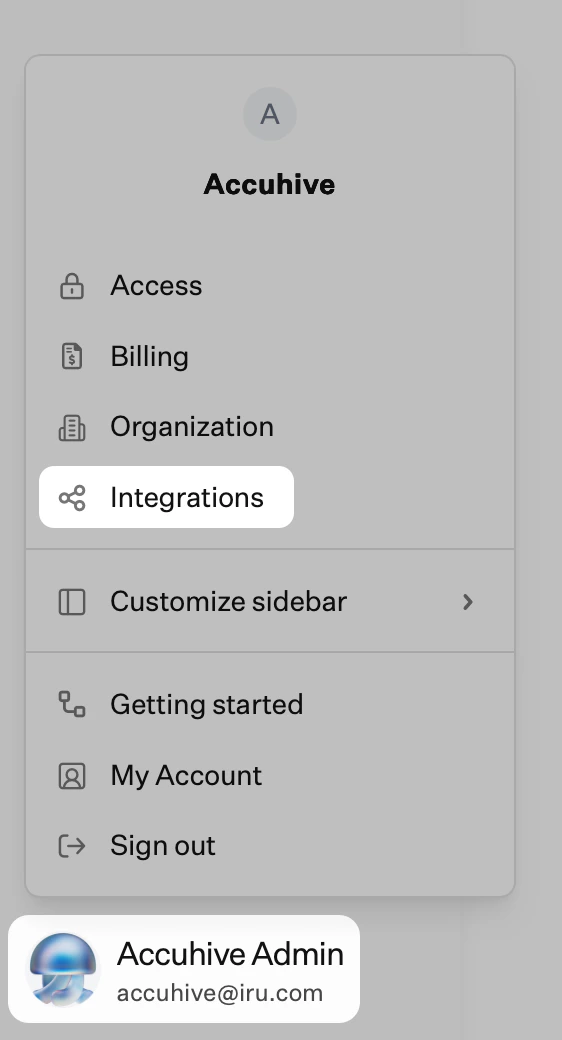
In the sidebar, click the [**Account Menu Button**](/en/iru/platform-overview/account-menu), then select **Integrations**.
 Select the **Apple integrations** section.
Under Apple Push Notifications service (APNs), click **Set up APNs**.
Follow the on-screen instructions to create a new APNs certificate.
### Renewing Your Apple Push Notification Service Certificate
APNs certificates must be renewed annually. If the certificate expires, it can lead to issues such as the inability to manage existing Apple devices and enrollment failure for new devices.
Your APNs certificate can be renewed at any time. For best results, monitor the certificate expiration date in the Iru Endpoint Web App and plan to renew it before it expires. Iru Endpoint will send email reminders to Team Members with Admin or Account Owner permissions starting 30 days before certificate expiry.
In the sidebar, click the **Account Menu Button**, then select **Integrations**.
Select the **Apple integrations** section.
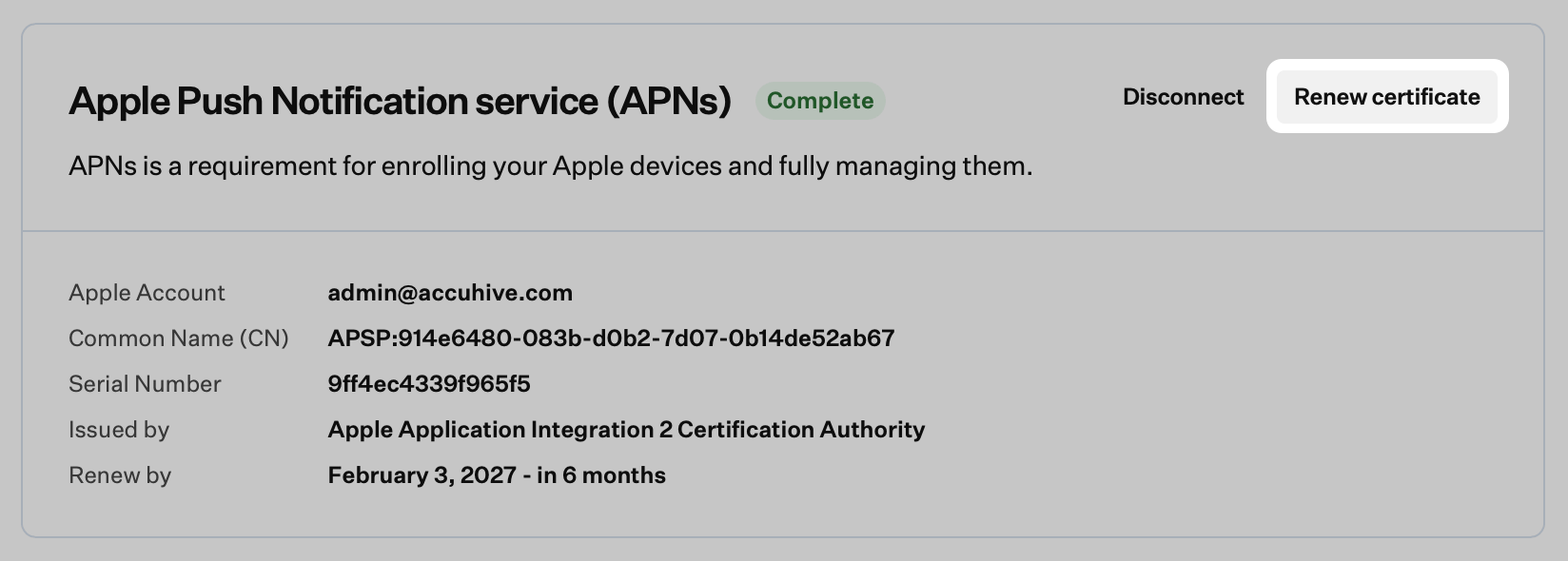
Under Apple Push Notifications service (APNs), click **Renew certificate**.
Follow the on-screen instructions to renew your APNs certificate.
Select the **Apple integrations** section.
Under Apple Push Notifications service (APNs), click **Set up APNs**.
Follow the on-screen instructions to create a new APNs certificate.
### Renewing Your Apple Push Notification Service Certificate
APNs certificates must be renewed annually. If the certificate expires, it can lead to issues such as the inability to manage existing Apple devices and enrollment failure for new devices.
Your APNs certificate can be renewed at any time. For best results, monitor the certificate expiration date in the Iru Endpoint Web App and plan to renew it before it expires. Iru Endpoint will send email reminders to Team Members with Admin or Account Owner permissions starting 30 days before certificate expiry.
In the sidebar, click the **Account Menu Button**, then select **Integrations**.
Select the **Apple integrations** section.
Under Apple Push Notifications service (APNs), click **Renew certificate**.
Follow the on-screen instructions to renew your APNs certificate.
 ### Troubleshooting APNs Certificate Renewal
When uploading a new APNs certificate, you may see an error stating, "This doesn't appear to be a valid certificate." This issue can arise for a few different reasons, including:
* **Different Apple Account**: The Apple Account used to create the new certificate is different from the one used for the original certificate
* **New Certificate Upload**: The certificate was uploaded as a new one instead of renewing the existing certificate
* **File Extension Issues**: The uploaded certificate does not have the .pem file extension or has been renamed from its original name, *MDM\_Iru Endpoint, Inc.\_Certificate.pem*
If you need to change the Apple Account that is used for an APNs certificate, it is recommended to do so before renewing the original certificate. To start the process of migrating an APNs certificate to a new Apple Account, you can [Contact Apple's Deployment Programs Support team](https://support.apple.com/en-us/HT208643).
### Disconnecting APNs
Only disconnect your APNs certificate if you need to replace it with a new one. Replacing your APNs certificate will break MDM communication on all of your enrolled Apple devices. You will need to re-enroll all devices under the new APNs certificate.
In the sidebar, click the **Account Menu Button**, then select **Integrations**.
Select the **Apple integrations** section.
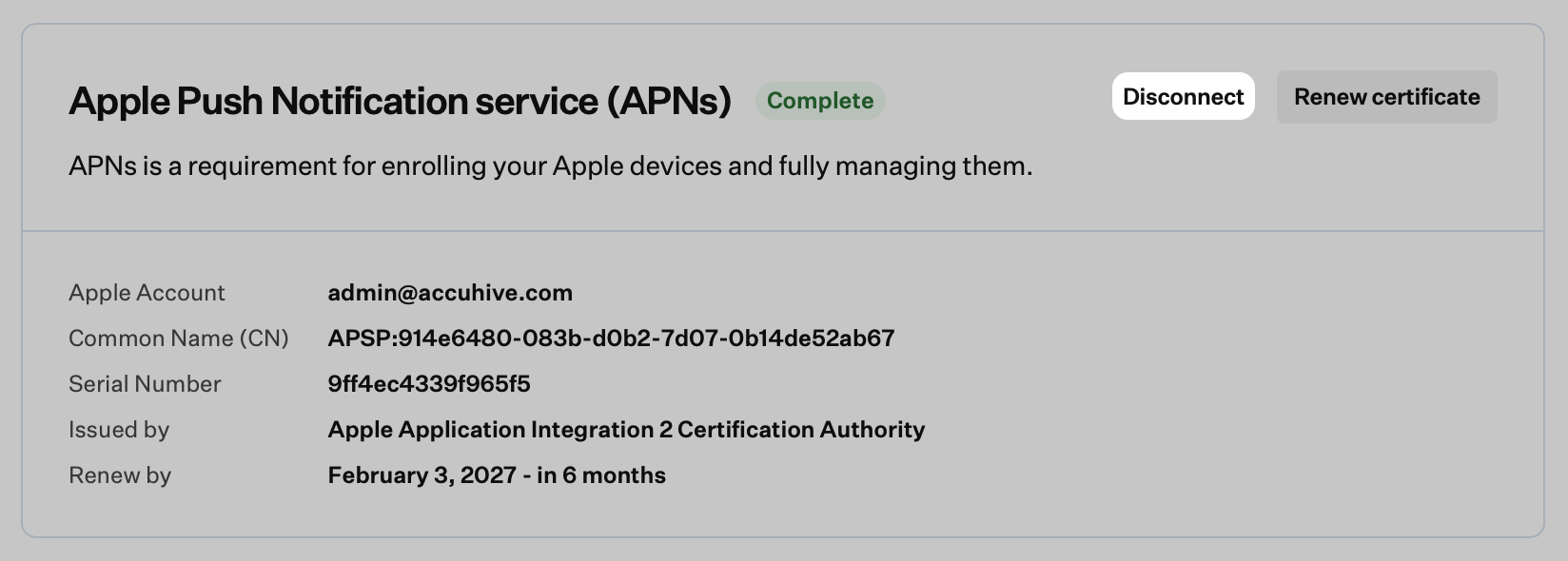
Under Apple Push Notifications service (APNs), click **Disconnect**.
### Troubleshooting APNs Certificate Renewal
When uploading a new APNs certificate, you may see an error stating, "This doesn't appear to be a valid certificate." This issue can arise for a few different reasons, including:
* **Different Apple Account**: The Apple Account used to create the new certificate is different from the one used for the original certificate
* **New Certificate Upload**: The certificate was uploaded as a new one instead of renewing the existing certificate
* **File Extension Issues**: The uploaded certificate does not have the .pem file extension or has been renamed from its original name, *MDM\_Iru Endpoint, Inc.\_Certificate.pem*
If you need to change the Apple Account that is used for an APNs certificate, it is recommended to do so before renewing the original certificate. To start the process of migrating an APNs certificate to a new Apple Account, you can [Contact Apple's Deployment Programs Support team](https://support.apple.com/en-us/HT208643).
### Disconnecting APNs
Only disconnect your APNs certificate if you need to replace it with a new one. Replacing your APNs certificate will break MDM communication on all of your enrolled Apple devices. You will need to re-enroll all devices under the new APNs certificate.
In the sidebar, click the **Account Menu Button**, then select **Integrations**.
Select the **Apple integrations** section.
Under Apple Push Notifications service (APNs), click **Disconnect**.
 If you accidentally disconnect your APNs certificate and need to reconnect it for renewal, you can do so by following the configuration steps in Iru Endpoint. Then, proceed to [identity.apple.com](https://identity.apple.com) to complete the certificate renewal process.
### Considerations
* **Certificate Renewal**: APNs certificates must be renewed annually to maintain MDM communication
* **Renewal Planning**: Plan certificate renewal well in advance of expiration
* **Team Notifications**: Iru Endpoint sends email reminders 30 days before certificate expiry
* **File Naming**: Maintain original certificate file names and .pem extensions
* **Account Consistency**: Always use the same Apple Account for certificate creation and renewal
* **Apple Account Management**: Use a managed Apple Account accessible by multiple team members
* **Migration Planning**: Plan carefully if changing Apple Accounts for APNs certificates
* **Disconnection Impact**: Disconnecting APNs affects all enrolled devices and requires re-enrollment
* **Network Requirements**: Ensure proper network configuration for APNs traffic
* **Certificate Security**: Store APNs certificates securely and never share them publicly
* **Testing**: Test APNs functionality after configuration and renewal
* **Monitoring**: Regularly monitor certificate status and device communication
* **Backup Strategy**: Have a plan for managing devices if APNs becomes unavailable
* **Documentation**: Keep records of certificate creation, renewal, and Apple Account information
* **Support**: Contact Iru Endpoint Support for assistance with complex APNs scenarios
If you accidentally disconnect your APNs certificate and need to reconnect it for renewal, you can do so by following the configuration steps in Iru Endpoint. Then, proceed to [identity.apple.com](https://identity.apple.com) to complete the certificate renewal process.
### Considerations
* **Certificate Renewal**: APNs certificates must be renewed annually to maintain MDM communication
* **Renewal Planning**: Plan certificate renewal well in advance of expiration
* **Team Notifications**: Iru Endpoint sends email reminders 30 days before certificate expiry
* **File Naming**: Maintain original certificate file names and .pem extensions
* **Account Consistency**: Always use the same Apple Account for certificate creation and renewal
* **Apple Account Management**: Use a managed Apple Account accessible by multiple team members
* **Migration Planning**: Plan carefully if changing Apple Accounts for APNs certificates
* **Disconnection Impact**: Disconnecting APNs affects all enrolled devices and requires re-enrollment
* **Network Requirements**: Ensure proper network configuration for APNs traffic
* **Certificate Security**: Store APNs certificates securely and never share them publicly
* **Testing**: Test APNs functionality after configuration and renewal
* **Monitoring**: Regularly monitor certificate status and device communication
* **Backup Strategy**: Have a plan for managing devices if APNs becomes unavailable
* **Documentation**: Keep records of certificate creation, renewal, and Apple Account information
* **Support**: Contact Iru Endpoint Support for assistance with complex APNs scenarios