> ## Documentation Index
> Fetch the complete documentation index at: https://docs.iru.com/llms.txt
> Use this file to discover all available pages before exploring further.
# Passport in a federated Entra ID environment
> Use Passport in a federated Microsoft Entra ID environment with Iru Endpoint. Configure authentication flows for ADFS and third-party federation services.
This guide applies to Mac computers
Note: Microsoft Entra ID [is the new name](https://learn.microsoft.com/en-us/entra/fundamentals/new-name) for Azure AD (Azure Active Directory)
### About Passport in Federated Microsoft Entra ID Environments
Passport in a federated Microsoft Entra ID environment applies when Entra ID is the service provider (SP) for an external identity provider. Both **Mac Login** and **Web Login** need extra configuration so authentication and password validation can complete against Entra ID correctly.
Starting **June 15, 2026**, Microsoft Entra ID handles Conditional Access for Passport sign-in differently.
* **Mac Login:** See [Entra ID Passport Mac Login](/en/endpoint/library/passport/microsoft-entra-id/configure-passport-with-microsoft-entra-id-mac-login#june-2026-conditional-access-change) to confirm whether your tenant is affected and what to update before that date.
* **Web Login:** Updates are required only if you use Web Login and want to exempt Passport from MFA in Conditional Access. See [Entra ID Passport Web Login](/en/endpoint/library/passport/microsoft-entra-id/configure-passport-with-microsoft-entra-id-web-login#june-2026-conditional-access-change).
Microsoft explains the change in [this documentation](https://learn.microsoft.com/en-us/entra/identity/conditional-access/concept-enforcement-resource-exclusions).
### How It Works
Passport still uses Entra ID as the OIDC authority even when users federate through another IdP. For **Mac Login** and **Web Login**, create a [Home Realm Discovery (HRD)](https://learn.microsoft.com/en-us/entra/identity/enterprise-apps/configure-authentication-for-federated-users-portal?pivots=powershell-hrd) policy in Entra ID with PowerShell so password validation can complete against Entra ID in a [federated environment](https://learn.microsoft.com/en-us/entra/identity/hybrid/connect/whatis-fed).
### Prerequisites
Confirm everything below before you create the HRD policy. This article applies when you use Passport with Entra ID for **Mac Login** or **Web Login** in a federated tenant.
* An active [Azure subscription](https://azure.microsoft.com/free/) (create a free account if needed).
* A user who can manage directory apps and policies: **Global Administrator**, **Cloud Application Administrator**, **Application Administrator**, or **service principal owner**.
* A Windows or Windows Server computer (physical or VM) where you can open **PowerShell** as administrator.
* [AzureADPreview](https://learn.microsoft.com/en-us/powershell/azure/active-directory/install-adv2?view=azureadps-2.0#installing-the-azure-ad-module) installed, on a current [preview build](https://learn.microsoft.com/en-us/powershell/azure/active-directory/install-adv2?view=azureadps-2.0#updating-the-azure-ad-module). You cannot run GA and preview modules side by side; [uninstall the AzureAD module](https://learn.microsoft.com/en-us/powershell/azure/uninstall-az-ps) first if both are present.
* Users who sign in with Passport must be represented in Entra ID in a way that supports your sign-in path.
* **Hybrid Active Directory:** use [Microsoft Entra Connect](https://learn.microsoft.com/en-us/entra/identity/hybrid/connect/how-to-connect-password-hash-synchronization) with **password hash sync** where that applies.
* **Cloud federated IdP:** confirm usernames and passwords from the federated IdP reach Entra ID as you expect for ROPC-style sign-in.
* Entra ID app registration (Enterprise application) for Passport, following [Configure Passport with Microsoft Entra ID - Mac Login](/en/endpoint/library/passport/microsoft-entra-id/configure-passport-with-microsoft-entra-id-mac-login) and/or [Configure Passport with Microsoft Entra ID - Web Login](/en/endpoint/library/passport/microsoft-entra-id/configure-passport-with-microsoft-entra-id-web-login), depending on which authentication mode you use.
* [Configure the Passport Library Item](/en/endpoint/library/passport/configure-the-passport-library-item) completed in Iru Endpoint for that Passport deployment.
### Authentication Flow in a Federated Environment
The diagram below depicts the Passport authentication flow when Entra ID acts as a service provider (SP) federated with another identity provider (IdP).
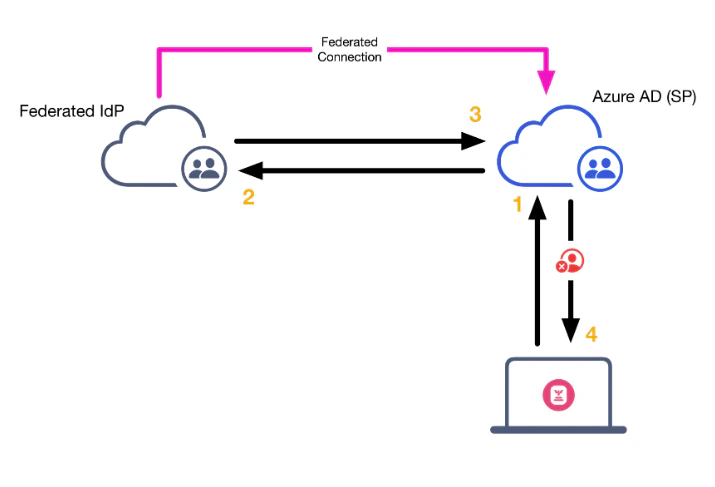 When a user attempts to authenticate via Passport, the request looks like this:
Passport sends an authentication request to Azure AD.
Azure AD forwards the auth request to the federated IdP.
The auth request is validated by the IdP and sent back to Azure AD.
Azure AD receives the validation but has no reason to forward it to Passport, at which point the user's authentication attempt fails, and an error is delivered to Passport.
### Authentication Flow with HRD Configured
The diagram below depicts the Passport authentication flow with an Azure AD Home Realm Discovery policy. When a user attempts to authenticate via Passport, the request looks like this:
When a user attempts to authenticate via Passport, the request looks like this:
Passport sends an authentication request to Azure AD.
Azure AD forwards the auth request to the federated IdP.
The auth request is validated by the IdP and sent back to Azure AD.
Azure AD receives the validation but has no reason to forward it to Passport, at which point the user's authentication attempt fails, and an error is delivered to Passport.
### Authentication Flow with HRD Configured
The diagram below depicts the Passport authentication flow with an Azure AD Home Realm Discovery policy. When a user attempts to authenticate via Passport, the request looks like this:
 Passport sends an authentication request to Azure AD.
Entra ID validates the authentication request using the HRD policy and responds to Passport with a successful user authentication response.
### Create an HRD Policy
You need an HRD policy when you use Passport with Microsoft Entra ID and your tenant is federated with an external IdP. That requirement applies to both **Mac Login** and **Web Login**.
Go to the Windows computer.
Open PowerShell as an administrator.
Connect to your Entra ID tenant with the command **Connect-AzureAD**. A web view will open prompting you to enter your Entra ID credentials.
Create a new policy with the command below. This will allow users to authenticate to a specific application directly with Entra ID with their username and password in a federated environment. If you have existing HRD policies in your environment, you can set the *DisplayName* to something like **IruHRDPolicy**.
```powershell wrap lines icon="terminal" theme={null}
New-AzureADPolicy -Definition @("{`"HomeRealmDiscoveryPolicy`":{`"AllowCloudPasswordValidation`":true}}") -DisplayName IruHRDPolicy -Type HomeRealmDiscoveryPolicy
```
Run the command **Get-AzureADPolicy** to list the policy that you've just created and copy the *ObjectID* string listed under the ID column in the output.
Run the command **Get-AzureADServicePrincipal** to get the Service Principal (Azure Enterprise Application) **ObjectID**.
If you know the name of the Enterprise Application, you can add the **-SearchString your\_app\_name\_here** to the command above. Example: **Get-AzureADServicePrincipal -SearchString "Iru Passport"**
Run the following command to add the Iru Passport Enterprise Application to the HRD policy. Replace *\* with the Iru Enterprise App *ObjectID* copied earlier. Replace *\* with the HRD *ObjectID* copied earlier.
```powershell wrap lines icon="terminal" theme={null}
Add-AzureADServicePrincipalPolicy -Id -RefObjectId
```
If you do not create the right policy, you can use the command below to remove it and try again.
```powershell wrap lines icon="terminal" theme={null}
Remove-AzureADServicePrincipalPolicy -id -PolicyId
```
Check the apps assigned with **Get-AzureADPolicyAppliedObject -id \**.
To disconnect the PowerShell session from Azure, run **Disconnect-AzureAD**.
Passport sends an authentication request to Azure AD.
Entra ID validates the authentication request using the HRD policy and responds to Passport with a successful user authentication response.
### Create an HRD Policy
You need an HRD policy when you use Passport with Microsoft Entra ID and your tenant is federated with an external IdP. That requirement applies to both **Mac Login** and **Web Login**.
Go to the Windows computer.
Open PowerShell as an administrator.
Connect to your Entra ID tenant with the command **Connect-AzureAD**. A web view will open prompting you to enter your Entra ID credentials.
Create a new policy with the command below. This will allow users to authenticate to a specific application directly with Entra ID with their username and password in a federated environment. If you have existing HRD policies in your environment, you can set the *DisplayName* to something like **IruHRDPolicy**.
```powershell wrap lines icon="terminal" theme={null}
New-AzureADPolicy -Definition @("{`"HomeRealmDiscoveryPolicy`":{`"AllowCloudPasswordValidation`":true}}") -DisplayName IruHRDPolicy -Type HomeRealmDiscoveryPolicy
```
Run the command **Get-AzureADPolicy** to list the policy that you've just created and copy the *ObjectID* string listed under the ID column in the output.
Run the command **Get-AzureADServicePrincipal** to get the Service Principal (Azure Enterprise Application) **ObjectID**.
If you know the name of the Enterprise Application, you can add the **-SearchString your\_app\_name\_here** to the command above. Example: **Get-AzureADServicePrincipal -SearchString "Iru Passport"**
Run the following command to add the Iru Passport Enterprise Application to the HRD policy. Replace *\* with the Iru Enterprise App *ObjectID* copied earlier. Replace *\* with the HRD *ObjectID* copied earlier.
```powershell wrap lines icon="terminal" theme={null}
Add-AzureADServicePrincipalPolicy -Id -RefObjectId
```
If you do not create the right policy, you can use the command below to remove it and try again.
```powershell wrap lines icon="terminal" theme={null}
Remove-AzureADServicePrincipalPolicy -id -PolicyId
```
Check the apps assigned with **Get-AzureADPolicyAppliedObject -id \**.
To disconnect the PowerShell session from Azure, run **Disconnect-AzureAD**.