> ## Documentation Index
> Fetch the complete documentation index at: https://docs.iru.com/llms.txt
> Use this file to discover all available pages before exploring further.
# Configure Managed OS for macOS
> Configure the macOS Managed OS Library Item in Iru Endpoint with rolling enforcement, phased rollout, version options, and upgrades.
This guide applies to Mac computers
Deploying and enforcing a macOS version is as easy as adding Managed OS for macOS to your Library and assigning it to an Assignment Map. To configure it, follow the steps below.
### About Managed OS for macOS
Managed OS for macOS deploys and enforces macOS updates across your fleet of Mac computers via [Declarative Device Management (DDM)](/en/endpoint/library/managed-os/declarative-device-management-and-managed-os). You can offer major macOS upgrades **on-demand from Self Service** or have them enforced automatically. When you configure Managed OS, Iru declares the required macOS version and deadline; macOS handles download, caching, notifications, and installation. Iru handles:
* **Update detection**: Iru monitors for available macOS updates from Apple
* **Download and caching**: Updates are automatically downloaded and cached on devices
* **User notification**: Users are notified of pending updates with enforcement deadlines
* **Automatic installation**: Updates are installed according to your configured schedule
* **Compliance monitoring**: Iru tracks which devices have successfully updated
For how **Rolling enforcement** calculates the floor, how **Enforce a specific version** differs from **Manually enforce a minimum version**, [phased rollout](/en/endpoint/library/managed-os/understanding-managed-os-for-apple-platforms#phased-rollout), notifications, and [first-time fleet enforcement recommendations](/en/endpoint/library/managed-os/understanding-managed-os-for-apple-platforms#recommendations), see [Understanding Managed OS for Apple Platforms](/en/endpoint/library/managed-os/understanding-managed-os-for-apple-platforms).
### Enabling Managed OS for macOS in your Library
To add this Library Item to your Iru Endpoint Library, follow the steps outlined in the [Library Overview](/en/endpoint/library/library-items-profiles/library-overview) article.
#### Enabling Multiple Managed OS Library Items
When using Iru Endpoint, you can add the same Managed OS version to your Library multiple times. This is helpful when configuring different settings for various Blueprints or creating distinct update settings for nodes in an Assignment Map. To differentiate between these copies, you can use labels. See [Library Item Labels](/en/endpoint/library/library-items-profiles/library-overview#library-item-labels) in Library Overview for steps.
### Configuring Managed OS for macOS
Managed OS for macOS is not compatible with blocking the Software Update System Settings pane via any method, and doing so can produce unexpected behavior.
Add a **Label** to easily identify this instance of Managed OS for macOS in your Library. While these labels won't be visible to end users, they will appear throughout the Iru Endpoint Web App. See [Library Item Labels](/en/endpoint/library/library-items-profiles/library-overview#library-item-labels) in Library Overview for steps.
Assign to your desired [Blueprints](/en/endpoint/getting-started/blueprints-and-library/configuring-blueprints).
Under **Upgrades**, configure the way upgrade installations of this major version of macOS should be enforced:
* **Upgrade automatically** forces the device to the latest version of this OS either immediately upon Library Item assignment, or on a specified date and time. Optionally turn on **Available in Self Service** so users can install before the deadline.
* **Upgrade on demand from Self Service** lets users upgrade through Self Service or Software Update with no enforced deadline. Differentiate Blueprints by making additional copies of the same Managed OS for macOS.
When **Upgrade automatically** is scheduled with a date and time, set those under **Upgrades**. Update enforcement under **Updates** uses its own schedule, so the same Library Item can enforce minor updates and major upgrades on different timelines. Devices on an older major macOS version are no longer treated as out of date for updates and forced to upgrade as soon as the Library Item is scoped.
Which macOS version a Mac receives when it updates depends on your Version Enforcement option under **Updates** (see **Configure Version Enforcement** below). **Rolling enforcement** and **Manually enforce a minimum version** install the latest Iru-approved update for the selected major version; **Enforce a specific version** enforces the macOS version you select.
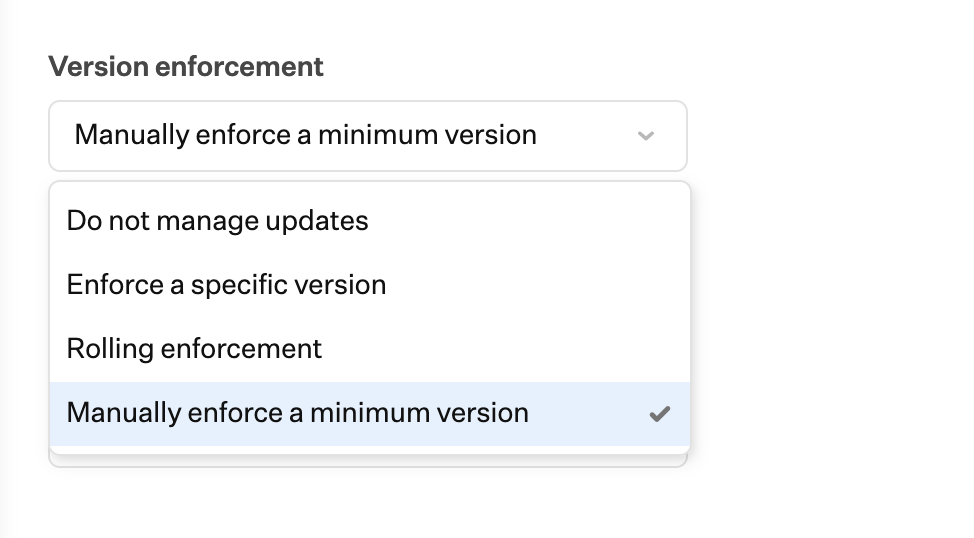
Under **Updates**, select an option for Version Enforcement. Available options include the following:
 #### Do not manage updates
This option will not manage macOS updates. It cannot be selected if you've chosen to **Upgrade automatically**, as **Upgrades** also determines the schedule and conditions for upgrading.
#### Rolling enforcement
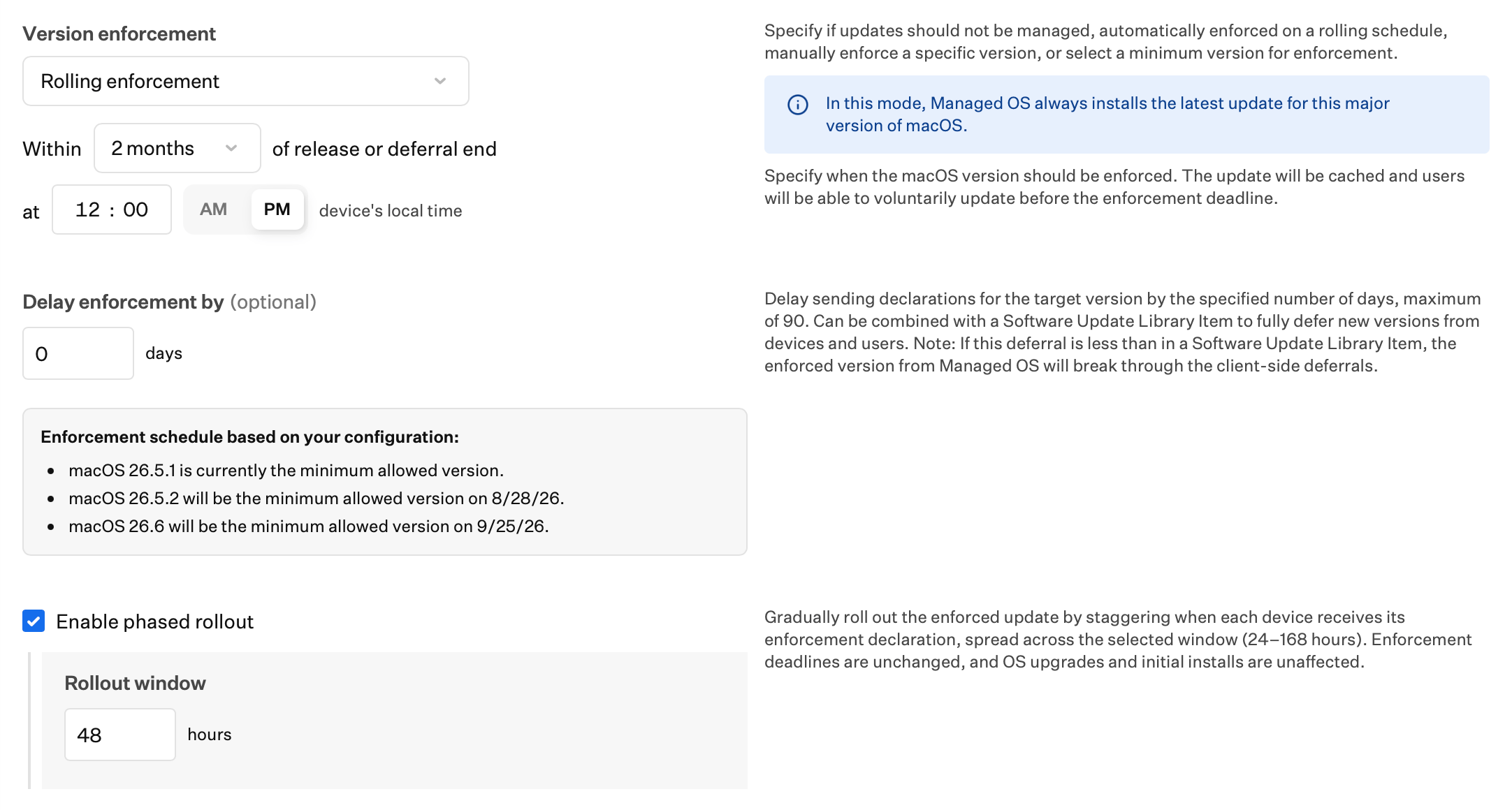
Select **Within** (1 day, 2 days, 1 week, 2 weeks, 3 weeks, 1 month, 2 months, or 3 months) **of release** and **at** a time for enforcement.
Optionally, set **Delay enforcement by** to a number of days (up to 90). This delays when Iru sends the target-version declaration without changing the enforcement date. Use it to temporarily hold back the newest available version while still using **Rolling enforcement**.
To hide the new version from users for the same period, set a matching deferral in a [Software Update Library Item](/en/endpoint/devices/device-configurations/apple/delay-and-enforce-os-updates#configure-the-software-update-library-item). If **Delay enforcement by** is shorter than that deferral, Managed OS still overrides the deferral once its declaration is sent. For full behavior, see [Rolling enforcement](/en/endpoint/library/managed-os/understanding-managed-os-for-apple-platforms#rolling-enforcement) in **Understanding Managed OS for Apple Platforms**.
Optionally select the **Enable phased rollout** checkbox, then enter the number of hours in the **Rollout window** field (24–168). After any **Delay enforcement by** period ends (or immediately if delay is not set), declaration issuance for a new Apple release is spread across that window. See [Phased rollout](/en/endpoint/library/managed-os/understanding-managed-os-for-apple-platforms#phased-rollout).
#### Do not manage updates
This option will not manage macOS updates. It cannot be selected if you've chosen to **Upgrade automatically**, as **Upgrades** also determines the schedule and conditions for upgrading.
#### Rolling enforcement
Select **Within** (1 day, 2 days, 1 week, 2 weeks, 3 weeks, 1 month, 2 months, or 3 months) **of release** and **at** a time for enforcement.
Optionally, set **Delay enforcement by** to a number of days (up to 90). This delays when Iru sends the target-version declaration without changing the enforcement date. Use it to temporarily hold back the newest available version while still using **Rolling enforcement**.
To hide the new version from users for the same period, set a matching deferral in a [Software Update Library Item](/en/endpoint/devices/device-configurations/apple/delay-and-enforce-os-updates#configure-the-software-update-library-item). If **Delay enforcement by** is shorter than that deferral, Managed OS still overrides the deferral once its declaration is sent. For full behavior, see [Rolling enforcement](/en/endpoint/library/managed-os/understanding-managed-os-for-apple-platforms#rolling-enforcement) in **Understanding Managed OS for Apple Platforms**.
Optionally select the **Enable phased rollout** checkbox, then enter the number of hours in the **Rollout window** field (24–168). After any **Delay enforcement by** period ends (or immediately if delay is not set), declaration issuance for a new Apple release is spread across that window. See [Phased rollout](/en/endpoint/library/managed-os/understanding-managed-os-for-apple-platforms#phased-rollout).
 #### Manually enforce a minimum version
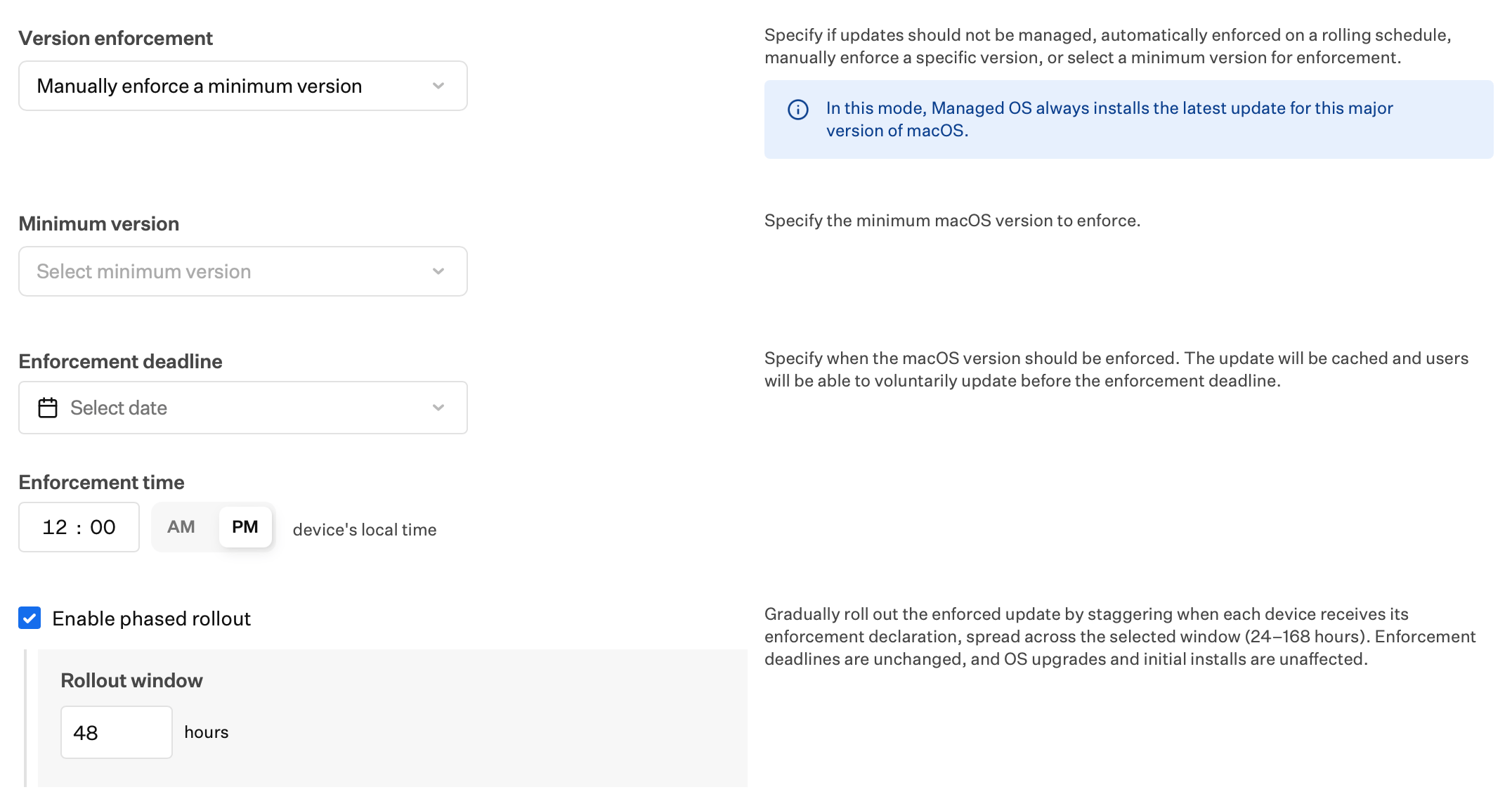
Specify the minimum macOS version a Mac should be running and the **Enforcement Deadline** date by which users must update. No updates will be enforced if a Mac is already running a macOS version greater than the specified minimum. You will also select an **Enforcement Time**.
Optionally select the **Enable phased rollout** checkbox, then enter the number of hours in the **Rollout window** field (24–168). Declaration issuance is staggered from Library Item save (on first create, or when OS version settings or date/time change) and again when Apple releases a new version. See [Phased rollout](/en/endpoint/library/managed-os/understanding-managed-os-for-apple-platforms#phased-rollout).
#### Manually enforce a minimum version
Specify the minimum macOS version a Mac should be running and the **Enforcement Deadline** date by which users must update. No updates will be enforced if a Mac is already running a macOS version greater than the specified minimum. You will also select an **Enforcement Time**.
Optionally select the **Enable phased rollout** checkbox, then enter the number of hours in the **Rollout window** field (24–168). Declaration issuance is staggered from Library Item save (on first create, or when OS version settings or date/time change) and again when Apple releases a new version. See [Phased rollout](/en/endpoint/library/managed-os/understanding-managed-os-for-apple-platforms#phased-rollout).
 #### Enforce a specific version
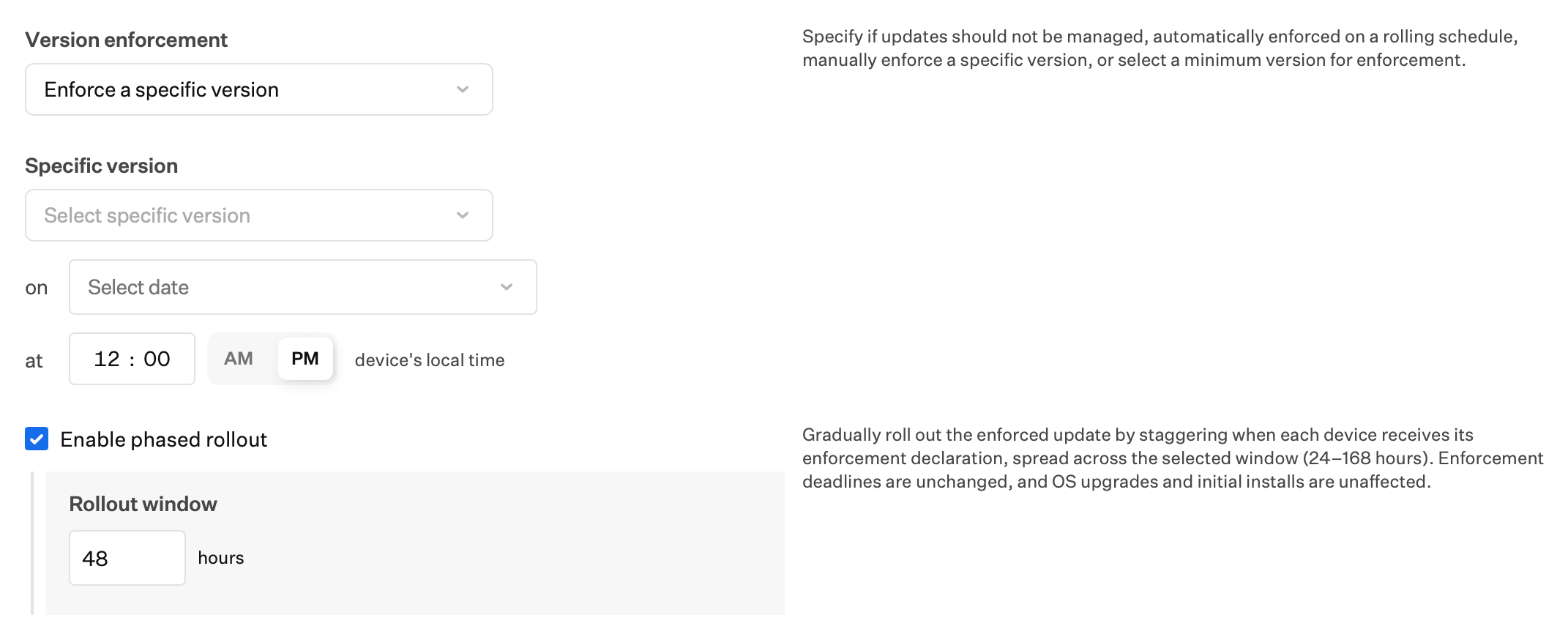
Uses the same version selection dropdown and enforcement scheduling fields as **Manually enforce a minimum version**—select a **Specific version**, an **Enforcement Deadline** (**on**), and an **Enforcement Time** (**at**). Unlike **Manually enforce a minimum version**, this option enforces that exact macOS version rather than a minimum floor.
To enforce an Apple beta build, select **This is a beta version**, choose a **Seed Token** synced from Apple to Iru, then enter the beta version and build. Iru applies two declarations to the device in order: **Software Update Settings** (to enroll the device in the beta program), then **Software Update Enforcement** (to the specified version). For example, to test a beta upgrade to the next major macOS release, use a macOS Tahoe Managed OS Library Item, select a macOS Golden Gate seed token, and enter the target major version (such as `27.0`) and the current AppleSeed beta build.
If you use Managed OS for beta enrollment and version enforcement, set **Beta program enrollment** in any Software Update Library Item on the same Blueprint to **Not configured**. For opt-in beta enrollment or enrollment without a required version, see [Testing Apple Beta Releases](/en/endpoint/devices/device-configurations/apple/testing-apple-beta-releases#ways-to-manage-apple-beta-program-enrollment).
The **Seed Token** list can be long and difficult to navigate.
Optionally select the **Enable phased rollout** checkbox, then enter the number of hours in the **Rollout window** field (24–168). When you save after creating the item, or after changing OS version settings or the enforcement date or time, declaration issuance is spread across that window from Library Item save. See [Phased rollout](/en/endpoint/library/managed-os/understanding-managed-os-for-apple-platforms#phased-rollout).
#### Enforce a specific version
Uses the same version selection dropdown and enforcement scheduling fields as **Manually enforce a minimum version**—select a **Specific version**, an **Enforcement Deadline** (**on**), and an **Enforcement Time** (**at**). Unlike **Manually enforce a minimum version**, this option enforces that exact macOS version rather than a minimum floor.
To enforce an Apple beta build, select **This is a beta version**, choose a **Seed Token** synced from Apple to Iru, then enter the beta version and build. Iru applies two declarations to the device in order: **Software Update Settings** (to enroll the device in the beta program), then **Software Update Enforcement** (to the specified version). For example, to test a beta upgrade to the next major macOS release, use a macOS Tahoe Managed OS Library Item, select a macOS Golden Gate seed token, and enter the target major version (such as `27.0`) and the current AppleSeed beta build.
If you use Managed OS for beta enrollment and version enforcement, set **Beta program enrollment** in any Software Update Library Item on the same Blueprint to **Not configured**. For opt-in beta enrollment or enrollment without a required version, see [Testing Apple Beta Releases](/en/endpoint/devices/device-configurations/apple/testing-apple-beta-releases#ways-to-manage-apple-beta-program-enrollment).
The **Seed Token** list can be long and difficult to navigate.
Optionally select the **Enable phased rollout** checkbox, then enter the number of hours in the **Rollout window** field (24–168). When you save after creating the item, or after changing OS version settings or the enforcement date or time, declaration issuance is spread across that window from Library Item save. See [Phased rollout](/en/endpoint/library/managed-os/understanding-managed-os-for-apple-platforms#phased-rollout).
 For how each Version Enforcement option behaves after you save—including floors, [phased rollout](/en/endpoint/library/managed-os/understanding-managed-os-for-apple-platforms#phased-rollout), and user notifications—see [Version Enforcement option behavior](/en/endpoint/library/managed-os/understanding-managed-os-for-apple-platforms#version-enforcement) in **Understanding Managed OS for Apple Platforms**. The Library Item **Status** tab shows when each device becomes eligible under phased rollout.
Under **Background Security Improvements Enforcement**, choose whether to automatically enforce these updates when Apple makes them available. Options:
* **None**: Background Security Improvements will not be enforced.
* **Automatically enforce**: Choose the enforcement timeframe and local time for enforcement.
Select an **Enforcement timeframe for Background Security Improvements.**
Select an **Enforcement Time**, the time of day Background Security Improvements are enforced in the device's local time zone.
Click **Save** in the bottom right corner.
Background Security Improvements apply only to Mac computers on the latest macOS version; users must be on the latest macOS before these updates can be enforced. Background Security Improvements use [Declarative Device Management](/en/endpoint/library/managed-os/declarative-device-management-and-managed-os) for enforcement.
### Related Articles
Understand how Managed OS works with DDM and macOS when troubleshooting updates
Understand how Managed OS enforcement works on Apple devices
Understand compatibility and installation mechanisms for Managed OS on macOS
About Apple DDM and Managed OS in Iru Endpoint
What to expect when using Managed OS on Mac computers
Compare different OS update management strategies
Configure OS update delays and enforcement policies
Manage Windows Update settings and the end-user update experience on Windows devices
For how each Version Enforcement option behaves after you save—including floors, [phased rollout](/en/endpoint/library/managed-os/understanding-managed-os-for-apple-platforms#phased-rollout), and user notifications—see [Version Enforcement option behavior](/en/endpoint/library/managed-os/understanding-managed-os-for-apple-platforms#version-enforcement) in **Understanding Managed OS for Apple Platforms**. The Library Item **Status** tab shows when each device becomes eligible under phased rollout.
Under **Background Security Improvements Enforcement**, choose whether to automatically enforce these updates when Apple makes them available. Options:
* **None**: Background Security Improvements will not be enforced.
* **Automatically enforce**: Choose the enforcement timeframe and local time for enforcement.
Select an **Enforcement timeframe for Background Security Improvements.**
Select an **Enforcement Time**, the time of day Background Security Improvements are enforced in the device's local time zone.
Click **Save** in the bottom right corner.
Background Security Improvements apply only to Mac computers on the latest macOS version; users must be on the latest macOS before these updates can be enforced. Background Security Improvements use [Declarative Device Management](/en/endpoint/library/managed-os/declarative-device-management-and-managed-os) for enforcement.
### Related Articles
Understand how Managed OS works with DDM and macOS when troubleshooting updates
Understand how Managed OS enforcement works on Apple devices
Understand compatibility and installation mechanisms for Managed OS on macOS
About Apple DDM and Managed OS in Iru Endpoint
What to expect when using Managed OS on Mac computers
Compare different OS update management strategies
Configure OS update delays and enforcement policies
Manage Windows Update settings and the end-user update experience on Windows devices