> ## Documentation Index
> Fetch the complete documentation index at: https://docs.iru.com/llms.txt
> Use this file to discover all available pages before exploring further.
# User Experience with Windows Apps
> What to expect when company apps install or update on Windows: close-app prompts, background retries, enforcement countdowns, and delay limits.
This guide applies to Windows devices
When **Iru Agent** installs or updates a company app on your PC, you might need to close another app that's still open before the work can finish. Your IT team assigns the app. **Iru Agent** runs in the background; the prompts below show up when something on screen is in the way.
### About the Prompt
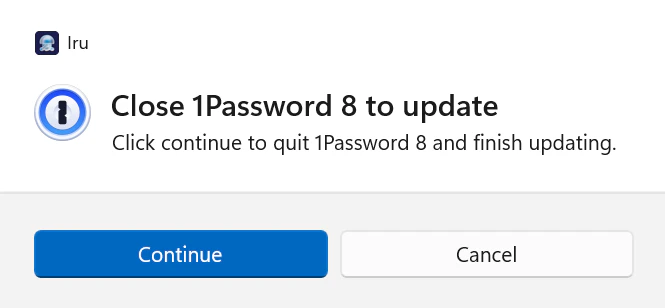
If a running app blocks the install or update, a prompt appears in the center of your screen. A small helper app stays in the **system tray** next to the clock. The prompt names the app, explains why it has to close, and offers:
* **Continue** — The listed app closes right away and the install or update completes.
* **Cancel** — Puts the install on hold. **Iru Agent** keeps trying in the background (see [After you select Cancel](#after-you-select-cancel)).
Save your work before you choose **Continue**, so you don't lose anything unsaved.
### What the Prompt Looks Like
The card header on the left starts with the Iru logomark 
 **Iru**. Under that you'll see the app icon, a short line about which app must close before things can continue, and **Continue** and **Cancel** along the bottom—the same choices described in [About the prompt](#about-the-prompt).
 ### After You Select Cancel
**Cancel** doesn't stop the install for good. **Iru Agent** retries in the background about every **15 minutes** and checks whether the blocking app is still open.
* Close the blocking app yourself, and the install finishes without another prompt.
* Leave it open, and after **8 hours** you'll see the same prompt again.
That repeats until the install succeeds or your IT team's enforcement deadline arrives (see [Enforcement deadline](#enforcement-deadline)).
### Enforcement Deadline
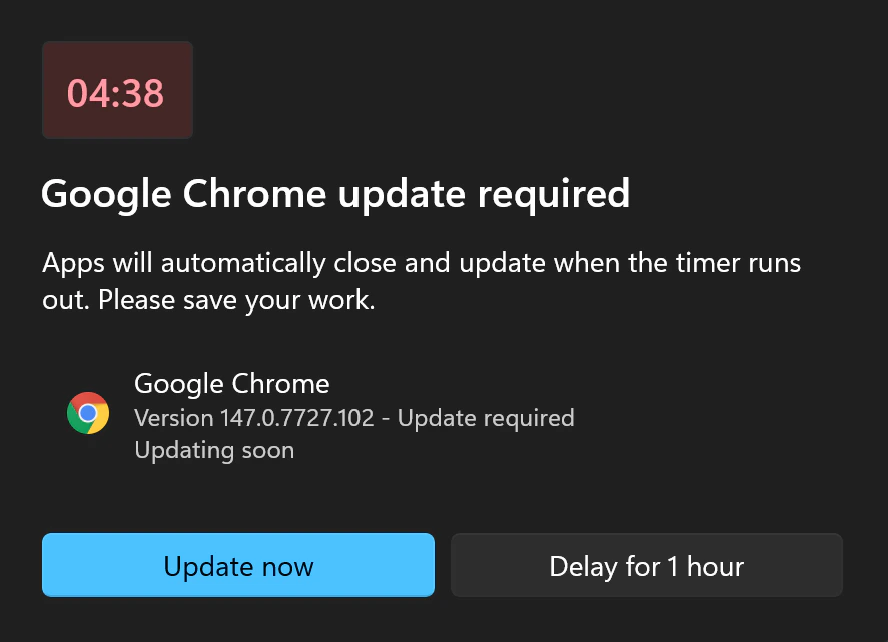
Your IT team can set an **enforcement deadline**: the date and time by which the app must be installed or updated. If the deadline hits while the blocking app is still open, **Iru Agent** shows a **5-minute countdown** on your screen.
### After You Select Cancel
**Cancel** doesn't stop the install for good. **Iru Agent** retries in the background about every **15 minutes** and checks whether the blocking app is still open.
* Close the blocking app yourself, and the install finishes without another prompt.
* Leave it open, and after **8 hours** you'll see the same prompt again.
That repeats until the install succeeds or your IT team's enforcement deadline arrives (see [Enforcement deadline](#enforcement-deadline)).
### Enforcement Deadline
Your IT team can set an **enforcement deadline**: the date and time by which the app must be installed or updated. If the deadline hits while the blocking app is still open, **Iru Agent** shows a **5-minute countdown** on your screen.
 #### During the Countdown
You can:
* **Update now** — Close the app immediately and let the install finish.
* **Delay for 1 hour** — Postpone the countdown. **Iru Agent** still retries in the background about every 15 minutes. If the app is still open an hour later, the countdown comes back.
#### Delay Limit
Across those delays you can postpone for up to **24 hours** in total. Once you've used that time, you get one last countdown with no way to delay further.
Pick **Update now** to close the app and finish right away. If the timer runs out with no response, the app closes on its own and the install runs.
### What to Do
* Save your work before **Continue**, **Update now**, or the countdown ends.
* If you need more room on the clock, use **Delay for 1 hour**—just keep the **24-hour** limit in mind. After that, the install goes through whether you answer the prompt or not.
* If something looks wrong or you aren't sure what to do, contact your **IT team**.
### Related Articles
What to expect when you enroll your Windows device through the enrollment portal
How company app installs and updates work on Windows, including Self Service and when the tray prompt appears
#### During the Countdown
You can:
* **Update now** — Close the app immediately and let the install finish.
* **Delay for 1 hour** — Postpone the countdown. **Iru Agent** still retries in the background about every 15 minutes. If the app is still open an hour later, the countdown comes back.
#### Delay Limit
Across those delays you can postpone for up to **24 hours** in total. Once you've used that time, you get one last countdown with no way to delay further.
Pick **Update now** to close the app and finish right away. If the timer runs out with no response, the app closes on its own and the install runs.
### What to Do
* Save your work before **Continue**, **Update now**, or the countdown ends.
* If you need more room on the clock, use **Delay for 1 hour**—just keep the **24-hour** limit in mind. After that, the install goes through whether you answer the prompt or not.
* If something looks wrong or you aren't sure what to do, contact your **IT team**.
### Related Articles
What to expect when you enroll your Windows device through the enrollment portal
How company app installs and updates work on Windows, including Self Service and when the tray prompt appears