> ## Documentation Index
> Fetch the complete documentation index at: https://docs.iru.com/llms.txt
> Use this file to discover all available pages before exploring further.
# Configure the LAPS Library Item
> Set up the LAPS Library Item in Iru Endpoint to rotate and securely store local administrator passwords on managed Mac computers across your fleet.
This Library Item is available for Mac computers
The **LAPS** (Local Administrator Password Solution) Library Item rotates passwords for the local administrators you define in this Library Item and stores them securely in Iru. Each Mac gets unique passwords for those accounts on a schedule you control, instead of one static admin password across the fleet.
LAPS does not create user accounts. It only rotates passwords for existing local administrators. Create those accounts by provisioning a local administrator (Auto Admin) in an [Automated Device Enrollment Library Item](/en/endpoint/enrollment/apple/configuring-apple-enrollment), or with the [Create User Accounts](/en/endpoint/blueprints/parameters/create-user-accounts) Blueprint Parameter.
This Library Item is enforced by the [Iru Agent](/en/endpoint/agent/iru-agent-and-mdm#about-the-macos-agent), so it works independently of [Apple's MDM protocol](/en/endpoint/agent/iru-agent-and-mdm#about-the-mdm-framework).
You must provide the existing password for each local administrator you define in this Library Item. Iru uses it to preserve SecureToken and volume ownership on Apple silicon.
## Create a LAPS Library Item
To add this Library Item to your Iru Endpoint Library, follow the steps outlined in the [Library Overview](/en/endpoint/library/library-items-profiles/library-overview) article.
Navigate to the **Library** and select **Add Library Item**.
Search for and select **LAPS**.
Give the Library Item a **Name**.
Assign it to one or more **Blueprints**.
## Configure the LAPS Library Item
These settings control the passwords Iru generates. Configure them using the steps below.
In **Password complexity**, optionally use **Import from Passcode** to copy complexity settings from a [Passcode](/en/endpoint/library/library-items-profiles/configure-the-passcode-library-item) Library Item already in your Library. You can import from a **Passcode** Library Item only, not from **Android Work Profile Passcode**.
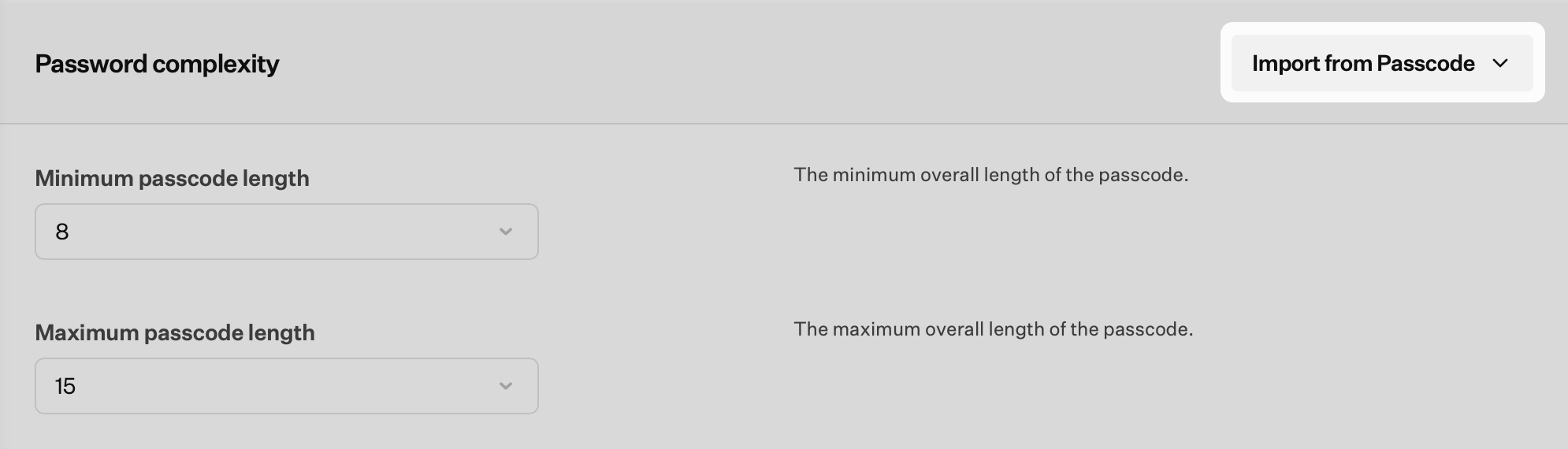 If there is no compatible Passcode Library Item to import from, **Import from Passcode** is disabled and shows **No Library Items available**.
macOS requires passwords on the device to comply with the passcode policy, so importing from an existing Passcode Library Item keeps LAPS aligned with that policy.
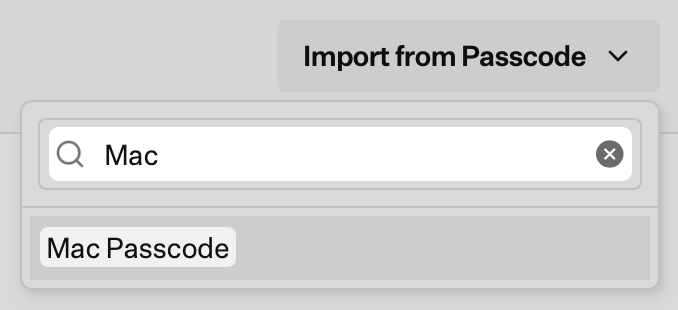
Search by name, then select the Passcode Library Item.
If there is no compatible Passcode Library Item to import from, **Import from Passcode** is disabled and shows **No Library Items available**.
macOS requires passwords on the device to comply with the passcode policy, so importing from an existing Passcode Library Item keeps LAPS aligned with that policy.
Search by name, then select the Passcode Library Item.
 When the import succeeds, matching settings show an **Imported** badge. You can still change any value after import.
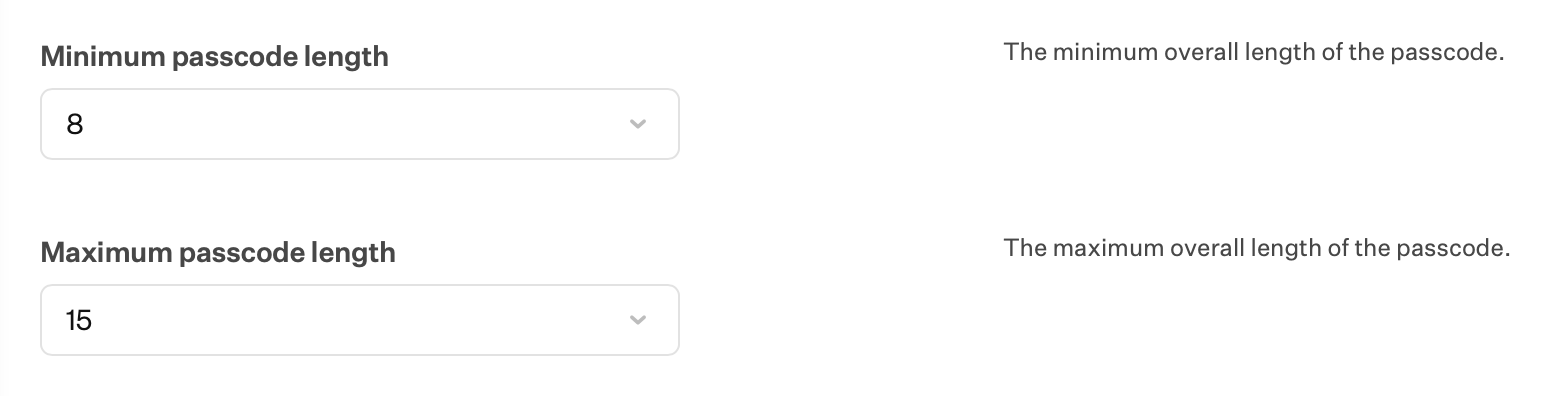
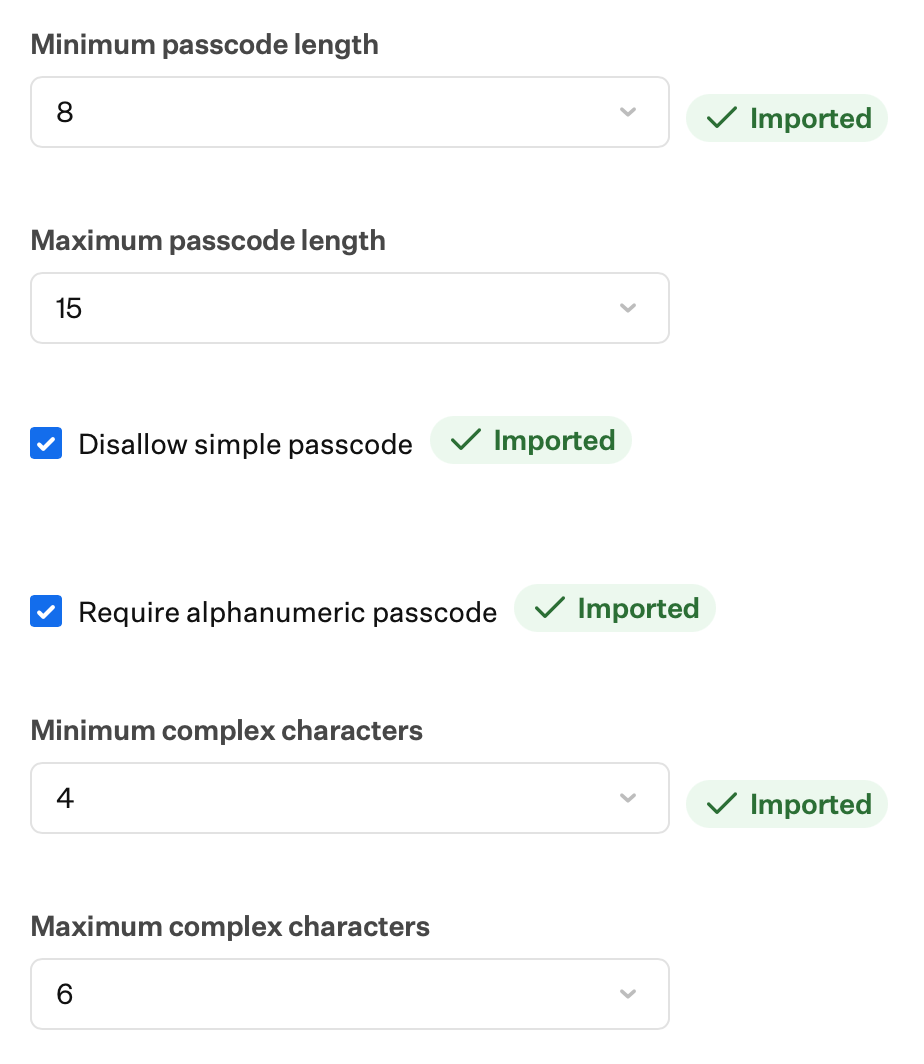 Set **Minimum passcode length** to the minimum overall length of the passcode. Default: **8**. Range: **1** to **36**.
Set **Maximum passcode length** to the maximum overall length of the passcode. Default: **15**. Range: **1** to **36**. Must be at least **Minimum passcode length**.
Set **Minimum passcode length** to the minimum overall length of the passcode. Default: **8**. Range: **1** to **36**.
Set **Maximum passcode length** to the maximum overall length of the passcode. Default: **15**. Range: **1** to **36**. Must be at least **Minimum passcode length**.
 Select **Disallow simple passcode** so passcodes cannot have more than two sequential characters (such as `123` or `CBA`) or more than three repeating characters (such as `111` or `AAA`). Enabled by default.
Select **Require alphanumeric passcode** to require letters as well as numbers. Enabled by default.
Select **Disallow simple passcode** so passcodes cannot have more than two sequential characters (such as `123` or `CBA`) or more than three repeating characters (such as `111` or `AAA`). Enabled by default.
Select **Require alphanumeric passcode** to require letters as well as numbers. Enabled by default.
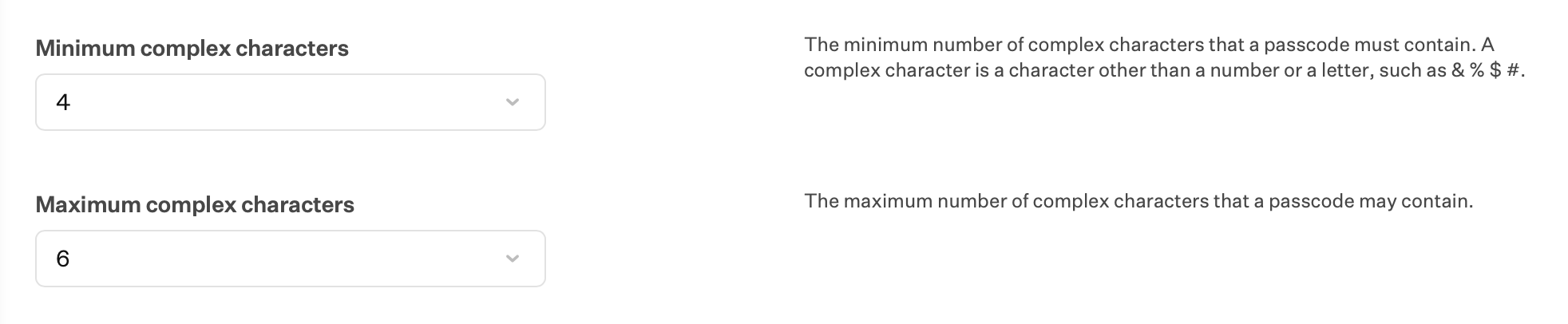
 Set **Minimum complex characters** to the minimum number of complex characters that a passcode must contain. A complex character is a character other than a number or a letter, such as `& % $ #`. Default: **4**. Range: **0** to **36**.
Set **Maximum complex characters** to the maximum number of complex characters that a passcode may contain. Default: **6**. Range: **1** to **36**. Must be at least **Minimum complex characters**.
Set **Minimum complex characters** to the minimum number of complex characters that a passcode must contain. A complex character is a character other than a number or a letter, such as `& % $ #`. Default: **4**. Range: **0** to **36**.
Set **Maximum complex characters** to the maximum number of complex characters that a passcode may contain. Default: **6**. Range: **1** to **36**. Must be at least **Minimum complex characters**.
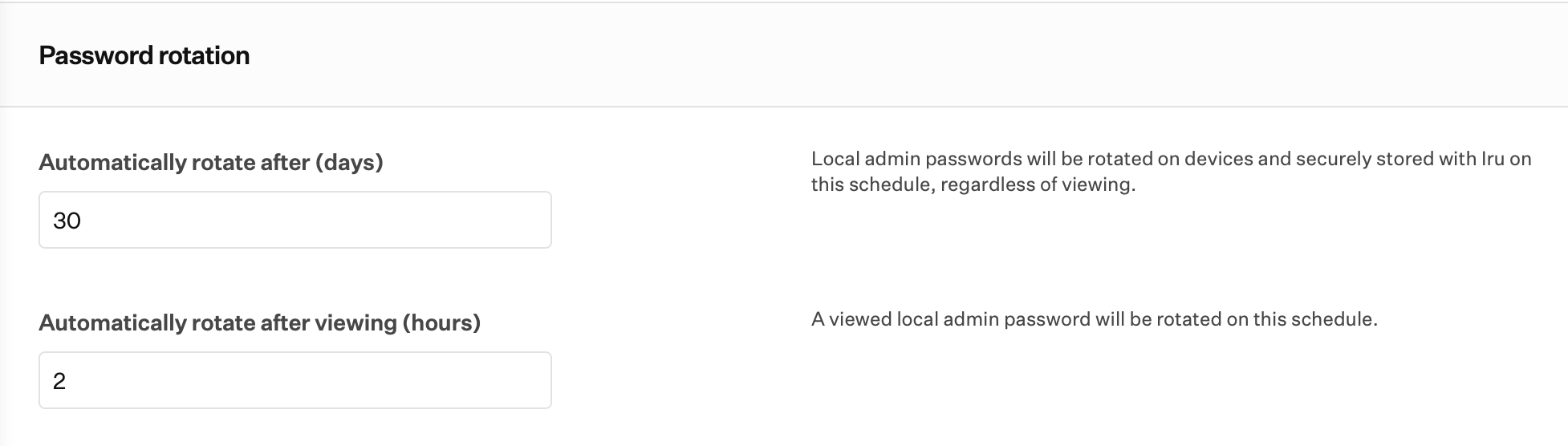
 Set **Automatically rotate after (days)** to how often local admin passwords rotate on devices and are securely stored with Iru, regardless of **Automatically rotate after viewing (hours)**. Range: **1** to **90** days. Default: **30** days.
Set **Automatically rotate after viewing (hours)** to how soon a viewed local admin password rotates. This setting runs independently of **Automatically rotate after (days)**. Range: **1** to **24** hours. Default: **2** hours.
Set **Automatically rotate after (days)** to how often local admin passwords rotate on devices and are securely stored with Iru, regardless of **Automatically rotate after viewing (hours)**. Range: **1** to **90** days. Default: **30** days.
Set **Automatically rotate after viewing (hours)** to how soon a viewed local admin password rotates. This setting runs independently of **Automatically rotate after (days)**. Range: **1** to **24** hours. Default: **2** hours.
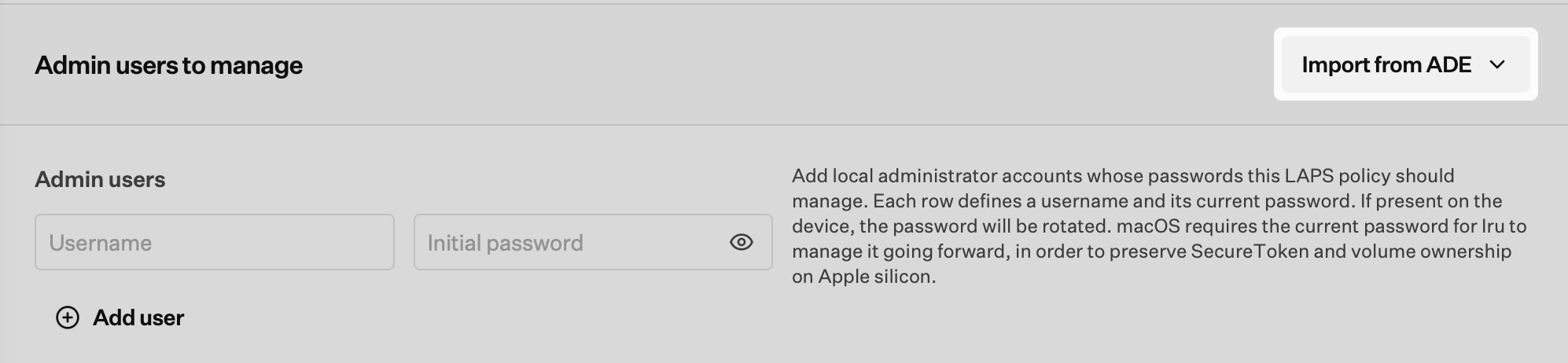
 In **Admin users to manage**, optionally use **Import from ADE** to populate accounts from an [Automated Device Enrollment](/en/endpoint/settings/apple-integrations/configure-automated-device-enrollment) integration.
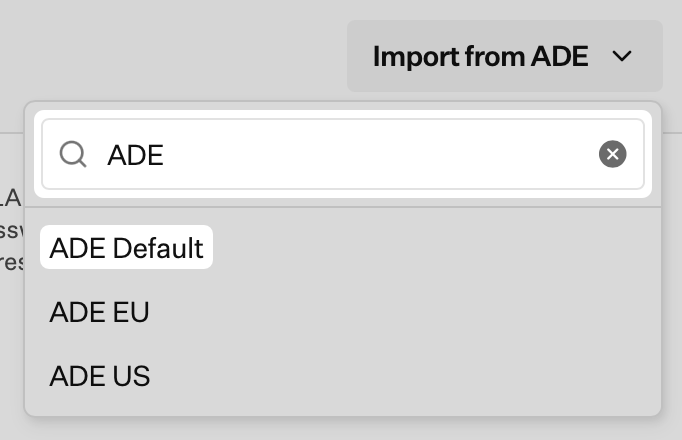
 Search by name, then select the ADE integration.
 When the import succeeds, Iru shows **Imported settings from** the ADE integration name, and an **Imported** badge appears below **+ Add user**.
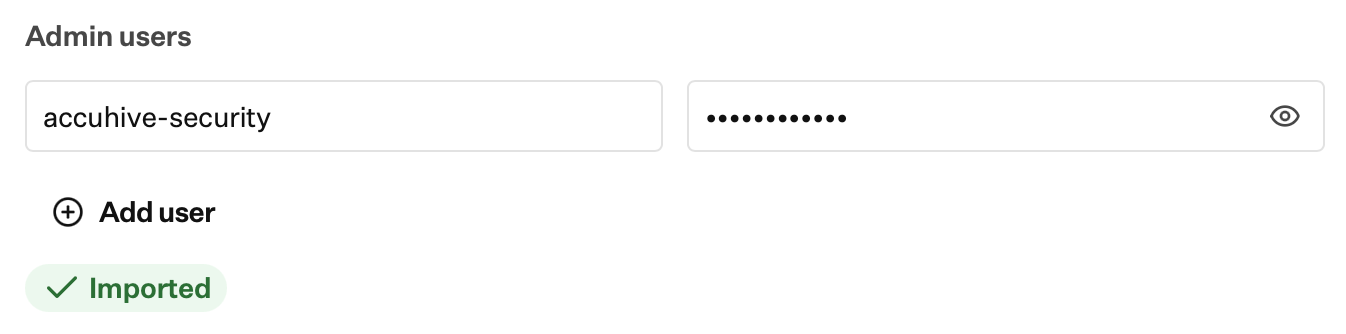 Add local administrator accounts whose passwords this LAPS policy should manage. Each row defines a **Username** and its **Initial password**. If the account is present on the device, the password will be rotated.
Use **+ Add user** to add another row. Use the trash control on a row to remove it. Use the eye icon on **Initial password** to show or hide the value while you are setting or updating it.
Add local administrator accounts whose passwords this LAPS policy should manage. Each row defines a **Username** and its **Initial password**. If the account is present on the device, the password will be rotated.
Use **+ Add user** to add another row. Use the trash control on a row to remove it. Use the eye icon on **Initial password** to show or hide the value while you are setting or updating it.
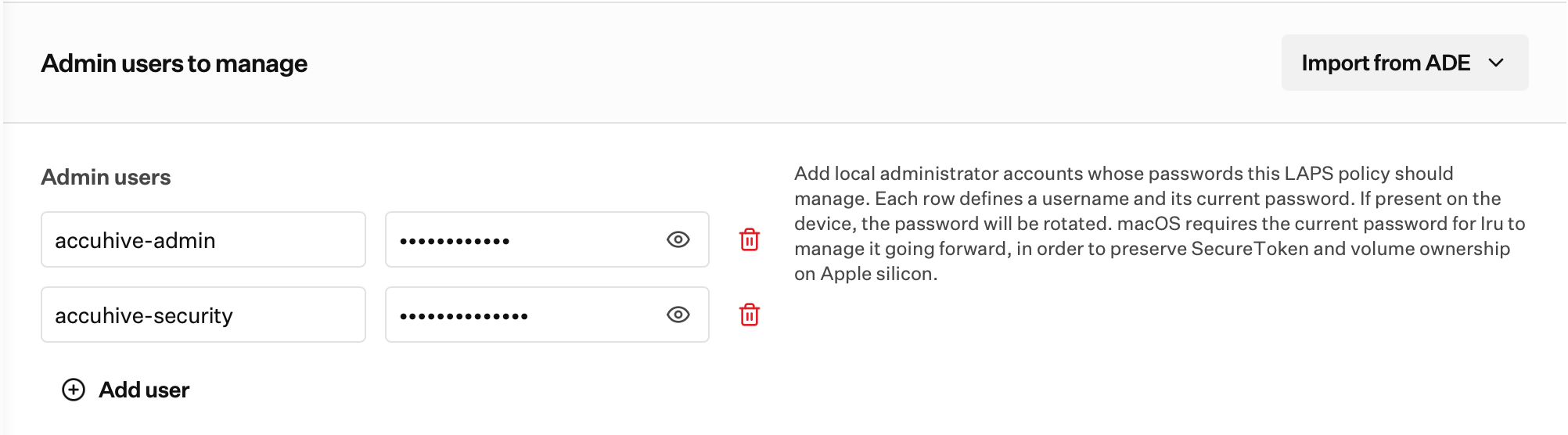 Passwords in **Admin users** are only viewable with the eye icon while you are setting the initial value or updating it. After you save, you cannot view the existing password in the Library Item.
Once a device has had LAPS assigned, you do not need to re-enter the password on later edits to the Library Item. If that account's initial password changes outside LAPS, such as the password in [Automated Device Enrollment](/en/endpoint/settings/apple-integrations/configure-automated-device-enrollment) or the [Create User Accounts](/en/endpoint/blueprints/parameters/create-user-accounts) Blueprint Parameter, update **Initial password** here so it matches what is set on the device now.
Click **Save**.
## View a device's password
Help Desk or higher can reveal a LAPS password. Secrets Auditor and Auditor can see that a password exists but cannot reveal it. Displaying a password logs the view and, if a LAPS Library Item is assigned, starts **Automatically rotate after viewing (hours)**.
Navigate to **Devices** in the Iru Endpoint web app and select the Mac.
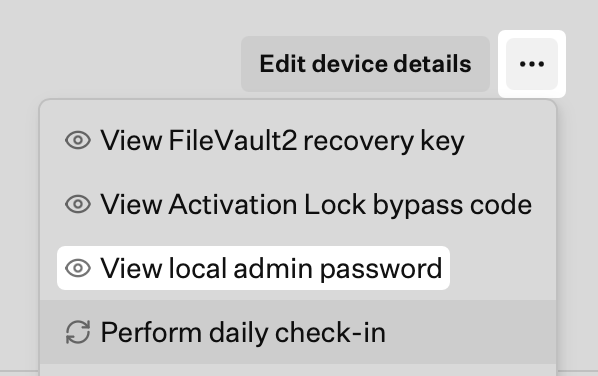
Open the **Device Action Menu** (ellipsis) in the upper right of the device record and select **View local admin password**. This action is available for any device that has ever had a LAPS password, including a device that is currently erased or locked.
Passwords in **Admin users** are only viewable with the eye icon while you are setting the initial value or updating it. After you save, you cannot view the existing password in the Library Item.
Once a device has had LAPS assigned, you do not need to re-enter the password on later edits to the Library Item. If that account's initial password changes outside LAPS, such as the password in [Automated Device Enrollment](/en/endpoint/settings/apple-integrations/configure-automated-device-enrollment) or the [Create User Accounts](/en/endpoint/blueprints/parameters/create-user-accounts) Blueprint Parameter, update **Initial password** here so it matches what is set on the device now.
Click **Save**.
## View a device's password
Help Desk or higher can reveal a LAPS password. Secrets Auditor and Auditor can see that a password exists but cannot reveal it. Displaying a password logs the view and, if a LAPS Library Item is assigned, starts **Automatically rotate after viewing (hours)**.
Navigate to **Devices** in the Iru Endpoint web app and select the Mac.
Open the **Device Action Menu** (ellipsis) in the upper right of the device record and select **View local admin password**. This action is available for any device that has ever had a LAPS password, including a device that is currently erased or locked.
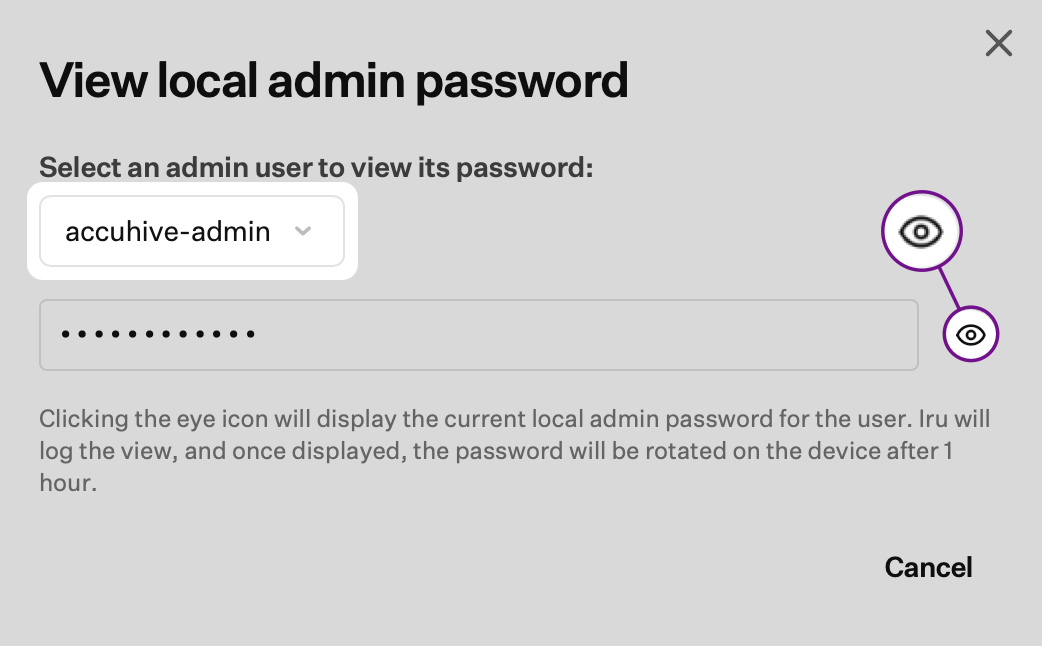
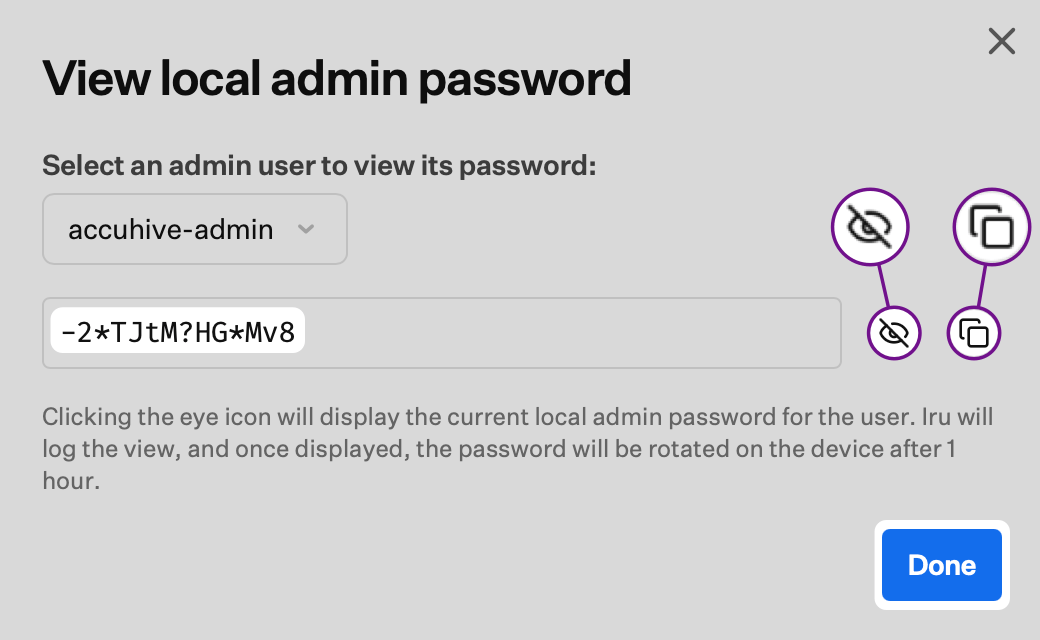
 In the **View local admin password** dialog, use **Select an admin user to view its password** to choose the account if more than one is managed on the device.
Click the eye icon to display the current local admin password. That click logs who viewed the password and when, and starts **Automatically rotate after viewing (hours)**. The dialog states that after the password is displayed, it rotates on the device after that configured time.
In the **View local admin password** dialog, use **Select an admin user to view its password** to choose the account if more than one is managed on the device.
Click the eye icon to display the current local admin password. That click logs who viewed the password and when, and starts **Automatically rotate after viewing (hours)**. The dialog states that after the password is displayed, it rotates on the device after that configured time.
 If no LAPS Library Item is assigned at the time you view, Iru warns that **Automatically rotate after viewing (hours)** will not apply. The view is still logged.
After the password is displayed, click the eye icon with a line through it to hide the password.
Click the copy icon to copy the password.
Click **Done** when you are finished.
If no LAPS Library Item is assigned at the time you view, Iru warns that **Automatically rotate after viewing (hours)** will not apply. The view is still logged.
After the password is displayed, click the eye icon with a line through it to hide the password.
Click the copy icon to copy the password.
Click **Done** when you are finished.
 ### View activity records
Local admin password activity is recorded on the device record **Activity** tab and in [Unified Activity](/en/iru/platform-overview/unified-activity). These events do not appear on the [Activity Page](/en/endpoint/devices/activity-page).
#### Device record
On the device record **Activity** tab, Iru records when a local admin password is viewed, rotated, or fails to rotate.
A **Local Admin Password Viewed** entry shows the local admin username, who viewed the password, the device, and when.
### View activity records
Local admin password activity is recorded on the device record **Activity** tab and in [Unified Activity](/en/iru/platform-overview/unified-activity). These events do not appear on the [Activity Page](/en/endpoint/devices/activity-page).
#### Device record
On the device record **Activity** tab, Iru records when a local admin password is viewed, rotated, or fails to rotate.
A **Local Admin Password Viewed** entry shows the local admin username, who viewed the password, the device, and when.
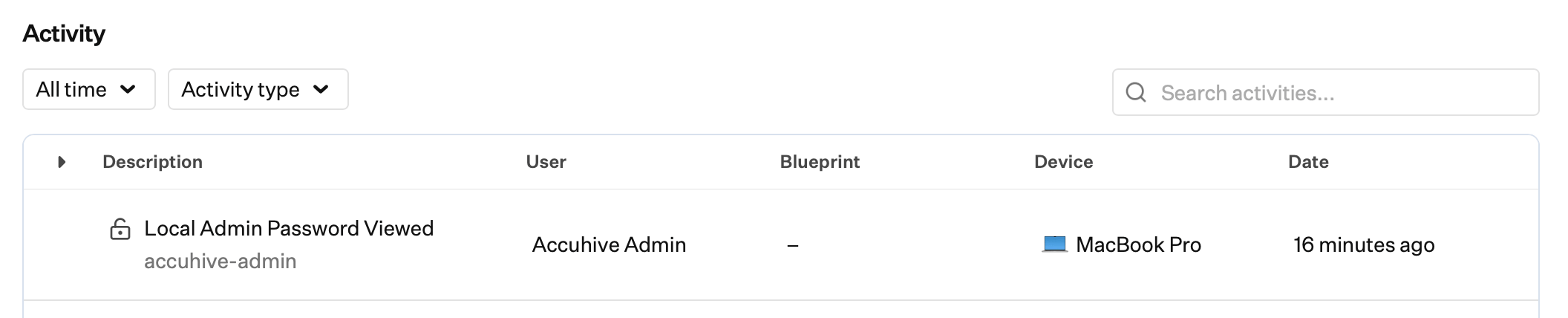 A **Local Admin Password Rotated** entry shows the local admin username, the Blueprint, the device, and when.
 A **Local Admin Password Rotation Failed** entry shows the local admin username, a reason, the Blueprint, the device, and when.
 #### Unified Activity
Unified Activity records when a local admin password is viewed and when it is updated, including success and failure.
In Unified Activity, open **Activity type**, search **Local admin**, and under **Endpoint** select **Local admin password viewed**, **Local admin password updated**, or both. Click **Apply**.
#### Unified Activity
Unified Activity records when a local admin password is viewed and when it is updated, including success and failure.
In Unified Activity, open **Activity type**, search **Local admin**, and under **Endpoint** select **Local admin password viewed**, **Local admin password updated**, or both. Click **Apply**.
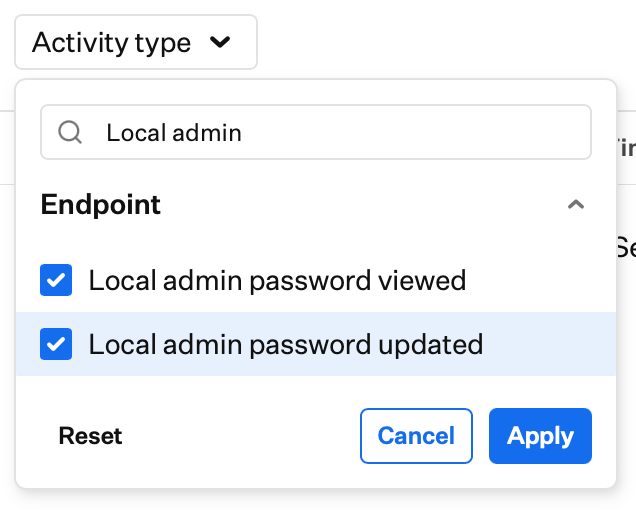 A **Local admin password viewed** entry shows the local admin username, who viewed the password, and when.
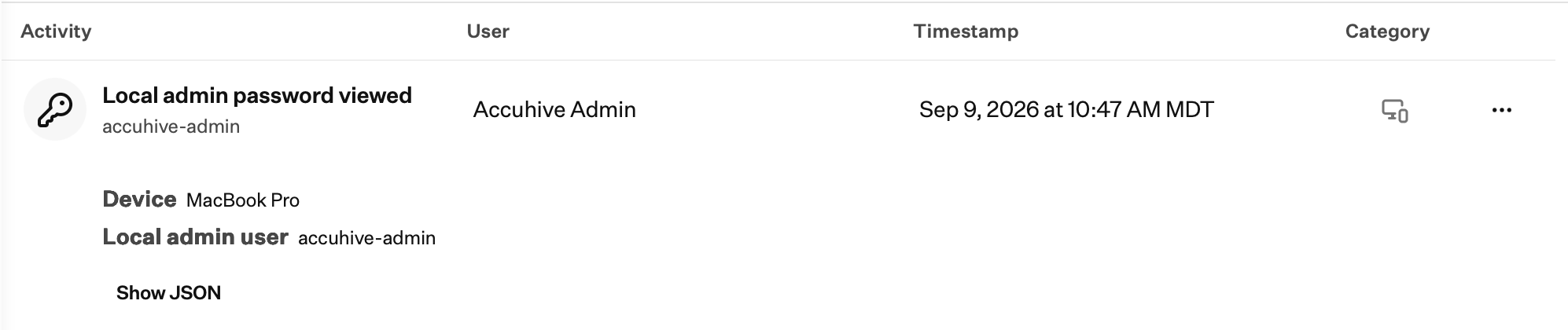 Expand a **Local admin password updated** entry. A successful rotation shows **Rotated for** the local admin username. Details include **Device**, **Local admin user**, **Outcome** (**Local admin password rotated**), and **Completed at**.
 A failed rotation uses the same **Local admin password updated** activity type. It shows **Rotation failed for** the local admin username. Details include **Outcome** (**Local admin password rotation failed**) and **Reason**.
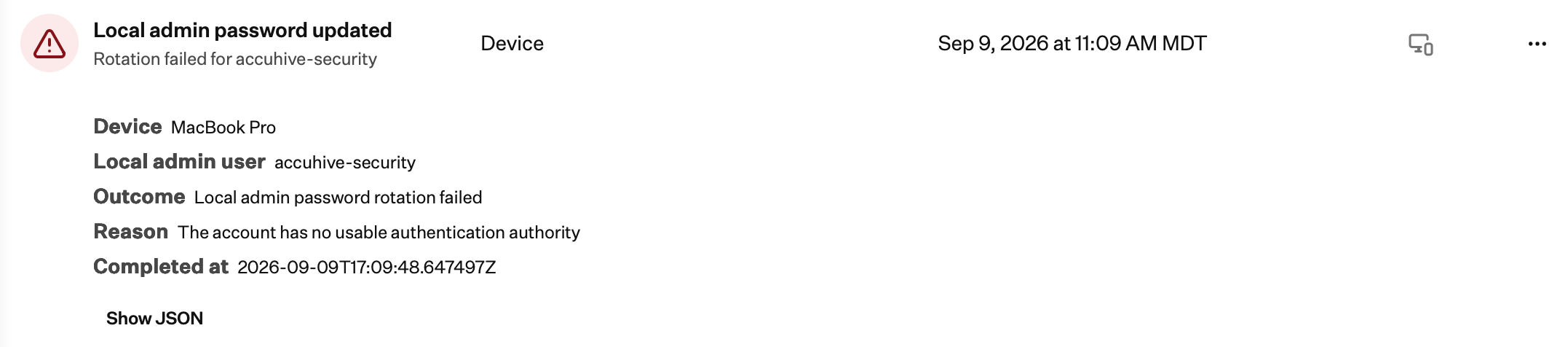 Click the ellipsis (**…**) next to the activity entry and select **Go to device** to open the related device record.
## Considerations
LAPS only manages local administrator accounts. Standard accounts are rejected with an error.
A device can have one LAPS Library Item assigned. Assigning a second Library Item is not supported.
You must provide the existing password for each local administrator you define in this Library Item. Iru uses it to preserve SecureToken and volume ownership on Apple silicon. If Iru's record of a device's current password falls out of sync, [contact Iru Support](/en/iru/iru-support/access-to-iru-support). Without SecureToken, that account cannot unlock FileVault after a restart.
Re-enrolling a device rotates its password at the next check-in, not on whatever was left of **Automatically rotate after (days)**.
The [Set Auto Admin Account Password](/en/endpoint/devices/device-actions/set-the-auto-admin-account-password) device action is not available when LAPS is assigned. LAPS manages that password.
Help Desk or higher can reveal a LAPS password. Secrets Auditor and Auditor cannot. Displaying a password starts **Automatically rotate after viewing (hours)** only if a LAPS Library Item is assigned.
## Best Practices
Import complexity settings from an existing Passcode Library Item if you have already tuned them, so LAPS and Passcode stay consistent.
Use **Automatically rotate after (days)** and **Automatically rotate after viewing (hours)** to balance convenience against how long a viewed password remains valid.
When a password fails to rotate, check the **Reason** field in [Unified Activity](/en/iru/platform-overview/unified-activity) or the device record **Activity** tab. Most failures state the cause directly.
## Troubleshooting
**Possible causes:**
* The ADE integration does not define a local administrator account
**Solutions:**
* In [Automated Device Enrollment](/en/endpoint/settings/apple-integrations/configure-automated-device-enrollment), confirm a local admin account is configured, then import again
**Possible causes:**
* You already imported from that ADE integration
* You added the same username manually
**Solutions:**
* Keep the existing row. Iru does not add a duplicate.
When a password fails to rotate, check **Reason** in [Unified Activity](/en/iru/platform-overview/unified-activity) (`Reason: `) or the device record **Activity** tab (`: `).
**Possible causes:**
* The Reason field names the cause, such as a locked keychain
* The account is not a local administrator
* Iru's stored current password does not match the device
**Solutions:**
* Confirm the account is an administrator. LAPS does not manage standard accounts
* There is no automatic retry. The next attempt follows **Automatically rotate after (days)**
* If the stored password is out of sync, [contact Iru Support](/en/iru/iru-support/access-to-iru-support)
**Possible causes:**
* No LAPS Library Item was assigned to the device at the time of viewing
**Solutions:**
* Assign a LAPS Library Item if you want **Automatically rotate after viewing (hours)** and **Automatically rotate after (days)** going forward
* The view is still logged even when **Automatically rotate after viewing (hours)** does not start
**Possible causes:**
* LAPS is assigned to this device, so the conflicting MDM command is hidden
**Solutions:**
* Expected when LAPS is assigned. Use **View local admin password** instead
* Remove LAPS from the device's Blueprint only if you need the Set Auto Admin Password action
**Possible causes:**
* The account is not an administrator
* The account is not present on the device
* The current password in the Library Item does not match the account on the device
**Solutions:**
* Confirm the account is a local administrator
* Confirm the username matches the account on the Mac
* Provide the current password on first assignment so Iru can take over the account
## Related Articles
Curate, create, and manage Library Items and add them to Blueprints.
LAPS is agent-based, so it works independently of Apple's MDM protocol.
Local admin password viewed and updated events appear in Unified Activity, not on the Activity Page.
Create local administrator accounts for LAPS to rotate. LAPS does not create accounts.
Enforce passcode requirements, including settings you can import into LAPS.
Configure recovery passwords on Mac computers with Apple silicon and Intel.
The MDM command LAPS replaces while it is assigned.
ADE integrations you can import admin accounts from.
FileVault encryption and recovery keys on Mac computers.
Click the ellipsis (**…**) next to the activity entry and select **Go to device** to open the related device record.
## Considerations
LAPS only manages local administrator accounts. Standard accounts are rejected with an error.
A device can have one LAPS Library Item assigned. Assigning a second Library Item is not supported.
You must provide the existing password for each local administrator you define in this Library Item. Iru uses it to preserve SecureToken and volume ownership on Apple silicon. If Iru's record of a device's current password falls out of sync, [contact Iru Support](/en/iru/iru-support/access-to-iru-support). Without SecureToken, that account cannot unlock FileVault after a restart.
Re-enrolling a device rotates its password at the next check-in, not on whatever was left of **Automatically rotate after (days)**.
The [Set Auto Admin Account Password](/en/endpoint/devices/device-actions/set-the-auto-admin-account-password) device action is not available when LAPS is assigned. LAPS manages that password.
Help Desk or higher can reveal a LAPS password. Secrets Auditor and Auditor cannot. Displaying a password starts **Automatically rotate after viewing (hours)** only if a LAPS Library Item is assigned.
## Best Practices
Import complexity settings from an existing Passcode Library Item if you have already tuned them, so LAPS and Passcode stay consistent.
Use **Automatically rotate after (days)** and **Automatically rotate after viewing (hours)** to balance convenience against how long a viewed password remains valid.
When a password fails to rotate, check the **Reason** field in [Unified Activity](/en/iru/platform-overview/unified-activity) or the device record **Activity** tab. Most failures state the cause directly.
## Troubleshooting
**Possible causes:**
* The ADE integration does not define a local administrator account
**Solutions:**
* In [Automated Device Enrollment](/en/endpoint/settings/apple-integrations/configure-automated-device-enrollment), confirm a local admin account is configured, then import again
**Possible causes:**
* You already imported from that ADE integration
* You added the same username manually
**Solutions:**
* Keep the existing row. Iru does not add a duplicate.
When a password fails to rotate, check **Reason** in [Unified Activity](/en/iru/platform-overview/unified-activity) (`Reason: `) or the device record **Activity** tab (`: `).
**Possible causes:**
* The Reason field names the cause, such as a locked keychain
* The account is not a local administrator
* Iru's stored current password does not match the device
**Solutions:**
* Confirm the account is an administrator. LAPS does not manage standard accounts
* There is no automatic retry. The next attempt follows **Automatically rotate after (days)**
* If the stored password is out of sync, [contact Iru Support](/en/iru/iru-support/access-to-iru-support)
**Possible causes:**
* No LAPS Library Item was assigned to the device at the time of viewing
**Solutions:**
* Assign a LAPS Library Item if you want **Automatically rotate after viewing (hours)** and **Automatically rotate after (days)** going forward
* The view is still logged even when **Automatically rotate after viewing (hours)** does not start
**Possible causes:**
* LAPS is assigned to this device, so the conflicting MDM command is hidden
**Solutions:**
* Expected when LAPS is assigned. Use **View local admin password** instead
* Remove LAPS from the device's Blueprint only if you need the Set Auto Admin Password action
**Possible causes:**
* The account is not an administrator
* The account is not present on the device
* The current password in the Library Item does not match the account on the device
**Solutions:**
* Confirm the account is a local administrator
* Confirm the username matches the account on the Mac
* Provide the current password on first assignment so Iru can take over the account
## Related Articles
Curate, create, and manage Library Items and add them to Blueprints.
LAPS is agent-based, so it works independently of Apple's MDM protocol.
Local admin password viewed and updated events appear in Unified Activity, not on the Activity Page.
Create local administrator accounts for LAPS to rotate. LAPS does not create accounts.
Enforce passcode requirements, including settings you can import into LAPS.
Configure recovery passwords on Mac computers with Apple silicon and Intel.
The MDM command LAPS replaces while it is assigned.
ADE integrations you can import admin accounts from.
FileVault encryption and recovery keys on Mac computers.