> ## Documentation Index
> Fetch the complete documentation index at: https://docs.iru.com/llms.txt
> Use this file to discover all available pages before exploring further.
# Configure the In-House App Library Item
> Deploy enterprise in-house iOS and iPadOS apps using the In-House App Library Item in Iru Endpoint. Upload IPA files and manage app distribution.
This guide applies to iOS devices and iPadOS devices
### In-House Apps
In-House apps are proprietary applications designed for internal use within an organization. They are particularly useful when you need to keep your Custom Apps private and avoid the Apple App Store's review process. These apps are typically distributed directly to devices within your organization, bypassing public distribution channels. For more information about in-house apps, please see [Apple's documentation](https://support.apple.com/guide/deployment/distribute-proprietary-in-house-apps-depce7cefc4d/web).
### How It Works
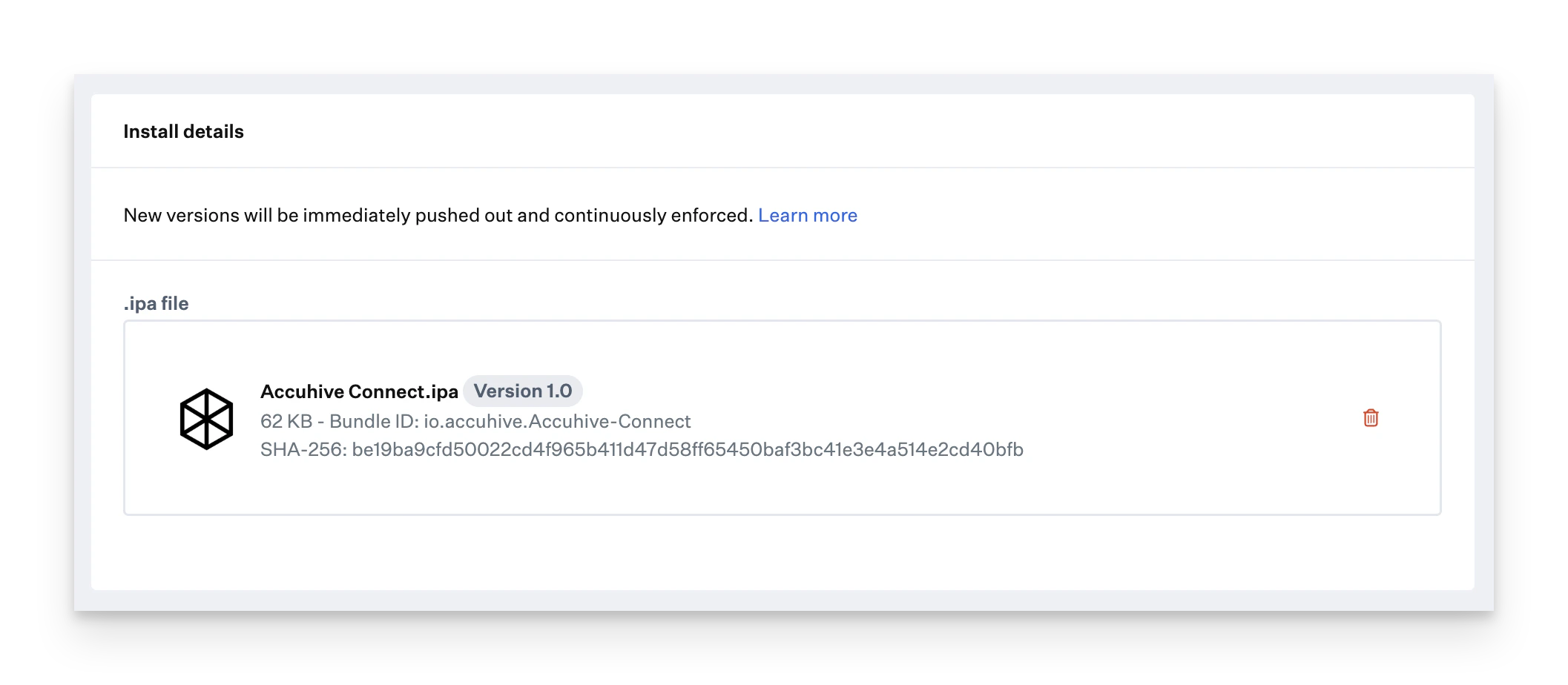
In-house apps allow organizations to deploy Custom Apps across their fleet of Apple devices. Using Iru Endpoint, you can create an In-House App Library Item to manage these deployments. When you upload your app's .ipa file to Iru Endpoint, the file is processed, parsing details like the app icon, bundle ID, and version information. Iru Endpoint then uses those details to automatically generate the required manifest file and deploy the app.
### Requirements
* The uploaded file must be in .ipa format
* The .ipa file size must not exceed 4GB
* The uploaded file bundle version must be a semantic, integer-based version
* When updating an in-house app, the newly uploaded file bundle ID must match the existing bundle ID
* When updating an in-house app, the newly uploaded file bundle version must be higher than the previous version
### Add and Configure an In-House App Library Item
To add this Library Item to your Iru Endpoint Library, follow the steps outlined in the [Library Overview](/en/endpoint/library/library-items-profiles/library-overview) article.
Give the new In-House App Library Item a **Name**.
Assign to your desired [Blueprints](/en/endpoint/getting-started/blueprints-and-library/configuring-blueprints).
Under **Install Details**, upload your in-house app's .ipa file.
Once your app is uploaded, it will be checked for file type, version, and bundle ID validity.
 ### AppConfig for In-House Apps
The In-House App Library Item supports managed app configuration (AppConfig) for iOS, iPadOS, tvOS, and visionOS. You can paste an XML dictionary of key-value pairs so the app is configured over-the-air when it deploys. Edits to the app configuration automatically deploy to all assigned devices.
In the Library, open the In-House App you want to configure.
Locate the **Set app configuration** option and enable it. Paste your AppConfig XML dictionary of key-value pairs.
Click **Save**. The configuration deploys with the app and updates when you change it.
For more on AppConfig format and examples, see [Using AppConfig](/en/endpoint/library/library-items-profiles/using-appconfig).
### Updating In-House Apps
When you're ready to deploy a newer version of an in-house app, there are two recommended approaches:
#### Update the Existing In-House App in the Library
* Upload the new version to the current In-House App Library Item. This will replace the old file and automatically send new installation commands to all devices assigned to that Library Item.
* The new version must have the same Bundle ID as the previous one, and the version number should be higher than the current version.
#### Create a New Library Item for the New Version
* If you’d prefer to roll out the new version to a specific group of devices while keeping others on the current version, you can create a new In-House App Library Item.
* Using Assignment Maps is recommended for this option.
* Keep in mind that Blueprints or Assignment Map nodes can only include one in-house app per Bundle ID (the unique identifier Apple requires for each app). However, you can use the same Bundle ID across different Assignment Map nodes. Remember, the rightmost node always takes priority.
* To keep things organized, name the Library Item with the app’s version number so you can easily distinguish between different versions of the same app.
### App Icon Parsing Considerations
* When uploading an .ipa file to an In-House App Library Item, Iru Endpoint parses the metadata from the **Info.plist** file generated by Xcode. This file includes crucial info like metadata and icon images. The way Xcode builds these apps can vary based on your developer’s configuration.
* To ensure Iru Endpoint can extract the correct app icon for display in either the In-House Apps Library or the Home Screen Layout Library Item, the icon image files must be **.png** files, and their filenames must be directly referenced in the **Info.plist** file.
For example, in the **Accuhive.ipa** test app, the **Info.plist** file might look something like this under the **CFBundleIcons** key:
```xml Info.plist lines theme={null}
CFBundleIcons
CFBundlePrimaryIcon
CFBundleIconFiles
AppIcon60x60
CFBundleIconName
AppIcon
```
In this case, Iru uses the **CFBundleIconFiles** key to locate and extract the app icon for display within the Library Item.
### AppConfig for In-House Apps
The In-House App Library Item supports managed app configuration (AppConfig) for iOS, iPadOS, tvOS, and visionOS. You can paste an XML dictionary of key-value pairs so the app is configured over-the-air when it deploys. Edits to the app configuration automatically deploy to all assigned devices.
In the Library, open the In-House App you want to configure.
Locate the **Set app configuration** option and enable it. Paste your AppConfig XML dictionary of key-value pairs.
Click **Save**. The configuration deploys with the app and updates when you change it.
For more on AppConfig format and examples, see [Using AppConfig](/en/endpoint/library/library-items-profiles/using-appconfig).
### Updating In-House Apps
When you're ready to deploy a newer version of an in-house app, there are two recommended approaches:
#### Update the Existing In-House App in the Library
* Upload the new version to the current In-House App Library Item. This will replace the old file and automatically send new installation commands to all devices assigned to that Library Item.
* The new version must have the same Bundle ID as the previous one, and the version number should be higher than the current version.
#### Create a New Library Item for the New Version
* If you’d prefer to roll out the new version to a specific group of devices while keeping others on the current version, you can create a new In-House App Library Item.
* Using Assignment Maps is recommended for this option.
* Keep in mind that Blueprints or Assignment Map nodes can only include one in-house app per Bundle ID (the unique identifier Apple requires for each app). However, you can use the same Bundle ID across different Assignment Map nodes. Remember, the rightmost node always takes priority.
* To keep things organized, name the Library Item with the app’s version number so you can easily distinguish between different versions of the same app.
### App Icon Parsing Considerations
* When uploading an .ipa file to an In-House App Library Item, Iru Endpoint parses the metadata from the **Info.plist** file generated by Xcode. This file includes crucial info like metadata and icon images. The way Xcode builds these apps can vary based on your developer’s configuration.
* To ensure Iru Endpoint can extract the correct app icon for display in either the In-House Apps Library or the Home Screen Layout Library Item, the icon image files must be **.png** files, and their filenames must be directly referenced in the **Info.plist** file.
For example, in the **Accuhive.ipa** test app, the **Info.plist** file might look something like this under the **CFBundleIcons** key:
```xml Info.plist lines theme={null}
CFBundleIcons
CFBundlePrimaryIcon
CFBundleIconFiles
AppIcon60x60
CFBundleIconName
AppIcon
```
In this case, Iru uses the **CFBundleIconFiles** key to locate and extract the app icon for display within the Library Item.
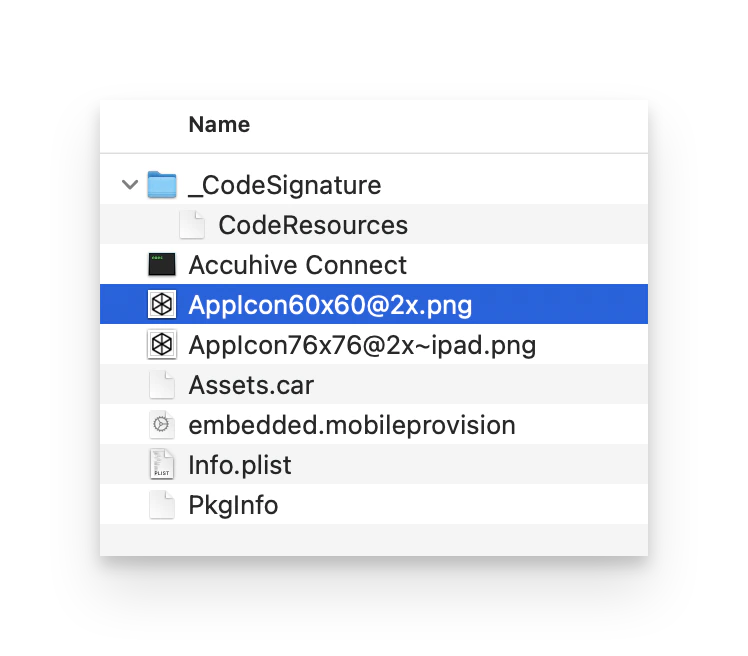 If the **Info.plist** file doesn’t reference an icon file, Iru won’t be able to display an icon in the Library Item. However, this only impacts Iru’s display. When the app is installed on a device, it will use the icon built into the app itself.
### Other Considerations
* In-House Apps can be managed using the [Iru API](/en/endpoint/api/iru-api-overview). For more information, see our [API documentation](https://api-docs.kandji.io/#7468c0a8-7369-45cf-8f4b-0ef5725efc46).
* Acceptable .ipa app version formats include integer-based X.Y.Z or X.Y. Other formats, such as X or those containing letters or symbols, are not permitted.
* Once saved, your app will appear with its version and bundle ID information, making it easy to identify which app and version are ready for deployment. The details at the top of the Library Item will update to reflect this information.
* Blueprints or Assignment Map Nodes can only include one In-House App per Bundle ID (the unique identifier Apple requires for each app on a device). However, you can use the same In-House App bundle ID across different nodes. As with all Assignment Map nodes, the rightmost nodes take precedence.
If the **Info.plist** file doesn’t reference an icon file, Iru won’t be able to display an icon in the Library Item. However, this only impacts Iru’s display. When the app is installed on a device, it will use the icon built into the app itself.
### Other Considerations
* In-House Apps can be managed using the [Iru API](/en/endpoint/api/iru-api-overview). For more information, see our [API documentation](https://api-docs.kandji.io/#7468c0a8-7369-45cf-8f4b-0ef5725efc46).
* Acceptable .ipa app version formats include integer-based X.Y.Z or X.Y. Other formats, such as X or those containing letters or symbols, are not permitted.
* Once saved, your app will appear with its version and bundle ID information, making it easy to identify which app and version are ready for deployment. The details at the top of the Library Item will update to reflect this information.
* Blueprints or Assignment Map Nodes can only include one In-House App per Bundle ID (the unique identifier Apple requires for each app on a device). However, you can use the same In-House App bundle ID across different nodes. As with all Assignment Map nodes, the rightmost nodes take precedence.