> ## Documentation Index
> Fetch the complete documentation index at: https://docs.iru.com/llms.txt
> Use this file to discover all available pages before exploring further.
# Configure the Ethernet Library Item
> Set up the Ethernet Library Item in Iru Endpoint to configure 802.1X authentication for wired network connections on Apple and Windows devices.
This Library Item is available for Apple devices
### What is 802.1X Authentication?
802.1X is a standard for controlling access to a network. It ensures that only authorized devices can connect, making your network more secure. This protocol is used in both wired (ethernet) and wireless networks.
### How 802.1X Authentication Works
There are three main parts involved in 802.1X authentication:
* **Supplicant** - This is the device (like your user's Mac) that wants to join the network. It provides credentials to the authenticator.
* **Authenticator** - This is a network device, such as a switch or access point, that controls access to the network. It checks the credentials and decides whether to allow the device to connect.
* **Authentication Server** - Usually a RADIUS server, it verifies the credentials provided by the supplicant and tells the authenticator whether to grant access.
Iru uses MDM controls to configure your Mac computers with the required credentials to provide to the authenticator and authentication servers. Please work with your network team internally to determine your network requirements before configuring and deploying this Library Item.
### Add an Ethernet Library Item
To add this Library Item to your Iru Endpoint Library, follow the steps outlined in the [Library Overview](/en/endpoint/library/library-items-profiles/library-overview) article.
Give the new Ethernet Library Item a **Name**.
**Assign** to your desired [Blueprints](/en/endpoint/getting-started/blueprints-and-library/configuring-blueprints).
### Configure Authentication Settings
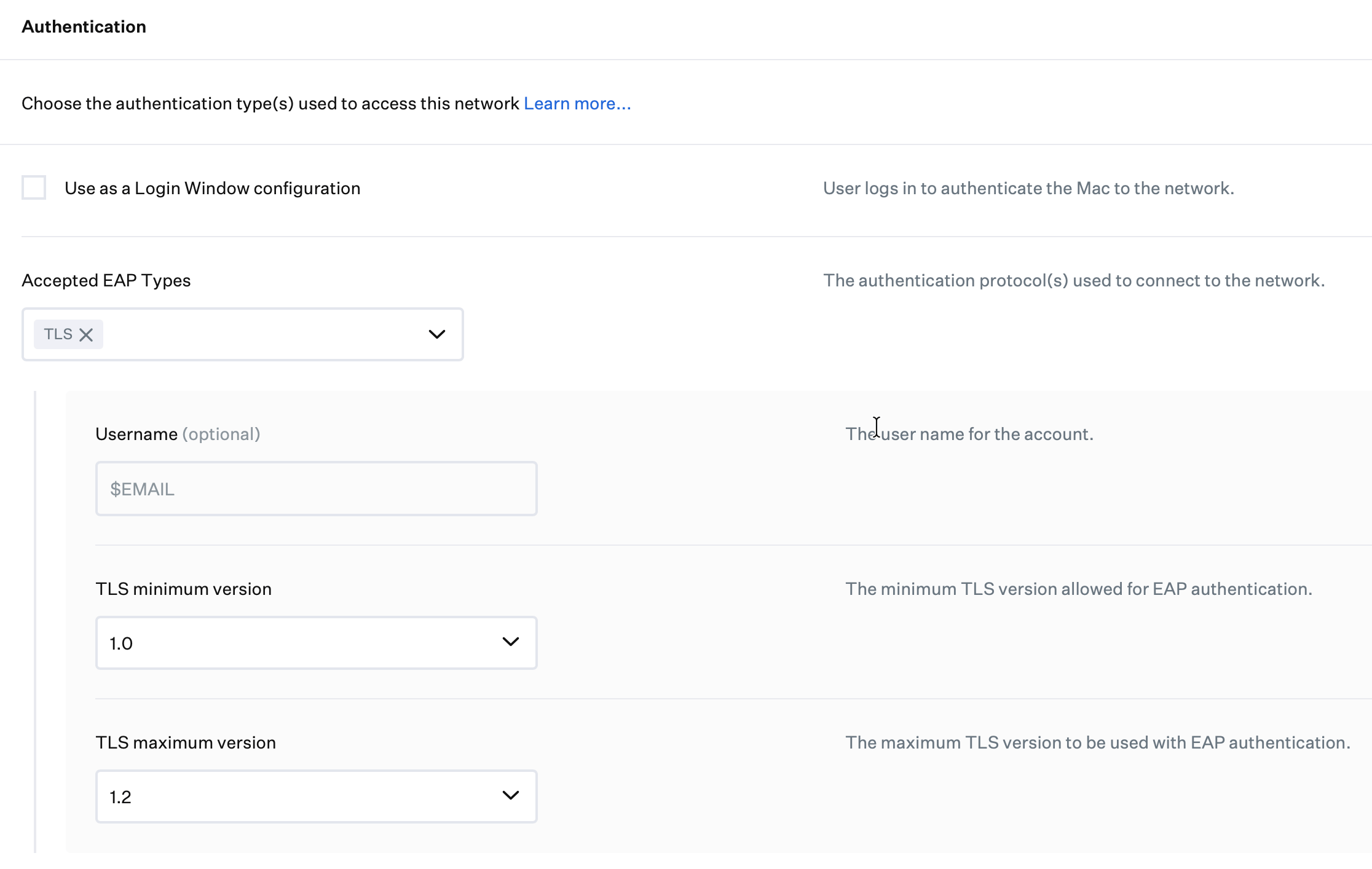
#### Use as Login Window Configuration
Using this configuration requires integration with a directory service. See [this Apple support article](https://support.apple.com/en-us/102001) for more information.
This setting uses credentials entered at the login window to authenticate to the network using 802.1X protocols. This is particularly useful in environments where user credentials are required as a network authentication method. When you enable this setting, Mac computers will authenticate to the network using the credentials provided at the login screen, meaning they will not have network connectivity before login.
#### Accepted EAP Types
Select the **Accepted EAP Types** your network supports. You may select more than one and must set all the settings necessary for the selected EAP types. For more information on configuring specific EAP types, refer to our [Configuring EAP (Extensible Authentication Protocol) Types](/en/endpoint/library/deployment-guides/apple/configure-eap-extensible-authentication-protocol-types) support article.
Many older encryption protocols are no longer considered secure. Use the most up-to-date authentication and encryption supported by your network.
 ### Configure an Identity Certificate
You can configure an identity certificate using AD CS, SCEP, or by uploading a PKCS #12 file. For instructions on configuring identity certificates, see our [Using Identity Certificates for 802.1X Authentication](/en/endpoint/integrations/certificate-services/using-identity-certificates-for-802-1x-authentication) support article.
When using AD CS, first set up the [AD CS integration](/en/endpoint/integrations/certificate-services/active-directory-certificate-services/active-directory-certificate-services-ad-cs-integration-overview) and add your certificate authority servers in [AD CS Integration: Configure the Integration](/en/endpoint/integrations/certificate-services/active-directory-certificate-services/active-directory-certificate-services-ad-cs-integration-configure-the-integration).
#### Configure SCEP
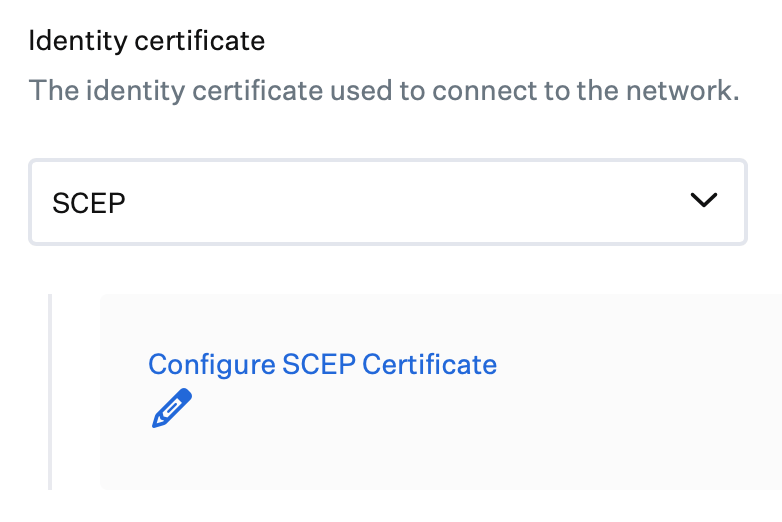
When using SCEP for identity certificates, ensure that SCEP is deployed inside the Ethernet Library Item, not as a separate SCEP Library Item.
### Configure an Identity Certificate
You can configure an identity certificate using AD CS, SCEP, or by uploading a PKCS #12 file. For instructions on configuring identity certificates, see our [Using Identity Certificates for 802.1X Authentication](/en/endpoint/integrations/certificate-services/using-identity-certificates-for-802-1x-authentication) support article.
When using AD CS, first set up the [AD CS integration](/en/endpoint/integrations/certificate-services/active-directory-certificate-services/active-directory-certificate-services-ad-cs-integration-overview) and add your certificate authority servers in [AD CS Integration: Configure the Integration](/en/endpoint/integrations/certificate-services/active-directory-certificate-services/active-directory-certificate-services-ad-cs-integration-configure-the-integration).
#### Configure SCEP
When using SCEP for identity certificates, ensure that SCEP is deployed inside the Ethernet Library Item, not as a separate SCEP Library Item.
 ### Configure Certificate Trust Settings
Specifying trusted certificates in the Ethernet Library Item is not recommended. If certificates are renewed or changed, you must redeploy the entire Ethernet profile, potentially causing devices to disconnect from the network. Root and intermediate certificates should be deployed as separate Certificate Library Items, and all of the necessary certificate servers need to be listed in the **Specify server certificate names** section.
Install the trusted certificate chain for your RADIUS server(s) using a separate Certificates Library item. Then, specify the names of those certificates in the Ethernet Library item under **Specify server certificate names**. For more information, see Apple's guide, [Connect Apple devices to 802.1X networks](https://support.apple.com/guide/deployment/connect-to-8021x-networks-depabc994b84/web).
Most enterprise environments require that devices trust the 802.1X authentication server(s), typically a Remote Access Dial-In User Server (RADIUS). The **Certificate trust** settings allow you to configure which certificates presented by the server devices will trust. If a device does not trust the authentication server(s), the user will be prompted to trust it.
Select **Specify trusted certificates** if you want to provide certificates for the configured devices to trust. Then upload the certificates in .cer or .crt format.
Select **Specify server certificate names** if you want to provide DNS names of certificates devices should trust. Then enter their DNS names — wildcards are accepted.
Select **Allow trust exceptions** if you want to ask the user whether to trust the authentication server if the presented certificate fails validation. This option is deprecated in newer versions of macOS and iOS.
### Configure Proxy Settings
Configure devices to use a network proxy by configuring the settings in the **Proxy** section.
To configure network proxy settings, toggle the **Proxy** section to **Managed**.
To configure devices to use a Proxy Auto-Configuration (PAC) file, select **Automatic** for **Proxy type**.
* Specify the **Proxy PAC URL** where devices can find the PAC file.
* If you want devices to attempt to connect directly to destinations when the PAC file is not available, select **Proxy PAC fallback allowed**.
To configure devices to use a specific proxy, choose **Manual** for **Proxy type**.
* Provide the **Proxy server and port**.
* If the proxy requires authentication, provide the **Proxy username** and **Proxy password**.
### Configure Certificate Trust Settings
Specifying trusted certificates in the Ethernet Library Item is not recommended. If certificates are renewed or changed, you must redeploy the entire Ethernet profile, potentially causing devices to disconnect from the network. Root and intermediate certificates should be deployed as separate Certificate Library Items, and all of the necessary certificate servers need to be listed in the **Specify server certificate names** section.
Install the trusted certificate chain for your RADIUS server(s) using a separate Certificates Library item. Then, specify the names of those certificates in the Ethernet Library item under **Specify server certificate names**. For more information, see Apple's guide, [Connect Apple devices to 802.1X networks](https://support.apple.com/guide/deployment/connect-to-8021x-networks-depabc994b84/web).
Most enterprise environments require that devices trust the 802.1X authentication server(s), typically a Remote Access Dial-In User Server (RADIUS). The **Certificate trust** settings allow you to configure which certificates presented by the server devices will trust. If a device does not trust the authentication server(s), the user will be prompted to trust it.
Select **Specify trusted certificates** if you want to provide certificates for the configured devices to trust. Then upload the certificates in .cer or .crt format.
Select **Specify server certificate names** if you want to provide DNS names of certificates devices should trust. Then enter their DNS names — wildcards are accepted.
Select **Allow trust exceptions** if you want to ask the user whether to trust the authentication server if the presented certificate fails validation. This option is deprecated in newer versions of macOS and iOS.
### Configure Proxy Settings
Configure devices to use a network proxy by configuring the settings in the **Proxy** section.
To configure network proxy settings, toggle the **Proxy** section to **Managed**.
To configure devices to use a Proxy Auto-Configuration (PAC) file, select **Automatic** for **Proxy type**.
* Specify the **Proxy PAC URL** where devices can find the PAC file.
* If you want devices to attempt to connect directly to destinations when the PAC file is not available, select **Proxy PAC fallback allowed**.
To configure devices to use a specific proxy, choose **Manual** for **Proxy type**.
* Provide the **Proxy server and port**.
* If the proxy requires authentication, provide the **Proxy username** and **Proxy password**.