> ## Documentation Index
> Fetch the complete documentation index at: https://docs.iru.com/llms.txt
> Use this file to discover all available pages before exploring further.
# Modifying the macOS Dock
> Customize the macOS Dock on managed Mac computers using Iru Endpoint. Add app icons, remove defaults, and lock the Dock layout with a custom profile.
This guide applies to Mac computers
After deploying applications to your macOS devices, adding their icons to the dock can make them easier for your users to find. Adding icons to the dock can be accomplished by creating a custom profile.
This method will lock the dock so that the end user cannot change it. If you would like a scriptable option to allow users to change their dock, please see our article on the [Iru Agent Command Line Interface](/en/endpoint/agent/iru-agent-command-line-interface#dock) or you can deploy our [Configure Dock Dockutil](https://github.com/kandji-inc/support/tree/main/Scripts/configure-dock-dockutil) script from our GitHub repository.
### Download and Install iMazing Profile Editor
Download [iMazing Profile Editor](https://imazing.com/profile-editor/download) from their website, or the Mac App Store.
If downloaded directly, open the iMazingProfileEditorMac.dmg and drag iMazing Profile Editor.app to your Applications folder.
### Create Your Dock Profile
Once you have iMazing Profile Editor open, follow these steps.
Select the **General** domain on the left side and configure the basic profile settings:
* Set **Name** to whatever you would like the profile name to be
* Set **Identifier** to a unique string
* Set **Organization** to your Organization's name
* Set **Payload Description** to describe the profile's purpose
Set Payload Scope to **System**.
In the upper right-hand search box, search for **Dock**, and **Add Configuration Payload**.
Configure the appropriate options inside of the Dock payload.
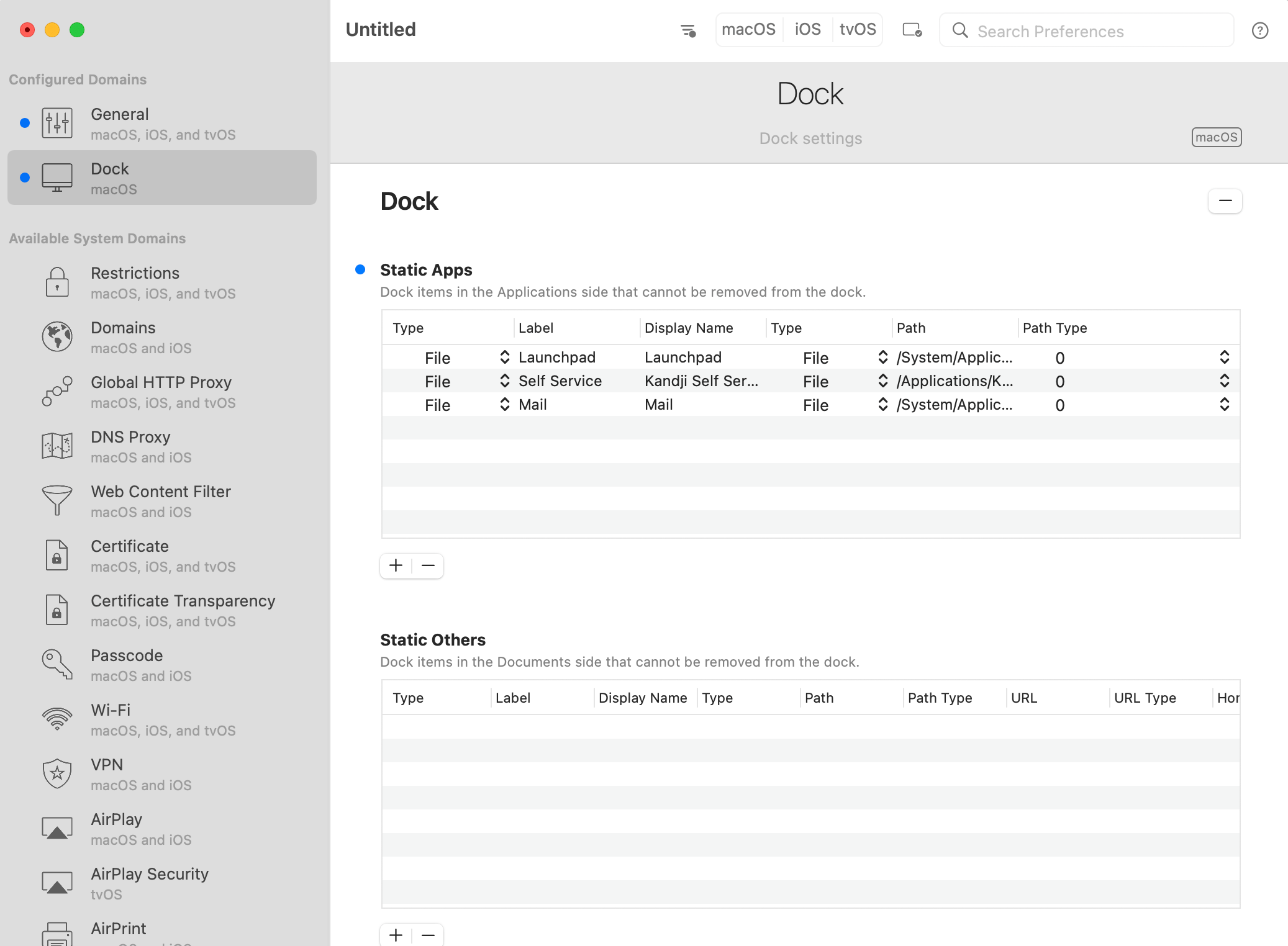 Navigate to the Menu Bar and click File > **Save**, then select a save location and **Save** your profile.
If deploying via Iru Endpoint, there is no need to sign the profile. Iru Endpoint will sign it when it is deployed.
### Add Your Custom Profile Library Item
To add this Library Item to your Iru Endpoint Library, follow the steps outlined in the [Library Overview](/en/endpoint/library/library-items-profiles/library-overview) article.
### Upload Your Custom Dock Profile to Iru Endpoint
Give your profile a descriptive name.
Select a [**Blueprint**](/en/endpoint/blueprints/assignment-maps/creating-a-blueprint) from the Blueprint Assignment dropdown.
Set your Device family to **Mac**.
Drag and drop your dock profile to upload it.
Save your custom profile.
The devices enrolled in the selected Blueprints will display the customized Dock after their next check in with Iru Endpoint.
Navigate to the Menu Bar and click File > **Save**, then select a save location and **Save** your profile.
If deploying via Iru Endpoint, there is no need to sign the profile. Iru Endpoint will sign it when it is deployed.
### Add Your Custom Profile Library Item
To add this Library Item to your Iru Endpoint Library, follow the steps outlined in the [Library Overview](/en/endpoint/library/library-items-profiles/library-overview) article.
### Upload Your Custom Dock Profile to Iru Endpoint
Give your profile a descriptive name.
Select a [**Blueprint**](/en/endpoint/blueprints/assignment-maps/creating-a-blueprint) from the Blueprint Assignment dropdown.
Set your Device family to **Mac**.
Drag and drop your dock profile to upload it.
Save your custom profile.
The devices enrolled in the selected Blueprints will display the customized Dock after their next check in with Iru Endpoint.