> ## Documentation Index
> Fetch the complete documentation index at: https://docs.iru.com/llms.txt
> Use this file to discover all available pages before exploring further.
# Google Chrome Browser Cloud Management
> Enroll Google Chrome into Browser Cloud Management on Mac using Iru Endpoint. Deploy enrollment tokens, manage extensions, bookmarks, and browser policies.
This guide applies to Mac computers
You can use Iru Endpoint to enroll the Google Chrome browser into Chrome Browser Cloud Management on macOS. This will allow you to set bookmarks, allow extensions, and manage other settings in Google Chrome.
### Chrome Browser Cloud Management
You can manage the browser on a computer using Google's Chrome Browser Cloud Management by delivering a configuration profile that contains a cloud management enrollment token from Google. This token will direct Google Chrome to allow management by the associated organization.
### Set Up Cloud Management
Begin setup by following the instructions in the [Chrome Browser Cloud Management support guide](https://support.google.com/chrome/a/answer/9116814).
### Generate a New Cloud Management Enrollment Token
Once you have completed the setup in Google Admin, you will need to [generate an enrollment token](https://support.google.com/chrome/a/answer/9301891) in Google. This token is used in the Custom Profile uploaded to Iru Endpoint.
### Modify the Configuration Profile Template with Your Enrollment Token
Download the [configuration profile template](https://github.com/google/ChromeBrowserEnterprise/blob/main/mobile/ChromeBrowserCloudManagement.mobileconfig).
Open the template in a text editor of your choice.
Replace XXXXXXXX-XXXX-XXXX-XXXX-XXXXXXXXXXXX in line 25 with your **Cloud Management Enrollment Token** generated above.
Save the file locally with a descriptive name.
### Create a Custom Profile in Iru Endpoint
To add this Library Item to your Iru Endpoint Library, follow the steps outlined in the [Library Overview](/en/endpoint/library/library-items-profiles/library-overview) article.
Give your profile a name.
Set the device family to Mac.
Assign the profile to your desired Blueprints.
Upload your .mobileconfig file.
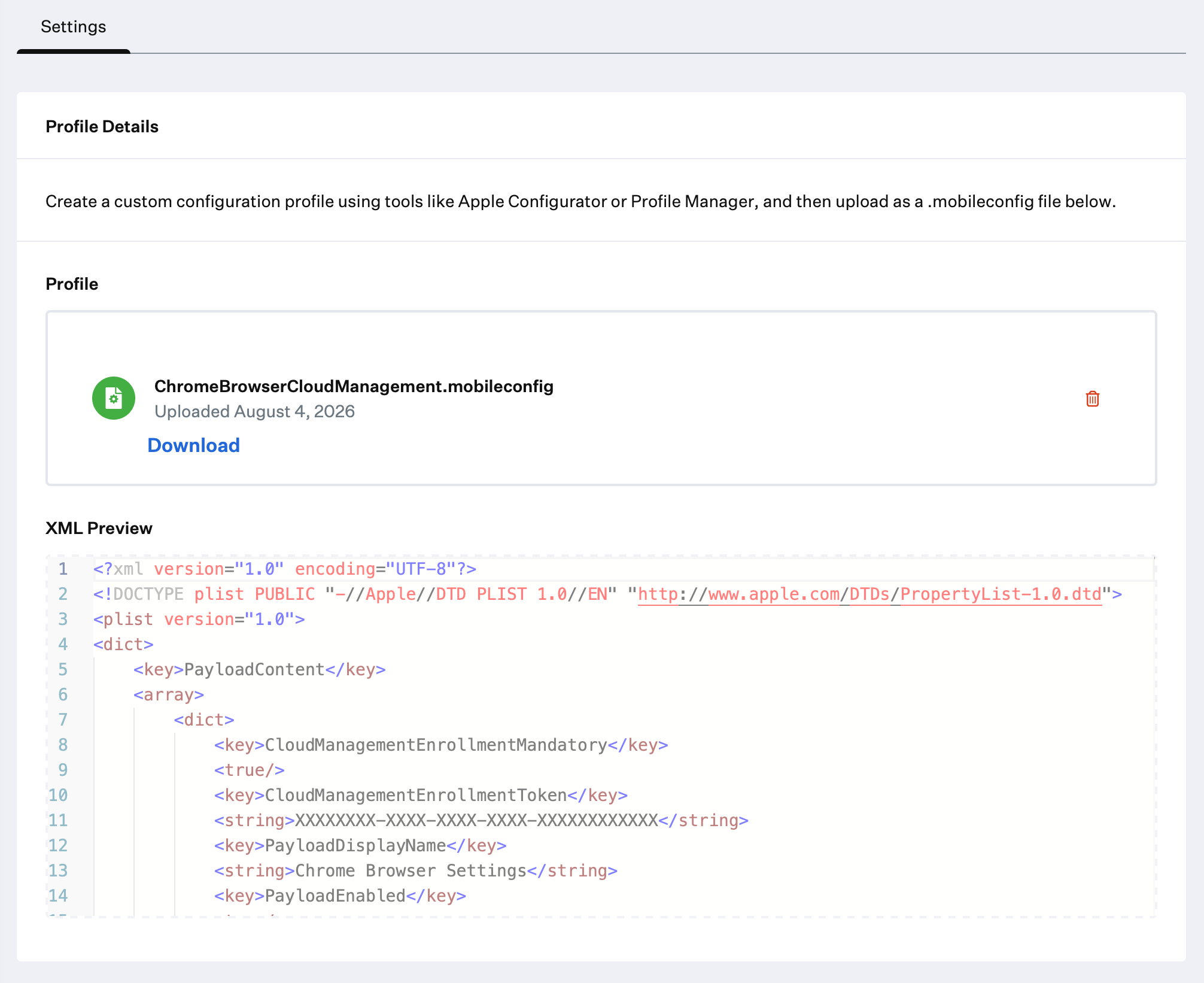 Click **Save**.
### Using iOS AppConfig
iOS and iPadOS devices can use [AppConfig](/en/endpoint/library/library-items-profiles/using-appconfig) for Google Chrome and customize it for your organization.
Before you configure AppConfig, acquire licenses for the **Google Chrome** App Store app. Follow the instructions to [add apps from Apps and Books to Iru Endpoint](/en/endpoint/settings/apple-integrations/add-apps-from-apps-and-books-to-iru-endpoint), and search for Google Chrome in Apple Business or Apple School Manager. Acquire enough licenses for each iOS and iPadOS device you want to manage.
Then open the **Google Chrome** App Store App Library Item and add this AppConfig dictionary:
```
CloudManagementEnrollmentToken
XXXXXXXX-XXXX-XXXX-XXXX-XXXXXXXXXXXX
```
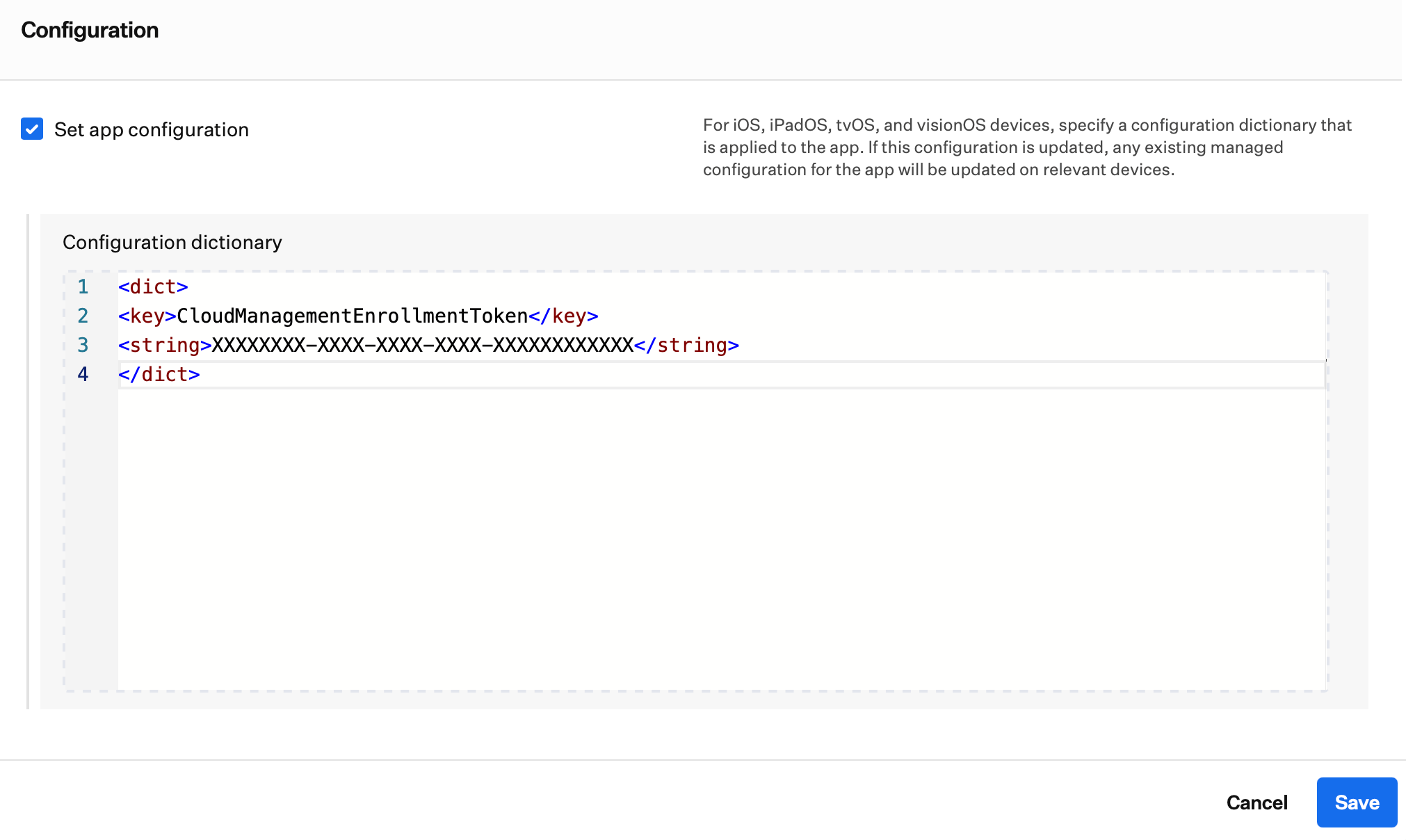
Scroll to the bottom of the Library Item, and select **Set app configuration**.
Paste the dictionary into the **Configuration dictionary** section and replace `XXXXXXXX-XXXX-XXXX-XXXX-XXXXXXXXXXXX` with your **Cloud Management Enrollment Token**.
Click **Save**.
Click **Save**.
### Using iOS AppConfig
iOS and iPadOS devices can use [AppConfig](/en/endpoint/library/library-items-profiles/using-appconfig) for Google Chrome and customize it for your organization.
Before you configure AppConfig, acquire licenses for the **Google Chrome** App Store app. Follow the instructions to [add apps from Apps and Books to Iru Endpoint](/en/endpoint/settings/apple-integrations/add-apps-from-apps-and-books-to-iru-endpoint), and search for Google Chrome in Apple Business or Apple School Manager. Acquire enough licenses for each iOS and iPadOS device you want to manage.
Then open the **Google Chrome** App Store App Library Item and add this AppConfig dictionary:
```
CloudManagementEnrollmentToken
XXXXXXXX-XXXX-XXXX-XXXX-XXXXXXXXXXXX
```
Scroll to the bottom of the Library Item, and select **Set app configuration**.
Paste the dictionary into the **Configuration dictionary** section and replace `XXXXXXXX-XXXX-XXXX-XXXX-XXXXXXXXXXXX` with your **Cloud Management Enrollment Token**.
Click **Save**.
 ### Removing Chrome Browser Cloud Management
To unenroll a Chrome Browser, please reference the [Unenroll a Device section](https://arc.net/l/quote/nrkujybb) of Google's Chrome Browser Cloud Management Documentation.
### Removing Chrome Browser Cloud Management
To unenroll a Chrome Browser, please reference the [Unenroll a Device section](https://arc.net/l/quote/nrkujybb) of Google's Chrome Browser Cloud Management Documentation.