> ## Documentation Index
> Fetch the complete documentation index at: https://docs.iru.com/llms.txt
> Use this file to discover all available pages before exploring further.
# Deploy SAP Privileges Auto App with Privileges Checker
> Deploy SAP Privileges with the Privileges Checker script in Iru Endpoint. Automate temporary admin access and enforce standard user permissions on Mac.
This guide applies to Mac computers
SAP Privileges 2 includes native support for much of the functionality provided by Iru Endpoint's Privileges Checker. For detailed guidance on managing SAP Privileges 2, visit [SAP's wiki](https://github.com/SAP/macOS-enterprise-privileges/wiki/Managing-Privileges). A sample .mobileconfig containing all available settings for SAP Privileges 2 can be found in their [GitHub repo](https://github.com/SAP/macOS-enterprise-privileges/blob/main/source/Privileges/Privileges.mobileconfig).
### About SAP Privileges
SAP Privileges is an open-source tool for macOS that allows users to temporarily elevate their user accounts from standard to administrative when needed. This is particularly useful in environments where security best practices suggest that users should operate with the least privileges necessary for daily tasks but occasionally need administrative rights for specific actions.
### How SAP Privileges Works
The SAP Privileges app for macOS allows users to elevate their privileges to perform administrative tasks temporarily. The built-in functionality of SAP Privileges supports time-based rights expiration, but only if the privileges are first granted by right-clicking the Dock icon and selecting the "Toggle Privileges" option. This means that the app will revert the user to standard privileges after a set period if they use this specific method to elevate their rights.
However, users can also launch the full SAP Privileges app to elevate their privileges, which bypasses the Dock icon method. To address this, we have released companion code that enforces the timeout even when privileges are escalated through other methods, such as launching the full app.
### Configuring SAP Privileges in Iru Endpoint
#### Requirements
* Privileges Checker audit script ([GitHub Link](https://github.com/kandji-inc/support/blob/main/PrivilegesChecker/audit_privileges_checker.zsh))
* Privileges Checker remediation script ([GitHub Link](https://github.com/kandji-inc/support/blob/main/PrivilegesChecker/install_privileges_checker.zsh))
* A tool for custom profile creation, such as [iMazing Profile Editor](https://imazing.com/profile-editor/download)
* The SAP Privileges Auto App, Custom Script, and Custom Profile must all be added to the same Blueprint(s)
* The Demote user accounts to standard Parameter must be disabled on any Assignment Maps where Privileges is assigned
#### Adding the SAP Privileges Auto App
This Auto App deploys a configuration profile allowing background items for SAP Privileges and Privileges Checker. This is to ensure core functionality for the add-on, and has no impact if Privileges Checker is not present.
To add this Library Item to your Iru Endpoint Library, follow the steps outlined in the [Library Overview](/en/endpoint/library/library-items-profiles/library-overview) article.
Assign the Auto App to a test **Blueprint**.
Select desired installation method and hit **Save**.
#### Adding and Configuring the Privileges Checker Script
Once this script is deployed, Privileges Checker will revoke rights for the logged-in user after the set timeout has expired.
**Add a Custom Script Library Item**
To add this Library Item to your Iru Endpoint Library, follow the steps outlined in the [Library Overview](/en/endpoint/library/library-items-profiles/library-overview) article.
Give the new Accessory & Storage Access Library Item a **Name**.
Assign to your desired [Assignment Maps](/en/endpoint/getting-started/blueprints-and-library/configuring-blueprints).
Select **Run every 15 minutes** as the **Execution Frequency**.
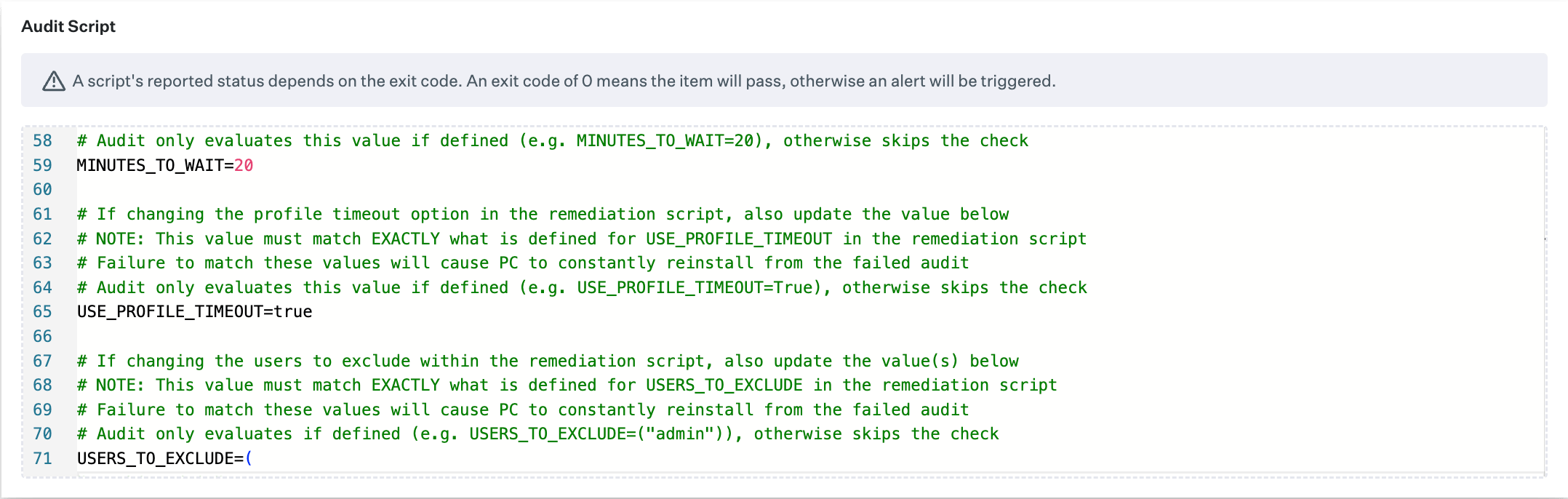
Paste the audit script you downloaded earlier into the **Audit Script** text field. Edit the script on line 65 to set a Boolean value for **USE\_PROFILE\_TIMEOUT**, and a string value for **USERS\_TO\_EXCLUDE**.
**For USE\_PROFILE\_TIMEOUT:**
* Set to either **True** or **False**: Enforces a timeout in minutes from **DockToggleTimeout** key set in the Privileges configuration profile (see below)
* If the value is marked **True** but no profile is installed, or if the **DockToggleTimeout** key is not defined, the timeout will default to **MINUTES\_TO\_WAIT**. Otherwise, the configuration profile will override the locally set value **MINUTES\_TO\_WAIT**
**For USERS\_TO\_EXCLUDE:**
* If no admin is defined, all admins will get demoted
* Admin names must be placed inside the double quotes
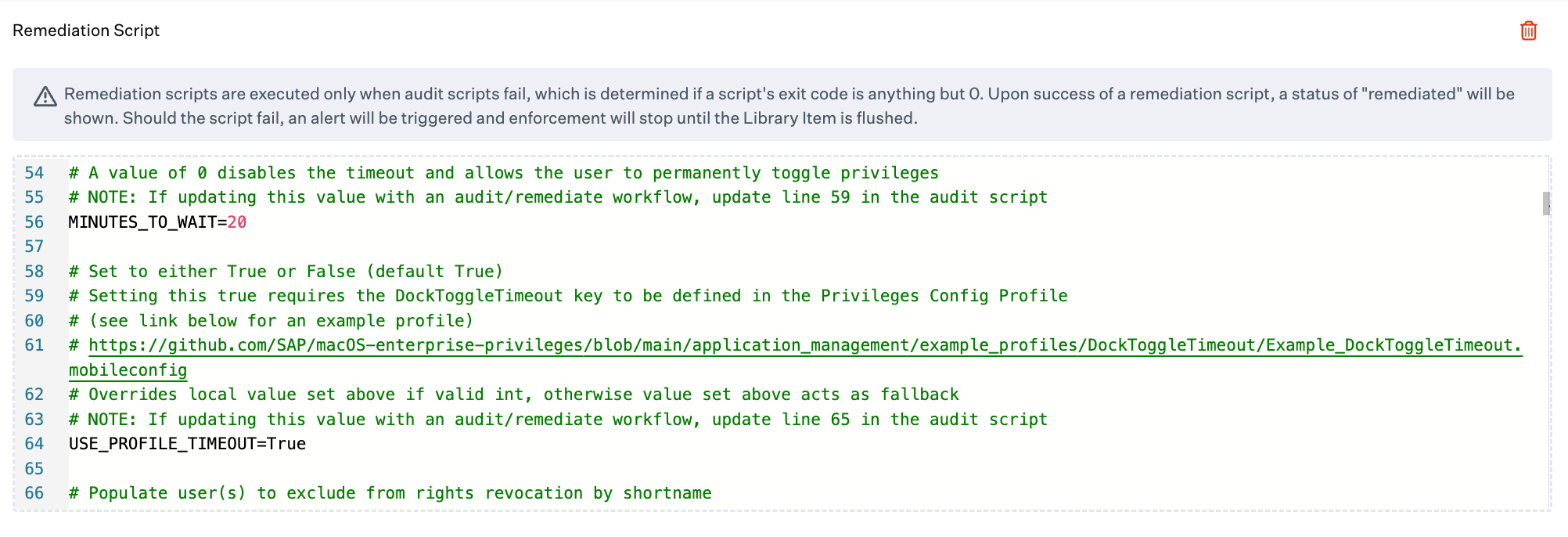
 Paste the remediation script you downloaded earlier into the **Remediation Script** text field. Edit the script on line 56 to set an integer value for **MINUTES\_TO\_WAIT.** This is the number of minutes an end user should be allowed admin rights once granted.
Edit the script on line 64 to set a Boolean value for **USE\_PROFILE\_TIMEOUT**.
* Set to either **True** or **False**: Enforces a timeout in minutes from **DockToggleTimeout** key set in the Privileges configuration profile (see below)
* If the value is marked **True** but no profile is installed, or if the **DockToggleTimeout** key is not defined, the timeout will default to **MINUTES\_TO\_WAIT**. Otherwise, the configuration profile will override the locally set value **MINUTES\_TO\_WAIT**
Edit the script on line 72 to set a string value for **USERS\_TO\_EXCLUDE**.
* Admin names must be placed inside the double quotes
Click **Save**.
Paste the remediation script you downloaded earlier into the **Remediation Script** text field. Edit the script on line 56 to set an integer value for **MINUTES\_TO\_WAIT.** This is the number of minutes an end user should be allowed admin rights once granted.
Edit the script on line 64 to set a Boolean value for **USE\_PROFILE\_TIMEOUT**.
* Set to either **True** or **False**: Enforces a timeout in minutes from **DockToggleTimeout** key set in the Privileges configuration profile (see below)
* If the value is marked **True** but no profile is installed, or if the **DockToggleTimeout** key is not defined, the timeout will default to **MINUTES\_TO\_WAIT**. Otherwise, the configuration profile will override the locally set value **MINUTES\_TO\_WAIT**
Edit the script on line 72 to set a string value for **USERS\_TO\_EXCLUDE**.
* Admin names must be placed inside the double quotes
Click **Save**.
 ### Create a Custom Profile
Profile creation steps are optional if you are setting the rights timeout via script. You can also review additional profile options that SAP Privileges supports on [their GitHub page](https://github.com/SAP/macOS-enterprise-privileges/wiki/Managing-Privileges).
If the EnforcePrivileges key in the Custom Profile is set with any value, it will disable the PrivilegesCLI used in the Privileges Checker and override its ability to demote users.
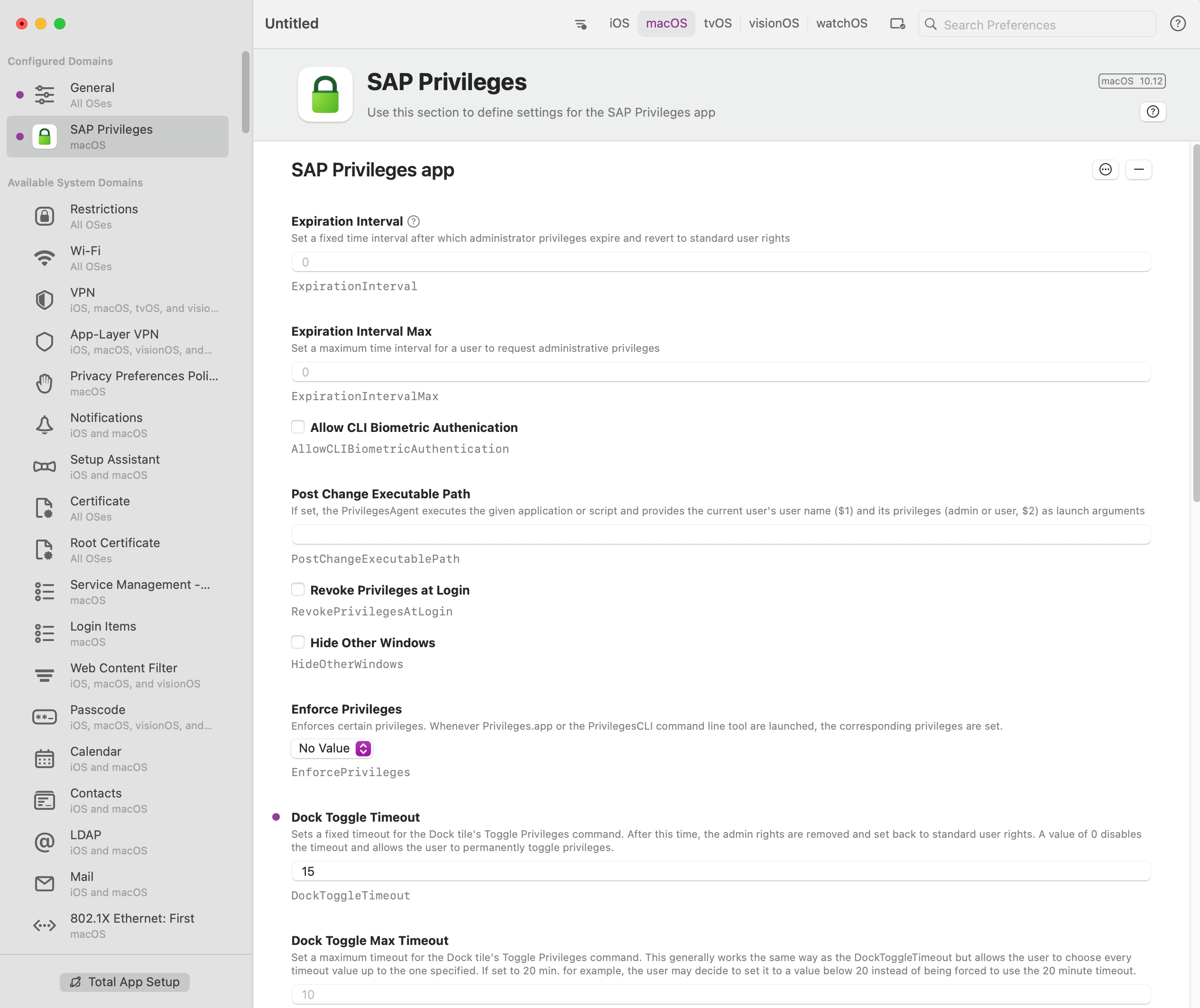
Open iMazing Profile Editor.
On the left side, locate and click **SAP Privileges** under Available System Domains.
Click **Add Configuration Payload**.
Enter a value for **Dock Toggle Timeout**.
If Privileges is configured with the DockToggleTimeout payload, but Privileges Checker is not deployed, timed rights revocation will only occur if a user right-clicks the Privileges Dock icon and selects Toggle privileges.
Optionally, configure any additional settings for SAP Privileges as desired.
Click the **General** section; populate the required values for **Name** and **Identifier**.
Hit **Command+S** to save your profile.
### Create a Custom Profile
Profile creation steps are optional if you are setting the rights timeout via script. You can also review additional profile options that SAP Privileges supports on [their GitHub page](https://github.com/SAP/macOS-enterprise-privileges/wiki/Managing-Privileges).
If the EnforcePrivileges key in the Custom Profile is set with any value, it will disable the PrivilegesCLI used in the Privileges Checker and override its ability to demote users.
Open iMazing Profile Editor.
On the left side, locate and click **SAP Privileges** under Available System Domains.
Click **Add Configuration Payload**.
Enter a value for **Dock Toggle Timeout**.
If Privileges is configured with the DockToggleTimeout payload, but Privileges Checker is not deployed, timed rights revocation will only occur if a user right-clicks the Privileges Dock icon and selects Toggle privileges.
Optionally, configure any additional settings for SAP Privileges as desired.
Click the **General** section; populate the required values for **Name** and **Identifier**.
Hit **Command+S** to save your profile.
 ### Add and Configure the Custom Profile
To add this Library Item to your Iru Endpoint Library, follow the steps outlined in the [Library Overview](/en/endpoint/library/library-items-profiles/library-overview) article.
Give the profile a **Name**.
**Assign** your custom profile to a test **Blueprint**.
Set the **Device Families** to Mac.
**Upload** the **.mobileconfig** you customized and saved above.
**Save** your custom profile.
Technical details about Privileges Checker can be found in our [Iru Endpoint Support GitHub repo](https://github.com/kandji-inc/support/tree/main/PrivilegesChecker).
### Add and Configure the Custom Profile
To add this Library Item to your Iru Endpoint Library, follow the steps outlined in the [Library Overview](/en/endpoint/library/library-items-profiles/library-overview) article.
Give the profile a **Name**.
**Assign** your custom profile to a test **Blueprint**.
Set the **Device Families** to Mac.
**Upload** the **.mobileconfig** you customized and saved above.
**Save** your custom profile.
Technical details about Privileges Checker can be found in our [Iru Endpoint Support GitHub repo](https://github.com/kandji-inc/support/tree/main/PrivilegesChecker).