> ## Documentation Index
> Fetch the complete documentation index at: https://docs.iru.com/llms.txt
> Use this file to discover all available pages before exploring further.

# Deploy Fonts Using a Custom App

> Deploy desktop-licensed fonts to Mac computers using a custom app in Iru Endpoint. Package font files, configure Self Service access, and assign to devices.

<Callout icon="apple" color="#B84A7A" iconType="regular">This guide applies to Mac computers</Callout>

In this example, we'll deploy a ZIP file containing a folder of desktop-licensed fonts to a path accessible to all users. We'll set this to run once and have the option to make the item available on-demand in Self Service in case users need the ability to reinstall the fonts.

<Note>
  Iru Endpoint's maximum file upload size is 5 GB.
</Note>

### Prepare Your Fonts

Select, then right-click your font files or folders and choose compress. Optionally, give your new ZIP archive file a descriptive name.

<Frame>
  <img src="https://mintcdn.com/iru/qQl9m4UQwfP-FkWY/assets/media/images/joazqu6kz53vqdq088iy0broad9y_h1cug.png?fit=max&auto=format&n=qQl9m4UQwfP-FkWY&q=85&s=6705f5284bb2964e3435b82d0d7477bf" alt="Deploy Fonts Using a Custom App configuration or interface" width="2226" height="1256" data-path="assets/media/images/joazqu6kz53vqdq088iy0broad9y_h1cug.png" />
</Frame>

### Add a Custom App

To add this Library Item to your Iru Endpoint Library, follow the steps outlined in the [Library Overview](/en/endpoint/library/library-items-profiles/library-overview) article.

### Configure the Custom App

<Steps>
  <Step title="Name the Custom App">
    Give your Custom App a descriptive name.
  </Step>

  <Step title="Assign to Blueprints">
    **Assign** your Custom App to the desired [Blueprints](/en/endpoint/getting-started/blueprints-and-library/configuring-blueprints).

    <Frame>
      <img src="https://mintcdn.com/iru/NKSnzq9fKEdl088H/assets/media/images/Kandji-Support-KB-1202PM@2x(2).png?fit=max&auto=format&n=NKSnzq9fKEdl088H&q=85&s=d23bf9e2ebba02a3814f3e50ff560825" alt="Deploy fonts Custom App configuration showing Library Item or Blueprint assignment" width="2968" height="1418" data-path="assets/media/images/Kandji-Support-KB-1202PM@2x(2).png" />
    </Frame>
  </Step>

  <Step title="Set Execution Frequency">
    Select **Install once per device** as the execution frequency.
  </Step>

  <Step title="Configure Self Service">
    Optionally, toggle the option to make the Library Item available in **Self Service,** choosing any desired customizations.
  </Step>

  <Step title="Select Installation Method">
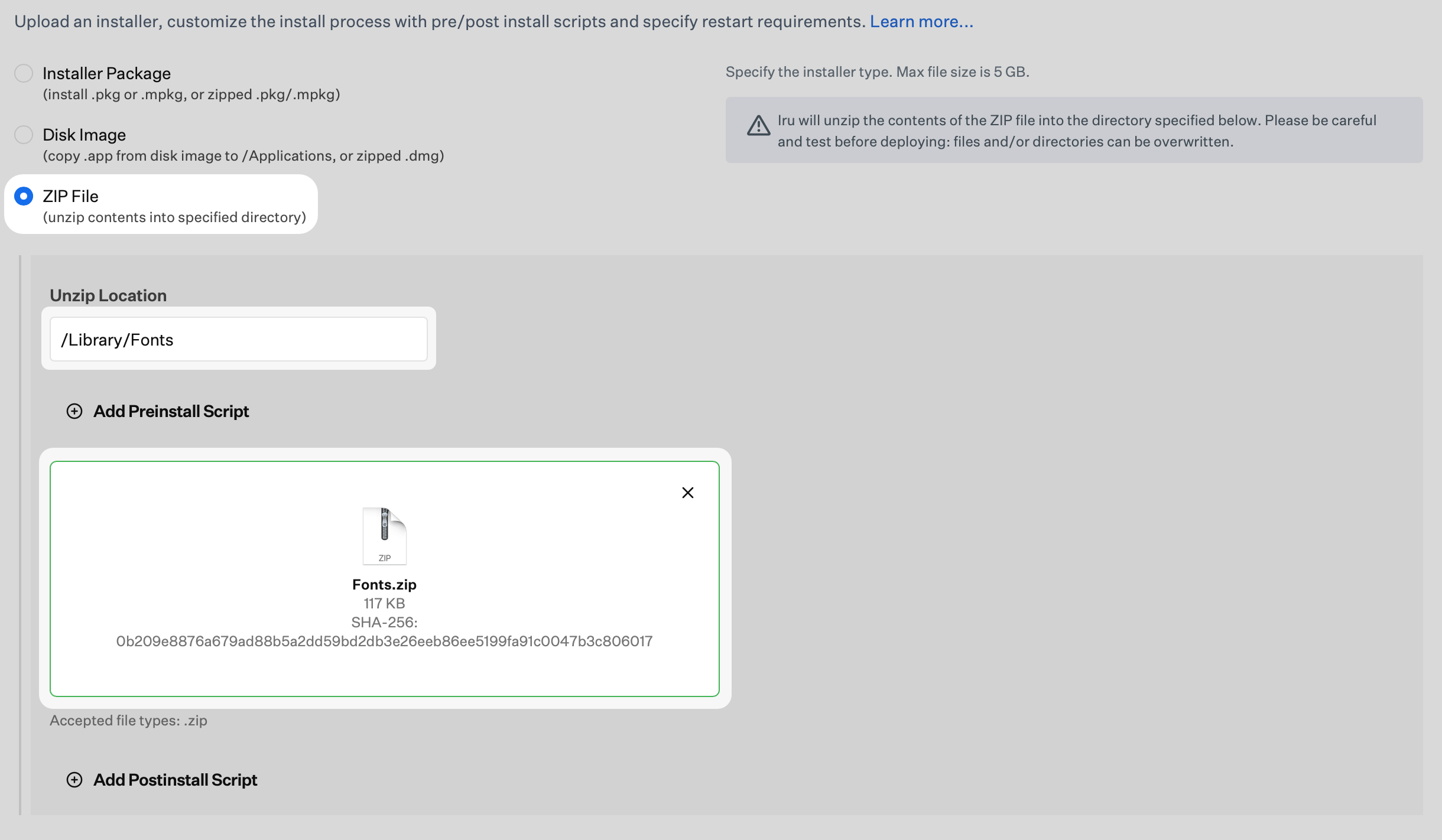
    Select **ZIP File.**

    <Frame>
      <img src="https://mintcdn.com/iru/NKSnzq9fKEdl088H/assets/media/images/Kandji-Support-KB-1204PM@2x.png?fit=max&auto=format&n=NKSnzq9fKEdl088H&q=85&s=142acc2ef4d643e93485eb91d96c04d4" alt="Deploy Fonts Using a Custom App step or screen" width="2966" height="1464" data-path="assets/media/images/Kandji-Support-KB-1204PM@2x.png" />
    </Frame>
  </Step>

  <Step title="Configure Unzip Location">
    To ensure the fonts are accessible to all users of a computer, specify an **Unzip Location** of **/Library/Fonts**
  </Step>

  <Step title="Upload ZIP File">
    Upload your **ZIP File**.

    <Frame>
      <img src="https://mintcdn.com/iru/NKSnzq9fKEdl088H/assets/media/images/Kandji-Support-KB-1207PM@2x(2).png?fit=max&auto=format&n=NKSnzq9fKEdl088H&q=85&s=429b21d6c03024605105108949e85e0b" alt="Deploy fonts Custom App showing script or configuration options" width="2964" height="1407" data-path="assets/media/images/Kandji-Support-KB-1207PM@2x(2).png" />
    </Frame>
  </Step>

  <Step title="Save Configuration">
    Click **Save** to complete the Custom App setup.
  </Step>
</Steps>