> ## Documentation Index
> Fetch the complete documentation index at: https://docs.iru.com/llms.txt
> Use this file to discover all available pages before exploring further.
# Configure FileVault
> Enable and configure FileVault disk encryption on managed Mac computers using Iru Endpoint. Escrow recovery keys and enforce encryption at enrollment.
This guide applies to Mac computers
### About FileVault & Recovery Keys
[FileVault](https://support.apple.com/en-us/HT204837) is a built-in feature of macOS that encrypts the boot drive. During setup, FileVault generates a **Recovery Key**, allowing an additional method of access to the drive should all FileVault enabled users' passwords be forgotten.
* [Learn more](https://support.apple.com/en-us/HT204837) about how FileVault secures your Mac devices and changes login behavior
* [Learn how](/en/endpoint/devices/device-actions/reset-a-macos-user-password) to leverage the FileVault Recovery Key to reset a user's password
* [Learn about](/en/endpoint/library/library-items-profiles/filevault-user-experience) the User Experience with FileVault
### About the FileVault Library Item
The FileVault 2 Library Item enforces all enrolled macOS devices to enable FileVault disk encryption. Mac devices will be prompted to complete FileVault setup upon restart.
To add this Library Item to your Iru Endpoint Library, follow the steps outlined in the [Library Overview](/en/endpoint/library/library-items-profiles/library-overview) article.
### FileVault Configuration Options
Configure FileVault using the steps below. Enforcement and user experience are part of the same flow as the Library Item settings.
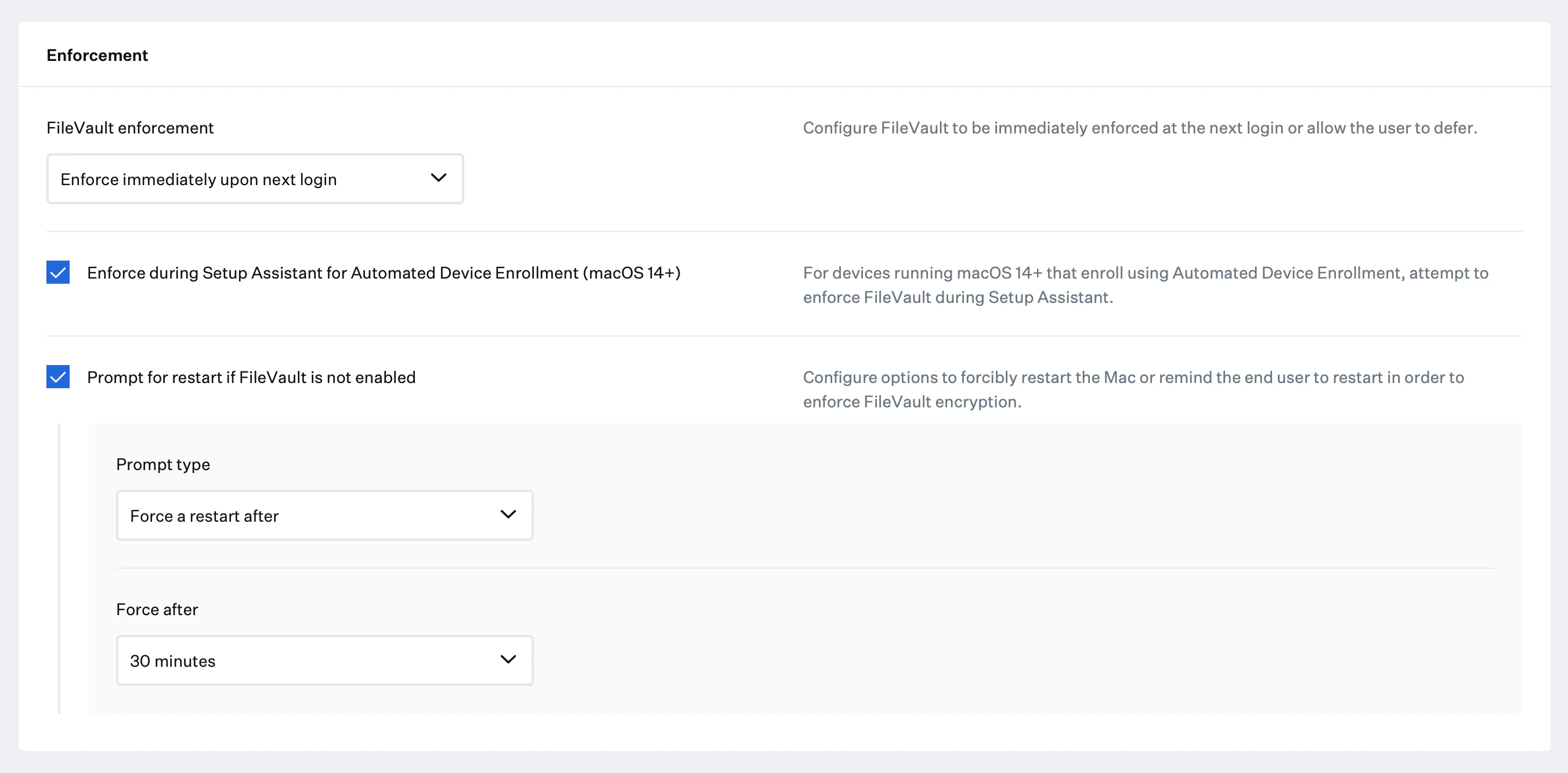
Use the **FileVault enforcement** drop-down to choose:
* **Enforce immediately upon next login** (Recommended) — FileVault is required at the next login. The **Enforce during Setup Assistant for Automated Device Enrollment** option appears when this is selected.
* **Allow user deferral before enforcing** (Not Recommended) — The **Prompt for restart if FileVault is not enabled** option is hidden; a **User Deferral** drop-down appears instead so you can select how many login attempts are allowed before FileVault is enabled.
**Recommended** — Check this option to attempt to enforce FileVault during Setup Assistant for devices running macOS 14+ that enroll using Automated Device Enrollment.
This selection ignores a FileVault skip screen setting in the [Automated Device Enrollment Library item](/en/endpoint/settings/apple-integrations/configure-automated-device-enrollment#mac). See [Enforcement and user experience during Setup Assistant](#enforcement-and-user-experience-during-setup-assistant) for the full end-user flow and screenshots.
Check this option to configure forcibly restarting the Mac or reminding the end user to restart to enforce FileVault encryption. When enabled, set **Prompt type** (e.g., Force a restart after, or Remind to restart every...) and **Force after** (e.g., 30 minutes) as needed.
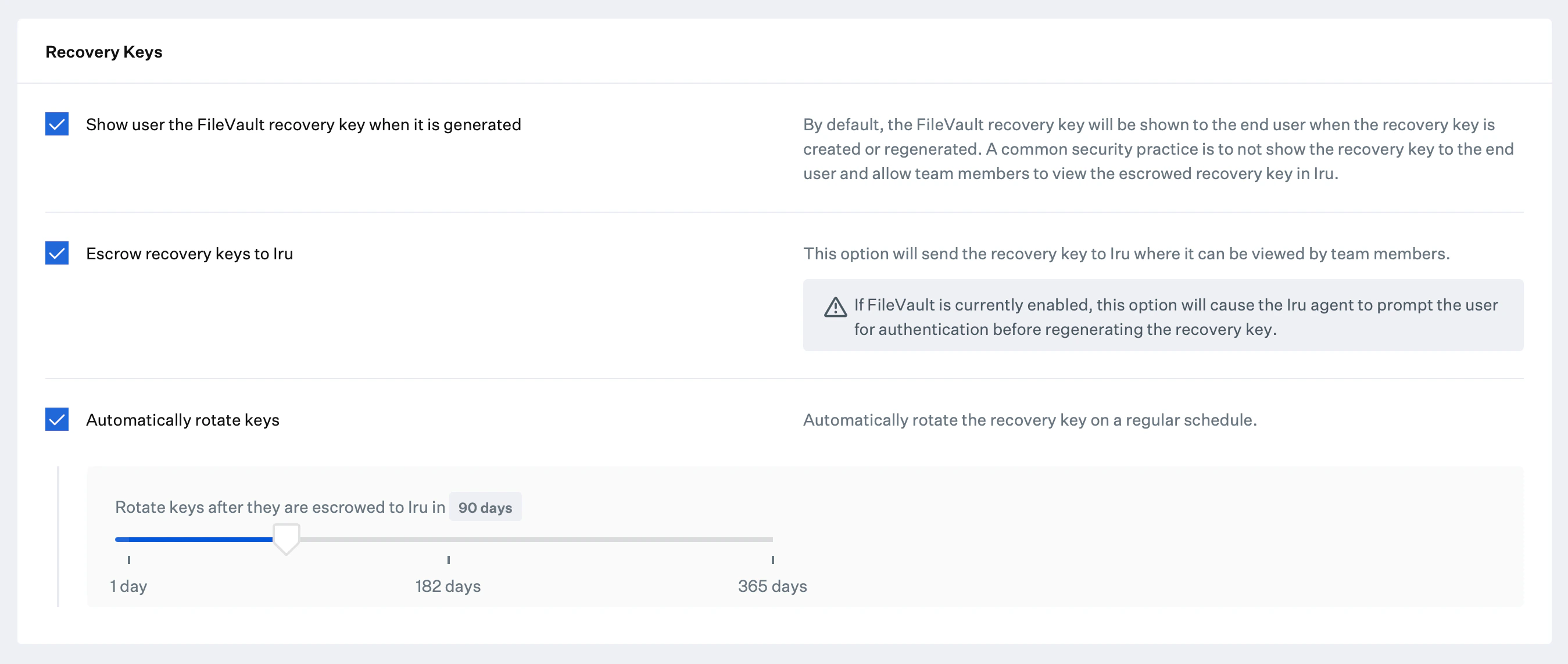
 By default, the FileVault recovery key is shown to the end user when the recovery key is created or regenerated. A common security practice is to not show the recovery key to the end user and allow team members to view the escrowed recovery key in Iru Endpoint.
This option sends the recovery key to Iru Endpoint where it can be viewed by team members. If FileVault is currently enabled, this option will cause the Iru Endpoint agent to prompt the user for authentication before regenerating the recovery key.
Check this option to automatically rotate the recovery key on a regular schedule. When enabled, set **Rotate keys after they are escrowed to Iru Endpoint in** to the desired period (e.g., 90 days). This is done via the RotateFileVaultKey MDM command.
By default, the FileVault recovery key is shown to the end user when the recovery key is created or regenerated. A common security practice is to not show the recovery key to the end user and allow team members to view the escrowed recovery key in Iru Endpoint.
This option sends the recovery key to Iru Endpoint where it can be viewed by team members. If FileVault is currently enabled, this option will cause the Iru Endpoint agent to prompt the user for authentication before regenerating the recovery key.
Check this option to automatically rotate the recovery key on a regular schedule. When enabled, set **Rotate keys after they are escrowed to Iru Endpoint in** to the desired period (e.g., 90 days). This is done via the RotateFileVaultKey MDM command.
 ### Enforcement and user experience during Setup Assistant
When you enable **Enforce during Setup Assistant for Automated Device Enrollment (macOS 14+)**, Iru Endpoint attempts to enforce FileVault during Setup Assistant for devices running macOS 14+ that enroll using Automated Device Enrollment. This selection ignores a FileVault skip screen setting in the [Automated Device Enrollment Library item](/en/endpoint/settings/apple-integrations/configure-automated-device-enrollment#mac).
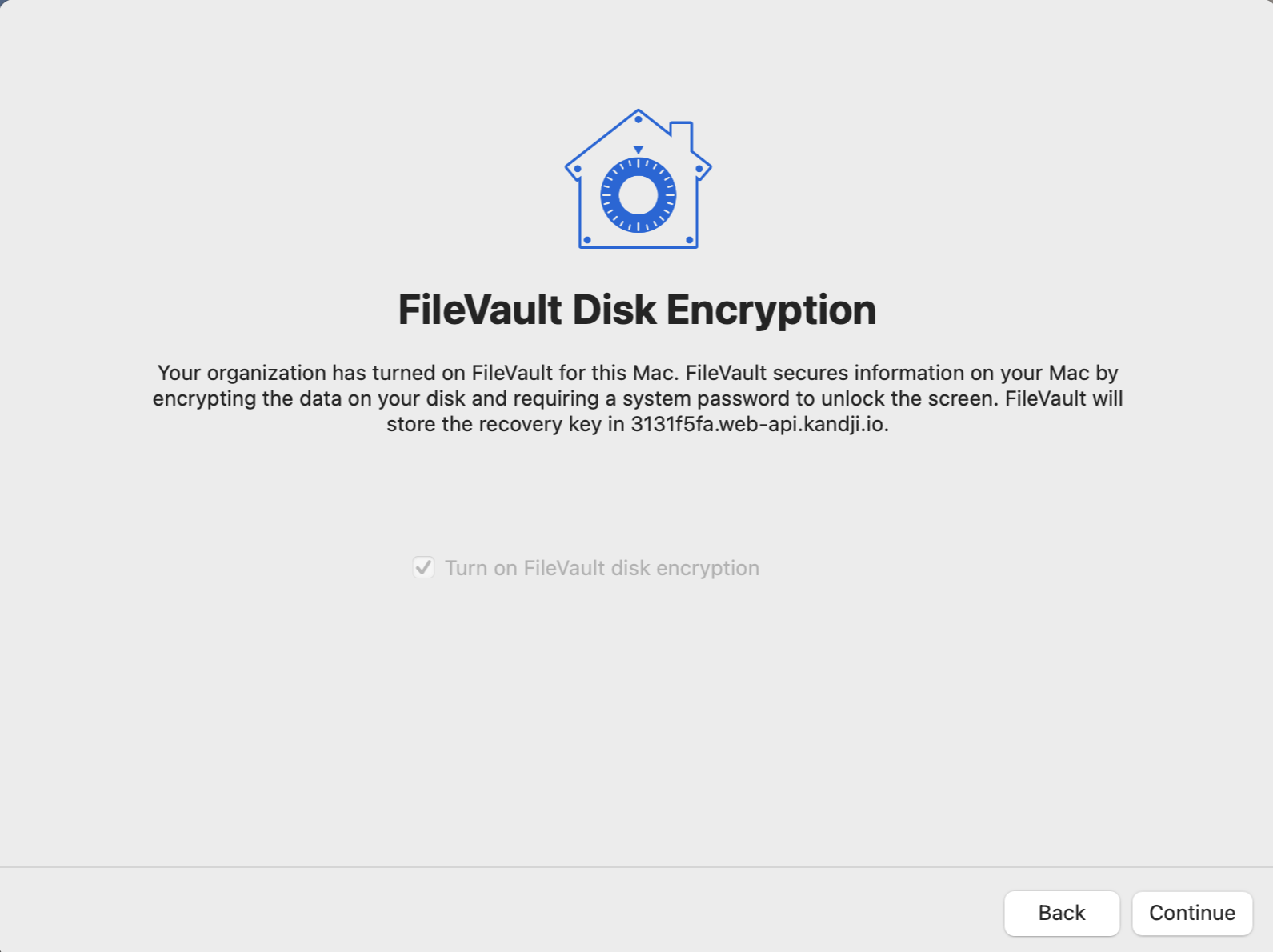
The end user first sees a FileVault Disk Encryption dialog: the organization has enabled FileVault for the Mac, and the user can turn on FileVault disk encryption and click **Continue** to encrypt the disk (no restart required). A **Skip** option may appear depending on configuration.
### Enforcement and user experience during Setup Assistant
When you enable **Enforce during Setup Assistant for Automated Device Enrollment (macOS 14+)**, Iru Endpoint attempts to enforce FileVault during Setup Assistant for devices running macOS 14+ that enroll using Automated Device Enrollment. This selection ignores a FileVault skip screen setting in the [Automated Device Enrollment Library item](/en/endpoint/settings/apple-integrations/configure-automated-device-enrollment#mac).
The end user first sees a FileVault Disk Encryption dialog: the organization has enabled FileVault for the Mac, and the user can turn on FileVault disk encryption and click **Continue** to encrypt the disk (no restart required). A **Skip** option may appear depending on configuration.
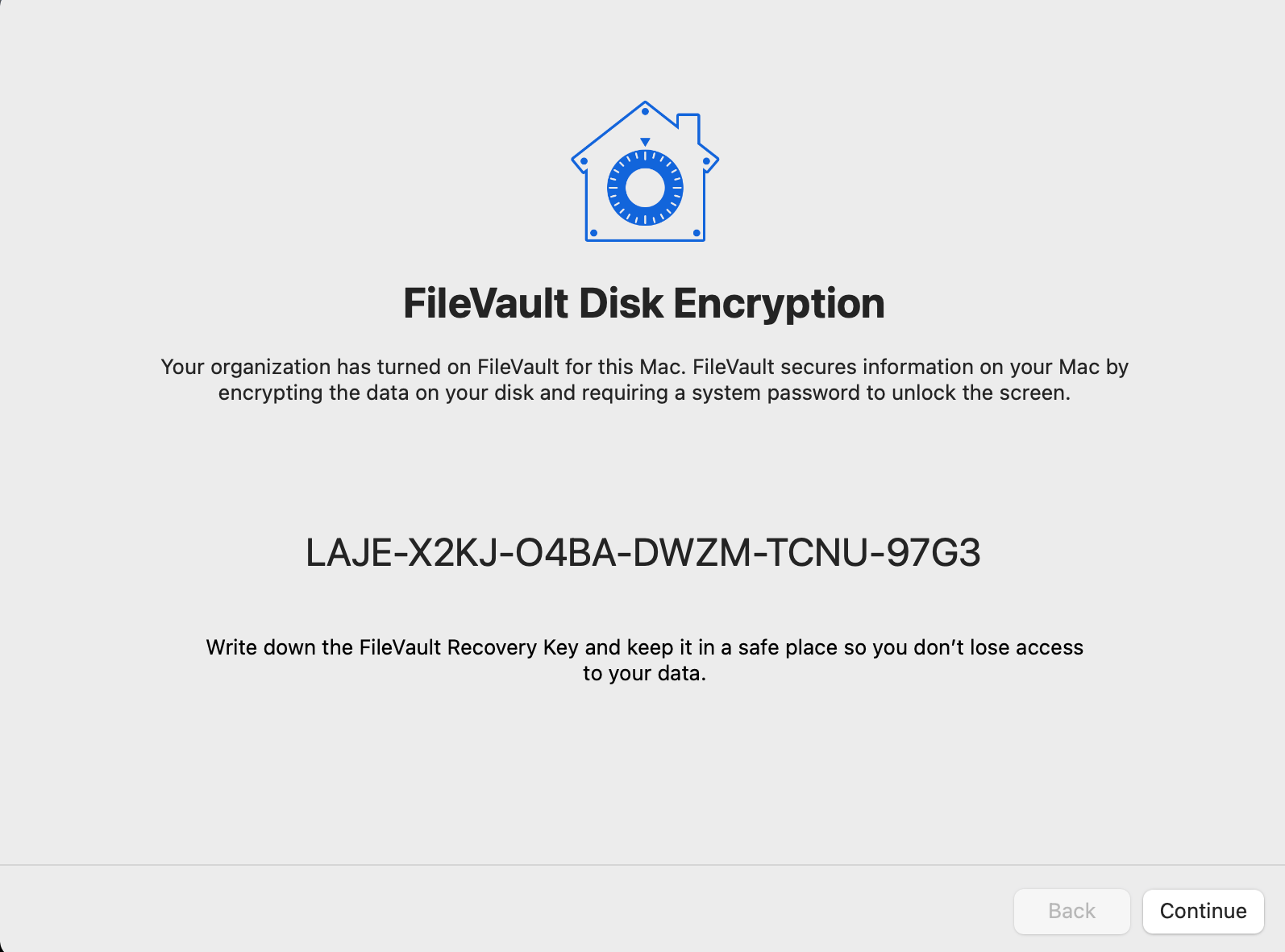
 The next screen displays the FileVault Recovery Key in a clear, prominent format and instructs the user to write it down and keep it in a safe place so they do not lose access to their data.
 ### View FileVault Recovery Keys
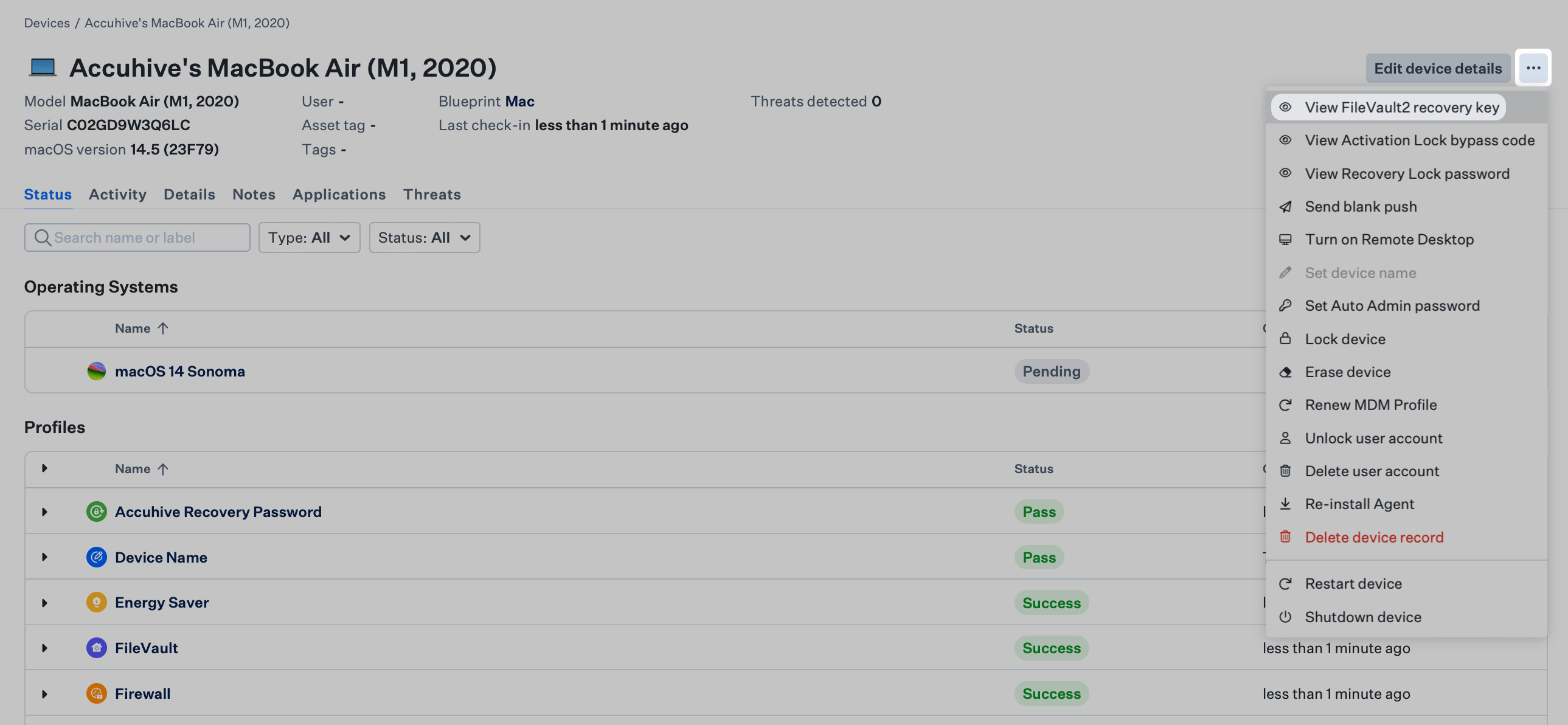
Navigate to the Device Record.
Click on the **Device Action Menu**.
Click **View FileVault2 recovery key**.
### View FileVault Recovery Keys
Navigate to the Device Record.
Click on the **Device Action Menu**.
Click **View FileVault2 recovery key**.
 You can force the Mac to generate a new FileVault recovery key by running the following command on any Mac via Terminal. Iru Endpoint will then capture the newly generated key if the escrow option is enabled.
```bash Terminal icon="terminal" theme={null}
sudo fdesetup changerecovery -personal
```
### Parameter: Report user accounts with FileVault Recovery Keys escrowed to iCloud
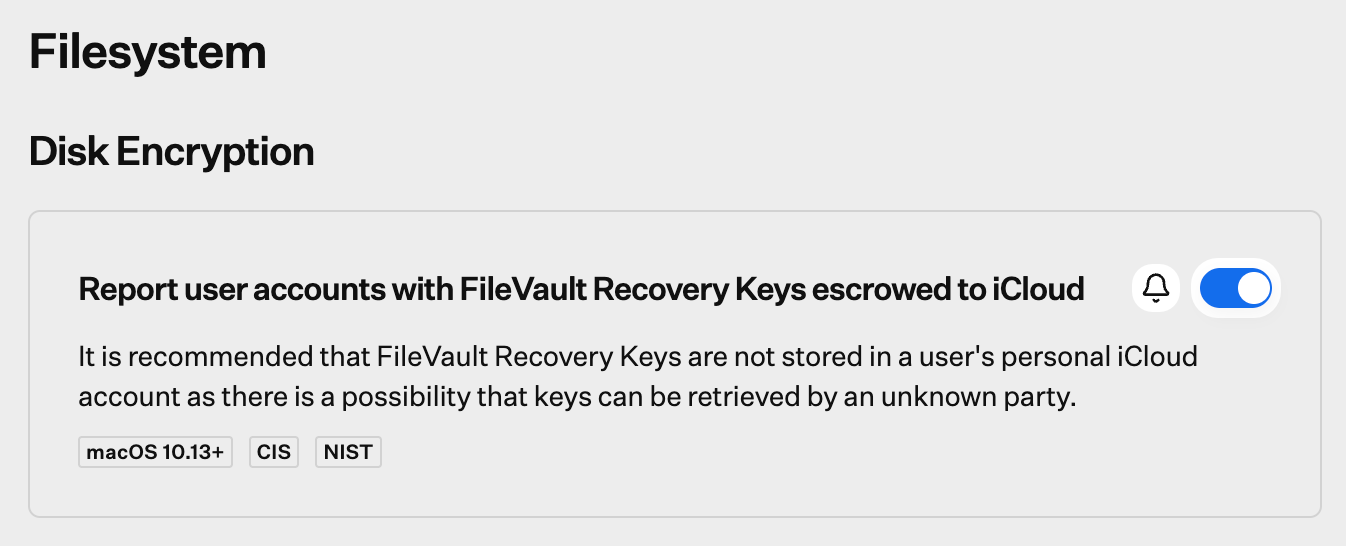
macOS allows users to store Recovery Keys with their iCloud account. This is not recommended for enterprise-owned Mac devices, as it's possible that keys can be retrieved by an unknown party. Use this parameter to be alerted if a Recovery Key is stored in iCloud. This alert is a helpful reminder to pair with the user to remove the recovery key from their iCloud account.
You can force the Mac to generate a new FileVault recovery key by running the following command on any Mac via Terminal. Iru Endpoint will then capture the newly generated key if the escrow option is enabled.
```bash Terminal icon="terminal" theme={null}
sudo fdesetup changerecovery -personal
```
### Parameter: Report user accounts with FileVault Recovery Keys escrowed to iCloud
macOS allows users to store Recovery Keys with their iCloud account. This is not recommended for enterprise-owned Mac devices, as it's possible that keys can be retrieved by an unknown party. Use this parameter to be alerted if a Recovery Key is stored in iCloud. This alert is a helpful reminder to pair with the user to remove the recovery key from their iCloud account.
 ### Encryption Status
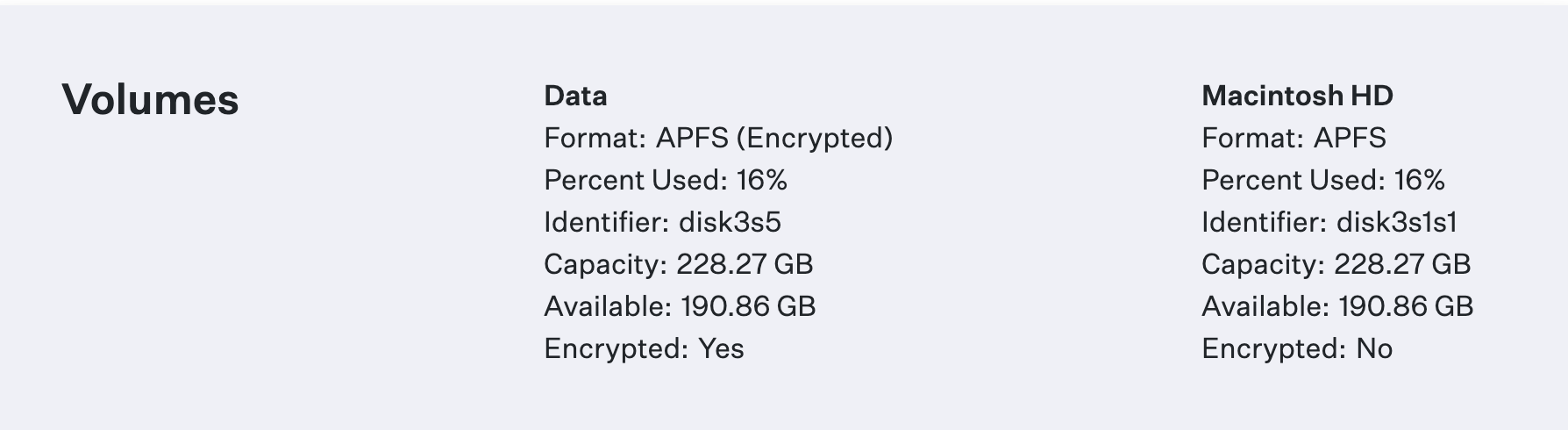
With APFS volumes, only the Data volumes will show as **Encrypted: Yes** in the Volumes section of the Device Details. This is expected behavior.
### Encryption Status
With APFS volumes, only the Data volumes will show as **Encrypted: Yes** in the Volumes section of the Device Details. This is expected behavior.
 The startup disk is always encrypted on Mac computers with the Apple T2 Security Chip or Apple Silicon, so FileVault encryption is nearly immediate. On other Mac computers, FileVault encryption can take longer depending on the amount of data, but it continues in the background.
### User Experience with FileVault
If you have enabled the **Escrow recovery keys to Iru Endpoint** setting in your FileVault Library Item, any Mac that enrolls into Iru Endpoint that previously had FileVault enabled will automatically prompt your end users to regenerate their FileVault Key so it can be escrowed.
When FileVault is set to **Automatically rotate keys**, and the Passcode Profile has the **Maximum Passcode Age** option enabled, a password older than the maximum age will be expired, and the user will need to create a new password before they can rotate and escrow their FileVault Recovery key.
Please visit the [User Experience with FileVault](/en/endpoint/library/library-items-profiles/filevault-user-experience) article for more information.
The startup disk is always encrypted on Mac computers with the Apple T2 Security Chip or Apple Silicon, so FileVault encryption is nearly immediate. On other Mac computers, FileVault encryption can take longer depending on the amount of data, but it continues in the background.
### User Experience with FileVault
If you have enabled the **Escrow recovery keys to Iru Endpoint** setting in your FileVault Library Item, any Mac that enrolls into Iru Endpoint that previously had FileVault enabled will automatically prompt your end users to regenerate their FileVault Key so it can be escrowed.
When FileVault is set to **Automatically rotate keys**, and the Passcode Profile has the **Maximum Passcode Age** option enabled, a password older than the maximum age will be expired, and the user will need to create a new password before they can rotate and escrow their FileVault Recovery key.
Please visit the [User Experience with FileVault](/en/endpoint/library/library-items-profiles/filevault-user-experience) article for more information.