> ## Documentation Index
> Fetch the complete documentation index at: https://docs.iru.com/llms.txt
> Use this file to discover all available pages before exploring further.
# Configure EAP Extensible Authentication Protocol Types
> Configure EAP authentication types for 802.1X on Apple devices using Iru Endpoint. Set up TLS, TTLS, PEAP, and EAP-FAST for Wi-Fi and Ethernet profiles.
This guide applies to Mac computers
Numerous options are available for authenticating to Wi-Fi or wired networks, especially if your infrastructure supports more than one authentication type. Each option has unique settings you need to configure. This article covers the most common configuration options. For more information about configuring enterprise networks, see our [Configure the Wi-Fi Library Item](/en/endpoint/library/library-items-profiles/configure-the-wi-fi-library-item) and [Configure the Ethernet Library Item](/en/endpoint/library/library-items-profiles/configure-the-ethernet-library-item) support articles.
Your network infrastructure must support the chosen EAP types and be configured correctly to allow authentication. If you do not know how your network is configured, work with your network administrators to determine how they want network clients to connect.
### Configure EAP-TLS
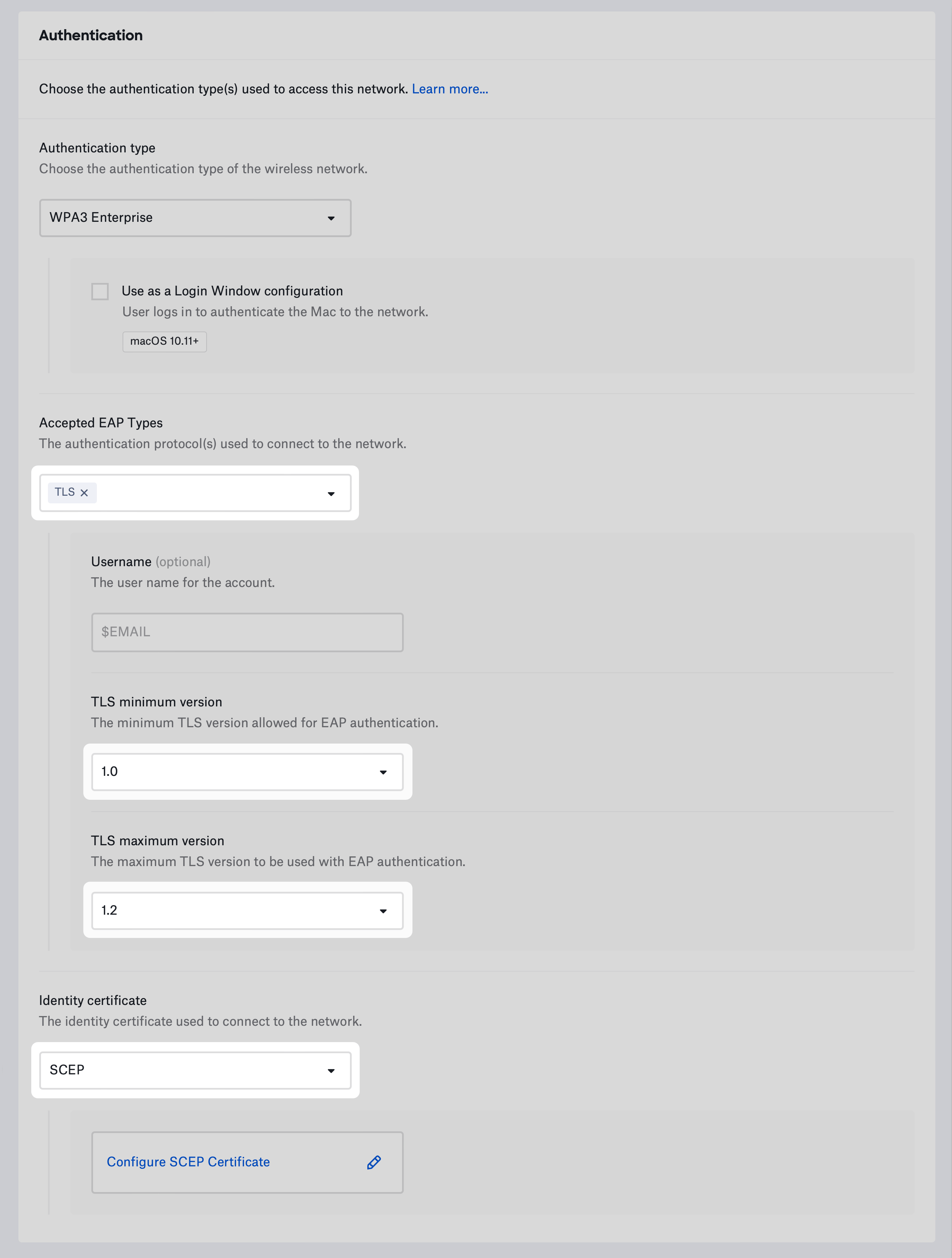
EAP-TLS uses Transport Layer Security and an identity certificate to authenticate devices to the network.
You must provide an identity certificate to use EAP-TLS.
Select TLS under **Accepted EAP Types**.
To prevent using older and weaker TLS versions, select the **TLS minimum version** you would like to allow.
If your infrastructure does not support the latest versions of TLS, select the **TLS maximum version** you want to use.
Select a method to provide an identity certificate and configure applicable settings. See [Configure the Wi-Fi Library Item](/en/endpoint/library/library-items-profiles/configure-the-wi-fi-library-item) to learn more.
 ### Configure EAP-TTLS
Tunneled Transport Layer Security uses a TLS tunnel to encrypt another authentication protocol. It does not require an identity certificate.
Devices can use a username and password or device-based directory credentials to authenticate.
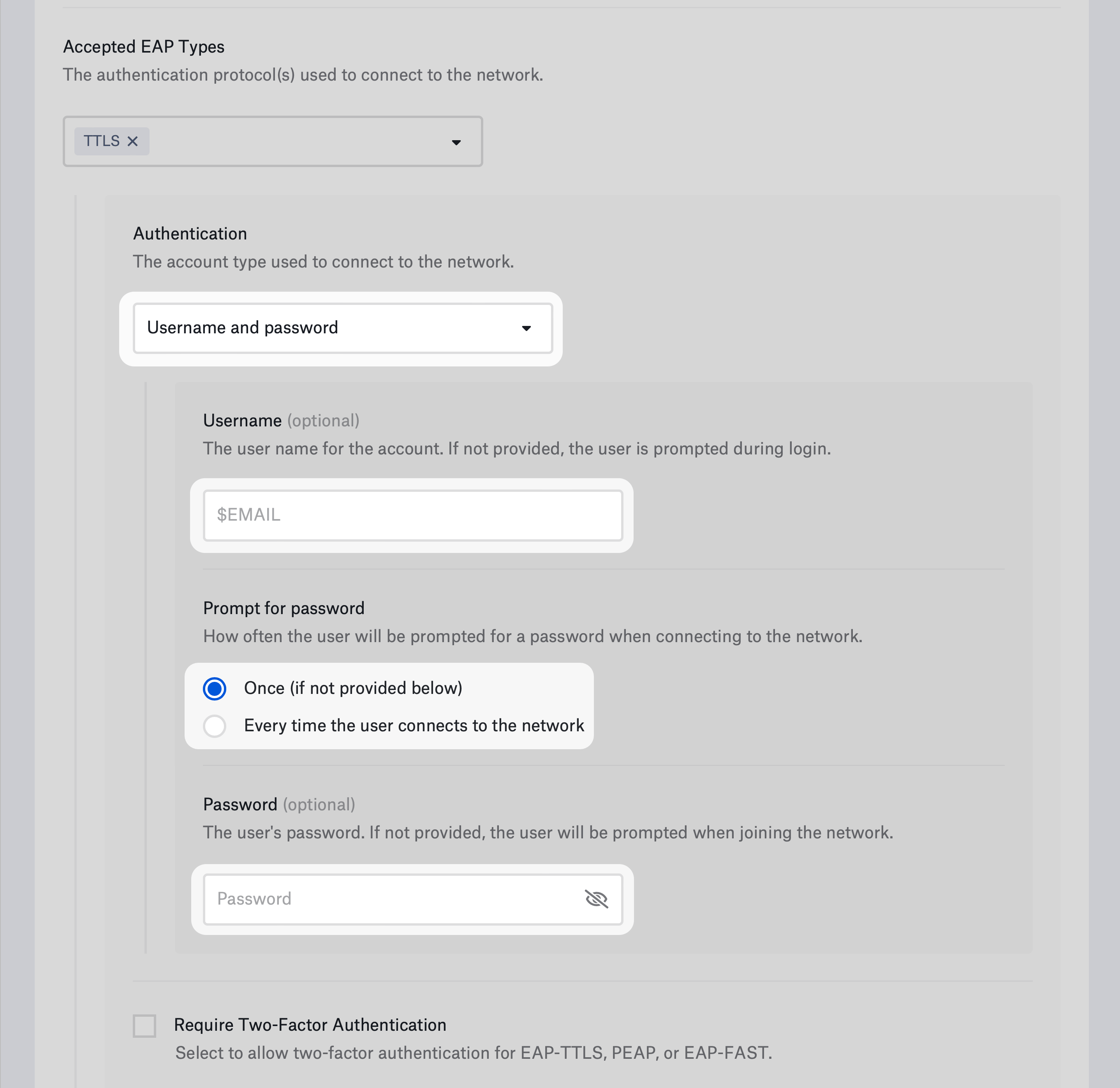
Username and password authentication:
Choose **Username and password** for **Authentication**.
Optionally, provide the **Username**. You can use a static value or one of [Iru Endpoint's global variables](/en/endpoint/library/library-items-profiles/global-variables), such as \$EMAIL. If you do not enter a username, the device prompts the user to enter one when connecting to the network.
Select how often to prompt the user for their password. If you choose **Once** and don't provide a password, the device will prompt the user once for their password and remember it. If you select, **Every time the user connects to the network**, the device will not remember the password.
If devices use a shared username and password, enter the password in the **Password** field. If you do not enter a password, the device prompts the user to enter a password when connecting to the network.
### Configure EAP-TTLS
Tunneled Transport Layer Security uses a TLS tunnel to encrypt another authentication protocol. It does not require an identity certificate.
Devices can use a username and password or device-based directory credentials to authenticate.
Username and password authentication:
Choose **Username and password** for **Authentication**.
Optionally, provide the **Username**. You can use a static value or one of [Iru Endpoint's global variables](/en/endpoint/library/library-items-profiles/global-variables), such as \$EMAIL. If you do not enter a username, the device prompts the user to enter one when connecting to the network.
Select how often to prompt the user for their password. If you choose **Once** and don't provide a password, the device will prompt the user once for their password and remember it. If you select, **Every time the user connects to the network**, the device will not remember the password.
If devices use a shared username and password, enter the password in the **Password** field. If you do not enter a password, the device prompts the user to enter a password when connecting to the network.
 Device-based directory authentication for a Mac bound to a directory service:
Choose either **Computer AD system authentication** to use the Active Directory computer account or **Computer OD system authentication** to use the Open Directory computer account.
Configure the remaining TTLS settings:
When you select TTLS, your device will use a username and password or device directory credentials for authentication. If your network requires an identity certificate as a second authentication factor, select **Require Two-Factor Authentication.**
For **Inner authentication**, choose the authentication protocol to use inside the TLS tunnel.
Optionally specify **Outer identity.** It is different from the identity used inside the tunnel and is specified to prevent exposing the inner identity.
To prevent using older and weaker TLS versions, select the **TLS minimum version** you would like to allow.
If your infrastructure does not support the latest versions of TLS, select the **TLS maximum version** you want to use.
### Configure EAP-LEAP
Lightweight Extensible Authentication Protocol is an older authentication method based on MS-CHAP and Dynamic WEP. It does not use an identity certificate.
Devices can use a username and password or device-based directory credentials to authenticate.
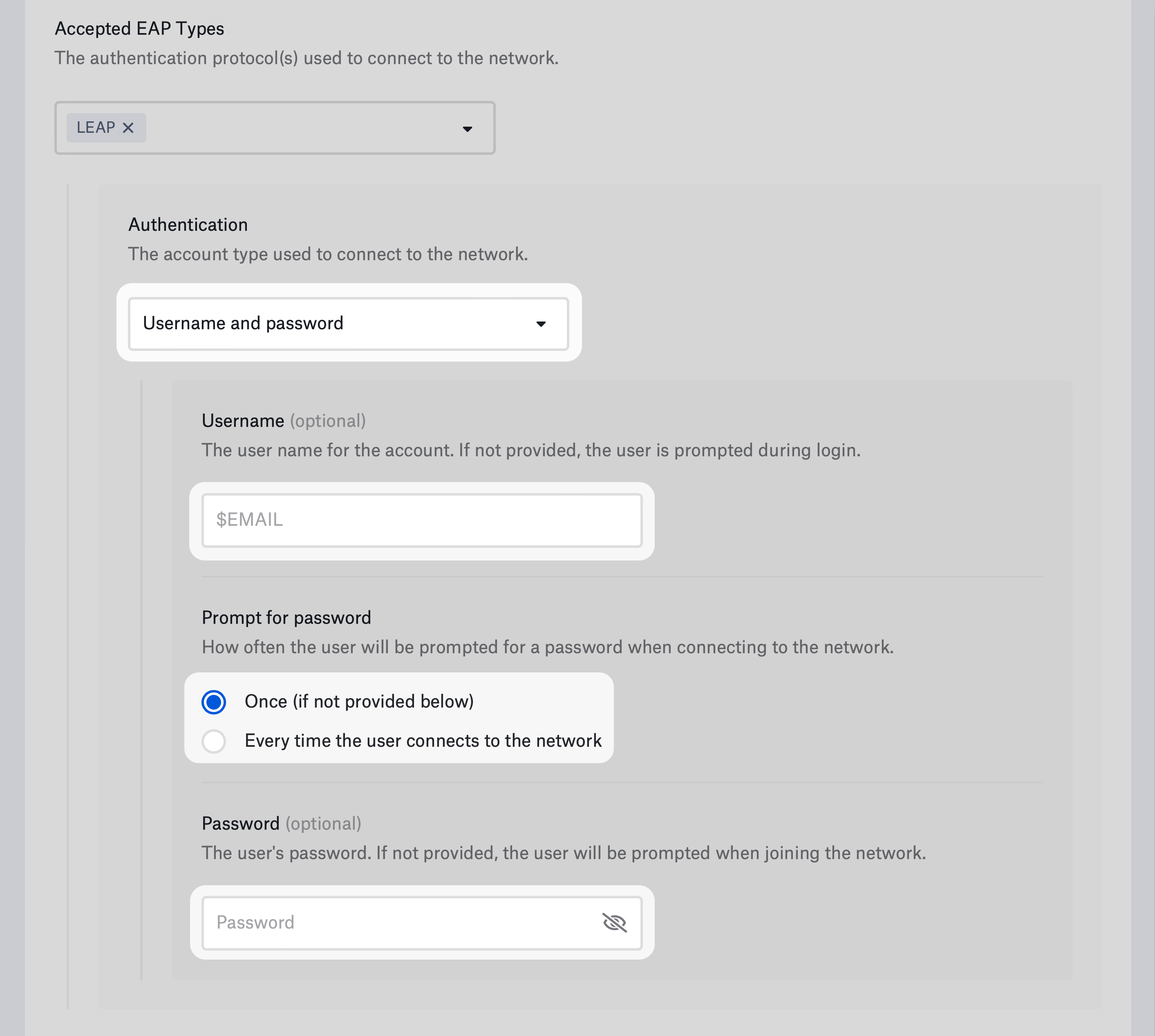
Username and password authentication:
Choose **Username and password** for **Authentication**.
Optionally, provide the **Username**. You can use a static value or one of [Iru Endpoint's global variables](/en/endpoint/library/library-items-profiles/global-variables), such as \$EMAIL. If you do not enter a username, the device prompts the user to enter one when connecting to the network.
Select how often to prompt the user for their password. If you choose **Once** and don't provide a password, the device will prompt the user once for their password and remember it. If you select **Every time the user connects to the network**, the device will not remember the password.
If devices use a shared username and password, enter the password in the **Password** field. If you do not enter a password, the device prompts the user to enter a password when connecting to the network.
Device-based directory authentication for a Mac bound to a directory service:
Choose either **Computer AD system authentication** to use the Active Directory computer account or **Computer OD system authentication** to use the Open Directory computer account.
Configure the remaining TTLS settings:
When you select TTLS, your device will use a username and password or device directory credentials for authentication. If your network requires an identity certificate as a second authentication factor, select **Require Two-Factor Authentication.**
For **Inner authentication**, choose the authentication protocol to use inside the TLS tunnel.
Optionally specify **Outer identity.** It is different from the identity used inside the tunnel and is specified to prevent exposing the inner identity.
To prevent using older and weaker TLS versions, select the **TLS minimum version** you would like to allow.
If your infrastructure does not support the latest versions of TLS, select the **TLS maximum version** you want to use.
### Configure EAP-LEAP
Lightweight Extensible Authentication Protocol is an older authentication method based on MS-CHAP and Dynamic WEP. It does not use an identity certificate.
Devices can use a username and password or device-based directory credentials to authenticate.
Username and password authentication:
Choose **Username and password** for **Authentication**.
Optionally, provide the **Username**. You can use a static value or one of [Iru Endpoint's global variables](/en/endpoint/library/library-items-profiles/global-variables), such as \$EMAIL. If you do not enter a username, the device prompts the user to enter one when connecting to the network.
Select how often to prompt the user for their password. If you choose **Once** and don't provide a password, the device will prompt the user once for their password and remember it. If you select **Every time the user connects to the network**, the device will not remember the password.
If devices use a shared username and password, enter the password in the **Password** field. If you do not enter a password, the device prompts the user to enter a password when connecting to the network.
 Device-based directory authentication for a Mac bound to a directory service:
For **Authentication,** choose **Computer AD system authentication** to use the Active Directory computer account or **Computer OD system authentication** to use the Open Directory computer account.
### Configure EAP-PEAP
Protected Extensible Authentication Protocol addresses shortcomings of previous Extensible Authentication Protocols such as LEAP. Like EAP-TTLS, PEAP uses a TLS tunnel to encrypt another authentication protocol. It does not require an identity certificate.
Devices can use a username and password or device-based directory credentials to authenticate.
Username and password authentication:
Choose **Username and password** for **Authentication**.
Optionally, provide the **Username**. You can use a static value or one of [Iru Endpoint's global variables](/en/endpoint/library/library-items-profiles/global-variables). For example, \$EMAIL. If you do not enter a username, the device prompts the user to enter one when connecting to the network.
Select how often to prompt the user for their password. If you choose **Once** and don't provide a password, the device will prompt the user once for their password and remember it. If you select, **Every time the user connects to the network**, the device will not remember the password.
If devices use a shared username and password, enter the password in the **Password** field. If you do not enter a password, the device prompts the user to enter a password when connecting to the network.
Device-based directory authentication for a Mac bound to a directory service:
For **Authentication,** choose **Computer AD system authentication** to use the Active Directory computer account or **Computer OD system authentication** to use the Open Directory computer account.
Configure the remaining PEAP settings:
When you select PEAP, your device will use a username and password or device directory credentials for authentication. If your network requires an identity certificate as a second authentication factor, select **Require Two-Factor Authentication.**
To prevent using older and weaker TLS versions, select the **TLS minimum version** you would like to allow.
If your infrastructure does not support the latest versions of TLS, select the **TLS maximum version** you want to use.
Optionally, specify **Outer identity.** It is different from the identity used inside the tunnel and is specified to prevent exposing the inner identity.
### Configure EAP-FAST
Flexible Authentication via Secure Tunneling (FAST) uses a TLS tunnel to encrypt additional authentication information. FAST also supports fast re-establishment of the tunnel through Protected Access Credentials (PAC). It does not require an identity certificate.
A username and password or device-based directory credentials can provide authentication.
Username and password authentication:
Choose **Username and password** for **Authentication**.
Optionally, provide the **Username**. You can use a static value or one of [Iru Endpoint's global variables](/en/endpoint/library/library-items-profiles/global-variables). For example, \$EMAIL. If you do not enter a username, the device prompts the user to enter one when connecting to the network.
Select how often to prompt the user for their password. If you choose **Once** and don't provide a password, the device will prompt the user once for their password and remember it. If you select, **Every time the user connects to the network**, the device will not remember the password.
If devices use a shared username and password, enter the password in the **Password** field. If you do not enter a password, the device prompts the user to enter a password when connecting to the network.
Device-based directory authentication for a Mac bound to a directory service:
For **Authentication,** choose **Computer AD system authentication** to use the Active Directory computer account or **Computer OD system authentication** to use the Open Directory computer account.
Configure the remaining EAP-FAST settings:
When you select EAP-FAST, your device will use a username and password or device directory credentials for authentication. If your network requires an identity certificate as a second authentication factor, select **Require Two-Factor Authentication.**
Optionally specify **Outer identity.** It is different from the identity used inside the tunnel and is specified to prevent exposing the inner identity.
To use Protected Access Credentials, select **Use PAC**.
To use Protected Access Credentials, select **Provision PAC**.
If you would like to provision the PAC anonymously, select **Provision PAC anonymously**.
### Configure EAP-SIM
This authentication method is compatible with the [Wi-Fi Library Item](/en/endpoint/library/library-items-profiles/configure-the-wi-fi-library-item) only.
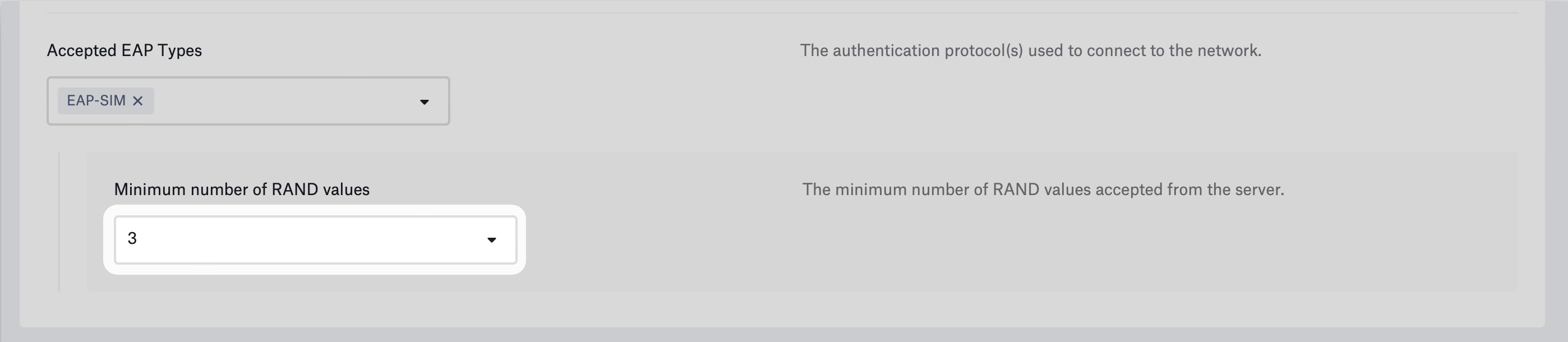
EAP-SIM uses a device’s Subscriber Identity Module (SIM) for a Global System for Mobile Communications (GSM) network to authenticate to Wi-Fi. This EAP type is used in very few environments —for example, if you are a Mobile Network Operator (MNO) or a Mobile Virtual Network Operator (MVNO). It does not require an identity certificate.
Choose the **Minimum number of RAND** **values** the devices requires from the server. The available options are **3** (default), **2**, or **Don't specify**. More RAND challenges result in stronger keying material.
Device-based directory authentication for a Mac bound to a directory service:
For **Authentication,** choose **Computer AD system authentication** to use the Active Directory computer account or **Computer OD system authentication** to use the Open Directory computer account.
### Configure EAP-PEAP
Protected Extensible Authentication Protocol addresses shortcomings of previous Extensible Authentication Protocols such as LEAP. Like EAP-TTLS, PEAP uses a TLS tunnel to encrypt another authentication protocol. It does not require an identity certificate.
Devices can use a username and password or device-based directory credentials to authenticate.
Username and password authentication:
Choose **Username and password** for **Authentication**.
Optionally, provide the **Username**. You can use a static value or one of [Iru Endpoint's global variables](/en/endpoint/library/library-items-profiles/global-variables). For example, \$EMAIL. If you do not enter a username, the device prompts the user to enter one when connecting to the network.
Select how often to prompt the user for their password. If you choose **Once** and don't provide a password, the device will prompt the user once for their password and remember it. If you select, **Every time the user connects to the network**, the device will not remember the password.
If devices use a shared username and password, enter the password in the **Password** field. If you do not enter a password, the device prompts the user to enter a password when connecting to the network.
Device-based directory authentication for a Mac bound to a directory service:
For **Authentication,** choose **Computer AD system authentication** to use the Active Directory computer account or **Computer OD system authentication** to use the Open Directory computer account.
Configure the remaining PEAP settings:
When you select PEAP, your device will use a username and password or device directory credentials for authentication. If your network requires an identity certificate as a second authentication factor, select **Require Two-Factor Authentication.**
To prevent using older and weaker TLS versions, select the **TLS minimum version** you would like to allow.
If your infrastructure does not support the latest versions of TLS, select the **TLS maximum version** you want to use.
Optionally, specify **Outer identity.** It is different from the identity used inside the tunnel and is specified to prevent exposing the inner identity.
### Configure EAP-FAST
Flexible Authentication via Secure Tunneling (FAST) uses a TLS tunnel to encrypt additional authentication information. FAST also supports fast re-establishment of the tunnel through Protected Access Credentials (PAC). It does not require an identity certificate.
A username and password or device-based directory credentials can provide authentication.
Username and password authentication:
Choose **Username and password** for **Authentication**.
Optionally, provide the **Username**. You can use a static value or one of [Iru Endpoint's global variables](/en/endpoint/library/library-items-profiles/global-variables). For example, \$EMAIL. If you do not enter a username, the device prompts the user to enter one when connecting to the network.
Select how often to prompt the user for their password. If you choose **Once** and don't provide a password, the device will prompt the user once for their password and remember it. If you select, **Every time the user connects to the network**, the device will not remember the password.
If devices use a shared username and password, enter the password in the **Password** field. If you do not enter a password, the device prompts the user to enter a password when connecting to the network.
Device-based directory authentication for a Mac bound to a directory service:
For **Authentication,** choose **Computer AD system authentication** to use the Active Directory computer account or **Computer OD system authentication** to use the Open Directory computer account.
Configure the remaining EAP-FAST settings:
When you select EAP-FAST, your device will use a username and password or device directory credentials for authentication. If your network requires an identity certificate as a second authentication factor, select **Require Two-Factor Authentication.**
Optionally specify **Outer identity.** It is different from the identity used inside the tunnel and is specified to prevent exposing the inner identity.
To use Protected Access Credentials, select **Use PAC**.
To use Protected Access Credentials, select **Provision PAC**.
If you would like to provision the PAC anonymously, select **Provision PAC anonymously**.
### Configure EAP-SIM
This authentication method is compatible with the [Wi-Fi Library Item](/en/endpoint/library/library-items-profiles/configure-the-wi-fi-library-item) only.
EAP-SIM uses a device’s Subscriber Identity Module (SIM) for a Global System for Mobile Communications (GSM) network to authenticate to Wi-Fi. This EAP type is used in very few environments —for example, if you are a Mobile Network Operator (MNO) or a Mobile Virtual Network Operator (MVNO). It does not require an identity certificate.
Choose the **Minimum number of RAND** **values** the devices requires from the server. The available options are **3** (default), **2**, or **Don't specify**. More RAND challenges result in stronger keying material.
 ### Configure EAP-AKA
This authentication method is compatible with the [Wi-Fi Library Item](/en/endpoint/library/library-items-profiles/configure-the-wi-fi-library-item) only.
EAP-AKA (Authentication and Key Agreement) uses a device’s identity module for a Universal Mobile Telecommunications System (UMTS) and CDMA2000 network to authenticate to Wi-Fi. This EAP type is used in very few environments —for example, if you are a Mobile Network Operator (MNO) or a Mobile Virtual Network Operator (MVNO). It does not require an identity certificate. There are no options to configure for this EAP type.
### Configure EAP-AKA
This authentication method is compatible with the [Wi-Fi Library Item](/en/endpoint/library/library-items-profiles/configure-the-wi-fi-library-item) only.
EAP-AKA (Authentication and Key Agreement) uses a device’s identity module for a Universal Mobile Telecommunications System (UMTS) and CDMA2000 network to authenticate to Wi-Fi. This EAP type is used in very few environments —for example, if you are a Mobile Network Operator (MNO) or a Mobile Virtual Network Operator (MVNO). It does not require an identity certificate. There are no options to configure for this EAP type.
 ### Related Articles
Compare Wi-Fi authentication types and when to use enterprise vs non-enterprise options
Configure the Wi-Fi Library Item for network deployment
Configure 802.1X authentication for wired networks
Use identity certificates for 802.1X authentication
### Related Articles
Compare Wi-Fi authentication types and when to use enterprise vs non-enterprise options
Configure the Wi-Fi Library Item for network deployment
Configure 802.1X authentication for wired networks
Use identity certificates for 802.1X authentication