> ## Documentation Index
> Fetch the complete documentation index at: https://docs.iru.com/llms.txt
> Use this file to discover all available pages before exploring further.
# ServiceNow integration: Iru Endpoint configuration
> Connect Iru Endpoint to ServiceNow with OAuth and a service account, and optionally send Mac application inventory and usage data when SAM Pro is licensed.
### Before You Begin
Follow [ServiceNow integration: ServiceNow configuration](/en/endpoint/integrations/servicenow/servicenow-integration-servicenow-configuration) so the Kandji ServiceNow app is installed in your tenant before you continue here.
### Setting Up ServiceNow Integration
Install the Kandji ServiceNow app from the ServiceNow store before you select **Connect to ServiceNow** in Iru Endpoint.
Log in to Iru Endpoint.
Click your name at the bottom of the left navigation, then select **Integrations**.
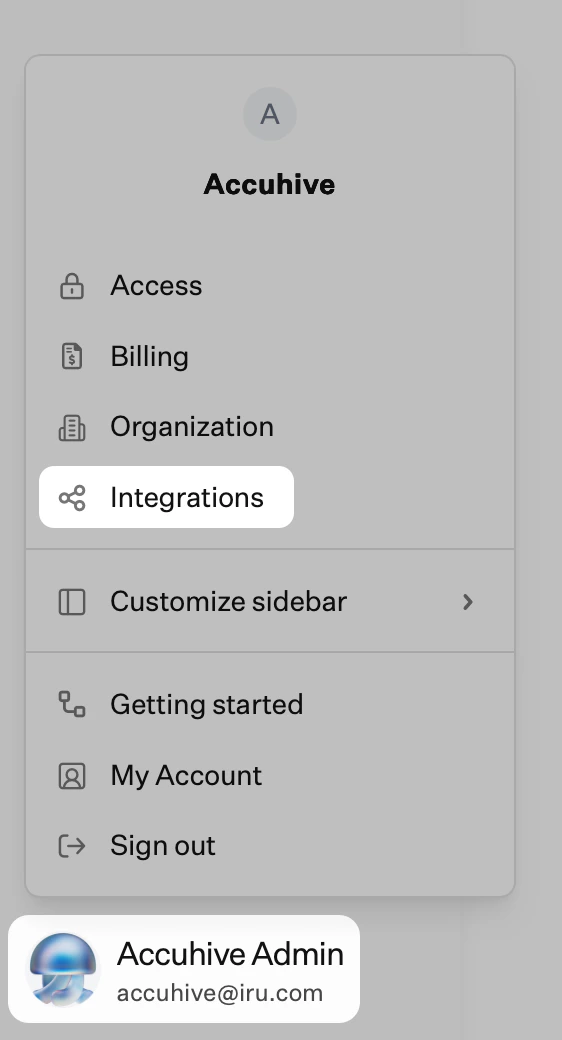 Select **Discover integrations**.
In the Asset Management section, select **ServiceNow**, then **Add and configure**.
Enter only your ServiceNow tenant prefix, the part before `.service-now.com` (for example, `acme` for `acme.service-now.com`).
Enter the Client ID from the ServiceNow OAuth app that you created earlier.
Enter the Client Secret from the ServiceNow OAuth app that you created earlier.
Enter the service account username you created earlier.
Enter the service account password you created earlier.
If you have not installed the Kandji ServiceNow app yet, install it from the ServiceNow store and complete [ServiceNow configuration](/en/endpoint/integrations/servicenow/servicenow-integration-servicenow-configuration) before you finish setup in Iru Endpoint.
Click **Connect to ServiceNow**.
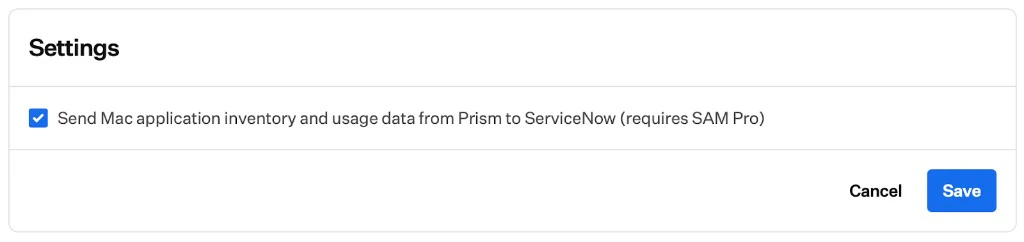
If you are licensed for Software Asset Management Professional (SAM Pro), select **Edit**, turn on the option to send Mac application inventory and usage data to ServiceNow nightly, then select **Save**.
Select **Discover integrations**.
In the Asset Management section, select **ServiceNow**, then **Add and configure**.
Enter only your ServiceNow tenant prefix, the part before `.service-now.com` (for example, `acme` for `acme.service-now.com`).
Enter the Client ID from the ServiceNow OAuth app that you created earlier.
Enter the Client Secret from the ServiceNow OAuth app that you created earlier.
Enter the service account username you created earlier.
Enter the service account password you created earlier.
If you have not installed the Kandji ServiceNow app yet, install it from the ServiceNow store and complete [ServiceNow configuration](/en/endpoint/integrations/servicenow/servicenow-integration-servicenow-configuration) before you finish setup in Iru Endpoint.
Click **Connect to ServiceNow**.
If you are licensed for Software Asset Management Professional (SAM Pro), select **Edit**, turn on the option to send Mac application inventory and usage data to ServiceNow nightly, then select **Save**.
 After setup completes, Iru Endpoint starts syncing Apple device data to ServiceNow.
### Managing the Integration
After the integration connects, open the ServiceNow integration details page in Iru Endpoint to view connection status, tenant information, and the OAuth app in use.
#### Reauthentication
If the ServiceNow credentials used to configure the integration need to be updated, you can do so from the Integration details page in Iru Endpoint.
Click your name at the bottom of the left navigation, then select **Integrations**.
In the Asset Management section, select **ServiceNow**.
In the top-right corner, select the **ellipsis** (⋯).
Select **Re-authenticate**.
Verify that the ServiceNow tenant domain and client ID are still accurate and enter the new account credentials.
Click **Connect to ServiceNow**.
If the credentials are accepted, you will be returned to the integration details page for ServiceNow.
#### Deleting the Integration
Use the following steps to remove the ServiceNow integration in Iru Endpoint.
This action cannot be undone. Device asset data stops syncing to ServiceNow as soon as you delete the integration.
Click your name at the bottom of the left navigation, then select **Integrations**.
In the Asset Management section, select **ServiceNow**.
In the top-right corner, select the **ellipsis** (⋯).
Select **Delete Integration**.
Read the confirmation carefully before you select **Delete Integration**.
## Considerations
Install the Kandji ServiceNow app from the ServiceNow store before you finish this integration in Iru Endpoint.
Store OAuth app credentials securely and rotate them on your organization's schedule.
Test with a small set of devices before you roll the integration out broadly.
Device inventory syncs automatically after the integration connects.
### Related Articles
How device inventory syncs from Iru Endpoint to ServiceNow staging and target tables, and how SAM Pro app data syncs when enabled.
Install the Kandji ServiceNow app, create OAuth and a service account, and fix discovery source if Kandji does not appear.
After setup completes, Iru Endpoint starts syncing Apple device data to ServiceNow.
### Managing the Integration
After the integration connects, open the ServiceNow integration details page in Iru Endpoint to view connection status, tenant information, and the OAuth app in use.
#### Reauthentication
If the ServiceNow credentials used to configure the integration need to be updated, you can do so from the Integration details page in Iru Endpoint.
Click your name at the bottom of the left navigation, then select **Integrations**.
In the Asset Management section, select **ServiceNow**.
In the top-right corner, select the **ellipsis** (⋯).
Select **Re-authenticate**.
Verify that the ServiceNow tenant domain and client ID are still accurate and enter the new account credentials.
Click **Connect to ServiceNow**.
If the credentials are accepted, you will be returned to the integration details page for ServiceNow.
#### Deleting the Integration
Use the following steps to remove the ServiceNow integration in Iru Endpoint.
This action cannot be undone. Device asset data stops syncing to ServiceNow as soon as you delete the integration.
Click your name at the bottom of the left navigation, then select **Integrations**.
In the Asset Management section, select **ServiceNow**.
In the top-right corner, select the **ellipsis** (⋯).
Select **Delete Integration**.
Read the confirmation carefully before you select **Delete Integration**.
## Considerations
Install the Kandji ServiceNow app from the ServiceNow store before you finish this integration in Iru Endpoint.
Store OAuth app credentials securely and rotate them on your organization's schedule.
Test with a small set of devices before you roll the integration out broadly.
Device inventory syncs automatically after the integration connects.
### Related Articles
How device inventory syncs from Iru Endpoint to ServiceNow staging and target tables, and how SAM Pro app data syncs when enabled.
Install the Kandji ServiceNow app, create OAuth and a service account, and fix discovery source if Kandji does not appear.