> ## Documentation Index
> Fetch the complete documentation index at: https://docs.iru.com/llms.txt
> Use this file to discover all available pages before exploring further.
# Amazon S3 Activity Log Integration
> Configure the Amazon S3 integration in Iru Endpoint to export unified tenant activity logs, including Endpoint, Detections, and Compliance events.
### About the Amazon S3 Activity Log Integration
Amazon S3 Activity Log Integration in Iru Endpoint enables organizations to export unified tenant activity logs to a self-hosted S3 bucket for centralized collection and analysis with SIEM services.
### How It Works
This integration pushes event data to your specified S3 bucket using cross-account access via an Iru Endpoint-provided IAM role.
Once configured, it delivers the same tenant activity events you review on [Unified Activity](/en/iru/platform-overview/unified-activity). That includes activity across **Tenant** (System), **Endpoint**, **Detections**, **Vulnerabilities**, and **Compliance**. Use Unified Activity to browse and filter what was recorded; use your S3 bucket for long-term storage, SIEM ingestion, or offline analysis.
For event field definitions and API details, refer to the activity log [API documentation](https://api-docs.kandji.io/#06022d9d-426b-4aea-826a-d7f084e4f1e3).
The first log collection after the Integration is connected only includes the previous hour of activity. Subsequent activity log collection will occur hourly.
### Prerequisites
Before configuring this integration, ensure the following:
* You have an active AWS account.
* You have permissions to create a new S3 bucket.
* You have permissions to create an IAM Role with AssumeRole and S3 write permissions.
### Setting Up AWS Access
#### Iru Endpoint Integration Setup
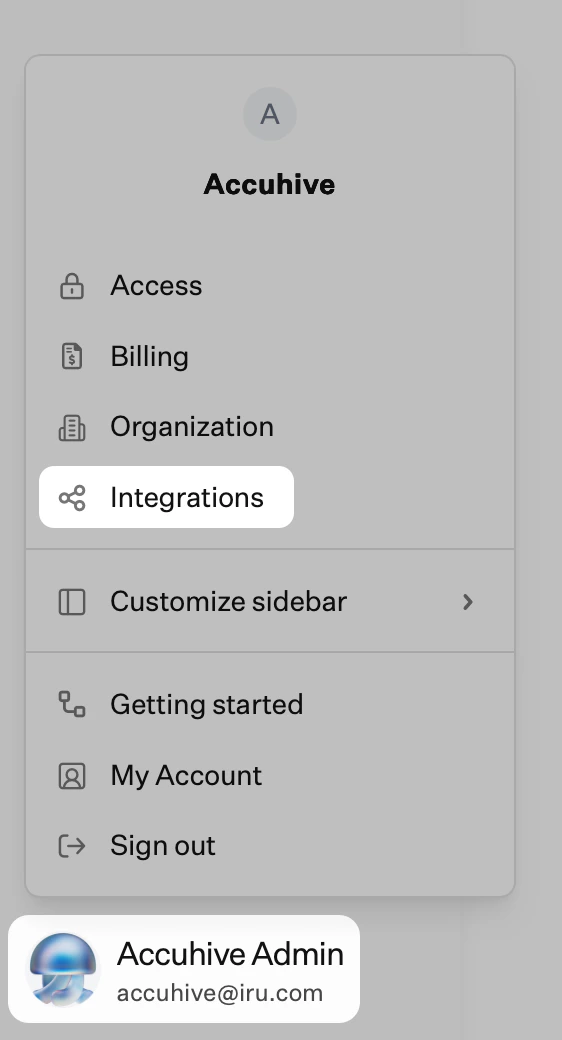
Click your name at the bottom of the left navigation, then select **Integrations**.
 Click **Discover integrations** in the upper-right of the Integrations page.
Under Security integrations, click **Add and configure** under Amazon S3 Activity Log Integration.
Copy the value for **IRU\_ENDPOINT\_IAM\_ROLE** and store the value in a secure location.
Copy the value for **IRU\_ENDPOINT\_AWS\_ACCOUNT\_ID** and store the value in a secure location.
These values will be used as part of your IAM role permissions in the next section.
#### Creating S3 Bucket
You must create a new S3 Bucket to use the Amazon S3 Activity Log Integration.
Log in to AWS.
Navigate to Amazon S3 > Buckets.
Click **Create bucket**.
Choose the **General purpose** bucket type.
Enter a memorable **Bucket name**.
* This name will be referenced in policies.
Under **Block Public Access settings for this bucket**, ensure that the **Block all public access** option is selected.
Under **Bucket Versioning**, keep the **Disable** option selected.
Under **Encryption type**, select **Server side encryption with Amazon S3 managed Keys (SSE-S3)**.
Under **Bucket Key**, select **Enabled**.
Iru Endpoint currently only supports the default encryption options defined above.
Click **Create bucket**.
Select the bucket you just created.
Click the **Permissions** tab.
Under **Bucket policy**, click **Edit**.
Add the following bucket policy to the role permissions. Click **Save changes**.
Replace all reference to **BUCKET\_NAME** with the name of the bucket you just created.
```
{
"Version": "2012-10-17",
"Statement": [
{
"Sid": "AllowSSLRequestsOnly",
"Effect": "Deny",
"Principal": "*",
"Action": "s3:*",
"Resource": [
"arn:aws:s3:::BUCKET_NAME/*",
"arn:aws:s3:::BUCKET_NAME"
],
"Condition": {
"Bool": {
"aws:SecureTransport": "false"
}
}
}
]
}
```
In AWS, navigate to **IAM > Roles**.
Click **Create role**.
Select **Custom trust policy**.
Add the **Custom trust policy** below to allow Iru Endpoint to assume this role when writing to your S3 bucket.
* Replace the **IRU\_ENDPOINT\_AWS\_ACCOUNT\_ID** and **IRU\_ENDPOINT\_IAM\_ROLE** text with the values you made a note of at the beginning of the article.
```
{
"Version": "2012-10-17",
"Statement": [
{
"Effect": "Allow",
"Principal": {
"AWS": "arn:aws:iam::IRU_ENDPOINT_AWS_ACCOUNT_ID:role/IRU_ENDPOINT_IAM_ROLE"
},
"Action": "sts:AssumeRole"
}
]
}
```
Click **Next**.
On the **Add permissions screen**, select Next without selecting any of the listed **Permissions policies**.
Add a **Role name** and **Description**.
Click **Create role**.
Select the **IAM Role** you just created.
Click on the **Permissions** tab.
Click **Add permissions**.
Click **Create inline policy**.
Click the **JSON** tab.
Enter the following for the inline policy:
Replace BUCKET\_NAME - replace this with the name of the bucket you created that Iru Endpoint will place the activity log files in.
```
{
"Version": "2012-10-17",
"Statement": [
{
"Action": "s3:ListBucket",
"Effect": "Allow",
"Resource": "arn:aws:s3:::BUCKET_NAME"
},
{
"Action": "s3:*",
"Effect": "Allow",
"Resource": "arn:aws:s3:::BUCKET_NAME/*"
}
]
}
```
Click **Next**.
Enter a **Policy name**.
Click **Create policy**.
### Setting Up the Integration in Iru Endpoint
Once the above is configured in your AWS account, you can proceed to setting up the integration in your Iru Endpoint account.
Click your name at the bottom of the left navigation, then select **Integrations**.
Click **Discover integrations** in the upper-right of the Integrations page.
Under Security integrations, click **Add and configure** under Amazon S3 Activity Log Integration.
Click **Next**.
Enter the **AWS Account ID**.
Enter the **S3 Bucket Name** for the bucket that was created earlier in this guide.
Optionally, enter a **Destination Path**.
Enter the **IAM Role ARN** for the IAM Role that was created earlier in this guide.
Enter the **AWS Region**.
Click **Connect to S3**.
Iru Endpoint will attempt to upload and delete a test file in the provided S3 bucket. If Iru Endpoint is unable to successfully integrate to your S3 bucket, you will not be able to save and will need to follow the error messages surfaced in the UI to fix the connection.
Check your S3 bucket to confirm that Iru Endpoint is pushing activity log data. This will take a maximum of two hours, provided that tenant activity events have been generated on your account.
## Considerations
**Activity Log Frequency**: Activity log events are updated hourly, with the first collection including only the previous hour of activity. Exported events match [Unified Activity](/en/iru/platform-overview/unified-activity) scope (all supported Tenant, Endpoint, Detections, Vulnerabilities, and Compliance activity types).
**IAM Role Permissions**: The IAM role must have the necessary permissions to allow Iru Endpoint to assume that role and write to the S3 bucket.
**S3 Bucket Policy**: You may need to adjust the S3 Bucket policy to allow Iru Endpoint to write objects to the bucket.
**Security Requirements**: Ensure the S3 bucket has proper encryption enabled and public access is blocked for security compliance.
**Data Retention**: Consider implementing S3 lifecycle policies to manage log data retention and storage costs.
**Monitoring**: Set up CloudWatch alarms to monitor S3 bucket access and activity log delivery.
### Related Articles
Browse, search, and filter the same tenant activity events in the Iru web app before or after they export to S3.
Current Endpoint activity timeline, available alongside Unified Activity while it is in Preview.
Click **Discover integrations** in the upper-right of the Integrations page.
Under Security integrations, click **Add and configure** under Amazon S3 Activity Log Integration.
Copy the value for **IRU\_ENDPOINT\_IAM\_ROLE** and store the value in a secure location.
Copy the value for **IRU\_ENDPOINT\_AWS\_ACCOUNT\_ID** and store the value in a secure location.
These values will be used as part of your IAM role permissions in the next section.
#### Creating S3 Bucket
You must create a new S3 Bucket to use the Amazon S3 Activity Log Integration.
Log in to AWS.
Navigate to Amazon S3 > Buckets.
Click **Create bucket**.
Choose the **General purpose** bucket type.
Enter a memorable **Bucket name**.
* This name will be referenced in policies.
Under **Block Public Access settings for this bucket**, ensure that the **Block all public access** option is selected.
Under **Bucket Versioning**, keep the **Disable** option selected.
Under **Encryption type**, select **Server side encryption with Amazon S3 managed Keys (SSE-S3)**.
Under **Bucket Key**, select **Enabled**.
Iru Endpoint currently only supports the default encryption options defined above.
Click **Create bucket**.
Select the bucket you just created.
Click the **Permissions** tab.
Under **Bucket policy**, click **Edit**.
Add the following bucket policy to the role permissions. Click **Save changes**.
Replace all reference to **BUCKET\_NAME** with the name of the bucket you just created.
```
{
"Version": "2012-10-17",
"Statement": [
{
"Sid": "AllowSSLRequestsOnly",
"Effect": "Deny",
"Principal": "*",
"Action": "s3:*",
"Resource": [
"arn:aws:s3:::BUCKET_NAME/*",
"arn:aws:s3:::BUCKET_NAME"
],
"Condition": {
"Bool": {
"aws:SecureTransport": "false"
}
}
}
]
}
```
In AWS, navigate to **IAM > Roles**.
Click **Create role**.
Select **Custom trust policy**.
Add the **Custom trust policy** below to allow Iru Endpoint to assume this role when writing to your S3 bucket.
* Replace the **IRU\_ENDPOINT\_AWS\_ACCOUNT\_ID** and **IRU\_ENDPOINT\_IAM\_ROLE** text with the values you made a note of at the beginning of the article.
```
{
"Version": "2012-10-17",
"Statement": [
{
"Effect": "Allow",
"Principal": {
"AWS": "arn:aws:iam::IRU_ENDPOINT_AWS_ACCOUNT_ID:role/IRU_ENDPOINT_IAM_ROLE"
},
"Action": "sts:AssumeRole"
}
]
}
```
Click **Next**.
On the **Add permissions screen**, select Next without selecting any of the listed **Permissions policies**.
Add a **Role name** and **Description**.
Click **Create role**.
Select the **IAM Role** you just created.
Click on the **Permissions** tab.
Click **Add permissions**.
Click **Create inline policy**.
Click the **JSON** tab.
Enter the following for the inline policy:
Replace BUCKET\_NAME - replace this with the name of the bucket you created that Iru Endpoint will place the activity log files in.
```
{
"Version": "2012-10-17",
"Statement": [
{
"Action": "s3:ListBucket",
"Effect": "Allow",
"Resource": "arn:aws:s3:::BUCKET_NAME"
},
{
"Action": "s3:*",
"Effect": "Allow",
"Resource": "arn:aws:s3:::BUCKET_NAME/*"
}
]
}
```
Click **Next**.
Enter a **Policy name**.
Click **Create policy**.
### Setting Up the Integration in Iru Endpoint
Once the above is configured in your AWS account, you can proceed to setting up the integration in your Iru Endpoint account.
Click your name at the bottom of the left navigation, then select **Integrations**.
Click **Discover integrations** in the upper-right of the Integrations page.
Under Security integrations, click **Add and configure** under Amazon S3 Activity Log Integration.
Click **Next**.
Enter the **AWS Account ID**.
Enter the **S3 Bucket Name** for the bucket that was created earlier in this guide.
Optionally, enter a **Destination Path**.
Enter the **IAM Role ARN** for the IAM Role that was created earlier in this guide.
Enter the **AWS Region**.
Click **Connect to S3**.
Iru Endpoint will attempt to upload and delete a test file in the provided S3 bucket. If Iru Endpoint is unable to successfully integrate to your S3 bucket, you will not be able to save and will need to follow the error messages surfaced in the UI to fix the connection.
Check your S3 bucket to confirm that Iru Endpoint is pushing activity log data. This will take a maximum of two hours, provided that tenant activity events have been generated on your account.
## Considerations
**Activity Log Frequency**: Activity log events are updated hourly, with the first collection including only the previous hour of activity. Exported events match [Unified Activity](/en/iru/platform-overview/unified-activity) scope (all supported Tenant, Endpoint, Detections, Vulnerabilities, and Compliance activity types).
**IAM Role Permissions**: The IAM role must have the necessary permissions to allow Iru Endpoint to assume that role and write to the S3 bucket.
**S3 Bucket Policy**: You may need to adjust the S3 Bucket policy to allow Iru Endpoint to write objects to the bucket.
**Security Requirements**: Ensure the S3 bucket has proper encryption enabled and public access is blocked for security compliance.
**Data Retention**: Consider implementing S3 lifecycle policies to manage log data retention and storage costs.
**Monitoring**: Set up CloudWatch alarms to monitor S3 bucket access and activity log delivery.
### Related Articles
Browse, search, and filter the same tenant activity events in the Iru web app before or after they export to S3.
Current Endpoint activity timeline, available alongside Unified Activity while it is in Preview.