> ## Documentation Index
> Fetch the complete documentation index at: https://docs.iru.com/llms.txt
> Use this file to discover all available pages before exploring further.
# Configure Okta Verify for Device Trust
> Configure the Okta Verify Library Item in Iru Endpoint for Device Trust and FastPass, and deploy Okta Verify on Mac, iPhone, and iPad devices.
This guide applies to Mac computers, iOS devices, and iPadOS devices
**Product Name Update**: Throughout this guide, you may notice references to both "Kandji" and "Iru Endpoint." Our product is now called Iru Endpoint, but some integration interfaces may still display the previous name. This is a temporary situation that will be resolved as our integration partners update their systems.
### About Configuring the Okta Verify Library Item
Configuring the Okta Verify Library Item in Iru Endpoint allows you to deploy Okta Device Trust (ODT) to your devices, ensuring required settings, configurations, and resources are applied automatically to devices in scope.
### How It Works
After configuring the [Okta Device Trust (ODT) Integration](/en/endpoint/integrations/okta-device-trust-main/okta-device-trust-integration-setup) in Iru Endpoint, assign an Okta Verify Library Item to deploy ODT to your Apple devices. After you turn on ODT, Iru Endpoint applies the required settings and deploys them to devices in scope.
On **macOS**, use the **Okta Verify Auto App** Library Item from **Auto Apps** for ODT. See [Okta deployment options for macOS](https://help.okta.com/oie/en-us/content/topics/identity-engine/devices/ov-install-options-macos.htm) for more information from Okta.
If one Blueprint includes Macs, iPhones, and iPads, use [conditional logic](/en/endpoint/blueprints/assignment-maps/using-conditional-logic-in-blueprints) in the **Assignment Map** to assign each Library Item to the right platform. For example, assign the Auto App when **Device family** is **Mac**, and assign the App Store app when **Device family** is **iPhone** or **iPad**.
### Prerequisites
* Make **Okta Verify** available in your Iru Endpoint Library via Apps and Books in [Apple Business](https://business.apple.com/) or [Apple School Manager](https://school.apple.com/).
* For **iOS** and **iPadOS** ODT, assign the **Okta Verify** App Store app Library Item from **App Store Apps**.
* To cover multiple Apple platforms from one Blueprint, configure both Library Items with ODT enabled, then scope each assignment with [conditional logic](/en/endpoint/blueprints/assignment-maps/using-conditional-logic-in-blueprints) in the Assignment Map.
### Configuring Okta Verify for ODT
In Iru Endpoint, go to the **Library**.
Open the correct Okta Verify Library Item:
* **macOS:** In **Auto Apps**, open **Okta Verify**.
* **iOS and iPadOS:** In **App Store Apps**, open **Okta Verify**.
Assign the Library Item to one or more Blueprints. If the Blueprint has only Macs or only iPhones and iPads, assign the matching Library Item on the Assignment Map.
If the Blueprint has both, configure both Library Items with ODT enabled, then use [conditional logic](/en/endpoint/blueprints/assignment-maps/using-conditional-logic-in-blueprints) in the Assignment Map to assign each app by **Device family**.
For a first ODT rollout, use a test Blueprint scoped to a limited number of devices.
For the installation type, choose **Install and continuously enforce**. If Okta Verify is already installed on some devices, this process will not reinstall the app, but Iru Endpoint will take over the management of the app.
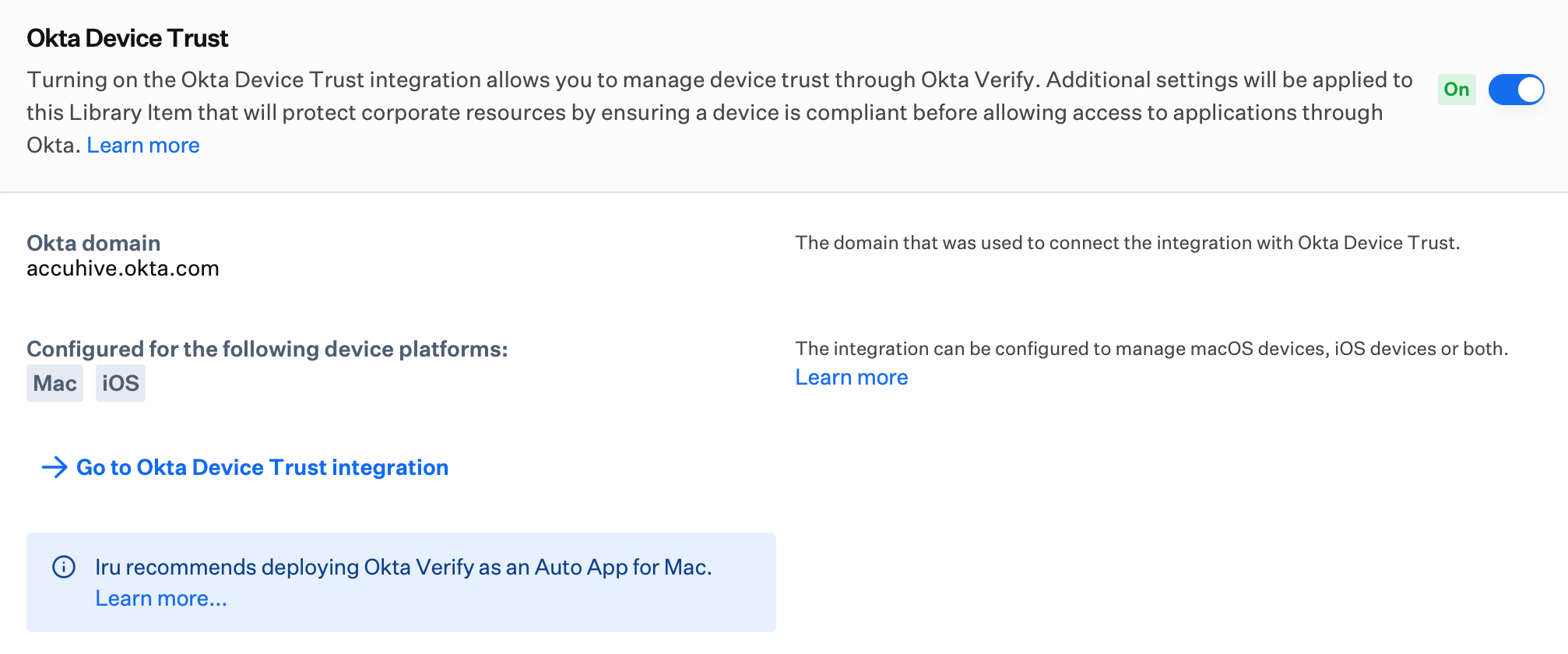
In the **Okta Device Trust** section, turn on the **toggle**.
You will see a modal letting you know that Managed AppConfig for iPhone and iPad will be disabled in the Library Item and will be managed by the ODT integration. Click **Yes, turn on Okta Device Trust** to continue.
Once turned on, you will see the device families that are configured for ODT and the configured Okta domain.
 Click **Save**.
### Migrate from the App Store app to the Auto App (macOS)
If Mac devices already receive ODT through the **Okta Verify** App Store app, you can move to the **Okta Verify Auto App** without reconfiguring ODT in Iru Endpoint or re-registering devices in Okta.
Complete the App Store and Auto App assignment changes in one Assignment Map edit session. Assign the Auto App with ODT enabled before you select **Save**. Do not leave Macs without an ODT-enabled Okta Verify assignment after you save.
Open the Blueprint **Assignment Map** where the App Store **Okta Verify** Library Item is assigned, then select **Edit assignments**.
Remove the **Okta Verify** App Store app Library Item from the Assignment Map.
Add the **Okta Verify** Auto App Library Item to the same Assignment Map. Turn on **Okta Device Trust** on that Library Item if it is not already enabled.
Select **Save** to apply the Assignment Map changes.
Iru Endpoint removes the App Store app from Macs, but ODT configurations stay on the device. On the next Iru Agent check-in (within about 15 minutes), Iru Endpoint installs the **Okta Verify Auto App** and keeps the ODT integration configuration.
### What Settings Are Deployed to Devices
Once ODT is set up, enabled, and scoped to your blueprints, the following settings payloads are automatically configured and delivered to Apple devices in the scope of Okta Device Trust in Iru Endpoint.
| Payload setting | Platform | Description |
| ---------------------------------- | ---------------------- | ----------------------------------------------------------------------------------------------------------------------------------------------------------------------------------------------------------------------------------- |
| Dynamic SCEP challenge certificate | macOS | This is a unique Okta SCEP certificate per device. The certificate is used in the device registration process and will automatically renew when it expires. |
| OktaVerify.EnrollmentOptions | macOS | Okta Verify `SilentEnrollmentEnabled` configuration is sent to macOS devices. This will launch Okta Verify automatically if an unregistered device attempts to access Okta resources and prefill the Organization URL for the user. |
| Okta Verify Login item | macOS | This payload adds Okta Verify as a login item on macOS and will start Okta Verify at user login. |
| Managed app config | iOS and iPadOS | This App Config contains the `OktaVerify.OrgUrl` and device `managementHint` used to register the device as managed in Okta. |
| SSO Extension payload | macOS, iOS, and iPadOS | The SSO extension forwards requests from the browser or app to Okta Verify, and users do not receive the Open Okta Verify browser prompt. Not supported on Chrome or Firefox. |
Click **Save**.
### Migrate from the App Store app to the Auto App (macOS)
If Mac devices already receive ODT through the **Okta Verify** App Store app, you can move to the **Okta Verify Auto App** without reconfiguring ODT in Iru Endpoint or re-registering devices in Okta.
Complete the App Store and Auto App assignment changes in one Assignment Map edit session. Assign the Auto App with ODT enabled before you select **Save**. Do not leave Macs without an ODT-enabled Okta Verify assignment after you save.
Open the Blueprint **Assignment Map** where the App Store **Okta Verify** Library Item is assigned, then select **Edit assignments**.
Remove the **Okta Verify** App Store app Library Item from the Assignment Map.
Add the **Okta Verify** Auto App Library Item to the same Assignment Map. Turn on **Okta Device Trust** on that Library Item if it is not already enabled.
Select **Save** to apply the Assignment Map changes.
Iru Endpoint removes the App Store app from Macs, but ODT configurations stay on the device. On the next Iru Agent check-in (within about 15 minutes), Iru Endpoint installs the **Okta Verify Auto App** and keeps the ODT integration configuration.
### What Settings Are Deployed to Devices
Once ODT is set up, enabled, and scoped to your blueprints, the following settings payloads are automatically configured and delivered to Apple devices in the scope of Okta Device Trust in Iru Endpoint.
| Payload setting | Platform | Description |
| ---------------------------------- | ---------------------- | ----------------------------------------------------------------------------------------------------------------------------------------------------------------------------------------------------------------------------------- |
| Dynamic SCEP challenge certificate | macOS | This is a unique Okta SCEP certificate per device. The certificate is used in the device registration process and will automatically renew when it expires. |
| OktaVerify.EnrollmentOptions | macOS | Okta Verify `SilentEnrollmentEnabled` configuration is sent to macOS devices. This will launch Okta Verify automatically if an unregistered device attempts to access Okta resources and prefill the Organization URL for the user. |
| Okta Verify Login item | macOS | This payload adds Okta Verify as a login item on macOS and will start Okta Verify at user login. |
| Managed app config | iOS and iPadOS | This App Config contains the `OktaVerify.OrgUrl` and device `managementHint` used to register the device as managed in Okta. |
| SSO Extension payload | macOS, iOS, and iPadOS | The SSO extension forwards requests from the browser or app to Okta Verify, and users do not receive the Open Okta Verify browser prompt. Not supported on Chrome or Firefox. |