> ## Documentation Index
> Fetch the complete documentation index at: https://docs.iru.com/llms.txt
> Use this file to discover all available pages before exploring further.
# Microsoft Device Compliance: Integration Configuration
> Configure the Microsoft Device Compliance integration between Iru Endpoint and Microsoft Intune. Set up API connections, tokens, and sync settings.
This guide applies to Mac computers, iOS devices, and iPadOS devices
Be sure to have the appropriate [prerequisites](/en/endpoint/integrations/microsoft-device-compliance/getting-started-with-microsoft-device-compliance#prerequisites) in place before starting the MSDC integration setup. See [Getting Started with Microsoft Device Compliance](/en/endpoint/integrations/microsoft-device-compliance/getting-started-with-microsoft-device-compliance) for the **Microsoft Device Compliance setup path** diagram and rollout order.
### Configuring the MSDC Integration in Iru Endpoint
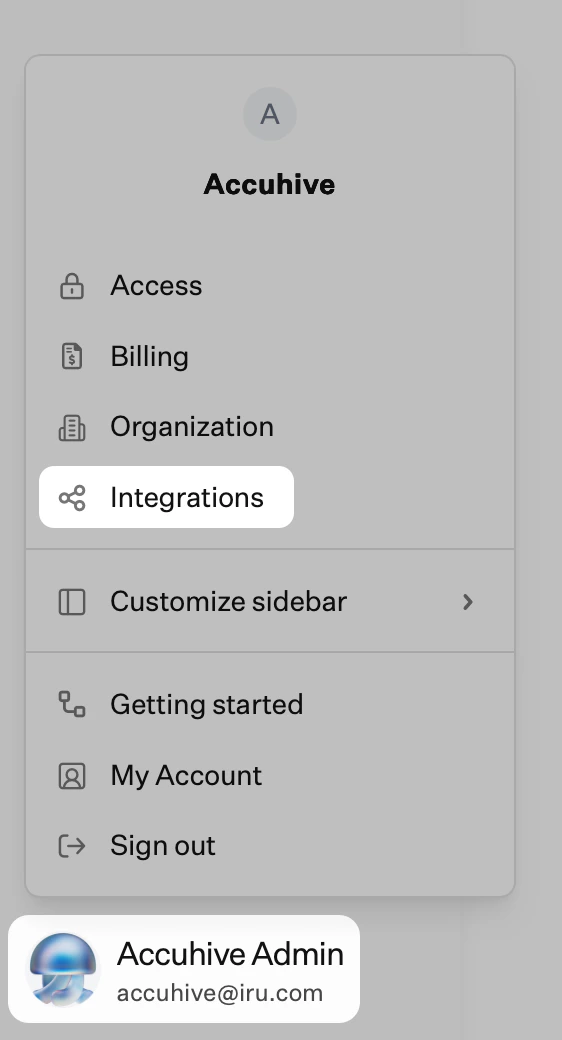
In the sidebar, click the [**Account Menu Button**](/en/iru/platform-overview/account-menu), then select **Integrations**.
 Click **Discover Integrations**.
In the Security section, find **Microsoft Device Compliance**.
Click **Add and configure**.
Review the [Prerequisites](/en/endpoint/integrations/microsoft-device-compliance/getting-started-with-microsoft-device-compliance#prerequisites) and click **Next**.
Enter your Microsoft primary domain URL on the next page and click **Sign in with Microsoft**.
Follow the Microsoft OAuth prompts and **Accept** the permissions requested by the Iru Endpoint Device Compliance enterprise app.
On the Device platforms page, select the device platforms and appropriate Microsoft user groups that will be in scope for device compliance. The selected platforms and user groups should match what was configured in Intune when [adding Iru Endpoint as a device compliance partner](/en/endpoint/integrations/microsoft-device-compliance/microsoft-device-compliance-adding-iru-endpoint-as-a-device-compliance-partner-in-intune).
Click **Next** to complete the initial setup.
You will be redirected to the MSDC integration details page, where you can see information about configured Microsoft tenants, configured device platforms, and selected user groups.
### Deleting the MSDC Integration from Iru Endpoint
Complete the following steps to delete the MSDC integration from your Iru Endpoint tenant:
In the sidebar, click the **Account Menu Button**, then select **Integrations**. Locate the Microsoft Device Compliance integration.
Click the **Action** menu.
Select **Delete Integration**.
In the modal that appears, review the provided information and select **Delete Integration**.
As part of the deletion, Iru Endpoint will send a de-provisioning request to Intune, terminating the connection between Iru Endpoint and your Microsoft Intune tenant. This will prevent any device inventory or compliance data from being sent from Iru Endpoint to Microsoft.
To add the integration back to Iru Endpoint again, follow the steps in the Configuring the MSDC Integration in Iru Endpoint section above.
### Next Steps
After the MSDC integration is connected in Iru Endpoint:
Complete [Microsoft Device Compliance: Library Item Configuration](/en/endpoint/integrations/microsoft-device-compliance/microsoft-device-compliance-library-item-configuration) for Single Sign-on profiles, the Microsoft Company Portal Auto App (macOS), or Authenticator and Self Service (iOS and iPadOS). Deploy Single Sign-on profiles first if they are not already in place—see [Single Sign-on Profiles](/en/endpoint/integrations/microsoft-device-compliance/microsoft-device-compliance-library-item-configuration#single-sign-on-profiles).
Click **Discover Integrations**.
In the Security section, find **Microsoft Device Compliance**.
Click **Add and configure**.
Review the [Prerequisites](/en/endpoint/integrations/microsoft-device-compliance/getting-started-with-microsoft-device-compliance#prerequisites) and click **Next**.
Enter your Microsoft primary domain URL on the next page and click **Sign in with Microsoft**.
Follow the Microsoft OAuth prompts and **Accept** the permissions requested by the Iru Endpoint Device Compliance enterprise app.
On the Device platforms page, select the device platforms and appropriate Microsoft user groups that will be in scope for device compliance. The selected platforms and user groups should match what was configured in Intune when [adding Iru Endpoint as a device compliance partner](/en/endpoint/integrations/microsoft-device-compliance/microsoft-device-compliance-adding-iru-endpoint-as-a-device-compliance-partner-in-intune).
Click **Next** to complete the initial setup.
You will be redirected to the MSDC integration details page, where you can see information about configured Microsoft tenants, configured device platforms, and selected user groups.
### Deleting the MSDC Integration from Iru Endpoint
Complete the following steps to delete the MSDC integration from your Iru Endpoint tenant:
In the sidebar, click the **Account Menu Button**, then select **Integrations**. Locate the Microsoft Device Compliance integration.
Click the **Action** menu.
Select **Delete Integration**.
In the modal that appears, review the provided information and select **Delete Integration**.
As part of the deletion, Iru Endpoint will send a de-provisioning request to Intune, terminating the connection between Iru Endpoint and your Microsoft Intune tenant. This will prevent any device inventory or compliance data from being sent from Iru Endpoint to Microsoft.
To add the integration back to Iru Endpoint again, follow the steps in the Configuring the MSDC Integration in Iru Endpoint section above.
### Next Steps
After the MSDC integration is connected in Iru Endpoint:
Complete [Microsoft Device Compliance: Library Item Configuration](/en/endpoint/integrations/microsoft-device-compliance/microsoft-device-compliance-library-item-configuration) for Single Sign-on profiles, the Microsoft Company Portal Auto App (macOS), or Authenticator and Self Service (iOS and iPadOS). Deploy Single Sign-on profiles first if they are not already in place—see [Single Sign-on Profiles](/en/endpoint/integrations/microsoft-device-compliance/microsoft-device-compliance-library-item-configuration#single-sign-on-profiles).