> ## Documentation Index
> Fetch the complete documentation index at: https://docs.iru.com/llms.txt
> Use this file to discover all available pages before exploring further.
# Slack Integration
> Connect Slack to Iru Endpoint for device management notifications. Receive alerts about enrollment, compliance, and device status in Slack channels.
### About the Slack Integration
The Slack Integration in Iru Endpoint allows you to receive Iru Agent and system notifications directly in Slack channels, providing centralized monitoring and alerting for your device management operations.
### How It Works
Integrate your Slack workspace with Iru Endpoint to receive [Iru Agent](/en/endpoint/agent/iru-agent-and-mdm) and Iru Endpoint System notifications inside public and private Slack channels. For more information on alerts, see our [Global Alerts](/en/endpoint/devices/global-alerts) support article.
### Creating a New Slack Integration
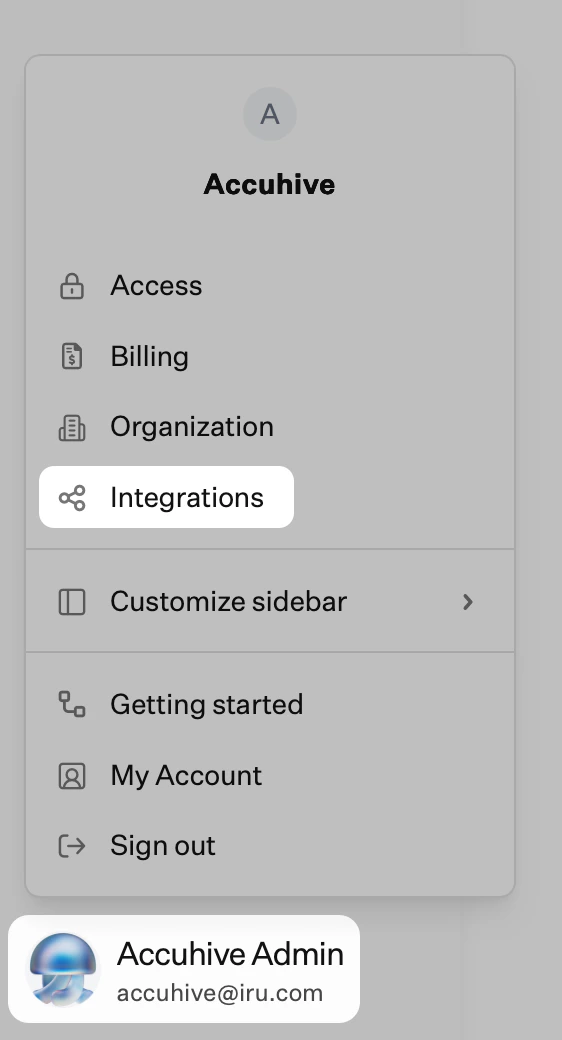
In the sidebar, click the [**Account Menu Button**](/en/iru/platform-overview/account-menu), then select **Integrations**.
 Click **Discover integrations** in the upper right corner of the Integrations page.
On the **Slack** tile, click **Add and configure**.
Click **Get started**.
If you have not already signed into a Slack workspace, enter your workspace information and click **Continue**.
If you want to use a different Slack workspace, click the menu in the upper right and select **Add another workspace**.
In the permissions dialog, click **Allow**.
A notification message near the bottom left will let you know if Slack was successfully connected.
Depending on how many channels your Slack workspace contains, it may take a while to load before you can add event notifications.
Click **Add event notification**.
Search for the Slack channel you'd like to use by typing its name or clicking the arrow to display a list of all channels. Select the checkbox next to each channel you want to send notifications to.
To send notifications to a private Slack channel, add the Iru Endpoint Slackbot to the channel before searching for it. @mention Iru Endpoint in the private Slack channel and add the app when prompted.
Enter an **Event notification name** into the field.
Select the appropriate Event triggers.
Click **Send test notification** to verify that it's working as expected.
Click **Save**.
You will see the Slack integration and event notification you just created.
Click **Add event notification** to add more event notifications.
### Changing an Existing Event Notification
Click the **ellipsis** next to the notification you would like to modify.
Select **Edit event notification**.
Modify the configuration, then click **Save** or **Cancel**.
### Deleting an Event Notification
Click the **ellipsis** next to the notification you would like to delete.
Select **Delete event notification**.
Click **Delete** to confirm you'd like to delete the notification.
### Deleting a Slack Integration
Click the **ellipsis** next to the Slack workspace you would like to delete.
Select **Delete workspace**.
Click **Delete** to confirm you'd like to delete the workspace.
### Example Notification
Below is an example of the Slack notification when a user tries to open a blocked application.
### Considerations
**Privacy and Data Processing**: Please review our privacy policy to understand how we process data as it relates to the Slack integration: [https://www.iru.com/legal/terms/](https://www.iru.com/legal/terms/)
**Private Channel Access**: To send notifications to a private Slack channel, add the Iru Endpoint Slackbot to the channel before searching for it. @mention Iru Endpoint in the private Slack channel and add the app when prompted.
**Workspace Management**: You can use multiple Slack workspaces by clicking the menu in the upper right and selecting **Add another workspace** during the sign-in process.
Click **Discover integrations** in the upper right corner of the Integrations page.
On the **Slack** tile, click **Add and configure**.
Click **Get started**.
If you have not already signed into a Slack workspace, enter your workspace information and click **Continue**.
If you want to use a different Slack workspace, click the menu in the upper right and select **Add another workspace**.
In the permissions dialog, click **Allow**.
A notification message near the bottom left will let you know if Slack was successfully connected.
Depending on how many channels your Slack workspace contains, it may take a while to load before you can add event notifications.
Click **Add event notification**.
Search for the Slack channel you'd like to use by typing its name or clicking the arrow to display a list of all channels. Select the checkbox next to each channel you want to send notifications to.
To send notifications to a private Slack channel, add the Iru Endpoint Slackbot to the channel before searching for it. @mention Iru Endpoint in the private Slack channel and add the app when prompted.
Enter an **Event notification name** into the field.
Select the appropriate Event triggers.
Click **Send test notification** to verify that it's working as expected.
Click **Save**.
You will see the Slack integration and event notification you just created.
Click **Add event notification** to add more event notifications.
### Changing an Existing Event Notification
Click the **ellipsis** next to the notification you would like to modify.
Select **Edit event notification**.
Modify the configuration, then click **Save** or **Cancel**.
### Deleting an Event Notification
Click the **ellipsis** next to the notification you would like to delete.
Select **Delete event notification**.
Click **Delete** to confirm you'd like to delete the notification.
### Deleting a Slack Integration
Click the **ellipsis** next to the Slack workspace you would like to delete.
Select **Delete workspace**.
Click **Delete** to confirm you'd like to delete the workspace.
### Example Notification
Below is an example of the Slack notification when a user tries to open a blocked application.
### Considerations
**Privacy and Data Processing**: Please review our privacy policy to understand how we process data as it relates to the Slack integration: [https://www.iru.com/legal/terms/](https://www.iru.com/legal/terms/)
**Private Channel Access**: To send notifications to a private Slack channel, add the Iru Endpoint Slackbot to the channel before searching for it. @mention Iru Endpoint in the private Slack channel and add the app when prompted.
**Workspace Management**: You can use multiple Slack workspaces by clicking the menu in the upper right and selecting **Add another workspace** during the sign-in process.