> ## Documentation Index
> Fetch the complete documentation index at: https://docs.iru.com/llms.txt
> Use this file to discover all available pages before exploring further.
# Microsoft Teams Integration
> Connect Microsoft Teams to Iru Endpoint for device management notifications. Receive alerts about enrollment, compliance, and device status in Teams channels.
### About Microsoft Teams Integration
Microsoft Teams Integration in Iru Endpoint allows you to receive Iru Agent and system notifications directly in Microsoft Teams channels, providing centralized monitoring and alerting for your device management operations.
### How It Works
Integrate Microsoft Teams with Iru Endpoint to receive [Iru Agent](/en/endpoint/agent/iru-agent-and-mdm) and Iru Endpoint System notifications inside public and private Teams channels. For more information on alerts, see our [Global Alerts](/en/endpoint/devices/global-alerts) support article.
### Creating a New Teams Integration
The administrative account used to authenticate with Microsoft should either be an owner or member of all Teams and Channels that will be added to the Teams integration and must have a valid Office 365 license assigned.
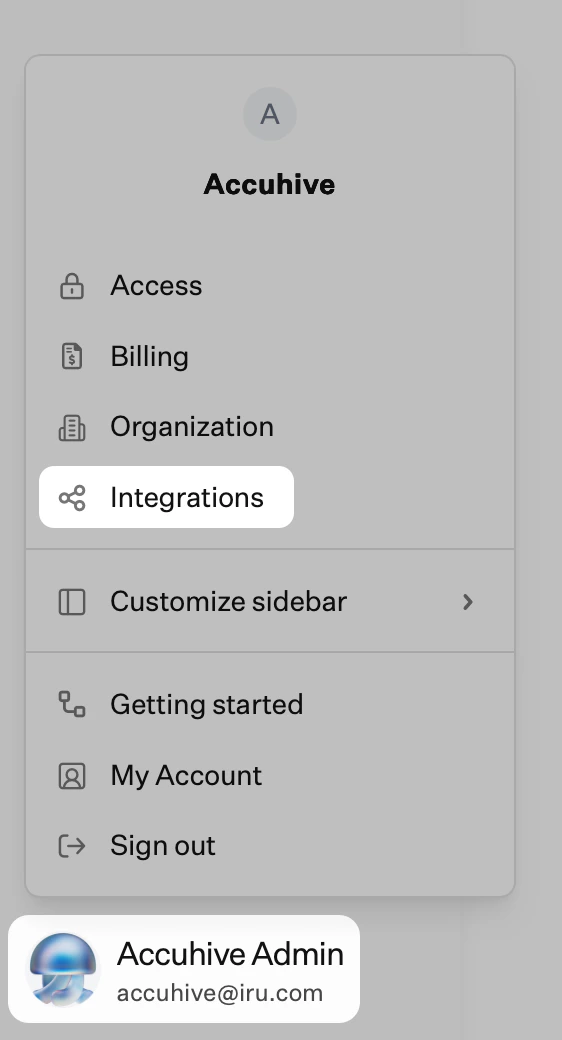
In the sidebar, click the [**Account Menu Button**](/en/iru/platform-overview/account-menu), then select **Integrations**. Click **Discover integrations**.
 Under the **Communication** section, find Microsoft Teams and click **Add and configure**.
In the Welcome to Teams modal, click **Get started**.
In the Sign in with Microsoft Teams modal, click **Sign in with Microsoft**.
In the web browser, enter Microsoft admin credentials and click **yes** to approve the application permissions.
Once the connection is established, you will be redirected back to the Teams integration, where you can **Create event notifications** or choose to set up event notifications later. If you choose to **Set this up later**, you will be taken back to the Teams integration details page.
In the Team & channels modal, **select a Team** and **specify one or more channels** where notifications should be sent and click **Next**.
In the Set up event notifications modal, toggle the events that should trigger a notification and click **Next**. Event triggers can be edited later from the Teams integration details page.
In the Event notification details modal, enter a name to describe the event notification and click **Next**.
In the Test notification modal, you can choose to **Send a test notification** or click **Done** to complete the setup. The test message should be delivered to the Teams **channel(s)** selected earlier.
Once back at the Teams integration details page, you can see the new notification you created along with the Team, selected Channels, and the number of Event triggers chosen.
### Adding Additional Teams Event Notifications
Once the initial integration setup is complete, additional notifications can be added from the Microsoft Teams integration overview page.
From the Microsoft Teams integration details page, click **Add event notification**.
Once the **Add event notification** drawer appears, select a **Team** and **Channel**, give the notification a name, select desired **Triggers** for the new notification, and click **Done**. The Team must be selected before the related Channels will be available as a selection.
### Editing a Notification
To edit a Teams notification, select the contextual menu (…) to the right of the notification and click **Edit event notification**.
From there, the notification drawer will appear, where you can make changes to the notification. Make sure to click **Done** to save your edits.
### Deleting an Integration or Notification
Deletion is permanent and is not reversible.
#### Deleting Entire Integration
Select the contextual menu (…) in the upper right-hand corner to delete the entire Teams integration and click **Delete integration**.
From there, a confirmation modal will appear, displaying what will be removed once the **Delete** button is clicked.
#### Deleting Individual Notification
To delete an individual notification, select the contextual menu (…) to the right of the notification and click **Delete event notification**.
A confirmation modal will appear, asking you to confirm the action by clicking the **Delete** button.
### Considerations
**Administrative Requirements**: The administrative account used to authenticate with Microsoft must be an owner or member of all Teams and Channels that will be added to the integration and must have a valid Office 365 license assigned.
**Channel Access**: To send notifications to private Teams channels, ensure the Iru Endpoint bot has been added to those channels with appropriate permissions.
**Event Triggers**: Event triggers can be edited after initial setup from the Teams integration details page. You can modify which events trigger notifications without recreating the integration.
**Deletion Warning**: Deletion of integrations or notifications is permanent and cannot be reversed. Ensure you have backups of any important notification configurations before deletion.
**Testing**: Always use the test notification feature to verify that notifications are being delivered to the correct Teams channels before relying on the integration for production monitoring.
Under the **Communication** section, find Microsoft Teams and click **Add and configure**.
In the Welcome to Teams modal, click **Get started**.
In the Sign in with Microsoft Teams modal, click **Sign in with Microsoft**.
In the web browser, enter Microsoft admin credentials and click **yes** to approve the application permissions.
Once the connection is established, you will be redirected back to the Teams integration, where you can **Create event notifications** or choose to set up event notifications later. If you choose to **Set this up later**, you will be taken back to the Teams integration details page.
In the Team & channels modal, **select a Team** and **specify one or more channels** where notifications should be sent and click **Next**.
In the Set up event notifications modal, toggle the events that should trigger a notification and click **Next**. Event triggers can be edited later from the Teams integration details page.
In the Event notification details modal, enter a name to describe the event notification and click **Next**.
In the Test notification modal, you can choose to **Send a test notification** or click **Done** to complete the setup. The test message should be delivered to the Teams **channel(s)** selected earlier.
Once back at the Teams integration details page, you can see the new notification you created along with the Team, selected Channels, and the number of Event triggers chosen.
### Adding Additional Teams Event Notifications
Once the initial integration setup is complete, additional notifications can be added from the Microsoft Teams integration overview page.
From the Microsoft Teams integration details page, click **Add event notification**.
Once the **Add event notification** drawer appears, select a **Team** and **Channel**, give the notification a name, select desired **Triggers** for the new notification, and click **Done**. The Team must be selected before the related Channels will be available as a selection.
### Editing a Notification
To edit a Teams notification, select the contextual menu (…) to the right of the notification and click **Edit event notification**.
From there, the notification drawer will appear, where you can make changes to the notification. Make sure to click **Done** to save your edits.
### Deleting an Integration or Notification
Deletion is permanent and is not reversible.
#### Deleting Entire Integration
Select the contextual menu (…) in the upper right-hand corner to delete the entire Teams integration and click **Delete integration**.
From there, a confirmation modal will appear, displaying what will be removed once the **Delete** button is clicked.
#### Deleting Individual Notification
To delete an individual notification, select the contextual menu (…) to the right of the notification and click **Delete event notification**.
A confirmation modal will appear, asking you to confirm the action by clicking the **Delete** button.
### Considerations
**Administrative Requirements**: The administrative account used to authenticate with Microsoft must be an owner or member of all Teams and Channels that will be added to the integration and must have a valid Office 365 license assigned.
**Channel Access**: To send notifications to private Teams channels, ensure the Iru Endpoint bot has been added to those channels with appropriate permissions.
**Event Triggers**: Event triggers can be edited after initial setup from the Teams integration details page. You can modify which events trigger notifications without recreating the integration.
**Deletion Warning**: Deletion of integrations or notifications is permanent and cannot be reversed. Ensure you have backups of any important notification configurations before deletion.
**Testing**: Always use the test notification feature to verify that notifications are being delivered to the correct Teams channels before relying on the integration for production monitoring.