> ## Documentation Index
> Fetch the complete documentation index at: https://docs.iru.com/llms.txt
> Use this file to discover all available pages before exploring further.
# Enrolling Apple TV Devices
> Enroll and manage Apple TV devices in Iru Endpoint using Automated Device Enrollment. Configure ADE profiles and deploy configurations to tvOS devices.
This guide applies to Apple TV
Iru Endpoint can only manage tvOS devices if they are assigned to Iru Endpoint in your Apple Business or Apple School Manager account. If your Apple TV is not listed there, [follow these steps](https://support.apple.com/en-us/HT208124).
Enrollment occurs during the initial setup of an Apple TV. Devices that are already past the initial setup screen must be erased to enroll.
## Assign Apple TV Devices to Iru Endpoint
Sign in to [Apple Business](https://business.apple.com) or [Apple School Manager](https://school.apple.com).
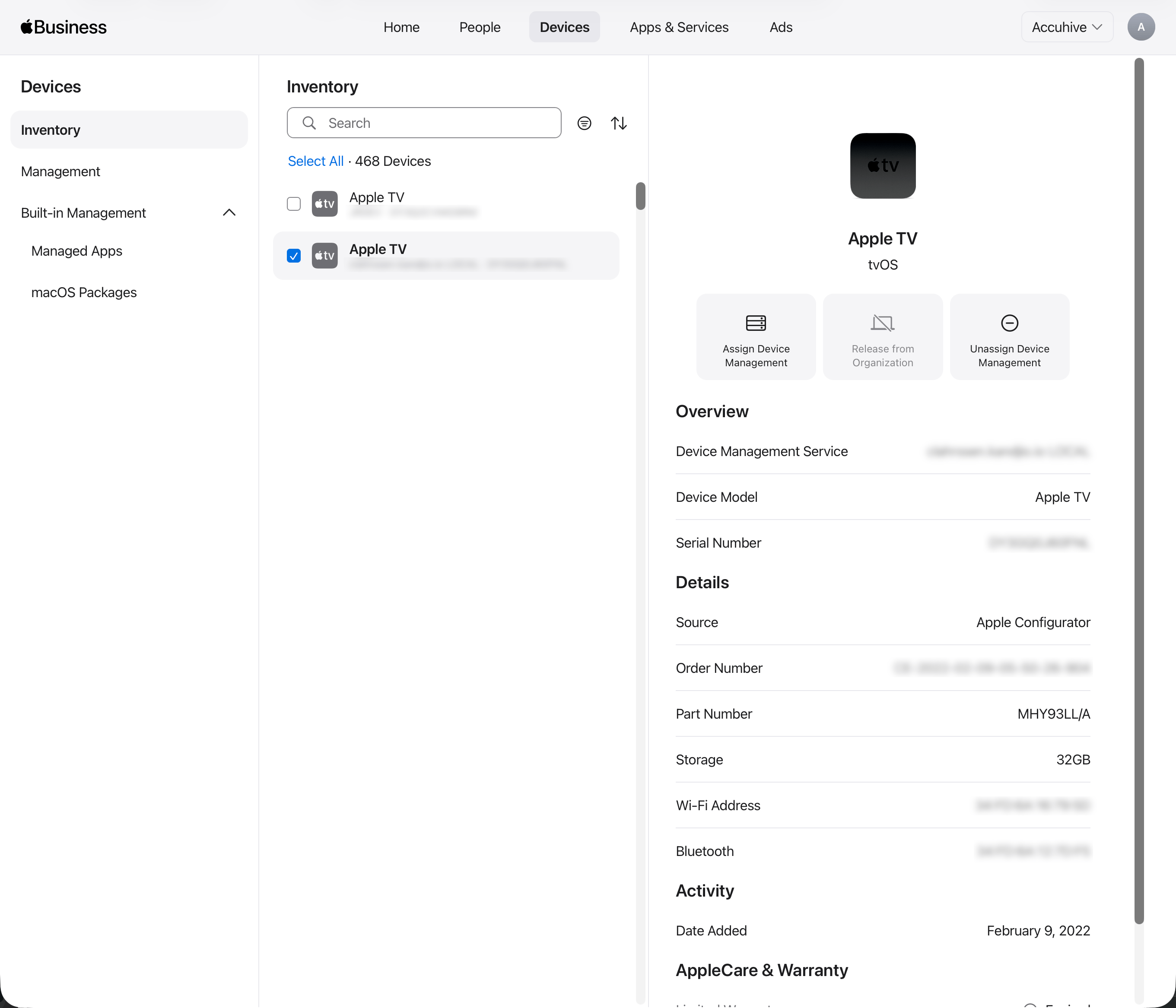
Click the **Devices** tab at the top middle of the page.
Search for a device in the search field.
Select the device from the list.
Click **Assign Device Management**.
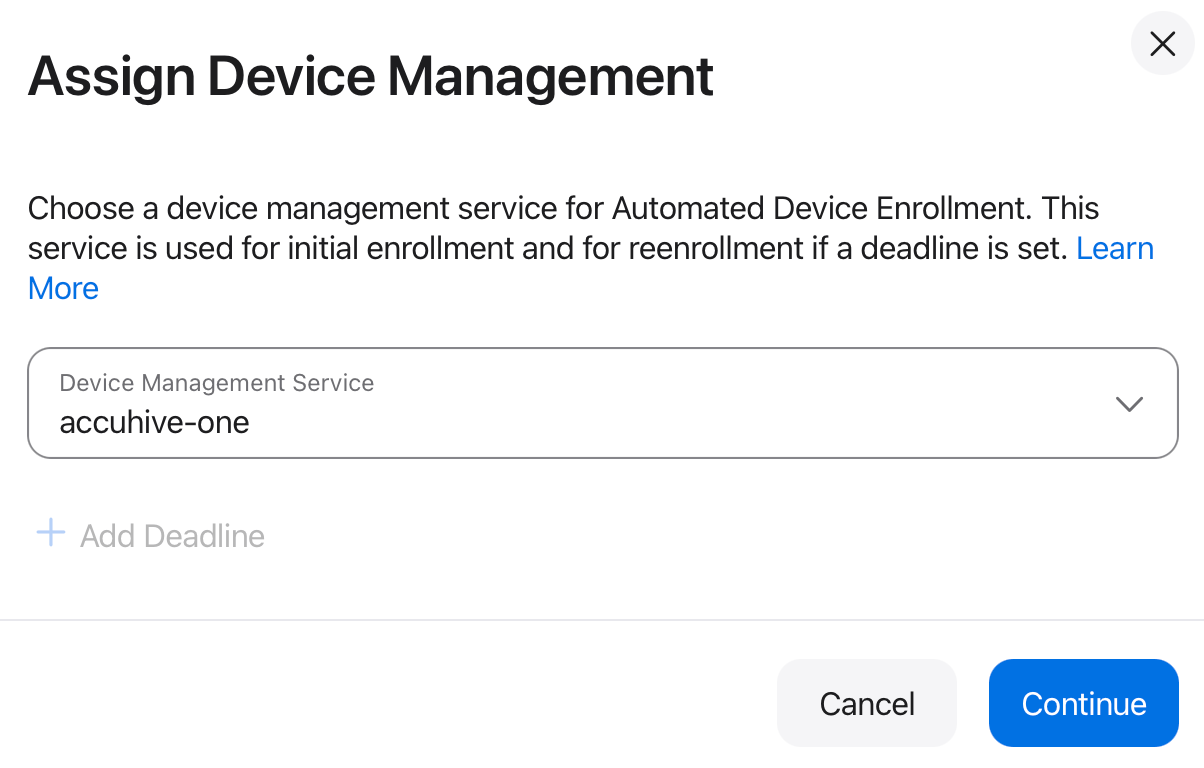
 Click **Assign to the following MDM** and choose the Iru Endpoint server you created when enabling MDM with Iru Endpoint.
Select **Continue**.
Click **Assign to the following MDM** and choose the Iru Endpoint server you created when enabling MDM with Iru Endpoint.
Select **Continue**.
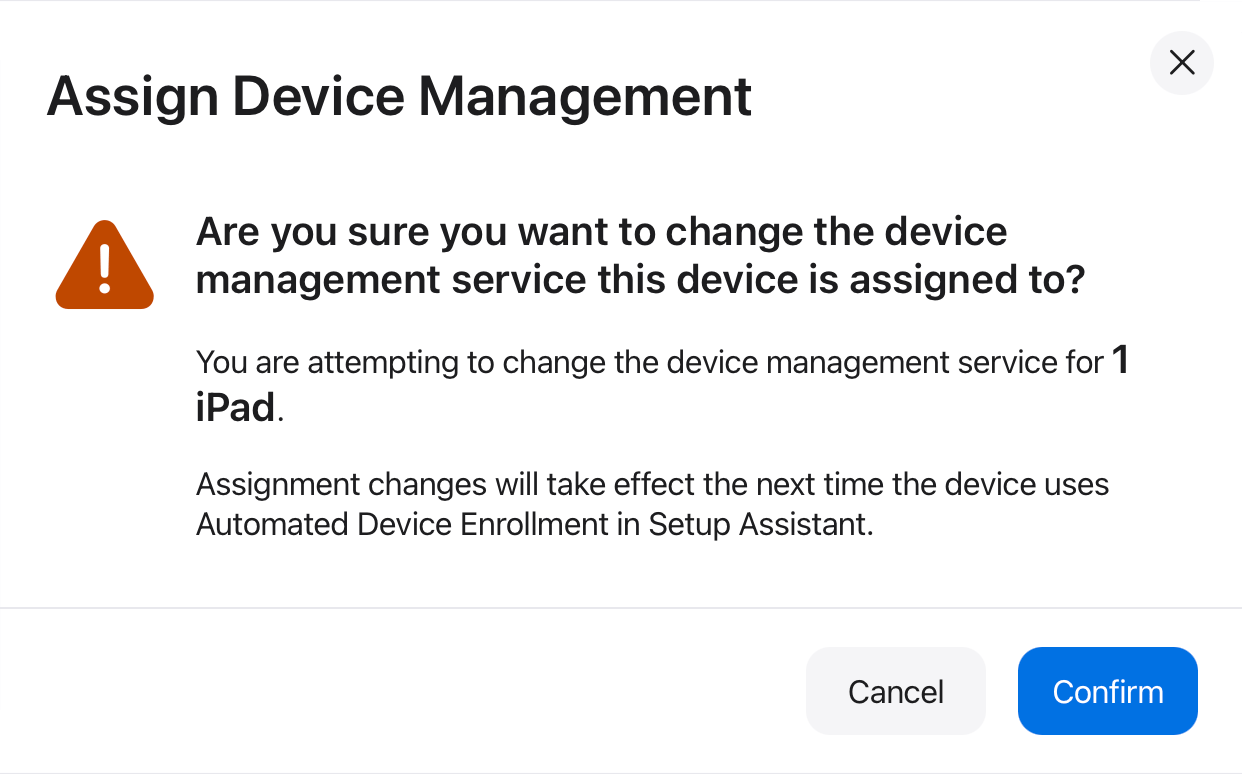
 **Confirm** that you want to change the MDM server the device is assigned to.
 ## Set Default MDM Server Assignment
In Apple Business or Apple School Manager, click the **Devices** tab at the top middle of the page.
In the left sidebar, click **Management**.
Under **Management Services**, click **Automatically assign devices to your preferred device management service**.
## Set Default MDM Server Assignment
In Apple Business or Apple School Manager, click the **Devices** tab at the top middle of the page.
In the left sidebar, click **Management**.
Under **Management Services**, click **Automatically assign devices to your preferred device management service**.
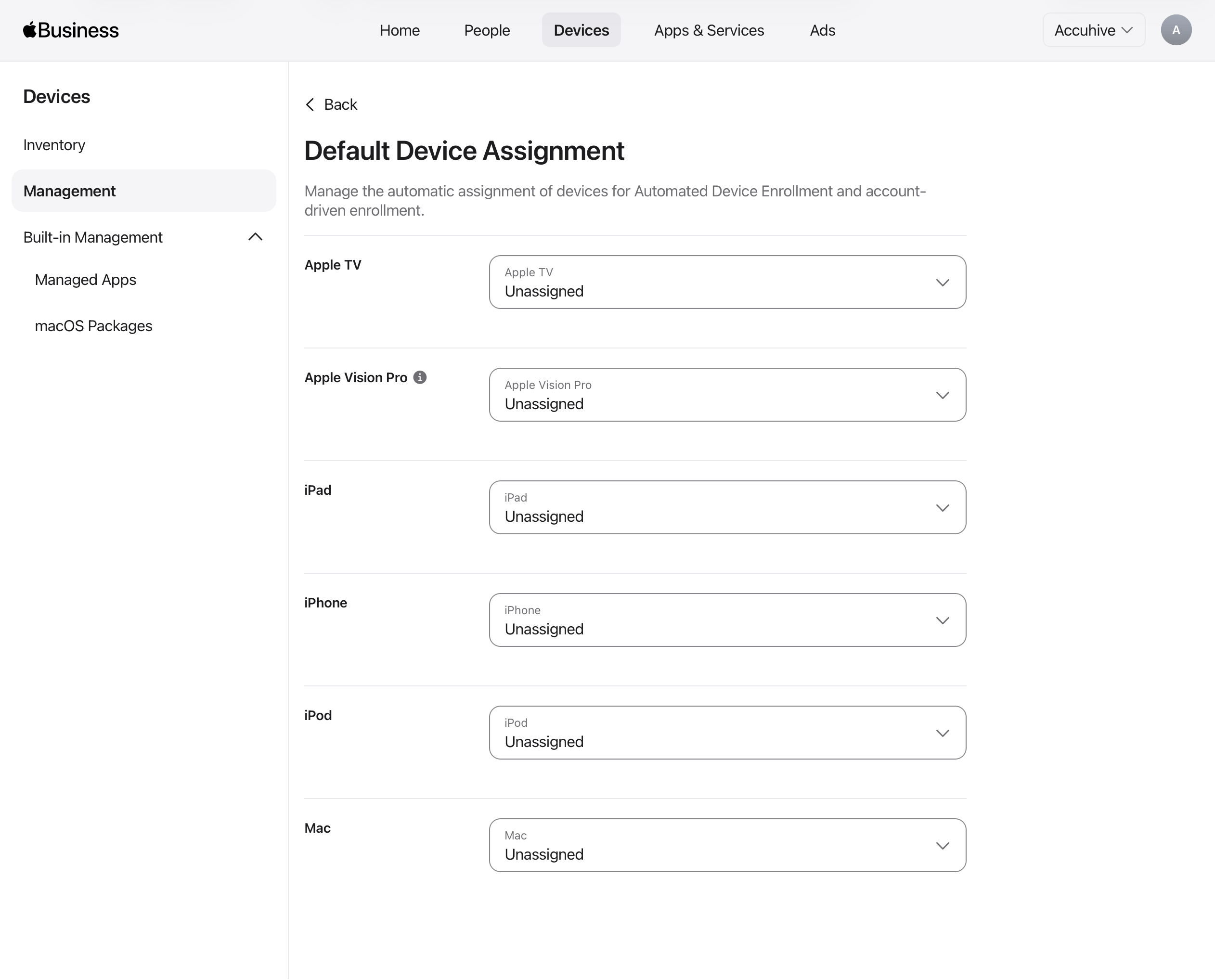
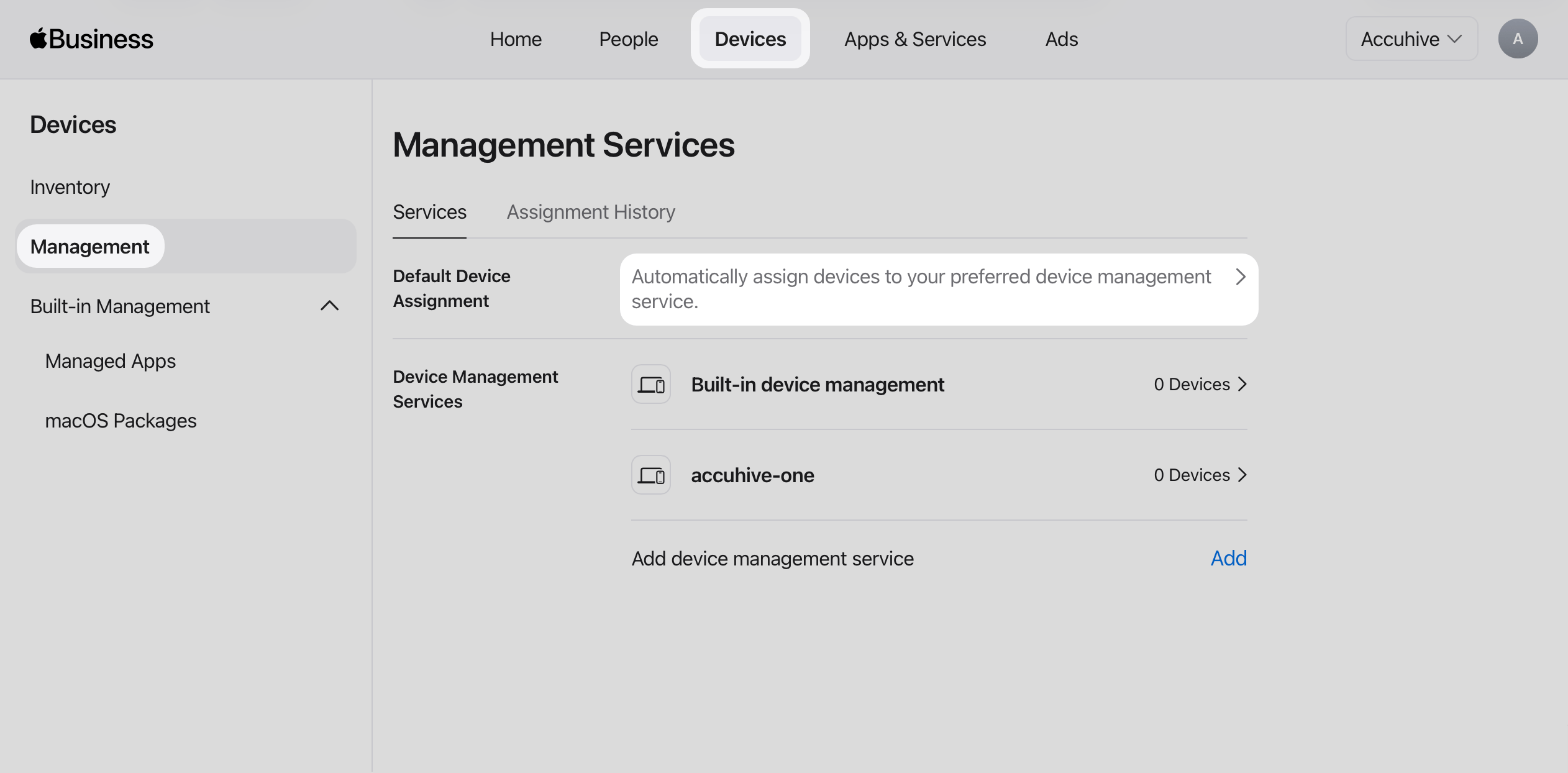 On the **Default Device Assignment** page, for **Apple TV**, choose the Iru Endpoint device management service you use for MDM.
 ## Confirm Apple TV Devices in Iru Endpoint
In the Iru Endpoint Web App, click **Enrollment** in the left-hand navigation.
On the **Enrollment** page, select the **Automated Device Enrollment** tab.
Confirm that you see the Apple TV device(s) that you assigned from Apple Business or Apple School Manager. If you don't see the Apple TV device(s), click the **Fetch devices** button.
To learn how to configure Auto Advance for Apple TV, see [Configure Auto Advance for Apple TV and Mac](/en/endpoint/devices/device-features/apple/configure-auto-advance-for-apple-tv-and-mac).
## Confirm Apple TV Devices in Iru Endpoint
In the Iru Endpoint Web App, click **Enrollment** in the left-hand navigation.
On the **Enrollment** page, select the **Automated Device Enrollment** tab.
Confirm that you see the Apple TV device(s) that you assigned from Apple Business or Apple School Manager. If you don't see the Apple TV device(s), click the **Fetch devices** button.
To learn how to configure Auto Advance for Apple TV, see [Configure Auto Advance for Apple TV and Mac](/en/endpoint/devices/device-features/apple/configure-auto-advance-for-apple-tv-and-mac).