> ## Documentation Index
> Fetch the complete documentation index at: https://docs.iru.com/llms.txt
> Use this file to discover all available pages before exploring further.
# Device Enrollment Profile Status
> Monitor device enrollment profile status for Apple devices in Iru Endpoint. Troubleshoot pending, failed, or stuck enrollment profiles and MDM assignments.
This guide applies to Apple devices
## What is a Device Enrollment Profile?
Iru Endpoint links a specific profile to devices within your Apple Business or Apple School Manager account via Apple's Device Assignment Services API to enable Automated Device Enrollment. Once Iru Endpoint assigns a profile, the device is ready for streamlined, automatic setup.
## Device Enrollment Profile Statuses
| **Status** | **Meaning** |
| ---------- | ------------------------------------------------------------------------------------------------------------------- |
| Pending | The Device Enrollment profile will be assigned shortly; please refresh the page in a moment. |
| Assigned | The Device Enrollment profile for the current Blueprint has been assigned. |
| Pushed | The Device Enrollment profile was pushed to the device during the enrollment, and the device is currently enrolled. |
| Failed | The Device Enrollment profile has failed to assign; please contact Iru Support. |
## Check Device Enrollment Status
Before attempting to enroll a device through Automated Device Enrollment, check the status in the Automated Device Enrollment section in your Iru Endpoint web app.
Click **Enrollment** in the left-hand navigation.
If not already selected, choose **Automated Device Enrollment**.
In the upper right-hand corner, select **Awaiting Enrollment** or **All**.
The **Profile** column shows the status of the Automated Device Enrollment profile assigned to the device.
The **Assigned to Iru Endpoint** column displays the date and time when the enrollment status was set.
The Awaiting Enrollment status means that a device is not currently enrolled with Iru Endpoint, but is ready to be enrolled through Automated Device Enrollment.
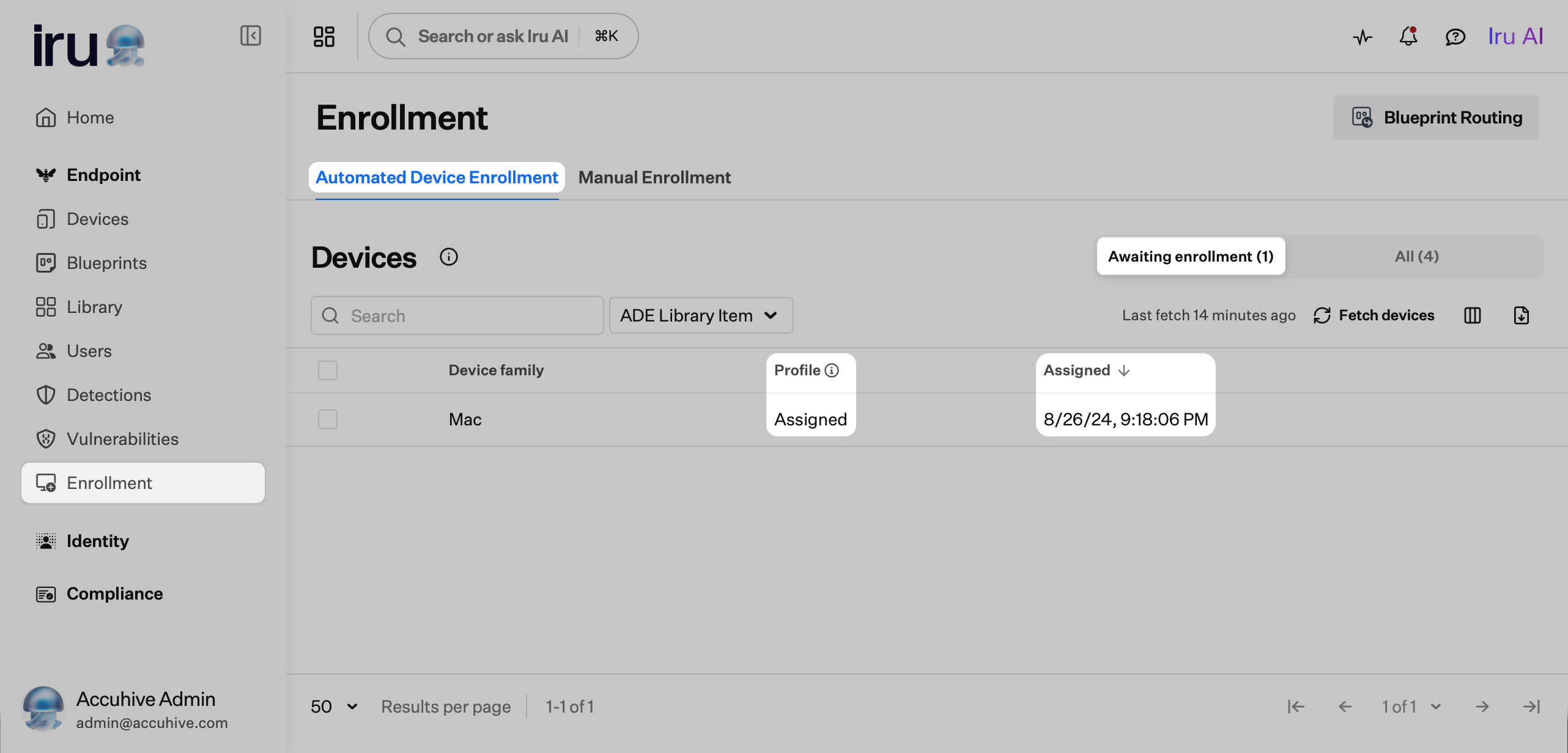 ### Last Fetch
The Last Fetch date and time shown above the Profile column is the last time Iru Endpoint received updated Automated Device Enrollment information from Apple Business or Apple School Manager.
## Timing Considerations
When Apple devices connect to the internet during Setup Assistant, they contact Apple to determine if they have a Device Enrollment profile pending. If the device does not have a profile pending at that time, it can be set up as if it were a consumer Apple device.
Before connecting your devices to the internet during Setup Assistant, ensure that:
* You have [assigned your devices to Iru Endpoint via Apple Business or Apple School Manager](/en/endpoint/getting-started/enrollment/apple-enrollment)
* You see the "Assigned" status for the applicable devices in Iru Endpoint
If the above conditions aren't met, the device(s) in question may fail to enroll into Iru Endpoint via Automated Device Enrollment.
### Last Fetch
The Last Fetch date and time shown above the Profile column is the last time Iru Endpoint received updated Automated Device Enrollment information from Apple Business or Apple School Manager.
## Timing Considerations
When Apple devices connect to the internet during Setup Assistant, they contact Apple to determine if they have a Device Enrollment profile pending. If the device does not have a profile pending at that time, it can be set up as if it were a consumer Apple device.
Before connecting your devices to the internet during Setup Assistant, ensure that:
* You have [assigned your devices to Iru Endpoint via Apple Business or Apple School Manager](/en/endpoint/getting-started/enrollment/apple-enrollment)
* You see the "Assigned" status for the applicable devices in Iru Endpoint
If the above conditions aren't met, the device(s) in question may fail to enroll into Iru Endpoint via Automated Device Enrollment.