> ## Documentation Index
> Fetch the complete documentation index at: https://docs.iru.com/llms.txt
> Use this file to discover all available pages before exploring further.
# Testing EDR malware detection
> Test and validate malware detection in Iru EDR on macOS and Windows using the EICAR test file and confirm Detect and Protect posture behavior.
This guide applies to Mac computers and Windows devices
### About Malware Detection Testing
The EICAR (European Institute for Computer Anti-Virus Research) test file provides a safe, standardized way to validate that Iru Endpoint EDR is deployed correctly. The EICAR test file is non-malicious and designed to trigger anti-malware systems without posing a security risk. For more information, visit [EICAR's Anti-Malware Test File](https://www.eicar.org/download-anti-malware-testfile/) page.
### How It Works
Malware detection testing using the EICAR test file validates that Iru Endpoint EDR is functioning correctly on enrolled devices. The test file triggers file-based detection in both **Detect** and **Protect** posture modes, allowing you to confirm reporting and quarantine behavior.
### Prerequisites
* **EDR Library Item deployment**: Confirm the EDR Library Item has been applied to the device. A green dot should appear next to the EDR Library Item in the **Status** tab of the Device Record.
### Create the EICAR Test File
#### Option 1: Download Using Terminal
Open Terminal.
Run the following command to download the EICAR test file directly from EICAR onto your Desktop:
```bash theme={null}
curl "https://secure.eicar.org/eicar.com" -s -o ~/Desktop/eicar_test
```
#### Option 2: Manually Build the EICAR Test File
Create a new empty text file using a text editor such as VS Code or Sublime Text.
You can also use TextEdit, but you will need to set it to use plain text format. Choose **Format > Make Plain Text**, or press **Shift-Command-T**, so the file stays plain text before you add the EICAR string.
Copy and paste the following string into the text file:
```text theme={null}
X5O!P%@AP[4\PZX54(P^)7CC)7}$EICAR-STANDARD-ANTIVIRUS-TEST-FILE!$H+H*
```
Save the text file to the Desktop on your Mac and name the file **eicar\_test**.
#### Expected Results
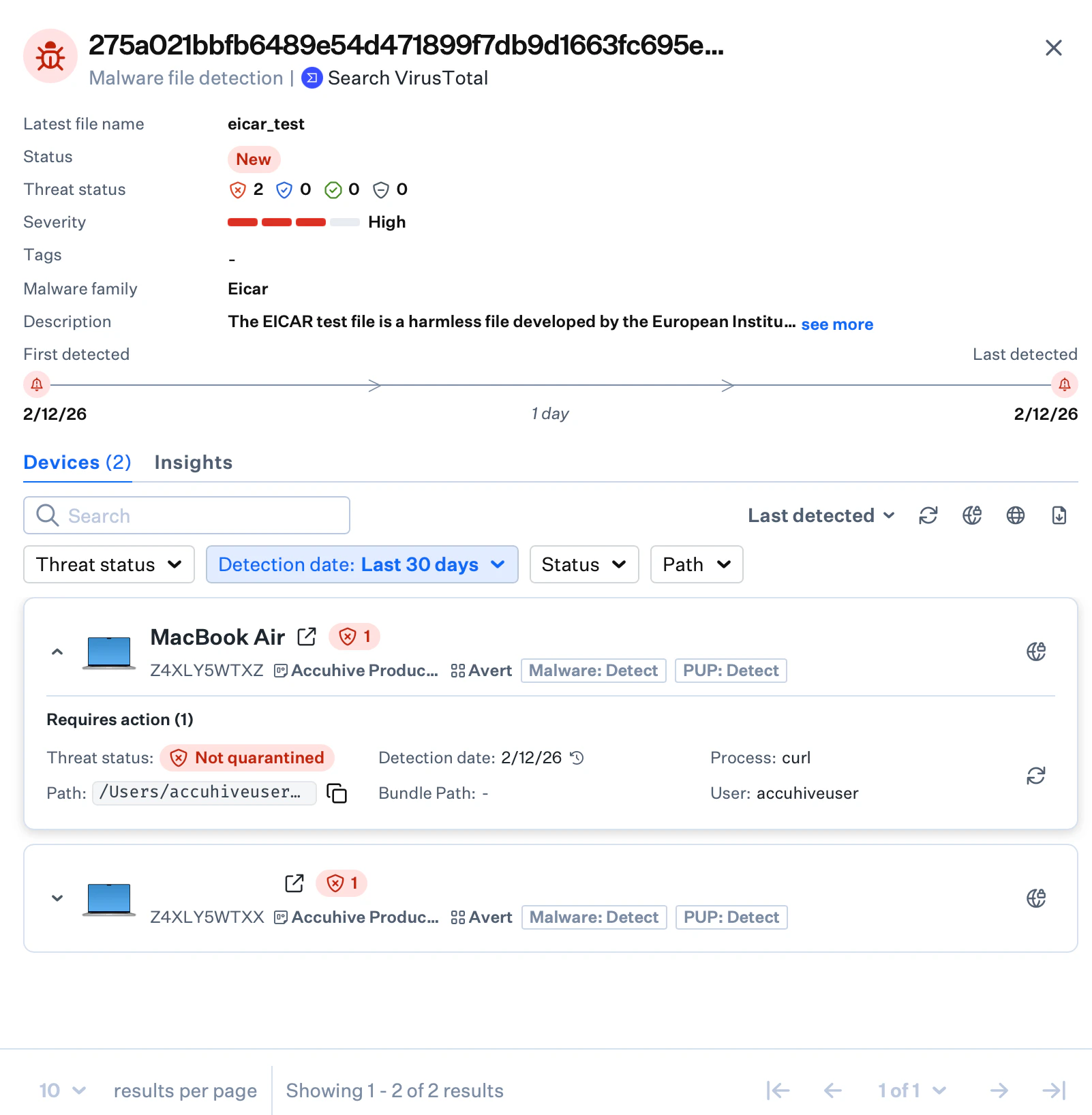
In **Detect** mode, Iru Endpoint EDR detects the EICAR test file and reports it with a status of **Not quarantined** on the **Detections** page (under **Endpoint** in the left-hand navigation) and in the **Detections** tab of the Device Record.
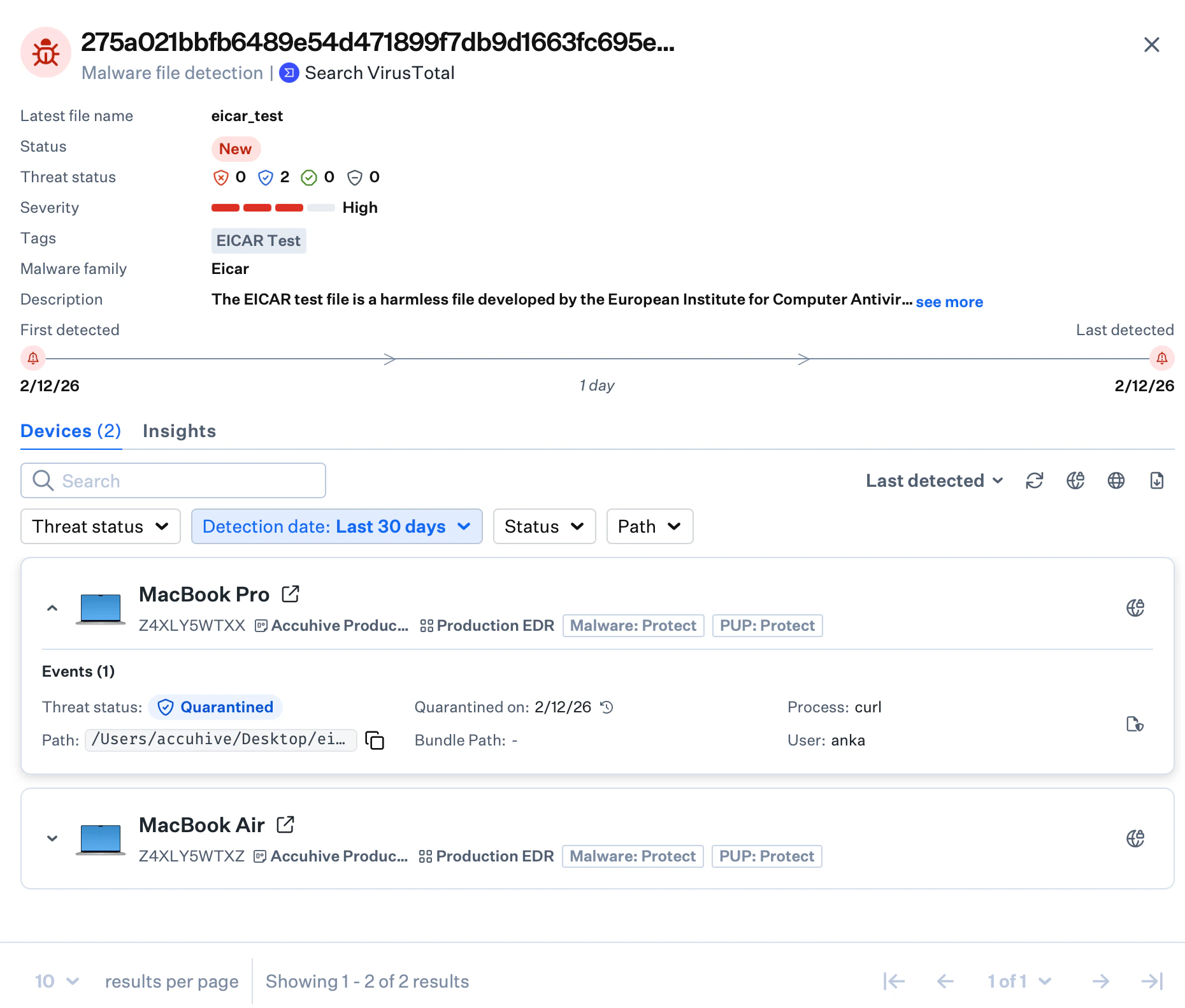
 In **Protect** mode, Iru Endpoint EDR detects and automatically quarantines the EICAR test file within seconds of making the file executable (for example, run `chmod +x ~/Desktop/eicar_test`), reporting it with a status of **Quarantined** on the **Detections** page and in the **Detections** tab of the Device Record.
 If Windows Defender is installed and active on the test device, it may detect and capture the EICAR file before Iru EDR does. Consider adjusting Defender settings for controlled testing, or interpret results in that context.
The device must run **Windows 11 24H2 or 25H2**.
### Create the EICAR Test File
On an enrolled Windows device, open a plain text editor such as Notepad.
Copy and paste the following exact string into the file:
```text theme={null}
X5O!P%@AP[4\PZX54(P^)7CC)7}$EICAR-STANDARD-ANTIVIRUS-TEST-FILE!$H+H*
```
Save the file to your Desktop as **`eicar_test.txt`** or **`eicar_test.com`**.
#### Expected Results
Windows EDR uses **Detect** mode only. It detects the EICAR test file and reports it as **Not quarantined** on the **Detections** page and in the **Detections** tab of the Device Record.
The 68-character EICAR string is the standard Anti-Malware Test File contents.
Admins can view detected threats, quarantine actions, and security events on the **Detections** page in the Iru Endpoint Web App.
### Considerations
* **Safe testing**: The EICAR test file is completely safe and designed specifically for anti-malware validation
* **Posture mode testing**: Test both Detect and Protect modes to confirm your EDR Library Item settings
* **Status verification**: Verify threat status in both the Detections module and individual device records
* **macOS Protect mode**: Quarantine occurs after the EICAR file is made executable
* **Windows Defender**: Account for Microsoft Defender behavior when interpreting test results on Windows
* **Regular testing**: Include EICAR testing in periodic security validation procedures
* **Documentation**: Record test results as part of compliance and audit documentation
If Windows Defender is installed and active on the test device, it may detect and capture the EICAR file before Iru EDR does. Consider adjusting Defender settings for controlled testing, or interpret results in that context.
The device must run **Windows 11 24H2 or 25H2**.
### Create the EICAR Test File
On an enrolled Windows device, open a plain text editor such as Notepad.
Copy and paste the following exact string into the file:
```text theme={null}
X5O!P%@AP[4\PZX54(P^)7CC)7}$EICAR-STANDARD-ANTIVIRUS-TEST-FILE!$H+H*
```
Save the file to your Desktop as **`eicar_test.txt`** or **`eicar_test.com`**.
#### Expected Results
Windows EDR uses **Detect** mode only. It detects the EICAR test file and reports it as **Not quarantined** on the **Detections** page and in the **Detections** tab of the Device Record.
The 68-character EICAR string is the standard Anti-Malware Test File contents.
Admins can view detected threats, quarantine actions, and security events on the **Detections** page in the Iru Endpoint Web App.
### Considerations
* **Safe testing**: The EICAR test file is completely safe and designed specifically for anti-malware validation
* **Posture mode testing**: Test both Detect and Protect modes to confirm your EDR Library Item settings
* **Status verification**: Verify threat status in both the Detections module and individual device records
* **macOS Protect mode**: Quarantine occurs after the EICAR file is made executable
* **Windows Defender**: Account for Microsoft Defender behavior when interpreting test results on Windows
* **Regular testing**: Include EICAR testing in periodic security validation procedures
* **Documentation**: Record test results as part of compliance and audit documentation